# Push notifications
Send push notifications to your App and Web channels.
## About push notifications
Push notifications are banner alerts that can contain many other kinds of data such as images, sounds, badge updates, buttons, and more. App push notifications target mobile devices, while web push notifications target users' web browsers.
Mobile app push notifications help you:
* Alert users when they are not in the app
* Pass extra data to users for marketing/segmentation use
* Keep users engaged with your app
**Use cases:**
* Breaking news
* Score updates
* Transaction confirmation
* Social interactions
* New content available
You can combine mobile app push notification with an [In-App Message](https://www.airship.com/docs/reference/glossary/#in_app_message) and/or [Message Center](https://www.airship.com/docs/reference/glossary/#message_center) message. When combining a push notification and Message Center, Airship sends the Message Center message to both opted-in and opted-out devices.
Reach users on the web without developing an app. Any user with access to a web browser can receive your notifications. If you do have an app, however, you can use web as an additional channel to engage your audience.
Airship supports web push notifications on:
- Desktop: Google Chrome, Mozilla Firefox, Microsoft Edge, Opera, and Safari (v16 and above)
- Android Mobile: Google Chrome, Mozilla Firefox, Opera
- iOS and iPadOS Mobile: Safari (iOS and iPadOS 16.4 and above, as a standalone web app)
### Silent push notifications
A *silent push notification* is a message that wakes a mobile app for processing without appearing on the device or producing sound or vibration. Silent push notifications are useful for performing background tasks such as sending custom keys, updating the app's badge icon, fetching remote content, and enabling new features.
For more information, see [Silent Notifications](https://www.airship.com/docs/developer/sdk-integration/apple/push-notifications/getting-started/#silent-notifications) for iOS and [Silent Notifications](https://www.airship.com/docs/developer/sdk-integration/android/push-notifications/getting-started/#silent-notifications) for Android.
You can send silent push notifications using Sequences and the Message and Automation composers. You cannot combine a silent push notification with any other message type.
> **Note:** When targeting Android devices, Airship sends messages to both opted-in and opted-out devices. Regular notifications are sent to opted-in devices and silent push notifications are sent to opted-out devices. Both silent and alerting sends appear in the message report.
## Appearance and behavior
App and web push notifications are displayed upon receipt and require text content and support adding buttons, a title, and media. Details and differences are described for each in the next sections.
### App push notifications
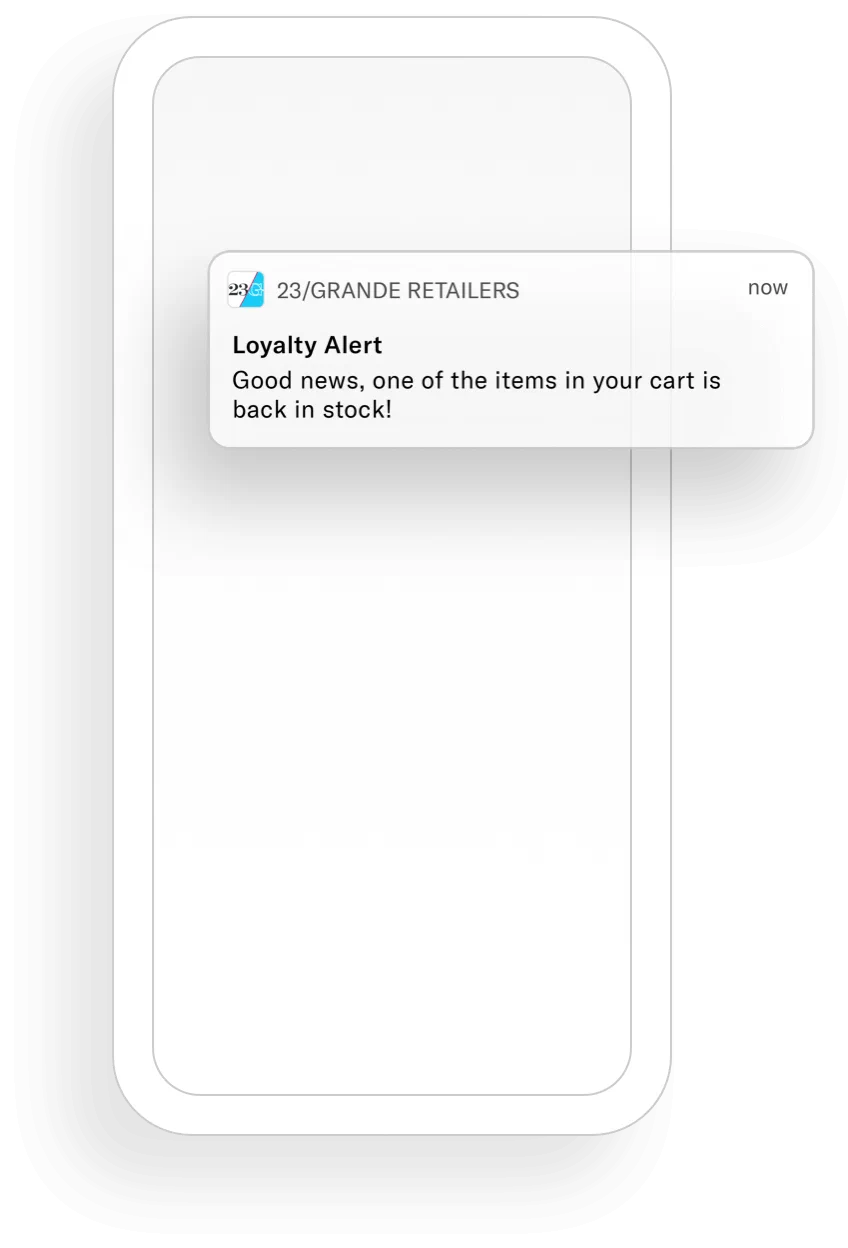
*A mobile app push notification*
Push notifications are in banner format and can appear on any screen on a device. They are not [Persistent](https://www.airship.com/docs/reference/glossary/#persistent).
Every push notification requires text, and you can also add optional features:
* **Buttons** — You can add one or two buttons.
* **Title** — This is a heading that appears above the notification text in:
* iOS Notification Center
* Apple Watch Looks
* Android and Fire OS Notification Area/Drawer
* **Media** — See [Push notifications](https://www.airship.com/docs/reference/messages/media-guidelines/#push-notifications) in *Media guidelines*.
* **Summary** — This is supplemental text displayed with the notification. The position varies per platform.
### Web push notifications
A web push notification appears as a toast, sliding into the top right or bottom left corner of your audience's web browser (depending on the browser). Depending on the operating system, they may also be delivered to the OS Notification Center. For example, on macOS all web notifications are visible from within the Notification Center, regardless of which browser they come from.
They are displayed upon receipt as long as the browser is open. Safari web notifications are handled by macOS, so they may also be handled by Notification Center preferences.
On a mobile device, web push notifications appear and behave similarly to a mobile push notification.
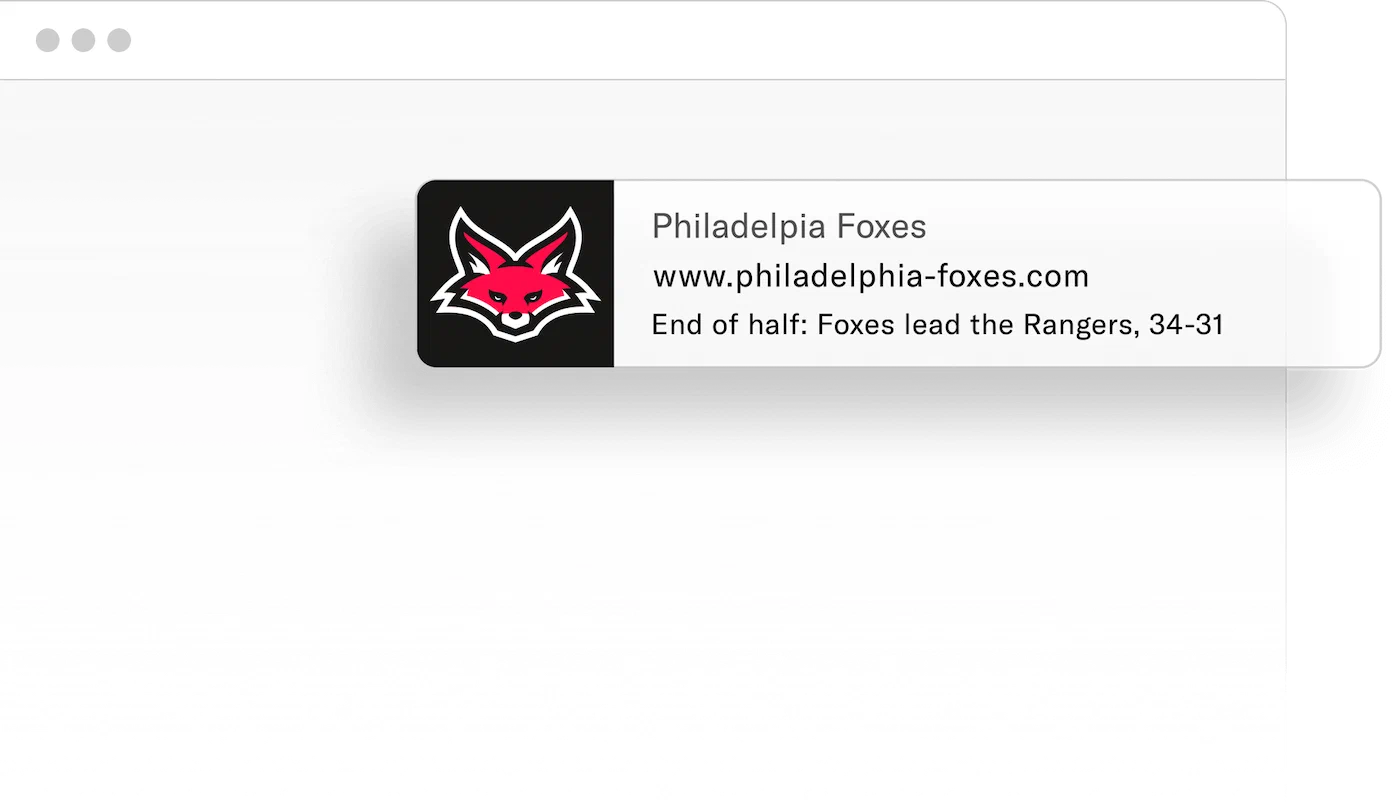
*A web push notification*
Every web push notification requires text, and you can also add optional features:
* **Buttons** — You can add one or two buttons.
* **Title** — This heading appears above the notification text in:
* iOS Notification Center
* Android and Fire OS Notification Area/Drawer
You define a default title for all of your project's web messages when configuring the web channel for your project, and you can override the title per message.
* **Media** — Add an image that will appear in web messages in Chrome and Opera browsers on Windows and Android platforms.
* **Icon** — This image is included in all web messages. You define a default icon for all of your project's web messages when configuring the web channel for your project, and you can override the icon per message.
## Getting started with push notifications
Follow these steps to start using mobile app push notifications with Airship:
* **Configure mobile channels in your project settings** See [Configuring Mobile Channels](https://www.airship.com/docs/guides/getting-started/developers/configure-channels/) in the Getting Started guide.
* **Integrate the Mobile SDK with your app** See [SDK setup](https://www.airship.com/docs/sdk-topics/setup/) for mobile apps in our developer documentation.
Follow these steps to start using web push notifications with Airship:
* **Configure the Web channel in your project settings.**
* **Integrate the Web SDK with your website.**See [Getting Started for the Web SDK](https://www.airship.com/docs/developer/sdk-integration/web/getting-started/) in our developer documentation.
Once your project is set up, you can start creating [mobile app push notification content](https://www.airship.com/docs/guides/messaging/messages/content/app/push-notifications/) and [Web push notification content](https://www.airship.com/docs/guides/messaging/messages/content/web/).