# In-App Messages
Send banner-style in-app messages to your App channel, including users who haven't opted in to push.
## About in-app messages
You can send in-app messages to your entire app audience, not just users who have opted in to push notifications. Use in-app messages to:
* Engage with users as they browse your app
* Reach users opted out of push notifications or may not have seen your push notification
* Reach users who saw your notification but opened the app without interacting with it
**Use cases:**
- Welcome messages — Communicate the value of your app and highlight key features.
- Push and location opt-in prompts — Explain the value of your notifications to drive opt-in rates.
- Feature education — Drive adoption of critical/new features that promote retention.
- Onboarding messages — A series of messages educate users about the app over time.
- App reviews — Prompt users to rate your app after positive experiences.
- Registration/login — Drive registrations and logins to your loyalty program or account.
- Profile enhancement — Promote the benefits of a completed profile, and provide a link to the relevant page in your app. Encourage your users to take a second to personalize their experience, and increase engagement and retention.
- App updates — Send your users an in-app message highlighting your app’s newest features, or encourage users on older versions to update the app. If you just added a new page or have some new content, make sure to include a Deep Link so that they can find it quickly.
- Ongoing promotions — If you have a promotion that users can take advantage of at any time — such as a discount for inviting a friend or for taking a survey — an in-app message serves as a convenient reminder.
You can combine an in-app message with a [Push Notification](https://www.airship.com/docs/reference/glossary/#push_notification) and/or [Message Center](https://www.airship.com/docs/reference/glossary/#message_center) message.
**Combined messaging example:**
Many media companies send breaking news push notifications with a deep link to the story within their app; when a user taps the notification, they’re taken directly to the story. For users that don’t tap notifications directly and instead open the app later, that news story may be difficult to find. An in-app message that appears the next time a user opens the app provides a second opportunity to link them directly to the story, and a much more streamlined experience.
## Appearance and behavior
In-app messages are in banner format. Every in-app message requires text, and you can also add one or two buttons.
* **Animation** — In-app messages animate into the user's screen. Depending on your project's design defaults or [API request specifications](https://www.airship.com/docs/developer/rest-api/ua/schemas/push/#inappobject), the message will animate in from either the top or bottom of the user's screen.
* **Colors** — Notification colors can be specified in your project's design defaults or the [API](https://www.airship.com/docs/developer/rest-api/ua/schemas/push/#inappobject).
* **Dismissal** — Notification dismissal on iOS and Android is accomplished with a *drawer pull*.
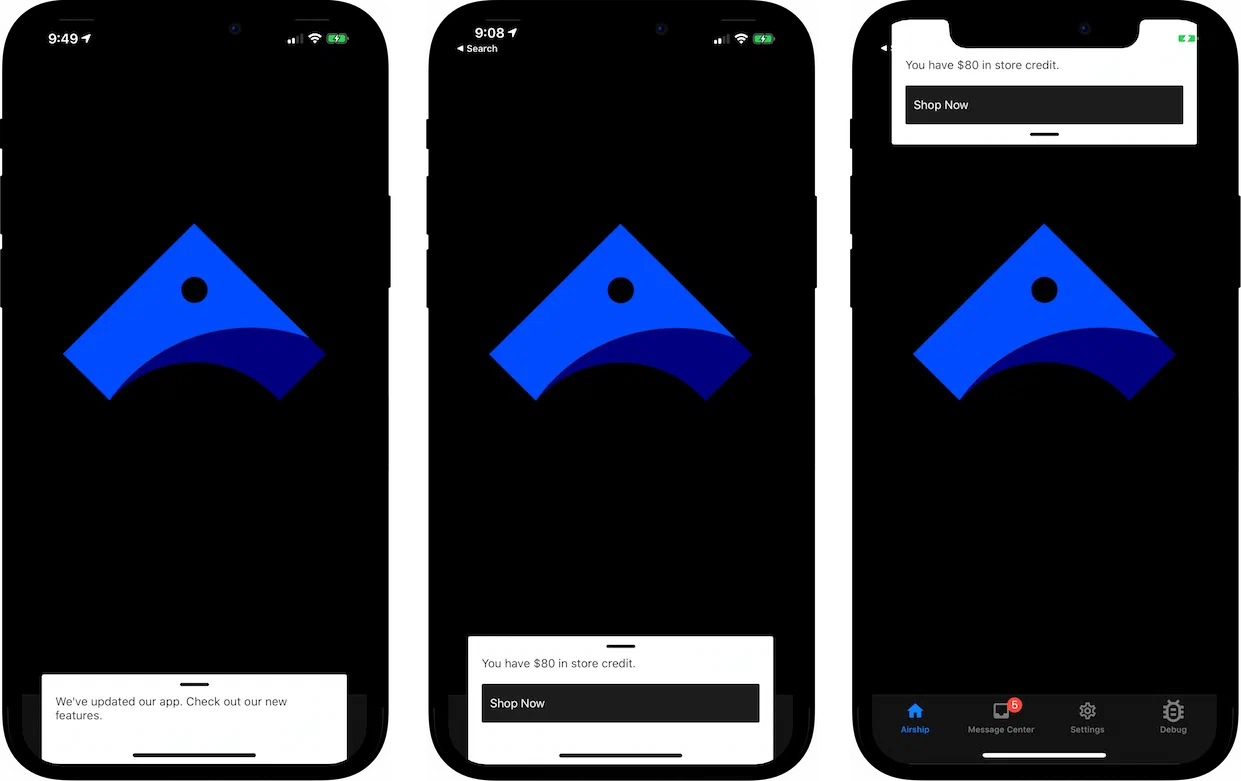
*In-app messages*
By default, an in-app message will display while a user is browsing your app. If a user is not browsing your app while you send an in-app message, the message will be displayed the next time they open the app.
Users will see an in-app message as long as:
* The message is not expired.
* They have not tapped a push notification that was sent in combination with the in-app message.
They behave largely like push notifications, and they can be dismissed as you would dismiss a push notification. However, there are a few key differences regarding display behavior:
* **Duration** — In-app messages are not [Persistent](https://www.airship.com/docs/reference/glossary/#persistent). By default, an in-app message will only appear on a user's screen for 15 seconds before disappearing. You can change this value in the design defaults for the in-app messages in your project. When sending in-app messages via the API, you can override this value with the `duration` key.
* **Sending Multiple Messages** — An app will only store a single in-app message at a time. If a valid message is waiting to be displayed in a user's app and a you send another in-app message, the new message takes the place of the prior one. Moreover, there is no way to specify an in-app message's priority. The latest message will always replace the previous one.
## Getting started with in-app messages
Follow these steps to start using in-app messages with Airship:
* **Configure mobile channels in your project settings** See [Configuring Mobile Channels](https://www.airship.com/docs/guides/getting-started/developers/configure-channels/) in the Getting Started guide.
* **Integrate the Mobile SDK with your app** See [SDK setup](https://www.airship.com/docs/sdk-topics/setup/) for mobile apps in our developer documentation.
Once your project is set up, you can start creating [In-app message content](https://www.airship.com/docs/guides/messaging/messages/content/app/in-app-messages/).