# In-App Automation
Trigger messages automatically when users meet specific conditions or perform certain actions.
## About In-App Automation
In-app messages appear regardless of a user's opt-in/out status for notifications. In-App Automation refers to messages cached on users' devices and displayed when users meet certain conditions within your app, such as viewing a particular screen or opening the app a certain number of times. While standard in-app messages appear as banners, in-app automation messages have various style and layout options.
In-app automation is designed to be highly contextual and displayed immediately in response to user behaviors, e.g., the user opens the app a specific number of times, views a specific screen, adds an item to their cart, makes a purchase, or views a video. Respond to user behaviors instantly with customizable messages, giving you precise control of the user experience. Benefits include:
* **Real-time display** — In-app automation uses our on-device automation framework, which means they can respond to a series of events in real time (e.g., multiple game level changes, a sequence of screens, additions to a shopping cart) without round-trips to a server.
* **Dashboard management** — Control all aspects of the message, including branding, using the Airship dashboard.
You cannot combine in-app automation with other channels or message types, however you can trigger a [Sequence](https://www.airship.com/docs/reference/glossary/#sequence) when a specific in-app automation displays for a user.
## Use cases
- Welcome messages — Communicate the value of your app and highlight key features.
- Push and location opt-in prompts — Explain the value of your notifications to drive opt-in rates.
- Feature education — Drive adoption of critical/new features that promote retention.
- Onboarding messages — A series of messages educate users about the app over time.
- App reviews — Prompt users to rate your app after positive experiences.
- Registration/login — Drive registrations and logins to your loyalty program or account.
- Profile enhancement — Promote the benefits of a completed profile, and provide a link to the relevant page in your app. Encourage your users to take a second to personalize their experience, and increase engagement and retention.
- App updates — Send your users an in-app message highlighting your app’s newest features, or encourage users on older versions to update the app. If you just added a new page or have some new content, make sure to include a Deep Link so that they can find it quickly.
- Ongoing promotions — If you have a promotion that users can take advantage of at any time — such as a discount for inviting a friend or for taking a survey — an in-app message serves as a convenient reminder.
These use cases are also true for standard in-app messages, however, using in-app automation, you can trigger your message to display based on specific scenarios. For example:
* Display a "Welcome" message **when users first open your app**.
* Display a "Tip" message **when a new feature is added to your app**.
* Ask a user to rate your app **after they have opened it for the 6th time**.
These experiences are typically hard-coded by app developers and cannot be updated without custom development and app store updates. With in-app automation, you create and update these in the Airship dashboard, without custom development.
## Appearance and behavior
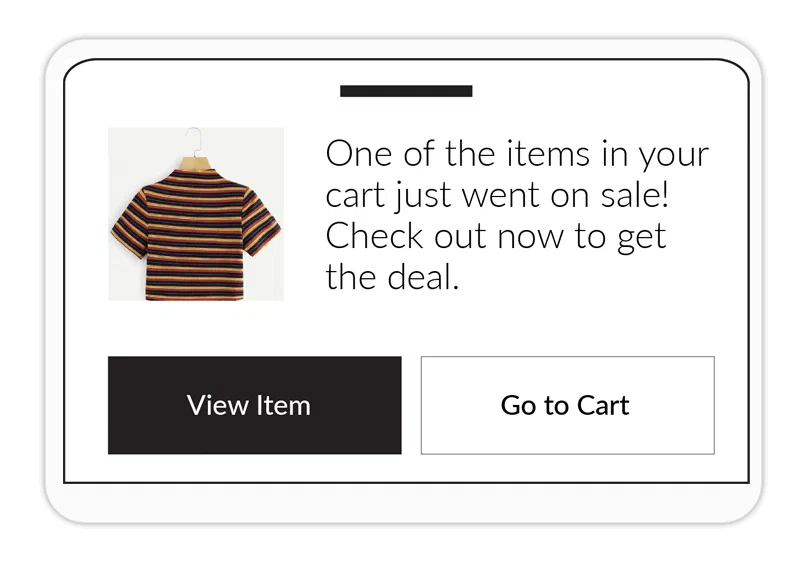
*Banner with media and buttons*
Multiple message [styles](#styles) (banner, modal, fullscreen, and custom HTML) are supported, as well as various [layouts](#layouts) for each style.
You will configure the message content based on the requirements for your selected style and layout:
* **Text** — Add text to header, body, and footer fields.
* **Media** — See [In-App Automation](https://www.airship.com/docs/reference/messages/media-guidelines/#in-app-automation) in Media guidelines.
* **Buttons** — Different styles support a different number of buttons, and you must associate an action for each. If more than one button is added, you may choose a button layout: *Separate*, *Joined*, or *Stacked*.
In-App Automation use intelligent caching to balance performance with real-time capabilities. Our SDK downloads and refreshes the entire message list upon next app open. Up to 50 messages can be pre-loaded onto the device at a time. SDK versions prior to iOS SDK 16.6 and Android SDK 16.4 use background push to perform these actions.
In-app automation is not [Persistent](https://www.airship.com/docs/reference/glossary/#persistent), and display **duration** varies by message style:
* Modal and fullscreen messages appear on screen until the user interacts with them, either by clicking one of the main buttons or dismissing the message.
* Banner messages disappear automatically after 15 seconds but will disappear sooner if the user clicks any button or dismisses the message.
### Styles
There are four styles:
[Banner](#style-banner),
[Modal](#style-modal),
[Fullscreen](#style-fullscreen), and [Custom HTML](#custom-html).
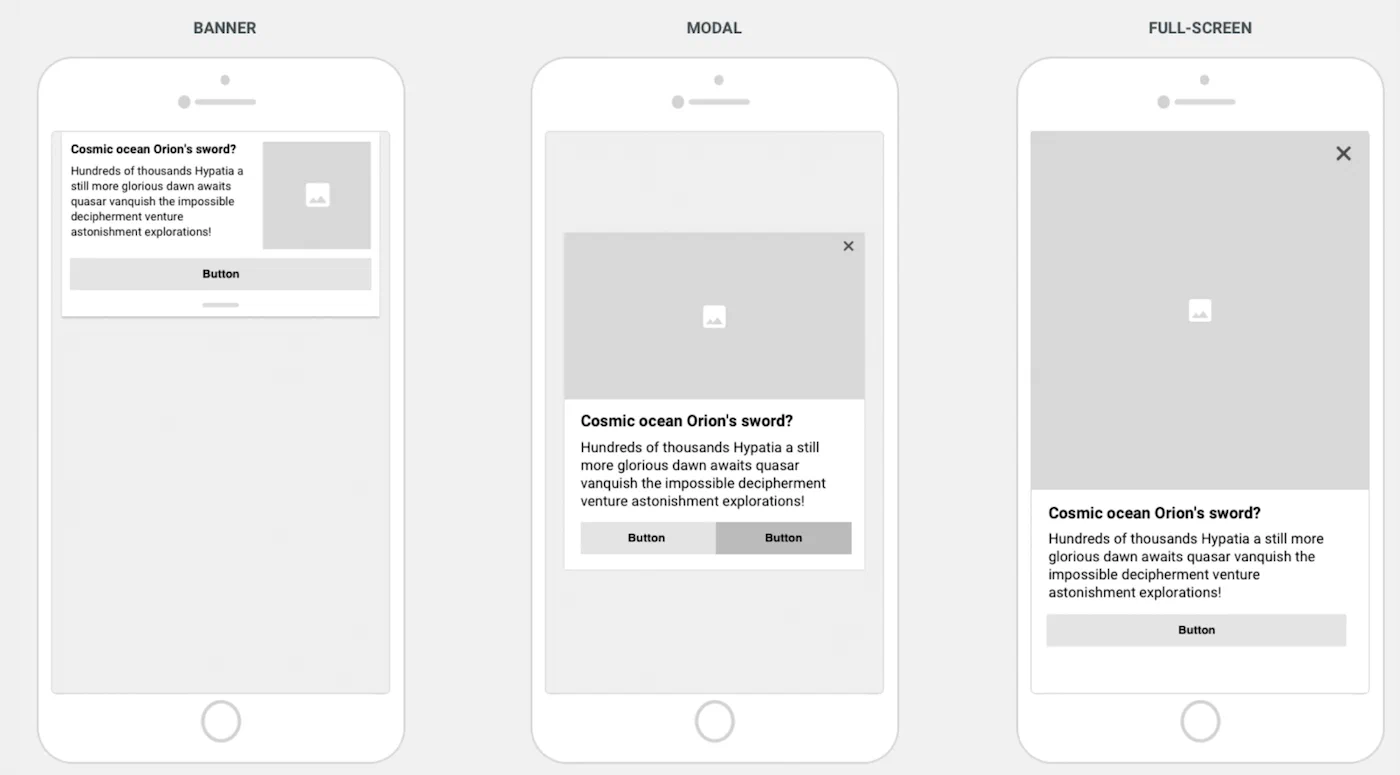
*In-App Automation styles*
#### Banner {#style-banner}
Banner messages appear at the top or bottom of your screen, sliding up from the bottom of the screen, or down from the top. They are designed to be less obtrusive to users than modal or fullscreen messages, by taking only a portion
of the screen and not fully interrupting the user from their current task. Example uses include informational messages, news alerts, or promotions that do not deserve a full user interruption.
Banner message elements:
* **Header** — An optional headline for the message. Bolded by default to stand out from the message text.
* **Image** — A small thumbnail image that appears on the right or left side of the message.
* **Text** — The main text of the message.
* **Buttons** — Display up to two buttons, allowing a user to respond to the message.
* **Dismiss** — Ability to dismiss the message by swiping it back in the direction it came from.
#### Modal {#style-modal}
A modal message takes over the user’s screen, compelling the user to interact with it. Modals are typically used to prompt users to reply to a question or make a quick decision. The message window is smaller than the full width of the screen, superimposed on the app with a translucent background, assuring the user that the interruption is temporary.
Modal message elements:
* **Header** — An optional headline for the message. Bolded by default to stand out from the message text.
* **Image** — A large image embedded in the message.
* **Text** — The main text of the message.
* **Buttons** — Display up to two buttons, allowing a user to respond to the message.
* **Dismiss** — Ability to dismiss the message by clicking the X button.
> **Tip:** You can make a modal message display as fullscreen on small screen devices. Use this setting if you want your message to take over the entire screen on a phone but display as a modal on a tablet. See *Display fullscreen on small screen devices* in the [default design settings](https://www.airship.com/docs/guides/messaging/in-app-experiences/configuration/defaults/#setting-in-app-automation-defaults).
#### Fullscreen {#style-fullscreen}
Fullscreen messages are similar to [modal](#style-modal) messages but take over the entire screen, providing more real estate for your message.
Fullscreen message elements:
* **Header** — An optional headline for the message. Bolded by default to stand out from the message text.
* **Image** — A large image embedded in the message.
* **Video** — Can be displayed instead of an image.
* **Text** — The main text of the message.
* **Buttons** — Display up to five buttons, allowing a user to respond to your message.
* **Dismiss** — Ability to dismiss the message by clicking the X button.
* **Footer** — A text link to content, e.g., Terms & Conditions, relevant to the message.
#### Custom HTML {#custom-html}
Custom HTML messages have the same appearance as [modal](#style-modal) messages and also have the
same message elements. The appearance of custom HTML messages is determined by your provided code.
General guidelines:
* Set your layout, content text, media, buttons, and any actions you want to trigger.
* Since much of the message's content and behavior are defined in your HTML, the settings and options available in the composer are reduced to only those applicable to the custom HTML message style.
* Any images, CSS, and applicable scripts referenced in your HTML should be made available via a CDN or publicly available repository. You cannot upload additional files using the composer.
> **Tip:** You can make a custom HTML message display as fullscreen on small screen devices. Use this setting if you want your message to take over the entire screen on a phone but display as a modal on a tablet. See *Display fullscreen on small screen devices* in [In-App Experience Defaults](https://www.airship.com/docs/guides/messaging/in-app-experiences/configuration/defaults/#setting-in-app-automation-defaults).
### Layouts
Available layouts per style:
* **Banner** — Left or right image orientation, or a text-only banner.
* **Modal** — Media at the top, middle, or bottom of the message, or text-only.
* **Fullscreen** — Media at the top, middle, or bottom of the message, or text-only option
### Optional features
In addition to configuring when the message will display and its appearance and content, you can set optional features:
* **Priority** — Because multiple messages can become eligible for display at the same time, you can assign a priority value to each one. If no priority is assigned, by default, the most recently updated message will appear first. Priority is shared across in-app automation and [Scenes](https://www.airship.com/docs/reference/glossary/#scene).
* **Repeat** — To prevent over-messaging, our SDK waits 30 seconds after one message is closed before displaying the next eligible message. This delay value can be updated through native code. You may also control the number of times an individual message is displayed and the minimum waiting period before it is eligible for redisplay. Redisplaying your message is useful because users can dismiss or ignore messages.
* **Start and end dates** — Set the dates and times during which your message can be displayed. Specifying a window of time is useful for messages that are time-bound or tied to scheduled events.
* **Missed behavior** — Override the project-level setting for how the message is handled when audience conditions are not fully met.
* **Ignore** [Message Limits](https://www.airship.com/docs/reference/glossary/#message_limits) — Override the project-level limit for a single message.
* **Campaign categories** — Group messages of a similar type or messaging strategy for aggregate reporting.
## Default settings
You can set appearance and behavior defaults for in-app automation, including [Color Sets](https://www.airship.com/docs/reference/glossary/#color_set) and custom fonts. You can override the defaults in the Design step of the In-App Automation composer. See: [In-App Experience Defaults](https://www.airship.com/docs/guides/messaging/in-app-experiences/configuration/defaults/).
## Getting started with In-App Automation
Follow these steps to start using In-App Automation with Airship:
* **Configure mobile channels in your project settings** See [Configuring Mobile Channels](https://www.airship.com/docs/guides/getting-started/developers/configure-channels/) in the Getting Started guide.
* **Integrate the Mobile SDK with your app** See [SDK setup](https://www.airship.com/docs/sdk-topics/setup/) for mobile apps in our developer documentation.
Once your project is set up, you can start creating [In-App Automations](https://www.airship.com/docs/guides/messaging/in-app-experiences/in-app-automation/create/). Make sure to also set a default for Missed Behavior. See [Setting behavioral defaults](https://www.airship.com/docs/guides/messaging/project/enable-features/#setting-behavioral-defaults) in *Enable dashboard features and set behavioral defaults*.