# Learn about Airship Features
Airship's features help you build, personalize, and optimize customer experiences that drive engagement and conversions.
# Airship Pilot Program
> The Airship Pilot program gives you early access to enhancements. You can help shape the product through your feedback.
Try new Airship capabilities before they are generally available (GA), and let us know what you think. Features currently in Pilot are listed here with a description and how to access them. For the latest GA releases, see [What's New](https://www.airship.com/docs/whats-new/).
AI features are available on [AXP](https://www.airship.com/docs/reference/feature-packages/) plans only. If you do not have an AXP plan, AI features do not appear in the dashboard even when Pilot is enabled.
> **Important:** Airship Pilot features and reports are provided as is. Please note:
>
> * Features may be modified or removed entirely.
> * Features may contain bugs or reliability issues.
>
> Use of Pilot features is governed by the [Airship Beta Services Terms](https://www.airship.com/legal/beta-terms).
## Enable access and provide feedback
To enable or disable Pilot features in Airship:
1. Select the Pilot icon (atom) in the header.
1. Toggle **Enable all Pilot enhancements**.
1. Select **Save and reload**.
After giving them a try, select the Pilot icon (atom) again, then **Submit feedback**. Select the product area for a feature, provide your feedback, and let us know if you'd like to schedule a session with our product team.
## New in April 2026
The following Pilot features are available in the Airship dashboard as of the April 2026 release.
### Calendar windowing for scheduled messages
For scheduled messages set for [Delivery By Time Zone](https://www.airship.com/docs/reference/glossary/#delivery_by_time_zone) or [Optimal Send Time](https://www.airship.com/docs/reference/glossary/#optimal_send_time), sends can span multiple days. In the message calendar, those messages now appear on each day of the delivery window, not only on the first day of the window.
**Try it:** Go to **Messages**, then **Calendar**.
For more information about the calendar and delivery, see:
* [Messages Overview and Calendar](https://www.airship.com/docs/guides/getting-started/ui/manage-views/)
* [Message delivery](https://www.airship.com/docs/guides/messaging/messages/delivery/delivery/)
### Improved A/B test results
Our improved [message A/B test](https://www.airship.com/docs/guides/experimentation/a-b-tests/messages/) reporting moves past standard channel engagement to provide a comprehensive, statistically backed breakdown of your experiment's success. With clear winner identification, you no longer have to manually crunch numbers to see which variant came out on top. Dive deeper into the data using advanced visualizations to understand exactly how much value your winning message generated and the confidence level behind the results.
**Try it:** You can see the improved reporting in completed or currently running message A/B tests. Go to **Experiments**, then **Message Experiments**, select the more menu icon (⋯) for an A/B test in the list, then **View results**. You can also select the name of a test from the list and then go to **Results**.
Check out the new additions in the results:
* The Experiment Summary shows the test status.
* A data table shows you the Probability to Be Best, Expected Loss, and Conversion Rate vs Top Performing Variant.
* Charts and graphs for Probability to Be Best, Conversion Lift Compared to Others, and Likelihood of Variant Success help you evaluate the statistical confidence of each variant.
## Additional features
Learn about other features currently in Pilot.
### Customizable Home page reports view
In the Home page [reports view](#home-page-reports-and-calendar), you can customize which tiles and filters appear, the page title, and more.
**Try it:** First, select Home, and the reports view should open by default. Then select **Customize** to edit. The library of tiles and filters opens in a drawer. You can make the following changes:
* Select the remove icon (trash) to remove current tiles or filters.
* Add tiles or filters from the drawer. You can enter a custom name for any tile.
* Select the more menu icon (⋯) to access export and import options. Exported layouts will work in any Home page reports view, not just your own. Select **Reset page** to remove any customizations.
When done, select **Save changes**. You can change the page title from the default “Home” before applying the changes.
### Accessibility agent version snapshots
[AXP](https://www.airship.com/docs/reference/feature-packages/)
The system automatically generates a version snapshot after each [accessibility agent](https://www.airship.com/docs/guides/messaging/editors/native/about/#accessibility-audit) fix, ensuring you can revert a Scene to its previous state if the AI adjustments require manual correction.
**Try it:** When editing Scene content, including [layouts](https://www.airship.com/docs/guides/messaging/editors/native/custom-layouts/), apply suggestions from the accessibility agent. To revert, select **Snapshots** and choose a previous version. To remove a version from the list, select the remove icon (trash).
### Native Message Center
[AXP](https://www.airship.com/docs/reference/feature-packages/) [iOS SDK 20.4+](/docs/docs/developer/sdk-integration/apple/ios-changelog/#20.4.0) [Android SDK 20.3+](/docs/docs/developer/sdk-integration/android/changelog/#20.3.0)
Compose Message Center messages using the Native editor to create richer, more accessible experiences. Native Message Center messages support all the same features as Scenes, including survey questions, [Story](https://www.airship.com/docs/reference/glossary/#story) mode, email and phone number collection, and more.
**Try it:** First, create your content as a template:
1. Go to **Content**, then **Templates**.
1. Create a new template, and select **Native Experience** as the channel.
1. Complete all required fields and save the template.
Then, when configuring your Message Center content, select **Native editor**, and then select the template you created.
To change your content before sending, edit the template and then return to your draft message.
### Home page reports and calendar
Display reports or your message calendar on your project Home page.
**Try it:** Select Home, and you'll see reports as the default view. Select the calendar icon (calendar-dots) and the reports icon (chart-bar) to toggle the views.
### Audience Pulse recommendation to Scene
[AXP](https://www.airship.com/docs/reference/feature-packages/) [Agentic & Generative AI](https://www.airship.com/docs/guides/features/intelligence-ai/ai/)
Generate a draft Scene from [Audience Pulse](https://www.airship.com/docs/reference/glossary/#audience_pulse) strategy recommendations at the click of a button. You must have already generated tiers before you can generate AI insights and Scenes.
**Try it:**
1. Go to **Audience**, then **Audience Pulse**, and select **✨ AI Insights**.
1. Select a recommendation, and then **✨ Generate Scene**.
### Goal attribution for Scenes
[AXP](https://www.airship.com/docs/reference/feature-packages/)
Stop guessing if your in-app experiences are working. Now you can see if a [Goal](https://www.airship.com/docs/reference/glossary/#goals) is attributed to a Scene and measure exactly how your interactions contribute to your overall success.
**Try it:**
1. Go to **Messages**, then **[Messages Overview](https://www.airship.com/docs/reference/glossary/#messages_overview)**, and select the report icon (
) for a Scene.
1. Under **Performance**, search for a Goal.
1. Set the time range and event expiration window.
Goal events that occur within the event expiration window after a Scene impression are attributed to that Scene. Select **Channel ID** or **Named User** to display data tracked at each level.
### Conversational mapping for Journeys
[AXP](https://www.airship.com/docs/reference/feature-packages/) [Agentic & Generative AI](https://www.airship.com/docs/guides/features/intelligence-ai/ai/)
Make edits to a Journey using a conversational agent. Available for Journeys containing only Sequences.
**Try it:** Go to **Journeys**, select a Sequence-based Journey, and then select **✨ AI Journey Assistant**.
### AI Email templates
[AXP](https://www.airship.com/docs/reference/feature-packages/) [Generative AI](https://www.airship.com/docs/guides/features/intelligence-ai/ai/)
Generate professional email templates by uploading an image or HTML file and letting AI do the rest.
**Try it:** Go to **Content**, then **Templates**, and select **Generate with AI**.
### Centralized access control
Add or remove team members from multiple projects on one unified page.
**Try it:** Select the Account menu icon (user-circle) in the header, then **Team Management**. From there, select **Try out our new Team Access page** to switch to the new experience. To return to the original view, select the Account menu icon (user-circle) and **Team Management** again.
## Learn about Airship messaging and engagement features
Airship supports push notifications, in-app messages, SMS/MMS/RCS, email, Message Center, and more. Learn what each channel is, when to use it, and what makes it unique.
# Push notifications
> Send push notifications to your App and Web channels.
## About push notifications
Push notifications are banner alerts that can contain many other kinds of data such as images, sounds, badge updates, buttons, and more. App push notifications target mobile devices, while web push notifications target users' web browsers.
Mobile app push notifications help you:
* Alert users when they are not in the app
* Pass extra data to users for marketing/segmentation use
* Keep users engaged with your app
**Use cases:**
* Breaking news
* Score updates
* Transaction confirmation
* Social interactions
* New content available
You can combine mobile app push notification with an [In-App Message](https://www.airship.com/docs/reference/glossary/#in_app_message) and/or [Message Center](https://www.airship.com/docs/reference/glossary/#message_center) message. When combining a push notification and Message Center, Airship sends the Message Center message to both opted-in and opted-out devices.
Reach users on the web without developing an app. Any user with access to a web browser can receive your notifications. If you do have an app, however, you can use web as an additional channel to engage your audience.
Airship supports web push notifications on:
- Desktop: Google Chrome, Mozilla Firefox, Microsoft Edge, Opera, and Safari (v16 and above)
- Android Mobile: Google Chrome, Mozilla Firefox, Opera
- iOS and iPadOS Mobile: Safari (iOS and iPadOS 16.4 and above, as a standalone web app)
### Silent push notifications
A *silent push notification* is a message that wakes a mobile app for processing without appearing on the device or producing sound or vibration. Silent push notifications are useful for performing background tasks such as sending custom keys, updating the app's badge icon, fetching remote content, and enabling new features.
For more information, see [Silent Notifications](https://www.airship.com/docs/developer/sdk-integration/apple/push-notifications/getting-started/#silent-notifications) for iOS and [Silent Notifications](https://www.airship.com/docs/developer/sdk-integration/android/push-notifications/getting-started/#silent-notifications) for Android.
You can send silent push notifications using Sequences and the Message and Automation composers. You cannot combine a silent push notification with any other message type.
> **Note:** When targeting Android devices, Airship sends messages to both opted-in and opted-out devices. Regular notifications are sent to opted-in devices and silent push notifications are sent to opted-out devices. Both silent and alerting sends appear in the message report.
## Appearance and behavior
App and web push notifications are displayed upon receipt and require text content and support adding buttons, a title, and media. Details and differences are described for each in the next sections.
### App push notifications
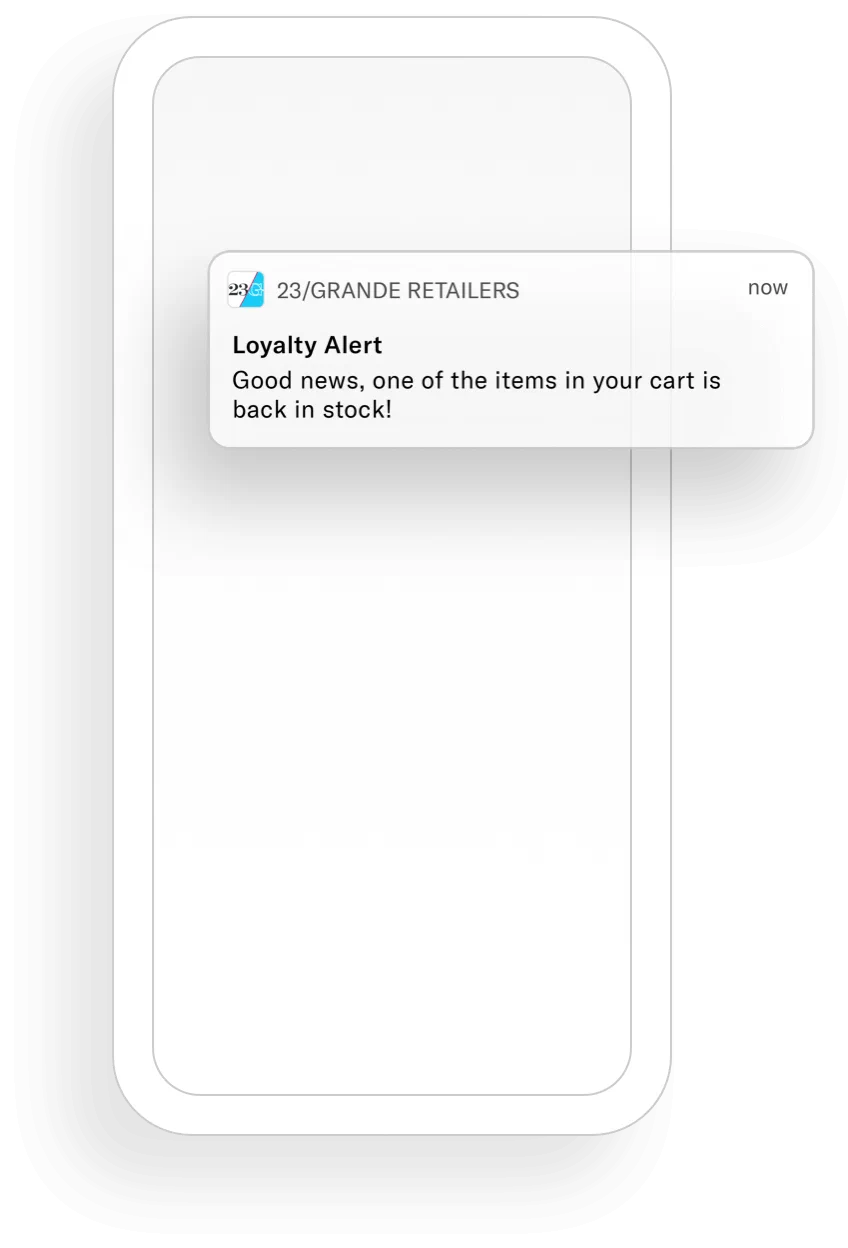
*A mobile app push notification*
Push notifications are in banner format and can appear on any screen on a device. They are not [Persistent](https://www.airship.com/docs/reference/glossary/#persistent).
Every push notification requires text, and you can also add optional features:
* **Buttons** — You can add one or two buttons.
* **Title** — This is a heading that appears above the notification text in:
* iOS Notification Center
* Apple Watch Looks
* Android and Fire OS Notification Area/Drawer
* **Media** — See [Push notifications](https://www.airship.com/docs/reference/messages/media-guidelines/#push-notifications) in *Media guidelines*.
* **Summary** — This is supplemental text displayed with the notification. The position varies per platform.
### Web push notifications
A web push notification appears as a toast, sliding into the top right or bottom left corner of your audience's web browser (depending on the browser). Depending on the operating system, they may also be delivered to the OS Notification Center. For example, on macOS all web notifications are visible from within the Notification Center, regardless of which browser they come from.
They are displayed upon receipt as long as the browser is open. Safari web notifications are handled by macOS, so they may also be handled by Notification Center preferences.
On a mobile device, web push notifications appear and behave similarly to a mobile push notification.
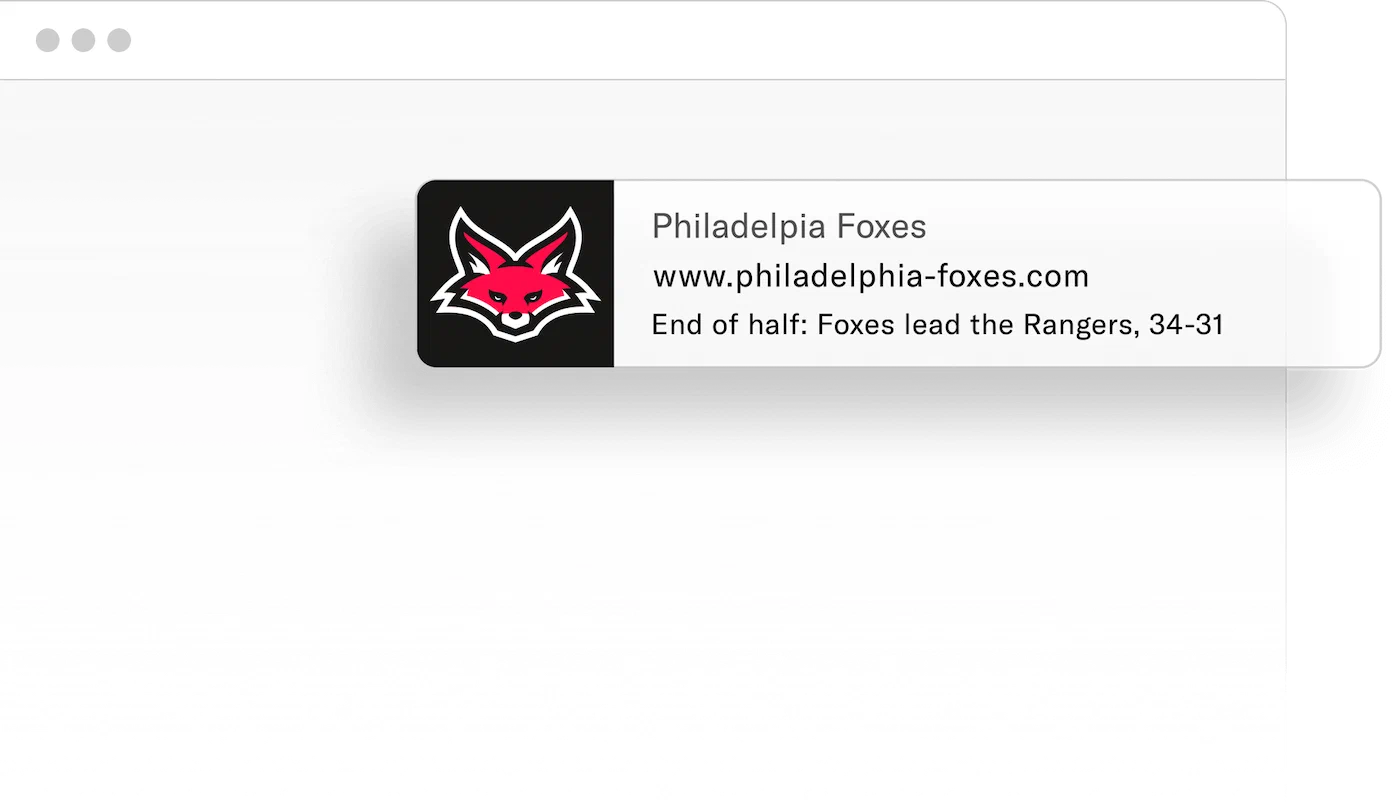
*A web push notification*
Every web push notification requires text, and you can also add optional features:
* **Buttons** — You can add one or two buttons.
* **Title** — This heading appears above the notification text in:
* iOS Notification Center
* Android and Fire OS Notification Area/Drawer
You define a default title for all of your project's web messages when configuring the web channel for your project, and you can override the title per message.
* **Media** — Add an image that will appear in web messages in Chrome and Opera browsers on Windows and Android platforms.
* **Icon** — This image is included in all web messages. You define a default icon for all of your project's web messages when configuring the web channel for your project, and you can override the icon per message.
## Getting started with push notifications
Follow these steps to start using mobile app push notifications with Airship:
* ⚙ **Configure mobile channels in your project settings** → See [Configuring Mobile Channels](https://www.airship.com/docs/guides/getting-started/developers/configure-channels/) in the Getting Started guide.
* link **Integrate the Mobile SDK with your app** → See [SDK setup](https://www.airship.com/docs/sdk-topics/setup/) for mobile apps in our developer documentation.
Follow these steps to start using web push notifications with Airship:
* ⚙ **Configure the Web channel in your project settings.**
* link **Integrate the Web SDK with your website.**See [Getting Started for the Web SDK](https://www.airship.com/docs/developer/sdk-integration/web/getting-started/) in our developer documentation.
Once your project is set up, you can start creating device-mobile [mobile app push notification content](https://www.airship.com/docs/guides/messaging/messages/content/app/push-notifications/) and browser [Web push notification content](https://www.airship.com/docs/guides/messaging/messages/content/web/).
# Message Center
> {{< glossary_definition "message_center" >}}
## About Message Center
In reporting and other areas of Airship, a Message Center message may be referred to as a **rich page**.
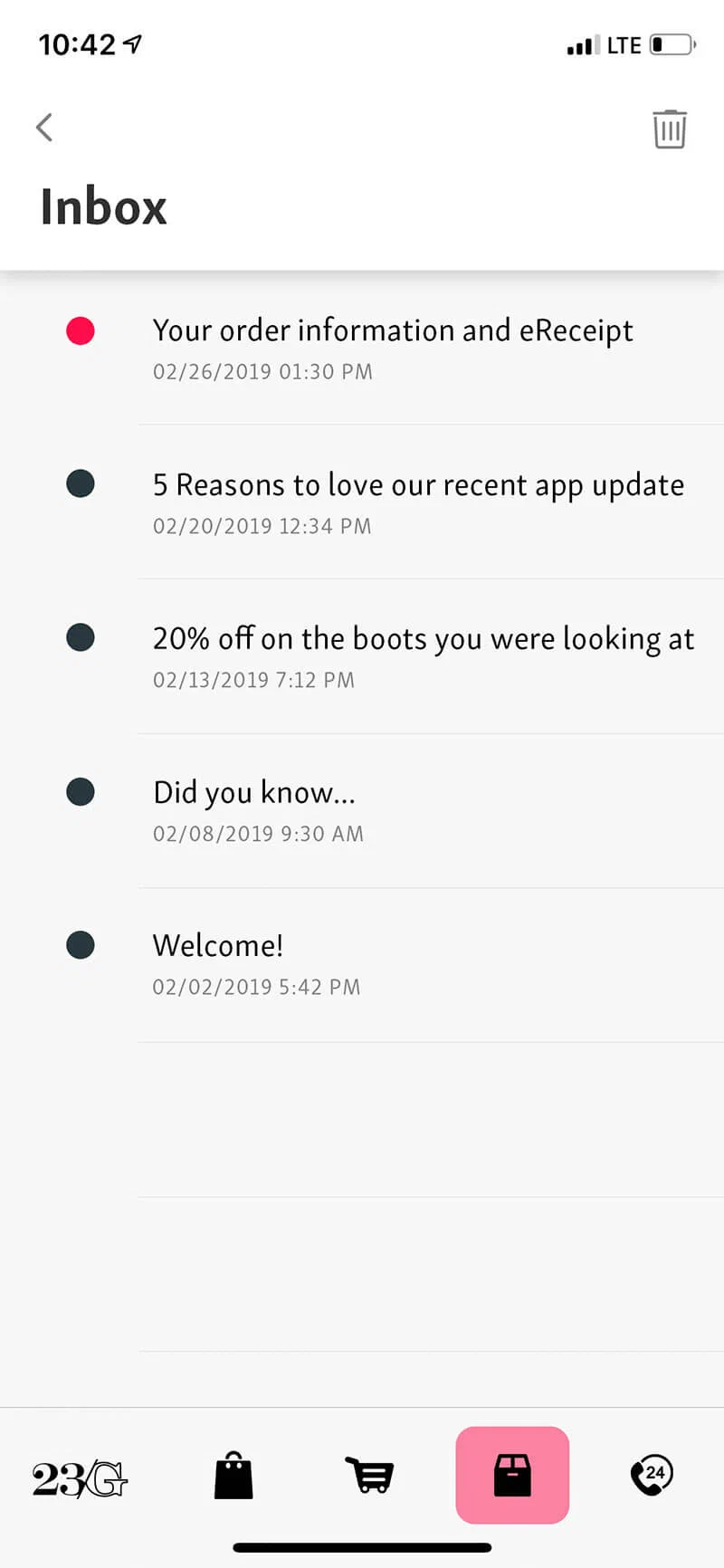
*A Message Center inbox*
* **Reach opted-out users** — Message Center messages are not push notifications, but you can use push notifications to alert users that new rich content is available. Because Message Center messages do not require a user to opt in to push notifications, you can reach your opted-out audience with Message Center.
* **More opportunities to engage** — When users interact with Message Center, e.g., read, delete, tap a button, Airship tracks the interactions and makes them available via our analytics offerings, [Real-Time Data Streaming](https://www.airship.com/docs/reference/glossary/#rtds) and [Performance Analytics](https://www.airship.com/docs/reference/glossary/#pa).
By providing engaging content and facilitating interactions via Message Center, you can also trigger other [Actions](https://www.airship.com/docs/reference/glossary/#action) such as adding a tag, or triggering a follow-up notification.
* **Theming** — Change your Message Center colors, fonts, backgrounds, and icons to match your branding.
* **Airship hosting** — Your message content is hosted by Airship.
* **More benefits**:
* Persistent inbox
* Customized per user, according to how you target individual users
* Tracking of message state per user: Read, unread, deleted, etc.
* Customize UI, or use out-of-the-box
* Data/Reporting
* JavaScript Bridge
You can combine a Message Center message with a [Push Notification](https://www.airship.com/docs/reference/glossary/#push_notification) and/or [In-App Message](https://www.airship.com/docs/reference/glossary/#in_app_message) message.
When combining a push notification and Message Center, Airship sends the Message Center message to both opted-in and opted-out devices.
## Appearance and behavior

*Message Center messages*
Users access Message Center messages from the Message Center inbox in your app. Messages are **fullscreen**, with navigation back to the inbox at the top of the screen. You can configure a push notification or in-app message to open a Message Center message.
* Inboxes are limited to 250 messages. Exceeding the limit deletes the oldest messages first.
* Messages remain in the inbox until expired or deleted.
* Messages expire after one year or according to individual message expiration setting.
To create the message content, you can either upload your own HTML or design using drag-and-drop. Airship supplies several default layouts. You can also create and save your own layouts for use in new messages.
* **Inbox preview** — The inbox supports a message *preview* of a thumbnail image and one or two lines of text
* **Expiration** and you can specify an expiration date, when the message is removed from the inbox.
* **Custom templates** — Airship can create and add custom message templates for you. Contact your Airship account manager if you are interested in adding custom templates to your project.
Theming your Message Center requires changes to the configuration file in your iOS or Android/Fire OS project. See [Message Center](https://www.airship.com/docs/developer/sdk-integration/apple/message-center/getting-started/) for iOS and [Message Center](https://www.airship.com/docs/developer/sdk-integration/android/message-center/getting-started/) for Android.
## Getting started with Message Center
Follow these steps to start using Message Center with Airship:
* ⚙ **Configure mobile channels in your project settings** → See [Configuring Mobile Channels](https://www.airship.com/docs/guides/getting-started/developers/configure-channels/) in the Getting Started guide.
* link **Integrate the Mobile SDK with your app** → See [SDK setup](https://www.airship.com/docs/sdk-topics/setup/) for mobile apps in our developer documentation.
* paint-roller **Install and theme your Message Center** → See [Message Center](https://www.airship.com/docs/sdk-topics/message-center/) in our developer documentation.
Once your project is set up, you can start creating ↓ [Message Center content](https://www.airship.com/docs/guides/messaging/messages/content/app/message-center/).
# Landing pages
> Direct users to a landing page when they interact with your message.
## About landing pages
A landing page is a page within your app that can include rich content, such as HTML and video, without requiring any additional UI customization to enable the view or to provide an inbox to store the messages.
You can configure a [Push Notification](https://www.airship.com/docs/reference/glossary/#push_notification) or [In-App Message](https://www.airship.com/docs/reference/glossary/#in_app_message) to open a landing page when a user taps the message. In reporting and other areas of Airship, a landing page may be referred to as a *rich page*.
## Appearance and behavior
Landing pages appear as an overlay, with an close icon (×) to close/delete. They open when a user taps a push notification or in-app message. Landing pages are not [Persistent](https://www.airship.com/docs/reference/glossary/#persistent).
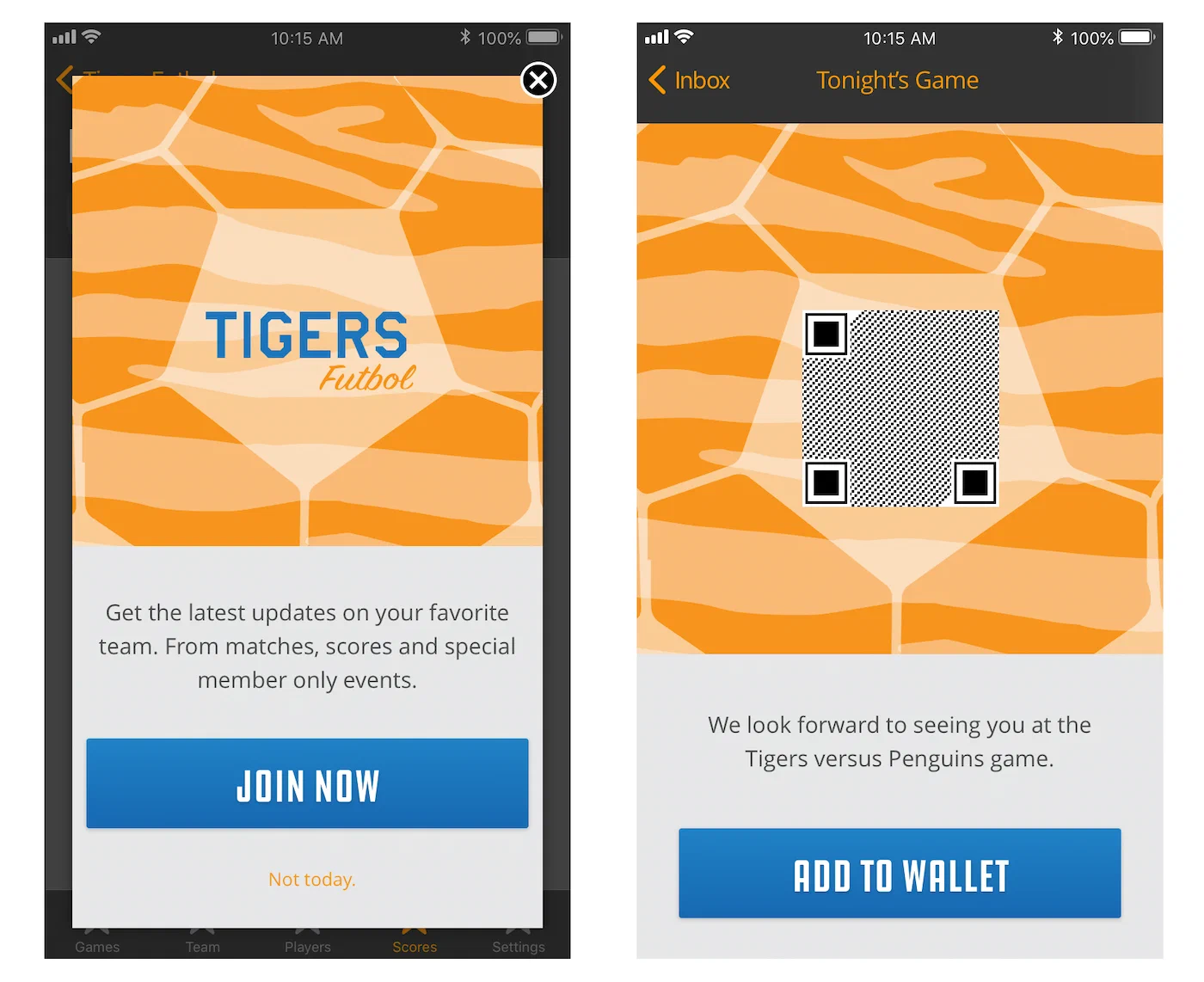
*A landing page overlay compared to fullscreen Message Center message*
You can create landing page content using these methods:
* **Self-hosting** — Store content on your own server and provide an HTTPS URL for the content when creating a message. URLs support [personalization](https://www.airship.com/docs/guides/personalization/content/personalize-actions/#web-page-and-landing-page-actions).
* **Upload** — Upload your own HTML.
* **Drag-and-drop** — Design using the drag-and-drop option in the Interactive editor. Airship supplies several default layouts, and you can save the layouts you create.
Also, Airship can create custom landing page templates for you. Contact your Airship account manager if you are interested in adding custom templates to your project.
## Getting started with landing pages
Follow these steps to start using landing pages with Airship:
* ⚙ **Configure mobile channels in your project settings** → See [Configuring Mobile Channels](https://www.airship.com/docs/guides/getting-started/developers/configure-channels/) in the Getting Started guide.
* link **Integrate the Mobile SDK with your app** → See [SDK setup](https://www.airship.com/docs/sdk-topics/setup/) for mobile apps in our developer documentation.
Once your project is set up, you can start creating stack-simple [landing page content](https://www.airship.com/docs/guides/messaging/messages/content/app/landing-pages/).
# Email
> Send messages to registered email addresses.
## About email
You can send email to your registered users. Email features include:
* Registration and unsubscribe capabilities
* Aggregate dashboards for real-time updates
* [Performance Analytics](https://www.airship.com/docs/reference/glossary/#pa) support to view send and deliverability metrics
* [Real-Time Data Streaming](https://www.airship.com/docs/reference/glossary/#rtds) support to send deliverability metrics to a central data lake
### Use cases
* **Multi-channel transactional messaging**
* Urgent transactional message directed to multiple channels, e.g., send notification via both push and email
* **Notification-style email**
* Promotional blast messaging: great for Retail, Sports/Entertainment, and Travel verticals
* Breaking news alerts for the Media industry
* Promotional mobile wallet delivery, such as coupons and loyalty cards
* **Priority channel**
* Allow users to set their preferred delivery channel as email for certain types of messaging, so as not to alert them on multiple channels, e.g., app and web, for the same content
**Industry examples:**
* **Retail** — Send an email for app re-acquisition if a user churns, onboarding, coupon and loyalty pass delivery, and more.
* **Media** — Send highly-segmented news updates.
* **Travel and Hospitality** — Send boarding passes, day of travel updates, and reservation reminders.
## Appearance and behavior
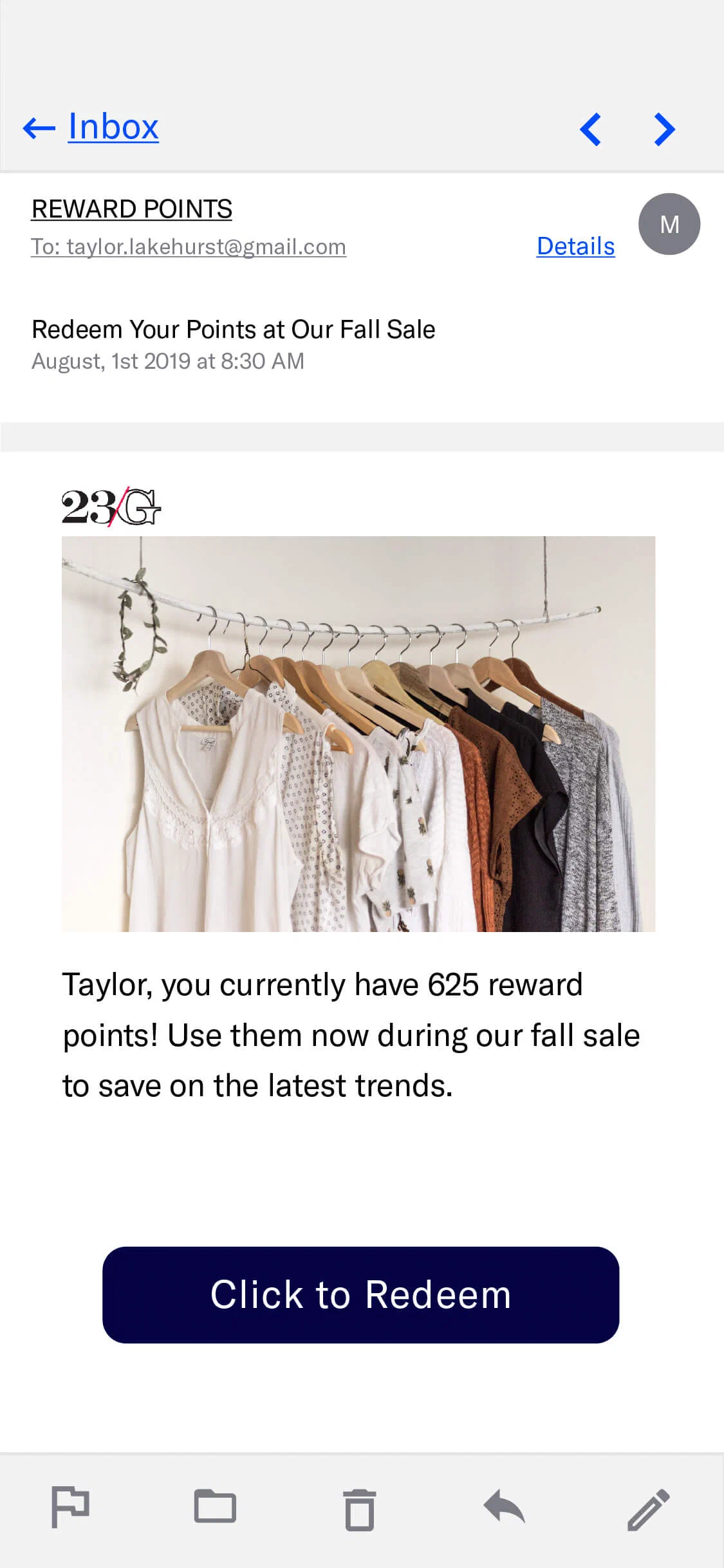
*Email in a mobile device inbox*
Email appears in the recipient's inbox and is displayed upon opening the message. Email is [Persistent](https://www.airship.com/docs/reference/glossary/#persistent), remaining viewable until deleted by the user.
Components of an email:
* **Subject** — [Preheader text](#preheader-text) is optional.
* **Message body** — HTML is optional, plain text is required. Users who cannot receive HTML emails will receive the plain text version. See also: [Media guidelines](https://www.airship.com/docs/reference/messages/media-guidelines/).
An **unsubscribe link** is required within the message body for commercial email. You can also provide unsubscribe links for messages sent to [Subscription Lists](https://www.airship.com/docs/reference/glossary/#subscription_list). See: [Email unsubscribe links](https://www.airship.com/docs/guides/messaging/messages/content/email/email-unsubscribe-links/).
For the HTML body, you can either provide your own HTML or design using drag-and-drop in the [Interactive Editor](https://www.airship.com/docs/guides/messaging/editors/interactive/about/). The drag-and-drop option produces HTML that is compatible with any email client that accepts HTML emails, making sure that your audience sees the best version of your message.
As new versions of Outlook and other clients are released, we make sure your HTML will work with them too. You can choose one of Airship's default layouts to get started or you can design your own. You can also save layouts you design and reuse them for other messages.
### Preheader text
*Preheader text* is a short line of text that displays after or below an email subject line in an inbox. You can also have the text appear in the message body. Preheader text is an easy way to expand on your subject line and improve email open rates. Not all email clients support preheader text. These examples show preheader text following the subject "Undock is Launching":

*Preheader text in browser inbox*
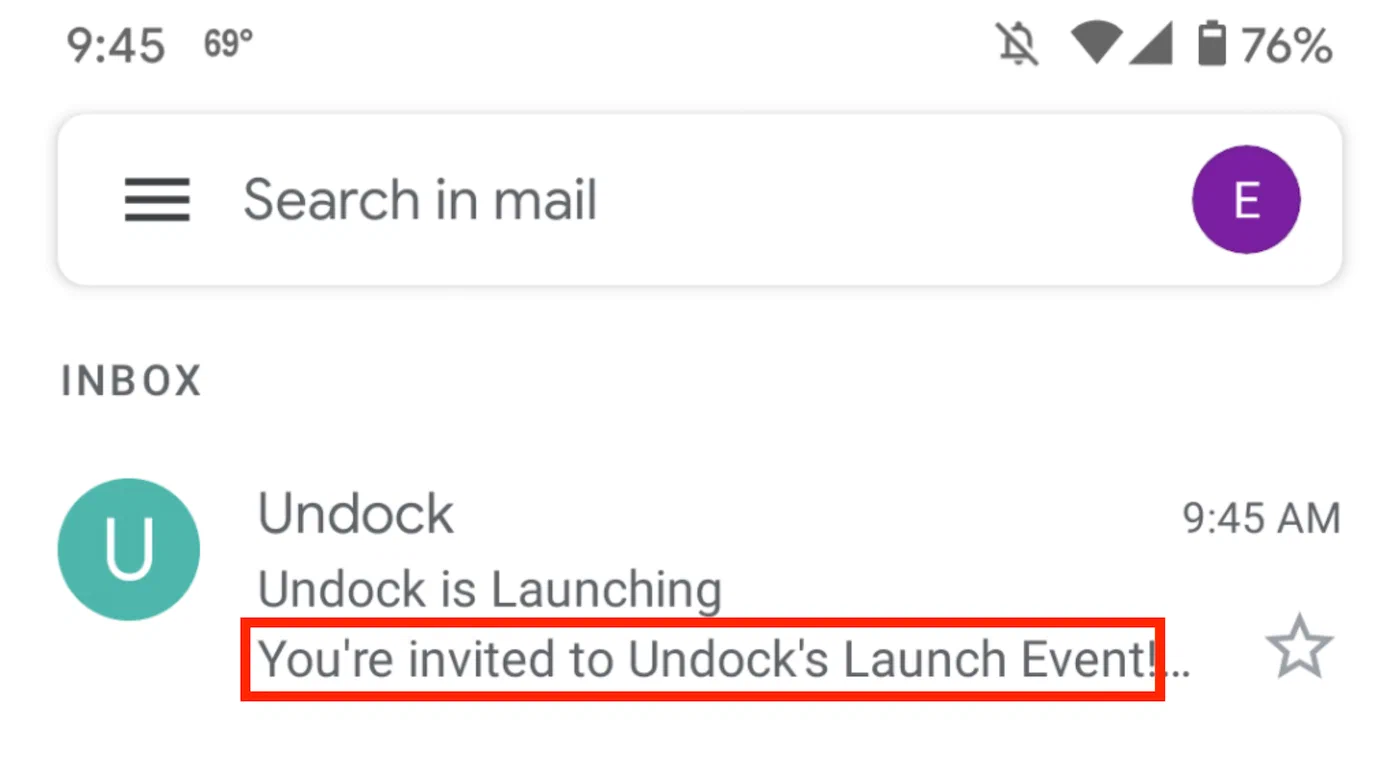
*Preheader text in mobile inbox*
### Disabling click tracking
When creating a message, you can set click tracking behavior in its sender information. When tracking is enabled, you can override the setting and disable tracking for message specific links and actions.
See [Disabling click tracking for specific links
](https://www.airship.com/docs/guides/messaging/messages/content/email/email/#disabling-click-tracking-for-specific-links) in *Email content*.
## Plain text generation
When editing your HTML content in the dashboard, Airship prompts you to automatically generate a plain text version when you save your changes. Your HTML content, including links, is converted and populated into the **Plain text body** field. You can then edit the plain text version as needed. The prompt appears when saving pasted or uploaded HTML and when saving changes to layouts in the Interactive editor.
Having a complete plain text body for your email helps support the following:
- **Better deliverability** — Email providers favor messages with both HTML and plain text versions.
- **Accessibility** — Users with visual impairments benefit from plain text content that is easily consumable by assistive technologies such as screen readers.
- **Fallback support** — Email clients unable to render HTML default to displaying the plain text version.
The auto-generated plain text maintains the structure and links from your HTML content, which you can then review and customize as needed.
## Inbox previews
Before sending your message, you can preview what it will look like in various email clients. After adding the HTML body in a message or template, you can select **Inbox preview** and choose from a list of browser, desktop, and mobile clients. 90+ different client and device combinations are supported.
Inbox previews must be enabled for your account. Contact your Airship account manager if they do not appear for your projects.
See [Inbox previews](https://www.airship.com/docs/guides/messaging/messages/content/email/email/#inbox-previews) in *Email content*.
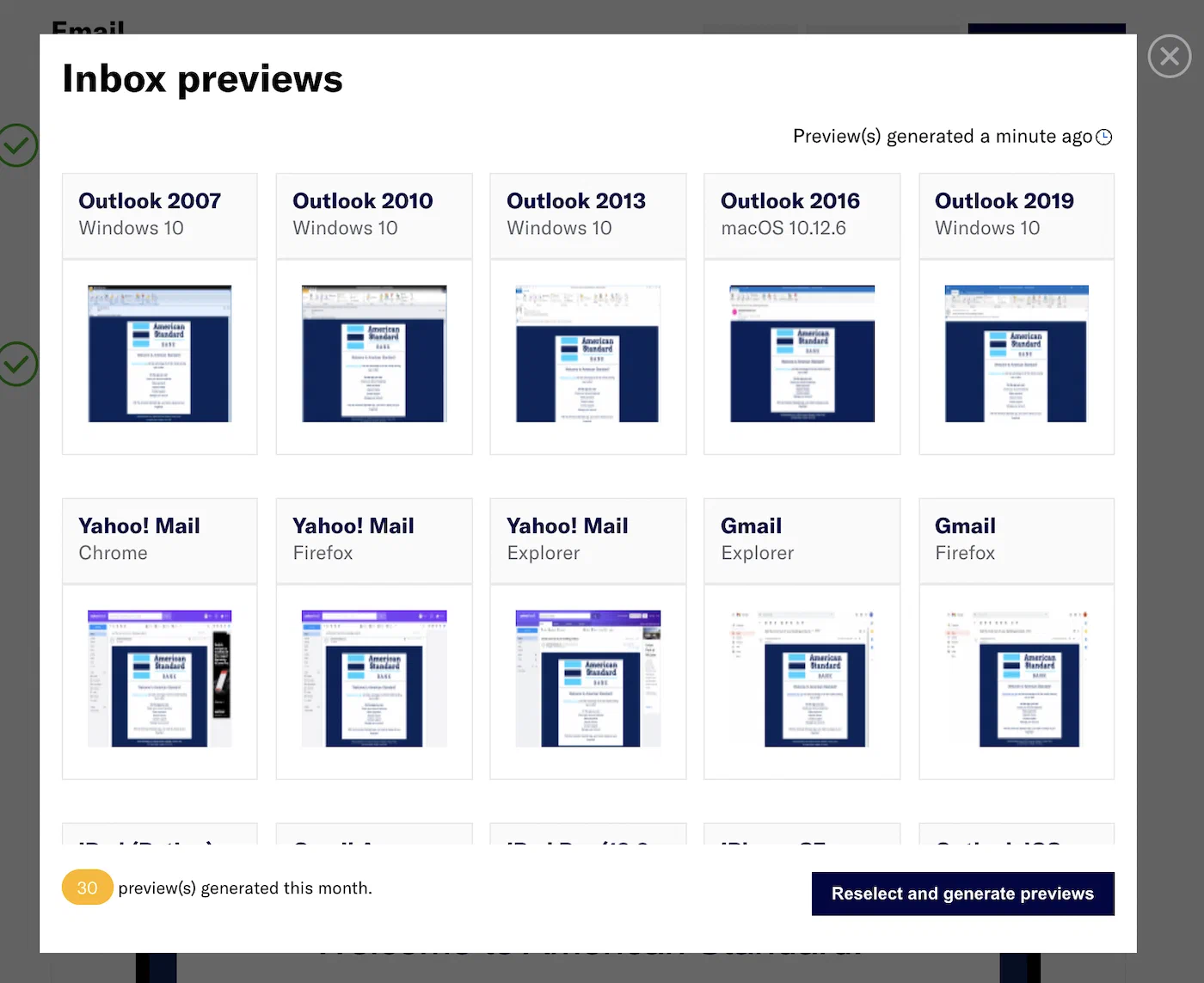
*Email inbox previews*
## Link names
Name your email links to better understand their performance. When users follow links in an email, the URLs and related metrics appear in the Performance section of a message report. Link names also appear in [Real-Time Data Streaming](https://www.airship.com/docs/reference/glossary/#rtds).
Use cases:
* **Differentiation** — In an email containing three links with identical URLs for a login page, you could differentiate them by specifying their location within the message by using link names "Login header," "Login body", and "Login footer".
* **Grouping** — In an email with multiple links in different languages that all go to the same localized home page, you could use link names "English (US)" and "English (Germany)" for URLs `https://www.example.com/en_us/home` and `https://www.example.com/en_de/home`. But if you wanted to see a total count for all links to the homepage, you could use the same "Homepage" link name for all the links instead of naming them for each locale.
* **Segmentation** — Create a [Segment](https://www.airship.com/docs/reference/glossary/#segment) of users who followed links by specifying the link name for the `email_click` event. Link names are easier to work with than dynamic or localized URLs when building Segments for retargeting users.
See [Link names](https://www.airship.com/docs/guides/messaging/messages/content/email/email/#link-names) in *Email content*.
## URL parameters
URL parameters are variables you can automatically append to all link URLs in emails. They function as tags for tracking campaign performance, both on the web and in an app. You can use platforms like Google Analytics to track user behavior after they've followed a link. Add your own custom parameters and/or supply values for [UTM parameters](https://en.wikipedia.org/wiki/UTM_parameters) defined in Airship.
See [URL parameters](https://www.airship.com/docs/guides/messaging/messages/content/email/email/#url-parameters) in *Email content*.
## HTML minification
Reducing message size can help with deliverability and avoiding message truncation by email clients. When using the the drag-and-drop option in the Interactive editor for an email HTML body, you can reduce the overall size of your content by up to 25% by compressing code spacing and removing unused class names and CSS styles. You must request enabling this feature for your projects.
For details, see [Size limit and HTML minification
](https://www.airship.com/docs/guides/messaging/messages/content/email/email/#size-limit-and-html-minification) in *Email content*.
## Blind carbon copies (BCC)
Contact your Airship account manager to enable blind copy (BCC) capabilities for your emails. Because emails can contain personal information about your audience, you must register the addresses that you want to use for blind copies with Airship.
## Unsubscribe events
Airship reflects [unsubscribe events in the Real-Time Data Stream](https://www.airship.com/docs/developer/rest-api/connect/schemas/email-compliance-events/#unsubscribe). When users unsubscribe, Airship also assigns them `commercial_opted_out` or `transactional_opted_out` values based on the type of email they unsubscribed from.
## Preference Centers
A *Preference Center* is a page where users can manage their opt-in statuses for the Subscription Lists in your project. Preference Centers are presented within your app or website or as an Airship-hosted web page.
Design a web page in the Airship dashboard and select a Preference Center to appear on the page. After saving, you can copy the web page link and include it in your email to a [Subscription List](https://www.airship.com/docs/reference/glossary/#subscription_list). No development work is required.
See [About Preference Centers](https://www.airship.com/docs/guides/messaging/features/preference-centers/).
## Getting started with Email
Follow these steps to start using Email with Airship:
* ⚙ **Add the Email channel to your project** → Contact Airship Sales to provision your project for Email.
* link **Register users** → See [Getting Started](https://www.airship.com/docs/developer/api-integrations/email/getting-started/) for Email integration in our developer documentation.
Once your project is set up, you can start creating envelope [Email content](https://www.airship.com/docs/guides/messaging/messages/content/email/email/).
# In-App Automation
> Trigger messages automatically when users meet specific conditions or perform certain actions.
## About In-App Automation
In-app messages appear regardless of a user's opt-in/out status for notifications. In-App Automation refers to messages cached on users' devices and displayed when users meet certain conditions within your app, such as viewing a particular screen or opening the app a certain number of times. While standard in-app messages appear as banners, in-app automation messages have various style and layout options.
In-app automation is designed to be highly contextual and displayed immediately in response to user behaviors, e.g., the user opens the app a specific number of times, views a specific screen, adds an item to their cart, makes a purchase, or views a video. Respond to user behaviors instantly with customizable messages, giving you precise control of the user experience. Benefits include:
* **Real-time display** — In-app automation uses our on-device automation framework, which means they can respond to a series of events in real time (e.g., multiple game level changes, a sequence of screens, additions to a shopping cart) without round-trips to a server.
* **Dashboard management** — Control all aspects of the message, including branding, using the Airship dashboard.
You cannot combine in-app automation with other channels or message types, however you can trigger a [Sequence](https://www.airship.com/docs/reference/glossary/#sequence) when a specific in-app automation displays for a user.
## Use cases
- Welcome messages — Communicate the value of your app and highlight key features.
- Push and location opt-in prompts — Explain the value of your notifications to drive opt-in rates.
- Feature education — Drive adoption of critical/new features that promote retention.
- Onboarding messages — A series of messages educate users about the app over time.
- App reviews — Prompt users to rate your app after positive experiences.
- Registration/login — Drive registrations and logins to your loyalty program or account.
- Profile enhancement — Promote the benefits of a completed profile, and provide a link to the relevant page in your app. Encourage your users to take a second to personalize their experience, and increase engagement and retention.
- App updates — Send your users an in-app message highlighting your app’s newest features, or encourage users on older versions to update the app. If you just added a new page or have some new content, make sure to include a Deep Link so that they can find it quickly.
- Ongoing promotions — If you have a promotion that users can take advantage of at any time — such as a discount for inviting a friend or for taking a survey — an in-app message serves as a convenient reminder.
These use cases are also true for standard in-app messages, however, using in-app automation, you can trigger your message to display based on specific scenarios. For example:
* Display a "Welcome" message **when users first open your app**.
* Display a "Tip" message **when a new feature is added to your app**.
* Ask a user to rate your app **after they have opened it for the 6th time**.
These experiences are typically hard-coded by app developers and cannot be updated without custom development and app store updates. With in-app automation, you create and update these in the Airship dashboard, without custom development.
## Appearance and behavior
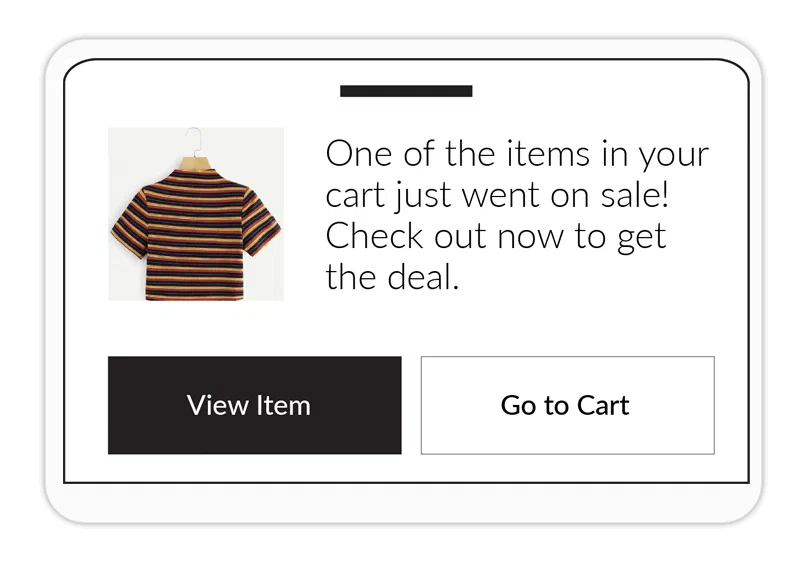
*Banner with media and buttons*
Multiple message [styles](#styles) (banner, modal, fullscreen, and custom HTML) are supported, as well as various [layouts](#layouts) for each style.
You will configure the message content based on the requirements for your selected style and layout:
* **Text** — Add text to header, body, and footer fields.
* **Media** — See [In-App Automation](https://www.airship.com/docs/reference/messages/media-guidelines/#in-app-automation) in Media guidelines.
* **Buttons** — Different styles support a different number of buttons, and you must associate an action for each. If more than one button is added, you may choose a button layout: *Separate*, *Joined*, or *Stacked*.
In-App Automation use intelligent caching to balance performance with real-time capabilities. Our SDK downloads and refreshes the entire message list upon next app open. Up to 50 messages can be pre-loaded onto the device at a time. SDK versions prior to iOS SDK 16.6 and Android SDK 16.4 use background push to perform these actions.
In-app automation is not [Persistent](https://www.airship.com/docs/reference/glossary/#persistent), and display **duration** varies by message style:
* Modal and fullscreen messages appear on screen until the user interacts with them, either by clicking one of the main buttons or dismissing the message.
* Banner messages disappear automatically after 15 seconds but will disappear sooner if the user clicks any button or dismisses the message.
### Styles
There are four styles:
[Banner](#style-banner),
[Modal](#style-modal),
[Fullscreen](#style-fullscreen), and [Custom HTML](#custom-html).
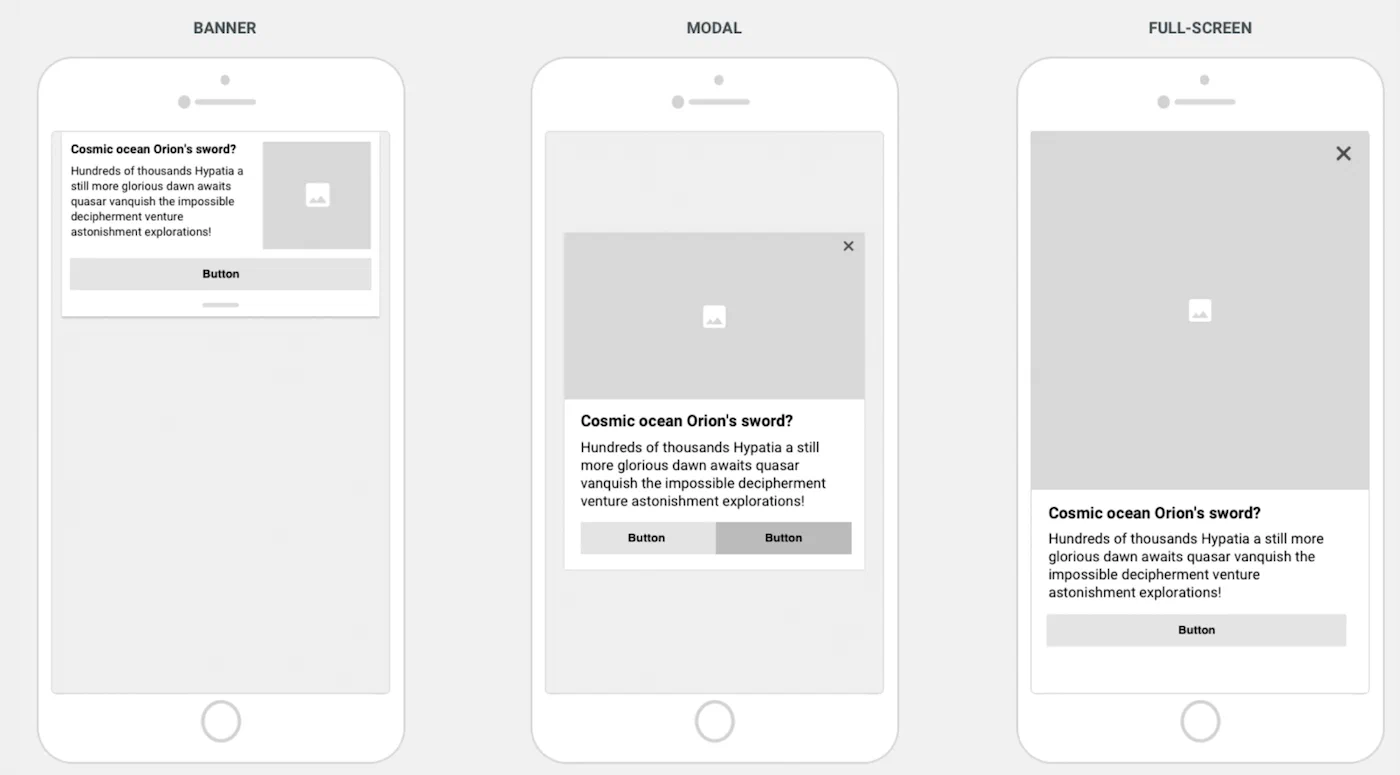
*In-App Automation styles*
#### Banner {#style-banner}
Banner messages appear at the top or bottom of your screen, sliding up from the bottom of the screen, or down from the top. They are designed to be less obtrusive to users than modal or fullscreen messages, by taking only a portion
of the screen and not fully interrupting the user from their current task. Example uses include informational messages, news alerts, or promotions that do not deserve a full user interruption.
Banner message elements:
* **Header** — An optional headline for the message. Bolded by default to stand out from the message text.
* **Image** — A small thumbnail image that appears on the right or left side of the message.
* **Text** — The main text of the message.
* **Buttons** — Display up to two buttons, allowing a user to respond to the message.
* **Dismiss** — Ability to dismiss the message by swiping it back in the direction it came from.
#### Modal {#style-modal}
A modal message takes over the user’s screen, compelling the user to interact with it. Modals are typically used to prompt users to reply to a question or make a quick decision. The message window is smaller than the full width of the screen, superimposed on the app with a translucent background, assuring the user that the interruption is temporary.
Modal message elements:
* **Header** — An optional headline for the message. Bolded by default to stand out from the message text.
* **Image** — A large image embedded in the message.
* **Text** — The main text of the message.
* **Buttons** — Display up to two buttons, allowing a user to respond to the message.
* **Dismiss** — Ability to dismiss the message by clicking the X button.
> **Tip:** You can make a modal message display as fullscreen on small screen devices. Use this setting if you want your message to take over the entire screen on a phone but display as a modal on a tablet. See *Display fullscreen on small screen devices* in the [default design settings](https://www.airship.com/docs/guides/messaging/in-app-experiences/configuration/defaults/#setting-in-app-automation-defaults).
#### Fullscreen {#style-fullscreen}
Fullscreen messages are similar to [modal](#style-modal) messages but take over the entire screen, providing more real estate for your message.
Fullscreen message elements:
* **Header** — An optional headline for the message. Bolded by default to stand out from the message text.
* **Image** — A large image embedded in the message.
* **Video** — Can be displayed instead of an image.
* **Text** — The main text of the message.
* **Buttons** — Display up to five buttons, allowing a user to respond to your message.
* **Dismiss** — Ability to dismiss the message by clicking the X button.
* **Footer** — A text link to content, e.g., Terms & Conditions, relevant to the message.
#### Custom HTML {#custom-html}
Custom HTML messages have the same appearance as [modal](#style-modal) messages and also have the
same message elements. The appearance of custom HTML messages is determined by your provided code.
General guidelines:
* Set your layout, content text, media, buttons, and any actions you want to trigger.
* Since much of the message's content and behavior are defined in your HTML, the settings and options available in the composer are reduced to only those applicable to the custom HTML message style.
* Any images, CSS, and applicable scripts referenced in your HTML should be made available via a CDN or publicly available repository. You cannot upload additional files using the composer.
> **Tip:** You can make a custom HTML message display as fullscreen on small screen devices. Use this setting if you want your message to take over the entire screen on a phone but display as a modal on a tablet. See *Display fullscreen on small screen devices* in [In-App Experience Defaults](https://www.airship.com/docs/guides/messaging/in-app-experiences/configuration/defaults/#setting-in-app-automation-defaults).
### Layouts
Available layouts per style:
* **Banner** — Left or right image orientation, or a text-only banner.
* **Modal** — Media at the top, middle, or bottom of the message, or text-only.
* **Fullscreen** — Media at the top, middle, or bottom of the message, or text-only option
### Optional features
In addition to configuring when the message will display and its appearance and content, you can set optional features:
* **Priority** — Because multiple messages can become eligible for display at the same time, you can assign a priority value to each one. If no priority is assigned, by default, the most recently updated message will appear first. Priority is shared across in-app automation and [Scenes](https://www.airship.com/docs/reference/glossary/#scene).
* **Repeat** — To prevent over-messaging, our SDK waits 30 seconds after one message is closed before displaying the next eligible message. This delay value can be updated through native code. You may also control the number of times an individual message is displayed and the minimum waiting period before it is eligible for redisplay. Redisplaying your message is useful because users can dismiss or ignore messages.
* **Start and end dates** — Set the dates and times during which your message can be displayed. Specifying a window of time is useful for messages that are time-bound or tied to scheduled events.
* **Missed behavior** — Override the project-level setting for how the message is handled when audience conditions are not fully met.
* **Ignore** [Message Limits](https://www.airship.com/docs/reference/glossary/#message_limits) — Override the project-level limit for a single message.
* **Campaign categories** — Group messages of a similar type or messaging strategy for aggregate reporting.
## Default settings
You can set appearance and behavior defaults for in-app automation, including [Color Sets](https://www.airship.com/docs/reference/glossary/#color_set) and custom fonts. You can override the defaults in the Design step of the In-App Automation composer. See: [In-App Experience Defaults](https://www.airship.com/docs/guides/messaging/in-app-experiences/configuration/defaults/).
## Getting started with In-App Automation
Follow these steps to start using In-App Automation with Airship:
* ⚙ **Configure mobile channels in your project settings** → See [Configuring Mobile Channels](https://www.airship.com/docs/guides/getting-started/developers/configure-channels/) in the Getting Started guide.
* link **Integrate the Mobile SDK with your app** → See [SDK setup](https://www.airship.com/docs/sdk-topics/setup/) for mobile apps in our developer documentation.
Once your project is set up, you can start creating megaphone-simple [In-App Automations](https://www.airship.com/docs/guides/messaging/in-app-experiences/in-app-automation/create/). Make sure to also set a default for Missed Behavior. See [Setting behavioral defaults](https://www.airship.com/docs/guides/messaging/project/enable-features/#setting-behavioral-defaults) in *Enable dashboard features and set behavioral defaults*.
# In-App Messages
> Send banner-style in-app messages to your App channel, including users who haven't opted in to push.
## About in-app messages
You can send in-app messages to your entire app audience, not just users who have opted in to push notifications. Use in-app messages to:
* Engage with users as they browse your app
* Reach users opted out of push notifications or may not have seen your push notification
* Reach users who saw your notification but opened the app without interacting with it
**Use cases:**
- Welcome messages — Communicate the value of your app and highlight key features.
- Push and location opt-in prompts — Explain the value of your notifications to drive opt-in rates.
- Feature education — Drive adoption of critical/new features that promote retention.
- Onboarding messages — A series of messages educate users about the app over time.
- App reviews — Prompt users to rate your app after positive experiences.
- Registration/login — Drive registrations and logins to your loyalty program or account.
- Profile enhancement — Promote the benefits of a completed profile, and provide a link to the relevant page in your app. Encourage your users to take a second to personalize their experience, and increase engagement and retention.
- App updates — Send your users an in-app message highlighting your app’s newest features, or encourage users on older versions to update the app. If you just added a new page or have some new content, make sure to include a Deep Link so that they can find it quickly.
- Ongoing promotions — If you have a promotion that users can take advantage of at any time — such as a discount for inviting a friend or for taking a survey — an in-app message serves as a convenient reminder.
You can combine an in-app message with a [Push Notification](https://www.airship.com/docs/reference/glossary/#push_notification) and/or [Message Center](https://www.airship.com/docs/reference/glossary/#message_center) message.
**Combined messaging example:**
Many media companies send breaking news push notifications with a deep link to the story within their app; when a user taps the notification, they’re taken directly to the story. For users that don’t tap notifications directly and instead open the app later, that news story may be difficult to find. An in-app message that appears the next time a user opens the app provides a second opportunity to link them directly to the story, and a much more streamlined experience.
## Appearance and behavior
In-app messages are in banner format. Every in-app message requires text, and you can also add one or two buttons.
* **Animation** — In-app messages animate into the user's screen. Depending on your project's design defaults or [API request specifications](https://www.airship.com/docs/developer/rest-api/ua/schemas/push/#inappobject), the message will animate in from either the top or bottom of the user's screen.
* **Colors** — Notification colors can be specified in your project's design defaults or the [API](https://www.airship.com/docs/developer/rest-api/ua/schemas/push/#inappobject).
* **Dismissal** — Notification dismissal on iOS and Android is accomplished with a *drawer pull*.
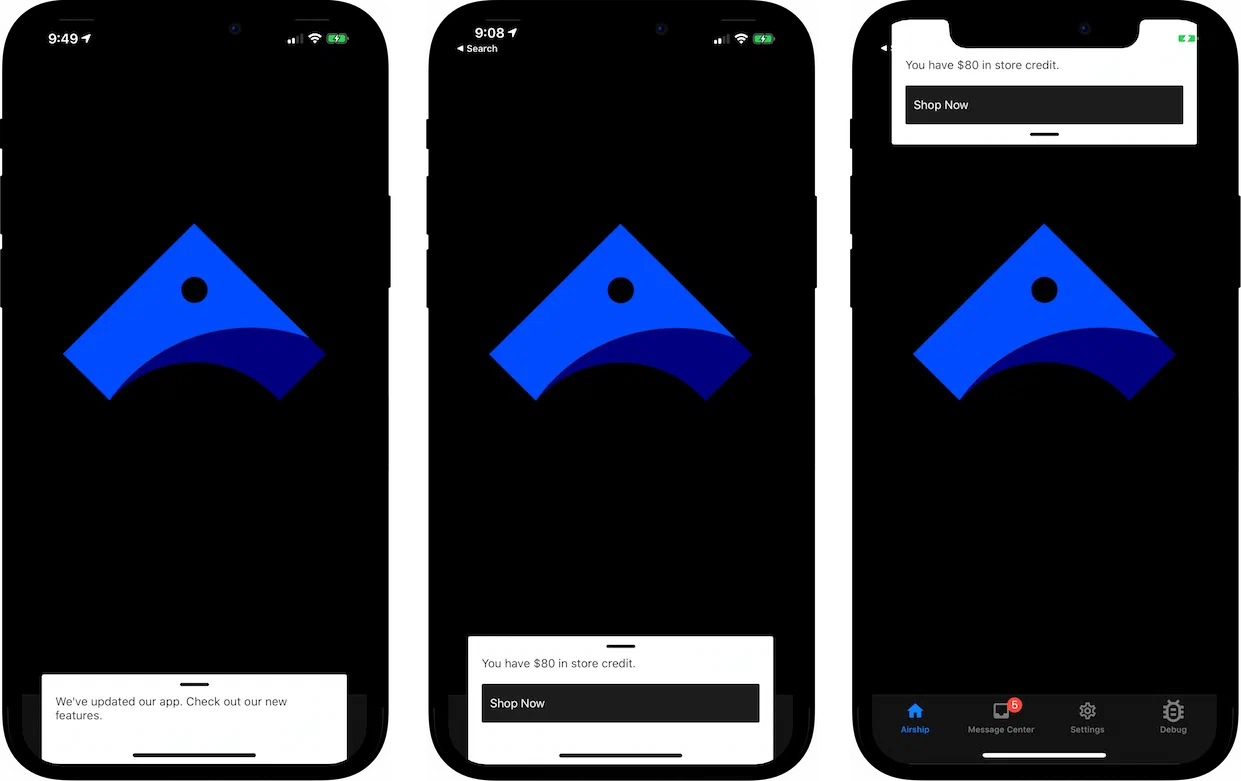
*In-app messages*
By default, an in-app message will display while a user is browsing your app. If a user is not browsing your app while you send an in-app message, the message will be displayed the next time they open the app.
Users will see an in-app message as long as:
* The message is not expired.
* They have not tapped a push notification that was sent in combination with the in-app message.
They behave largely like push notifications, and they can be dismissed as you would dismiss a push notification. However, there are a few key differences regarding display behavior:
* **Duration** — In-app messages are not [Persistent](https://www.airship.com/docs/reference/glossary/#persistent). By default, an in-app message will only appear on a user's screen for 15 seconds before disappearing. You can change this value in the design defaults for the in-app messages in your project. When sending in-app messages via the API, you can override this value with the `duration` key.
* **Sending Multiple Messages** — An app will only store a single in-app message at a time. If a valid message is waiting to be displayed in a user's app and a you send another in-app message, the new message takes the place of the prior one. Moreover, there is no way to specify an in-app message's priority. The latest message will always replace the previous one.
## Getting started with in-app messages
Follow these steps to start using in-app messages with Airship:
* ⚙ **Configure mobile channels in your project settings** → See [Configuring Mobile Channels](https://www.airship.com/docs/guides/getting-started/developers/configure-channels/) in the Getting Started guide.
* link **Integrate the Mobile SDK with your app** → See [SDK setup](https://www.airship.com/docs/sdk-topics/setup/) for mobile apps in our developer documentation.
Once your project is set up, you can start creating megaphone-simple [In-app message content](https://www.airship.com/docs/guides/messaging/messages/content/app/in-app-messages/).
# SMS/MMS/RCS
> SMS, MMS, and RCS messages reach customers directly on their phones, even without an app, for immediate engagement and time-sensitive communications.
## About SMS
You send SMS messages to an MSISDN (phone number) over the [SMMP protocol](https://en.wikipedia.org/wiki/Short_Message_Peer-to-Peer) to devices that have opted in for a specific [Sender ID](https://www.airship.com/docs/reference/glossary/#sender_id). SMS messages help you reach a wide audience quickly, without an app or development work.
SMS messages are text-based. MMS (multi-media messaging service) is an extension of SMS, and MMS messages are image-based. MMS messages can include fallback text, ensuring that users who can't view the original MMS message still receive a message that makes sense. Generally speaking, "SMS" is inclusive of MMS. Benefits include:
* **Immediacy** — Send time-sensitive notifications.
* **Reach** — Contact customers who don’t have your app, or re-engage customers who are inactive on other channels or at-risk.
* **Personalization** — Send transactional messages triggered by a backend system, e.g., order confirmation and shipment tracking updates.
* **[Mobile wallet](https://www.airship.com/docs/guides/wallet/getting-started/wallet/) integration** — Deliver personalized passes, tickets, coupons, and more.
* **Integrated platform** — Centralize all your engagement channels; manage personalization, scheduling, and deployment for all message types; and measure SMS alongside all your other channels, all in the Airship platform.
* **No app required** — If you do have an app, however, SMS notifications are an additional channel
that you can use to engage your audience. You can decide which channel (app, SMS, etc.) is more important for different types of messaging, adjust your messaging for different channels, set priority per channel, and much
more. See [Channel Coordination](https://www.airship.com/docs/reference/glossary/#channel_coordination) for details about priority channel and other cross-channel engagement strategies.
You can create SMS keywords in the dashboard. See [SMS keywords](https://www.airship.com/docs/guides/messaging/features/sms-keywords/).
### Use cases
**Sports Events**
* **Before the event** — Last-minute ticket offers, seat upgrades, parking coupons
* **During the event** — Coupons, promotions of venue facilities, promotion of sponsor experiences to increase partner activations
* **Mobile wallet pass delivery** — Coupons, tickets
**Retail**
* **Campaigns** — Location-aware promotions, promotions to drive in-store traffic, lifecycle marketing
* **Transactional** — Offer confirmations, order status updates
* **Mobile wallet pass delivery** — Loyalty card updates, coupons
**Airlines**
* **Day-of-travel** — Flight reminders, promotions, loyalty benefits
* **Mobile wallet pass delivery** — Boarding passes, loyalty card updates, coupons
**Media**
* **Campaigns** — Re-engage inactive or at-risk readers
* **News** — Preferred new categories
## Appearance and behavior
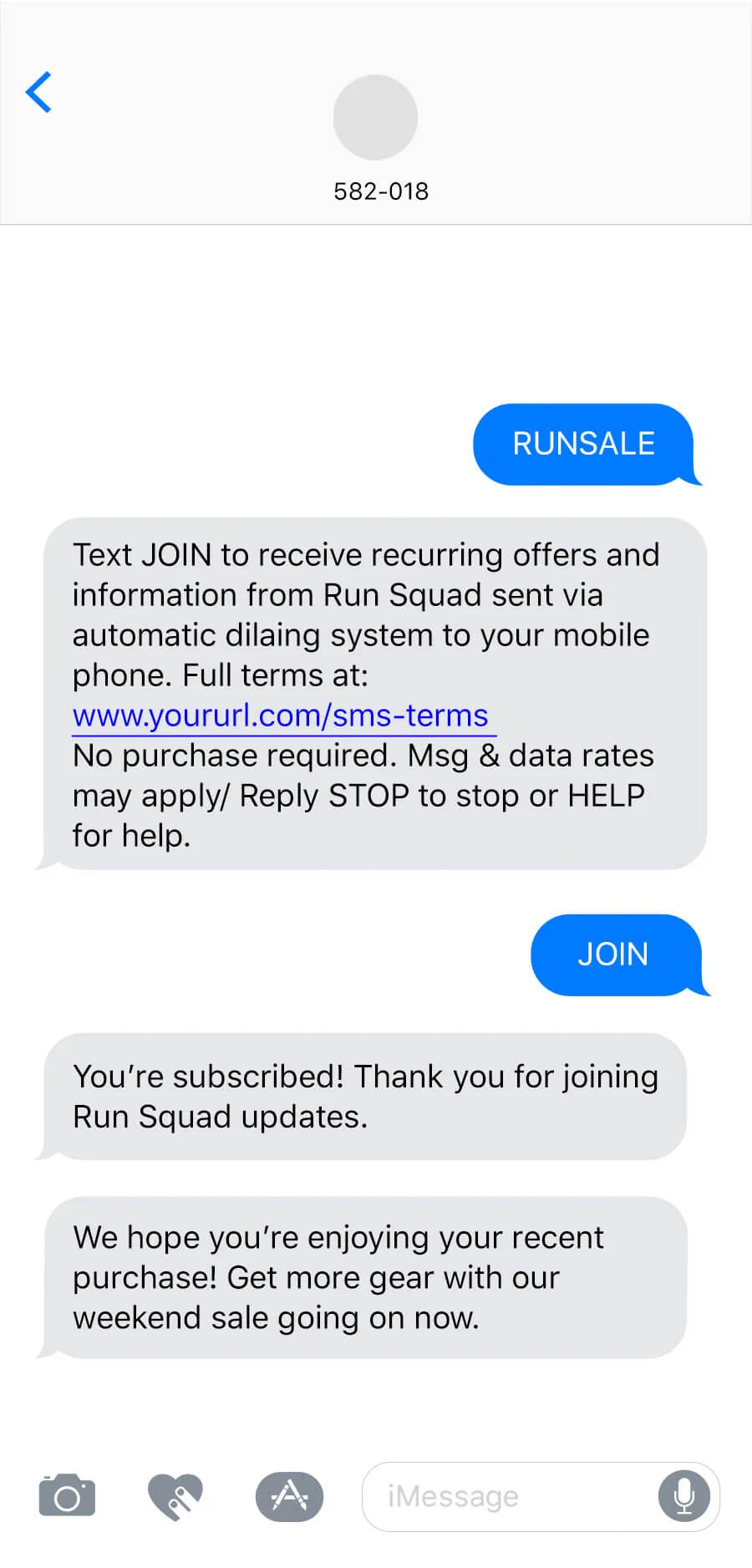
*SMS*
SMS and MMS messages appear in the recipient device's native SMS client. They are [Persistent](https://www.airship.com/docs/reference/glossary/#persistent), remaining viewable until deleted by the user.
**SMS** messages require text, with a limit of 160 characters:
* An SMS message over 160 characters appears to the user as successive messages.
* If emojis and/or multibit characters are included, the message will be split into an additional message after 70 characters.
We will ensure the delivery of split messages, and most modern phones will concatenate the messages for the recipient, displaying them as a single message as opposed to delivering message 1 of 2 and message 2 of 2 separately. The number of actual SMS message sends will be billed even though the receiving device may display a fewer number of messages.
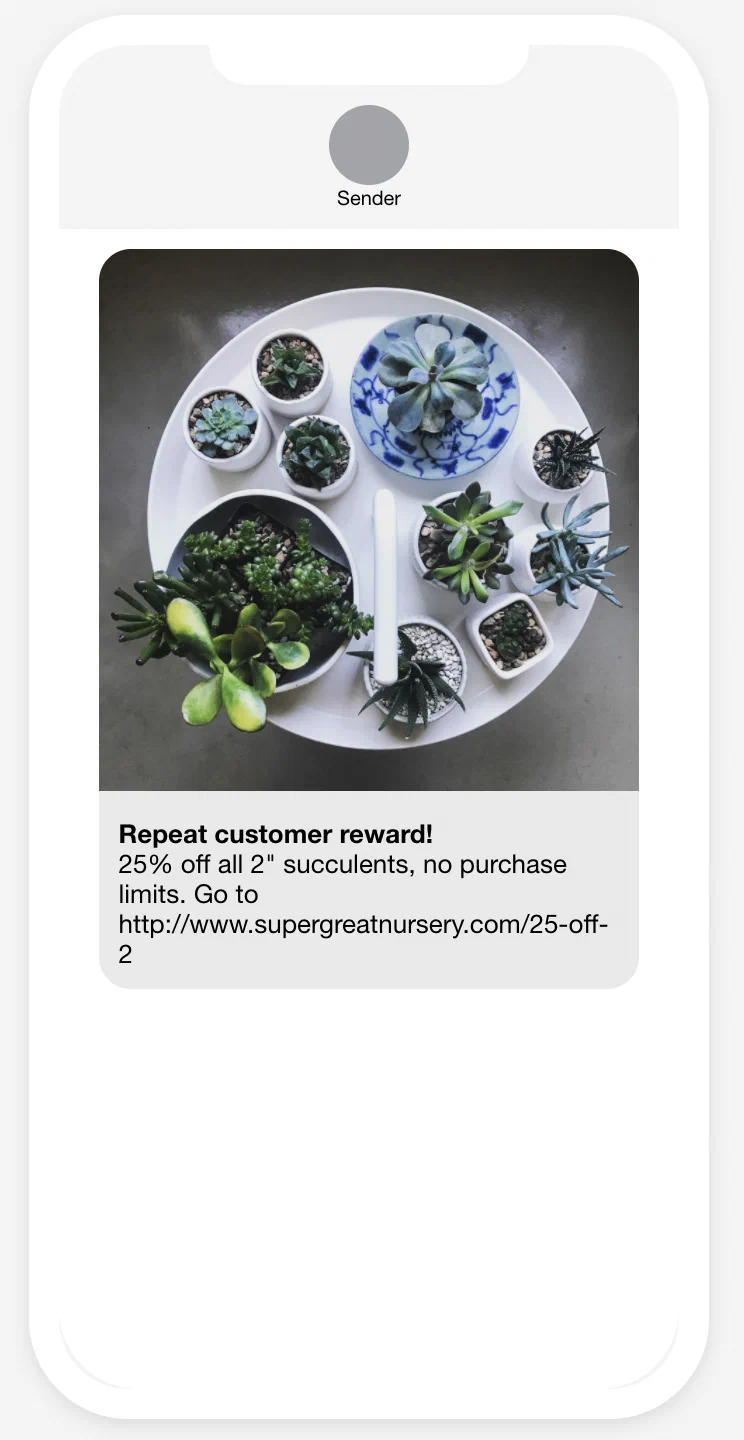
*MMS with subject and text*
**MMS** messages require an image or [vCard](https://en.wikipedia.org/wiki/VCard). See [Media guidelines](https://www.airship.com/docs/reference/messages/media-guidelines/).
Content options for MMS:
* **Subject** — A heading that appears in bold. Subject might not appear if you are sending from a toll-free number. 80 character maximum.
* **Text message** — Text that accompanies the image. 5,000 character maximum.
* **SMS fallback text** — Users who cannot receive your MMS message will receive an SMS message with this text along with the image URL. 160 character maximum.
Link shortening and tag actions are supported for both text options in MMS.
> **Important:** While MMS messages can include a subject and text, there is no guarantee as to the order in which text and the media in the message appear to the user. Media and text are sent separately.
### RCS branded sender
Use an RCS branded sender to enable richer, branded delivery with read events where available. Your message automatically falls back to SMS/MMS when RCS is not supported. See [RCS branded senders](https://www.airship.com/docs/developer/api-integrations/sms/rcs/) for more information.
## Link shortening
*Link shortening* converts HTTP/HTTPS URLs in your SMS messages to unique, shortened URLs for your recipients. The shortened URLs reduce the total number of characters that links consume and produce click tracking metrics, helping you determine how effective your SMS messages are in driving traffic to your links.
### Tag actions
You can add or remove tags from users who engage with Airship-shortened links in your SMS messages. Shortened links with tag actions are the same length as URLs without. You can also use tag change events to kick off automation rules or sequences, making it easier to integrate SMS messaging campaigns into your larger messaging strategy.
Tag actions add query parameters to your URL, but users will still see the shortened URL in your SMS messages.
### Custom domains for short links
Take advantage of your highly-recognizable brand and increase conversions while saving characters in SMS messages using Airship-shortened links with a custom domain. See [Custom domains for short links](https://www.airship.com/docs/developer/api-integrations/sms/custom-short-link/) in our developer documentation.
## Getting started with SMS
Follow these steps to start using SMS with Airship:
* ⚙ **Add the SMS channel to your project** → Contact Airship Sales to provision your project for SMS messages.
* link **Register users and set up keywords** → See [Getting Started](https://www.airship.com/docs/developer/api-integrations/sms/getting-started/) for SMS integration in our developer documentation.
Once your project is set up, you can start creating chat-text [SMS/MMS/RCS content](https://www.airship.com/docs/guides/messaging/messages/content/sms/).
# Open channels
> Open channels extend Airship messaging to devices and apps that aren't natively supported.
## About Open channels
An open channel is essentially any internet-connected medium that can accept and interpret a JSON payload.
The simplest use case for a notification is the one we are all familiar with: displaying
the text of an alert. But there are many other uses for a notification payload, which,
depending on the target interface or OS, may be handled in different ways. For example,
our SDKs for iOS and Android support the interactive features of those operating systems
through our API. Our API also supports an extra field, which lets you to pass any
key/value pair to handle how you see fit, e.g., update a config file or trigger a different
process.
An open channel can be any non-native
platform or interface where you’d like to reach users, or for that matter any client
capable of receiving a payload over the Internet. The end message doesn’t need to be
human-readable alert text as you might see on an iPhone. Alerts are usually intended
for people, but in the case of a machine, you could tell it to update its firmware,
increment a counter in a database, or perform some other action. Use cases include:
- Automated Slack Message using Slack incoming webhooks
- Chatbot notifications
- Firmware updates for IOT devices
- Integrate with third-party messaging APIs, e.g., Twitter
While open channels require some development work on your end, integrating your open channel with Airship extends most of the features of our platform to additional channels, providing you with an additional way to communicate with your audience.
## Appearance and behavior
Open channels are not backed by an Airship SDK, so the developer must determine how to parse and display the notification payloads in the available interface.
Every push notification requires text, and you can also add optional features:
* **Title** — A heading that appears above the notification text where applicable.
* **Media** — See: [Media guidelines](https://www.airship.com/docs/reference/messages/media-guidelines/).
* **Summary** — Supplemental text displayed with the primary notification.
## Getting started with Open channels
Follow these steps to start using Open channels with Airship:
* ⚙ **Configure a webhook for your project** that accepts open delivery payloads, translates them, and routes notifications to your app or open channel device.
* link **Register users** using the Open channels API.
For both, see [Getting Started](https://www.airship.com/docs/developer/api-integrations/open/getting-started/) for Open channels integration in our developer documentation.
Once your project is set up, you can start creating share-network [Open channels content](https://www.airship.com/docs/guides/messaging/messages/content/open/).
# iOS Live Activities and Android Live Updates
> Display real-time, dynamically updated content that refreshes in place instead of sending multiple notifications. Available for iOS and Android devices. {{< badge "axp" >}}
iOS Live Activities and Android Live Updates can make it easier to keep information updated in real time instead of receiving multiple notifications from the same app for things like a game's latest score, food delivery status, or rideshare arrivals.
## iOS Live Activities
A *Live Activity* displays current data from your app on the iPhone Lock Screen and in the Dynamic Island.
Key features:
* **Duration** — Live Activities can be displayed and updated for up to eight hours, until they expire. After expiration, an activity can continue to be displayed for up to four hours before it is automatically dismissed.
* **Multiple activities and apps** — They can be started by an app, and a device can show multiple activities from different apps, the maximum number of which may depend on a range of factors.
* **Updates** — Make changes to your content through API push notifications and/or background tasks in the app. For more timely updates, Airship recommends using push notifications or push notifications in addition to background tasks.
Along with the iOS SDK, Airship supports Live Activities for multiple **frameworks**: React Native, Capacitor, and Flutter.
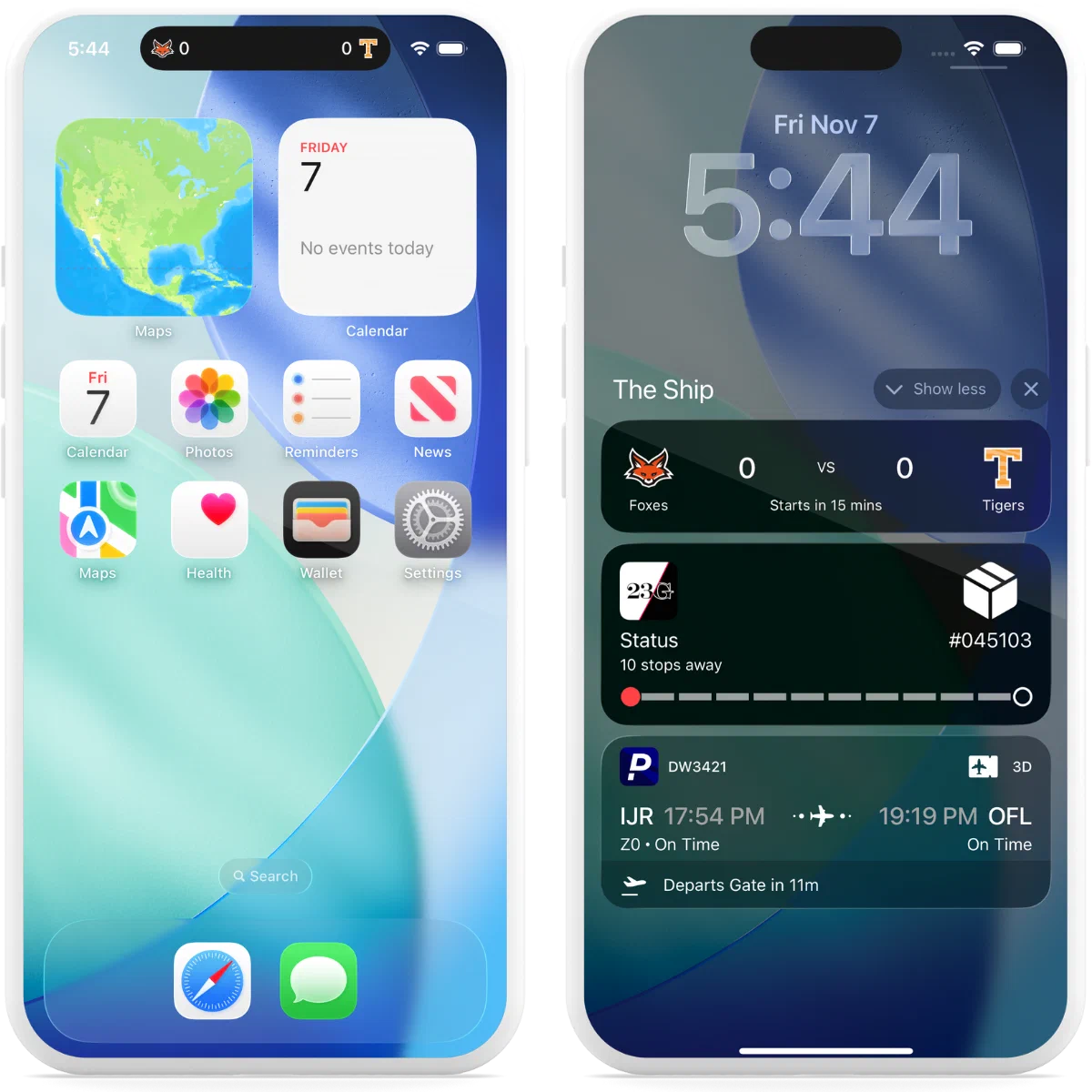
*iOS Live Activities in the Dynamic Island and Lock Screen*
## Android Live Updates
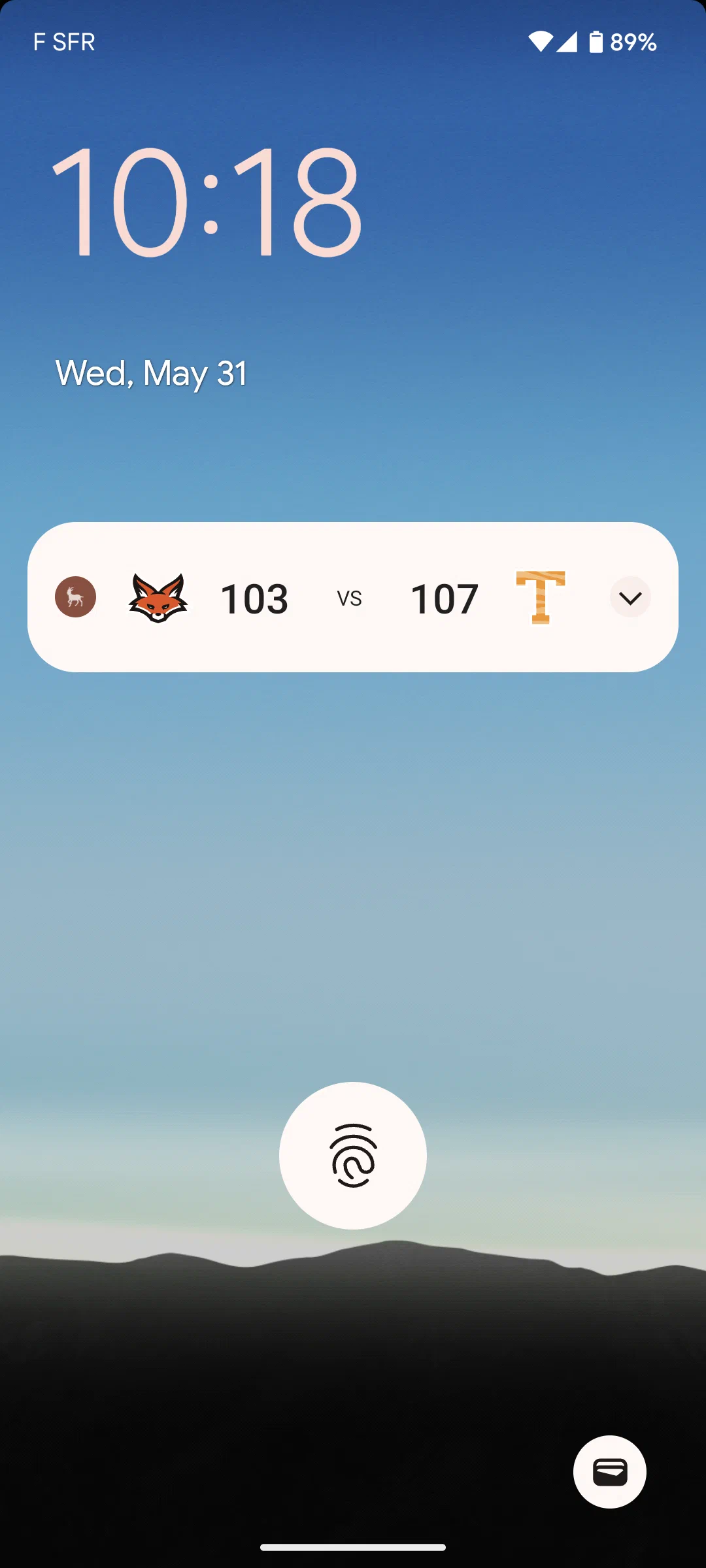
*A Live Update in a sports game notification*
Live Updates provide functionality similar to [iOS Live Activities](#ios-live-activities), making it easy to display dynamically updated content on Android. They do not have time limits.
The Live Update is the *container* of the information, which can be *displayed* on a device in these formats:
* [Push Notification](https://www.airship.com/docs/reference/glossary/#push_notification) — API only. Format is determined by custom layout.
* **Home screen widget**
* **Custom app view** — The content from a Live Update can be presented using custom code.
Live Updates can be started, updated, and ended using API push notifications or the SDK. The notification, widget, or custom app view refreshes with the information contained in the latest Live Update received by the device.
Along with the Android SDK, Airship supports Live Updates for multiple **frameworks**: React Native, Capacitor, and Flutter.
## Getting started with Live Activities and Live Updates
Follow these steps to start using real-time updates with Airship:
* ⚙ **Configure mobile channels in your project settings** → See [Configuring Mobile Channels](https://www.airship.com/docs/guides/getting-started/developers/configure-channels/) in the Getting Started guide.
* link **Integrate the Mobile SDK with your app** → See [SDK setup](https://www.airship.com/docs/sdk-topics/setup/) for mobile apps in our developer documentation.
Once your project is set up, start using:
* ⟳ [Live Activities](https://www.airship.com/docs/guides/messaging/features/ios-live-activities/) using the push API. For SDK methods, see the [Live Activities](https://www.airship.com/docs/sdk-topics/live-activities/) developer documentation.
* ⟳ [Live Updates](https://www.airship.com/docs/guides/messaging/features/android-live-updates/) using the push API. For SDK methods, see the [Live Updates](https://www.airship.com/docs/sdk-topics/live-updates/) developer documentation.
### Scenes
Scenes are native in-app experiences that provide immediate, contextual responses to user behaviors across mobile and web.
# Scenes
> A Scene is a mobile app or web experience of one or more screens displayed with fully native UI components in real time, providing immediate, contextual responses to user behaviors. {{< badge "axp" >}}
## Why use Scenes?
Use Scenes to build and update rich user interfaces remotely across mobile apps and the web without waiting for engineering release cycles. By utilizing a **Server-Driven UI (SDUI)** approach, Scenes ensure optimal performance on every device by rendering as native components on mobile and optimized HTML on the web. You can deploy interface updates in real-time using declarative data, ensuring your experiences remain agile while strictly adhering to app store policies regarding remote code execution.

*Web Scenes using a modal view style*
### Native rendering and performance
Scenes utilize the native components for each platform to ensure maximum performance. On mobile apps, Scenes render as fully native UI components that leverage **SwiftUI** on iOS and provide seamless **Jetpack Compose** support on Android. On the web, they render as optimized HTML elements. This architecture ensures:
* **High performance** — Mobile Scenes allow for smooth, native gestures and animations. Web Scenes use modern, lightweight web technology to ensure fast load times and responsive interactions across devices.
* **Design consistency** — Scenes use your centralized brand guidelines to maintain visual unity across channels. Typography, colors, and themes are applied consistently across iOS, Android, and Web, eliminating common platform discrepancies. Scenes also respect user device settings, seamlessly adapting to Light and Dark mode preferences.
* **Deep platform integration** — Scenes respect the "rules" of the device. This means handling Safe Areas and notches on mobile, while managing window resizing and responsive behavior on the web.
* **Accessibility** — Leveraging native components ensures support for core accessibility features like screen readers (VoiceOver/TalkBack), dynamic text sizing, and high contrast modes. Scenes are engineered to align with Web Content Accessibility Guidelines (WCAG) and map to correct platform standards, minimizing the configuration required to support users relying on assistive technologies.
The [accessibility agent](https://www.airship.com/docs/guides/messaging/editors/native/about/#accessibility-audit) uses agentic and generative AI to automatically audit your content and identify potential accessibility issues such as insufficient color contrast, missing alternative text, and text size that falls below recommend minimums. Issues can be fixed with a single click.
### Full visual editor
Create and update screens using the [Native Experience Editor](https://www.airship.com/docs/reference/glossary/#ne_editor) in the Airship dashboard. No engineering resources required.
* **No-code design** — Build custom, reusable layouts from scratch or generate them via AI. You control the layout, styling, and interactions without rigid restrictions.
* **AI-assisted creation** — Generate and edit content instantly using AI to speed up your workflow.
* **Reusable layouts** — Save Scene designs to quickly replicate layouts and maintain brand consistency across different campaigns.
* **Reduced overhead** — Eliminate the need to build and maintain custom UI components for every new message type.
### Extensibility with Custom Views
Bridge the gap between no-code flexibility and **advanced custom capabilities**. You can embed native mobile app views or custom web components registered via the Airship SDK directly into a Scene. This allows you to include:
* **Authentication** — Embed login, sign-up, or biometric prompts directly within an onboarding flow.
* **Commerce** — Embed shopping carts or checkout flows directly within the message.
* **Existing UI components** — Reuse complex interfaces you've already built, such as video players, product cards, or AR experiences.
* **Interactive maps** — Embed store locators or delivery tracking.
* **Live data** — Display real-time stock quotes, flight status, or sports scores.
See [Custom Views](https://www.airship.com/docs/guides/features/messaging/scenes/custom-views/) for more details.
### Hybrid real-time and offline capability
Scenes use an intelligent caching strategy to balance performance with personalization.
* **Fast performance** — Scenes are cached on the device for instant display, with automatic updates when triggered to ensure users see the latest content.
* **Offline support** — Simple text-only Scenes can display even when the device is offline, ensuring your messages reach users regardless of connectivity.
* **Real-time personalization** — Scenes with personalization and advanced audience targeting are processed right before display, so users always see content tailored to their current context and behavior.
* **Smooth experience** — Images load before the Scene appears, ensuring a polished, complete experience without loading delays.
### Real-time triggering
Scenes respond instantly to user actions and behaviors, enabling you to deliver contextual experiences at the perfect moment.
* **Custom Events** — Trigger Scenes based on any user action you track—purchases, cart additions, video views, button clicks, or any custom interaction. Create connected, multi-step experiences that respond to user behavior in real time.
* **Screen views** — Display Scenes when users navigate to specific screens in your app or website. Guide users through onboarding flows, highlight features on relevant pages, or provide contextual help exactly where they need it.
* **App opens and sessions** — Welcome users on their first visit, celebrate milestones after multiple sessions, or re-engage users who haven't opened your app recently.
* **App updates** — Introduce new features or highlight changes when users update to a new version of your app.
* **Web URL targeting** — For web experiences, trigger Scenes based on specific URLs, query parameters, or navigation patterns. Perfect for campaign landing pages, checkout flows, or personalized content based on referral sources.
* **[Feature Flag](https://www.airship.com/docs/reference/glossary/#feature_flag) interactions** — Trigger Scenes based on feature flag interactions, enabling you to create experiences tied to feature rollouts or A/B tests.
You can combine multiple triggers and set display conditions to create sophisticated, context-aware experiences that adapt to each user's behavior and context. See [In-App Experience Triggers](https://www.airship.com/docs/guides/messaging/in-app-experiences/configuration/triggers/) for complete configuration details.
### Interactive capabilities
Scenes support rich interactive features that enable two-way communication and dynamic user experiences:
* **Surveys and feedback collection** — Create surveys with various question types (open, single/multiple choice) and NPS elements. Present them at the optimal moment based on user behavior to collect responses in real time.
* **Channel registration** — Collect contact info directly within Scenes. Users can register for email or SMS channels without leaving your app, enabling seamless channel growth and re-engagement opportunities.
* **Branching logic** — Create dynamic, personalized experiences that adapt based on user responses or conditions. Branching allows you to show different screens or paths based on user selections, enabling sophisticated, context-aware messaging flows.
* **Story mode** — Create engaging, auto-advancing experiences similar to social media stories. Perfect for visual narratives or product showcases, users can tap to navigate or let the story play automatically with customizable timing.
### Flexible display formats
Scenes adapt to your content and use case with multiple display formats and presentation styles, each optimized for different scenarios:
* **Embedded Content** — Inject dynamic Scene content directly into your app or website's existing screens (e.g., a banner within a feed) rather than overlaying them. This allows you to add dynamic, remotely configurable content to specific locations—perfect for promotional banners, featured content sections, or contextual help that appears exactly where users need it.
* **Fullscreen** — Immersive experiences perfect for onboarding flows, multi-step tutorials, or important announcements.
* **Modal** — Standard overlays for quick announcements, surveys, or calls-to-action.
You can create custom view styles beyond the default modal and fullscreen options, giving you complete control over size, position, and appearance. This flexibility ensures your Scenes match your brand and user experience goals, whether you need a subtle nudge or a bold statement.
### Responsive design across devices
Optimize your Scenes for different screen sizes and orientations using conditional design overrides that automatically adjust your content based on device characteristics:
* **Device-specific optimization** — Ensure Scenes display appropriately across smartphones, tablets, and different screen sizes. A fullscreen Scene on a phone can automatically display as a smaller modal on a large tablet for a better viewing experience.
* **Orientation adaptation** — Configure different display settings for portrait and landscape orientations, ensuring your content looks great regardless of how users hold their device.
* **Automatic adjustments** — Set conditional overrides that apply based on device size and orientation, so you don't need to create separate Scenes for different devices.
* **Preview tools** — Use orientation and device size preview tools while creating Scenes to see how your content will appear across different scenarios before deployment.
See [Conditional design overrides](https://www.airship.com/docs/guides/features/messaging/scenes/conditional-design-overrides/) for more details.
## Use cases
Scenes can be used for a variety of custom experiences that you define. The following examples demonstrate how Scenes can support different stages of the user experience.

*Retail app onboarding Scene*
### Onboarding and engagement
Use Scenes to guide new users and encourage key actions:
* **Welcome messages** — Communicate the value of your app and highlight key features.
* **Push opt-in prompts** — Explain the value of your notifications to drive opt-in rates.
* **Registration/login** — Drive registrations and logins to your loyalty program or account.
### Promotional messaging
Use Scenes to deliver targeted promotional content and drive conversions:
* **Sales and discounts** — Highlight special offers, flash sales, or limited-time discounts with rich visuals and clear calls-to-action.
* **Product launches** — Announce new products or features with engaging multi-screen experiences that showcase key benefits and drive early adoption.
* **Loyalty program benefits** — Promote exclusive rewards, points multipliers, or member-only offers to encourage engagement and retention.
* **Seasonal campaigns** — Create timely promotional experiences for holidays, events, or seasonal shopping periods with contextually relevant content.
* **Cross-sell and upsell** — Display complementary products or premium features based on user behavior or purchase history.
* **Event promotions** — Drive attendance or participation for webinars, in-store events, or special occasions with interactive promotional content.
### Feedback and surveys
Collect user feedback at strategic moments:
* **App reviews** — Prompt users to rate your app after positive experiences.
* **NPS (Net Promoter Score)** — Display an NPS survey to gauge how likely your users are to recommend your app.
* **Customer service rating** — Display a customer service satisfaction survey after they end a support chat.
* **Purchase confirmation** — Display a survey after they complete a purchase to get feedback on your checkout process.
* **General feedback** — Display a survey in response to a button click.
* **Account closure** — Display a survey at the end of an account closing asking why they closed their account.
### Web URL targeting
Web Scenes support URL-based targeting that enables precise control over when and where your content appears on your website. You can create contextually relevant experiences without requiring web development resources.
**Common use cases:**
* **Page-specific messaging** — Show different content on product pages, checkout flows, or landing pages.
* **Campaign targeting** — Display content based on UTM parameters or referrer sources.
* **Workflow guidance** — Guide users through complex workflows with contextual messaging.
**Example scenarios:**
* Welcome new visitors arriving at your homepage.
* Show product promotions on specific category pages.
* Display checkout assistance when users reach cart pages.
* Target users from email campaigns with personalized follow-up content.
See [Web URL](https://www.airship.com/docs/guides/messaging/in-app-experiences/configuration/triggers/#web-url) in *In-App Experience Triggers* for configuration details.
## Appearance and behavior
Scenes appear regardless of a user's opt-in/out status for notifications and remain on screen until the user interacts with them, either by swiping or tapping through all screens or dismissing the Scene. They persist across app and web sessions until dismissed.
For Scenes with multiple screens, dots appear at the bottom, indicating the number of screens. You can set colors for their active and inactive states, hide them, and disable the swipe requirement to require interacting with buttons and prevent swiping between screens.
Scenes can be customized for device Light and Dark modes by creating [Color Sets](https://www.airship.com/docs/reference/glossary/#color_set) and assigning them when configuring color fields for various design settings, like background, text, or the dismiss button.
### View styles
All projects contain two preset view styles, Modal and Fullscreen, and you can create custom versions for each.
* A **modal** view is smaller than the full width of the screen, superimposed on the app with the background color of your choosing, indicating that the interruption is temporary. It takes over the user's screen, compelling the user to interact with it.
* **Fullscreen** Scenes have the same design as modal but use the entire screen. You can set fullscreen Scenes to extend to the full height and width of a device or display only within the area of your app's interface that is not covered by physical or UI elements, such as a status bar or notch.
You can also present the content of a Scene on any app screen as defined by an app developer. This format is called [Embedded Content](https://www.airship.com/docs/guides/features/messaging/scenes/embedded-content/).
### Screens and design
Scenes can have up to 20 screens. You can design content manually or use [AI generation](https://www.airship.com/docs/guides/messaging/editors/native/ai-content/).
Each screen can contain these elements:
* **Text**
* **Text Input** — A field for entering user input for collection
* **List** — A bulleted list where the bullet is an image you provide
* **Media** — An image or video
* **Button** — A single button
* **Button group** — One to five buttons
* **NPS** — A survey based on the [net promoter score](https://en.wikipedia.org/wiki/Net_promoter_score) metric, which measures how likely it is that your users would recommend your brand or product to a friend or colleague
* **Question** — Open, single choice, or multiple choice
* **Email** — A field for entering an email address for collection or registration as a channel
* **SMS** — A field for entering a phone number for collection or registration as a channel
* [**Custom View**](https://www.airship.com/docs/guides/features/messaging/scenes/custom-views/) — A native app view embedded within a screen
* **Container**
Alternatively, you can create Scenes using custom HTML for complete design control, with all Scene logic handled by your HTML and JavaScript. See [Provide custom HTML](https://www.airship.com/docs/guides/messaging/in-app-experiences/scenes/create/#provide-custom-html) in *Create a Scene*.
## Getting started with Scenes
Follow these steps to start using mobile app Scenes with Airship:
* ⚙ **Configure mobile channels in your project settings** → See [Configuring Mobile Channels](https://www.airship.com/docs/guides/getting-started/developers/configure-channels/) in the Getting Started guide.
* link **Integrate the Mobile SDK with your app** → See [SDK setup](https://www.airship.com/docs/sdk-topics/setup/) for mobile apps in our developer documentation.
Follow these steps to start using web Scenes with Airship:
* ⚙ **Configure the Web channel in your project settings.**
* link **Integrate the Web SDK with your website.**See [Getting Started for the Web SDK](https://www.airship.com/docs/developer/sdk-integration/web/getting-started/) in our developer documentation.
Once your project is set up, you can start creating slideshow [Scenes](https://www.airship.com/docs/guides/messaging/in-app-experiences/scenes/create/). To set default values for all new Scenes, see [In-App Experience Defaults](https://www.airship.com/docs/guides/messaging/in-app-experiences/configuration/defaults/).
# Embedded Content
> Embed Scene content inline within your app or web screens to create seamless, contextual experiences. {{< badge_sdk_min ios="18.7+" android="18.1.4+" >}} {{< badge "axp" >}}
## About Embedded Content
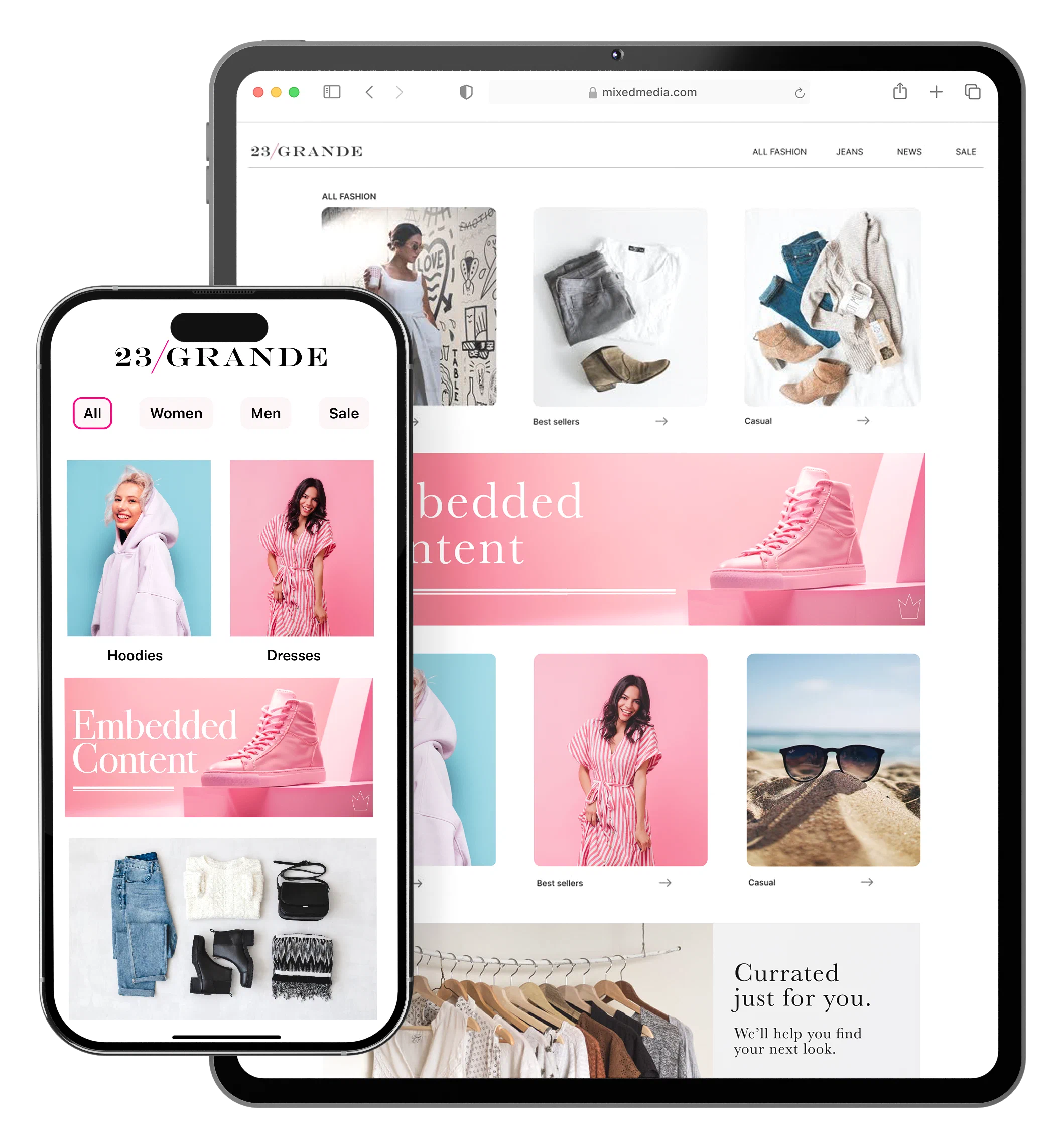
*Embedded Content*
Embedded Content is an alternative Scene format that can be displayed on any app or web screen in a view defined by a developer. It can also be presented in Story format.
* **Seamless inline experiences** — Present Scene content within your app or website screens, naturally fitting into your existing flow.
* **Integrated display** — Unlike modal or fullscreen Scenes that appear as overlays, Embedded Content appears directly within your existing views, making it ideal for promotional banners, contextual messaging, and personalized content cards.
Use Embedded Content to:
* **Display contextual messages** — Show relevant content inline with your existing UI, such as promotional banners on a home screen or product recommendations within a shopping flow.
* **Personalize content** — Use audience targeting and Scene capabilities to show different content to different users in the same view location.
* **Test and iterate** — Update content remotely without requiring app updates, allowing you to test different messages and layouts quickly.
Consider using modal or fullscreen Scenes instead when you need to:
* Capture immediate attention with an overlay
* Display important announcements or critical actions
* Show content that requires full user focus
### How Embedded Content works
There are three primary components that work together to display Embedded Content. Components 1 and 2 can be created in any order, as long as their IDs match:
1. **A "view" in your app or website where Scene content will display** — An app developer creates an embedded view component, such as `AirshipEmbeddedView` for iOS, that controls the dimensions of the content and its location. A web developer creates an HTML container where Scene content will be rendered. For both, they also determine what content can be displayed in the view by setting a value for the view's `embeddedId` that matches the ID of an Embedded Content view style.
1. **A view style in your project settings** — A marketer creates an Embedded Content view style and assigns an ID for reference in the app or web view's `embeddedId`.
1. **A Scene using an Embedded Content view style** — This is the source of the content that will be displayed in the view.
Once the Scene is triggered for display and matches the specified audience conditions, its content is available to users when visiting an app screen or web page that contains the view.
The view is populated with the content from all active Scenes with the matching ID, sorted based on priority. When an embedded view loads content, the highest priority Scene that is queued for display will be shown. The same content will be shown across app and web sessions until it is dismissed by the user or is no longer available. The view will then show the next Scene with the highest priority from the display queue.
Airship first prepares the content when the triggering event occurs and then refreshes it upon every app open or web session start. This ensures that users always experience the most up-to-date message. So, after updating active Embedded Content, users will see the latest version the next time they visit an app screen or web page containing the view.
## Getting started with Embedded Content
Follow these steps to start using Embedded Content with Airship:
* link **Create a "view" in your app or website where Scene content will display** → See the [Embedded Content](https://www.airship.com/docs/sdk-topics/embedded-content/) developer documentation for mobile app and web.
* link **Create an Embedded Content view style with an ID matching the app or web view's `embeddedId`** → See [Set Embedded Content view styles](https://www.airship.com/docs/guides/messaging/in-app-experiences/configuration/defaults/#set-embedded-content-view-styles) in *In-App Experience Defaults*.
With the above in place, you can create a slideshow [Scene](https://www.airship.com/docs/guides/messaging/in-app-experiences/scenes/create/). In the Content step, select your Embedded Content view style when [setting the Scene's root appearance](https://www.airship.com/docs/guides/messaging/editors/native/root/).
# Custom Views for Scenes
> {{< glossary_definition "custom_view" >}} {{< badge_sdk_min ios="19.2+" android="19.4+" >}}
## About Custom Views
Bridge the gap between no-code flexibility and **advanced custom capabilities**. You can embed native mobile app views or custom web components registered via the Airship SDK directly into a Scene. This allows you to include:
* **Authentication** — Embed login, sign-up, or biometric prompts directly within an onboarding flow.
* **Commerce** — Embed shopping carts or checkout flows directly within the message.
* **Existing UI components** — Reuse complex interfaces you've already built, such as video players, product cards, or AR experiences.
* **Interactive maps** — Embed store locators or delivery tracking.
* **Live data** — Display real-time stock quotes, flight status, or sports scores.
You can add key-value pairs for the view so your app can serve a more specific or granular view. For example, a map view can reference a specific place, or a score widget can reference specific teams. Values can be personalized using [Handlebars](https://www.airship.com/docs/reference/glossary/#handlebars).
### Use cases
Custom Views enable these use cases:
* **Native maps** — Direct users to their local store or embed a store locator component in a Scene.
* **Shopping cart** — Embed a user's shopping cart contents in a Scene advertising a promotion or coupon.
* **Ads** — Embed ad views from your native ad SDK to serve that content in a Scene.
* **Retail** — Embed product wishlists and shopping carts, and complete checkout flows directly within a Scene.
* **Travel** — Display real-time flight status information and gate changes or allow users to book travel.
* **Sports** — Show live scores, game statistics, or personalized highlights.
* **Finance** — Display a user's transaction history, investment portfolio, or real-time stock quotes.
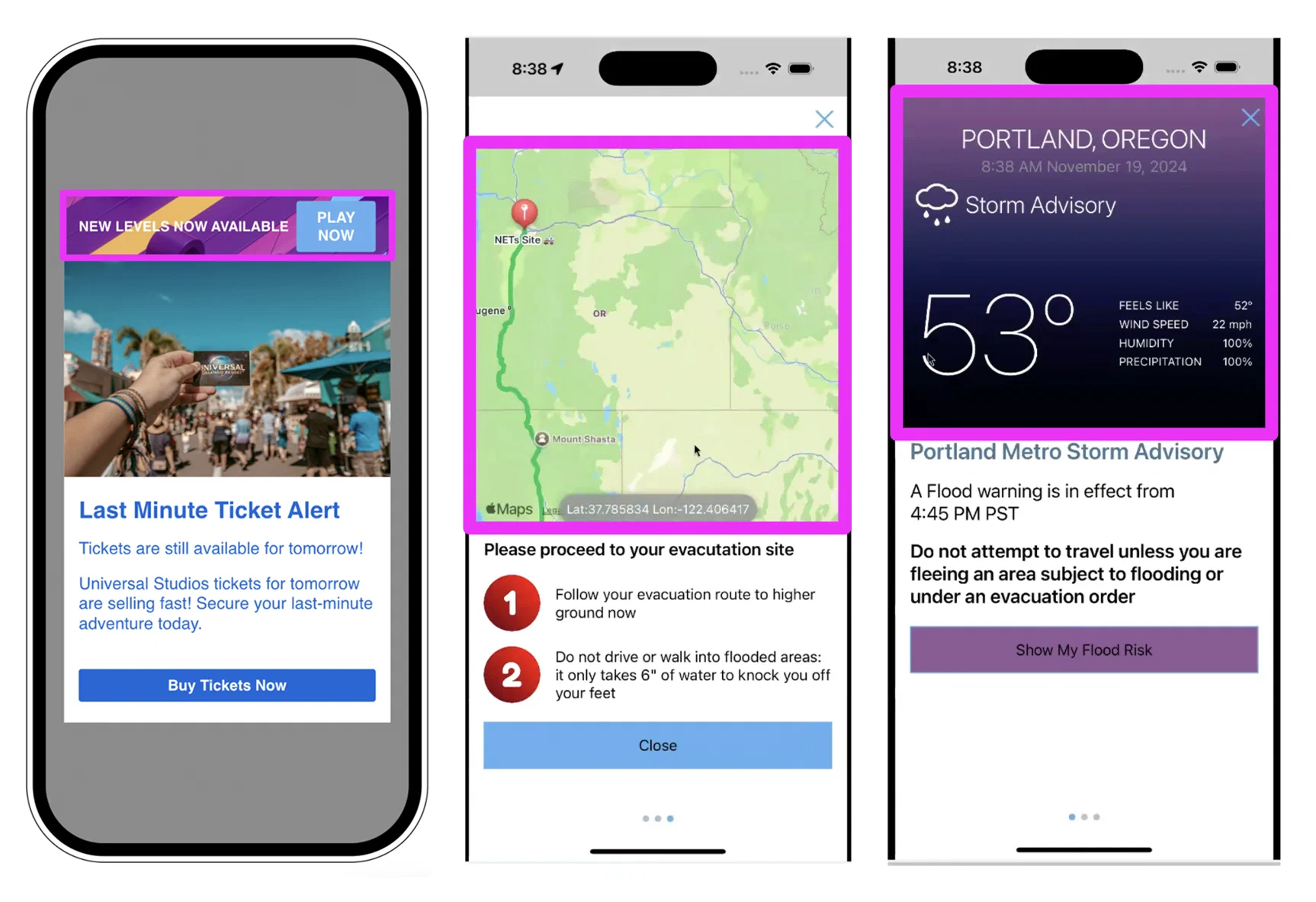
*Custom Views in Scenes*
## Getting started with Custom Views
Follow these steps to start using Custom Views for Scenes:
* link **Register the native view in your mobile application using the Airship SDK.** → See the [Mobile Custom Views](https://www.airship.com/docs/sdk-topics/custom-views/) developer documentation.
* link **Register the native view in your web application using the Airship SDK.** → See [Web Custom Views](https://www.airship.com/docs/developer/sdk-integration/web/in-app-experiences/#custom-views) in our developer documentation.
Once a Custom View is registered with the Airship SDK, you can add it to a Scene. When configuring a screen, add the + [Custom View content element](https://www.airship.com/docs/guides/messaging/editors/native/elements/#custom-view) and enter the view name as defined by your developer.
# Surveys and Stories
> Configure a Scene as a survey to collect user feedback. Enable Story mode for auto-advancing experiences.
## Surveys
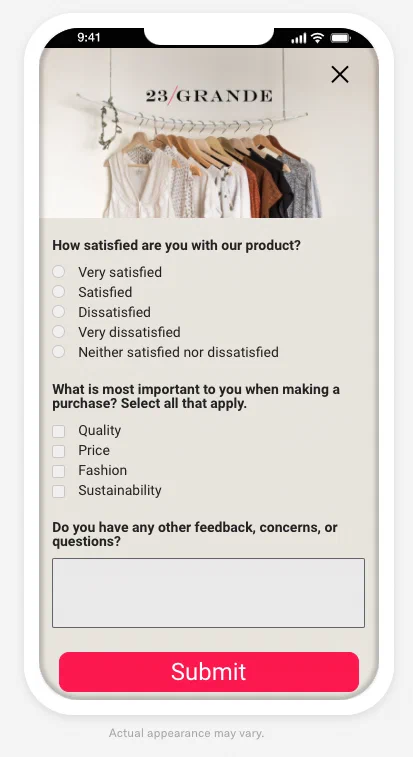
*Fullscreen user feedback survey*
Respond to user behaviors instantly by presenting a survey at the best time, giving you precise control of the user experience.
You can add [questions](https://www.airship.com/docs/guides/messaging/editors/native/elements/#question) and/or the [Net Promoter Score (NPS) element](https://www.airship.com/docs/guides/messaging/editors/native/elements/#nps) to create a survey.
An NPS survey is based on the [net promoter score](https://en.wikipedia.org/wiki/Net_promoter_score) metric, which measures how likely it is that your users would recommend your brand or product to a friend or colleague. This can be used to measure their overall sentiment about your brand or product (known as relational NPS) or about a specific experience or transaction such as booking a flight (known as transactional NPS). The survey format is a question with answer scale 0-10.
You can also create a confirmation screen that appears when a user submits their answers.
Instead of starting from scratch, you can select the NPS or User Feedback default content layout. After selection, you can customize the questions and design.
### NPS segmentation
For NPS surveys, Airship automatically generates [Attributes](https://www.airship.com/docs/reference/glossary/#attributes) based on the following data:
* **NPS Score** is the score submitted by the user: 0-10.
* **NPS Category** is one of three categories based on the NPS Score. Ratings 9 and 10 have category Promoter, 7 and 8 are Passive, and 6 or lower are Detractor.
## Story mode

*A Scene presented in Story format*
The default behavior of a Scene requires the user to swipe between screens. Story mode enables automatic transitions to the next screen without requiring swiping.
When configuring Story mode, you set how long each screen is displayed (1-60 seconds) and determine what happens after the story ends: Loop, display the last screen, or dismiss the Scene.
When viewing a story, a progress bar indicates the number of screens and their remaining duration. Users can navigate between screens, pause playback, and close the Scene using tap, swipe, and hold gestures:
* Tap the right side of a Scene to go to the next screen and tap the left side to go to the previous screen
* Tap and hold anywhere on the Scene to pause
* Tap the play/pause button to pause or resume automatic transitions and background video playback
* Tap outside of a non-fullscreen Scene to close
* Swipe down within the Scene or tap the Dismiss button (×) to close
Story mode does not support:
* Scrolling — Make sure to design screens for small device dimensions to eliminate the appearance of a non-functional scroll bar.
* [Questions](https://www.airship.com/docs/guides/messaging/editors/native/elements/#question) or [NPS](https://www.airship.com/docs/guides/messaging/editors/native/elements/#nps)
* [Branching](https://www.airship.com/docs/reference/glossary/#branching)
* Background video play controls — Since the screen-level control is not available in Story mode, use the [Play control setting for the root appearance](https://www.airship.com/docs/guides/messaging/editors/native/root/) instead.
Set Story mode in the Content step of a Scene. See [Scene behaviors](https://www.airship.com/docs/guides/messaging/editors/native/behaviors/).
# Scene Branching
> {{< glossary_definition "branching" >}} {{< badge_sdk_min ios="19.6+" android="19.9+" >}}
Use branching in Scenes to create personalized and dynamic experiences tailored to user behavior.
## About branching
Branching expands a Scene's capabilities by ensuring users only see and interact with content according to the rules you create to guide them to specific screens. Design paths between screens using a visual map and conditional logic to create an adaptive experience that is aligned with your desired goals and outcomes.
Branching is essentially a decision tree, and its logic uses conditional *if/then/else* statements. You define rules where *if* a user performs one or more actions, *then* which screen to go to based on the action, and an *else* alternative if none of those actions were taken. You can add multiple *if* conditions for each rule and multiple rules per statement.
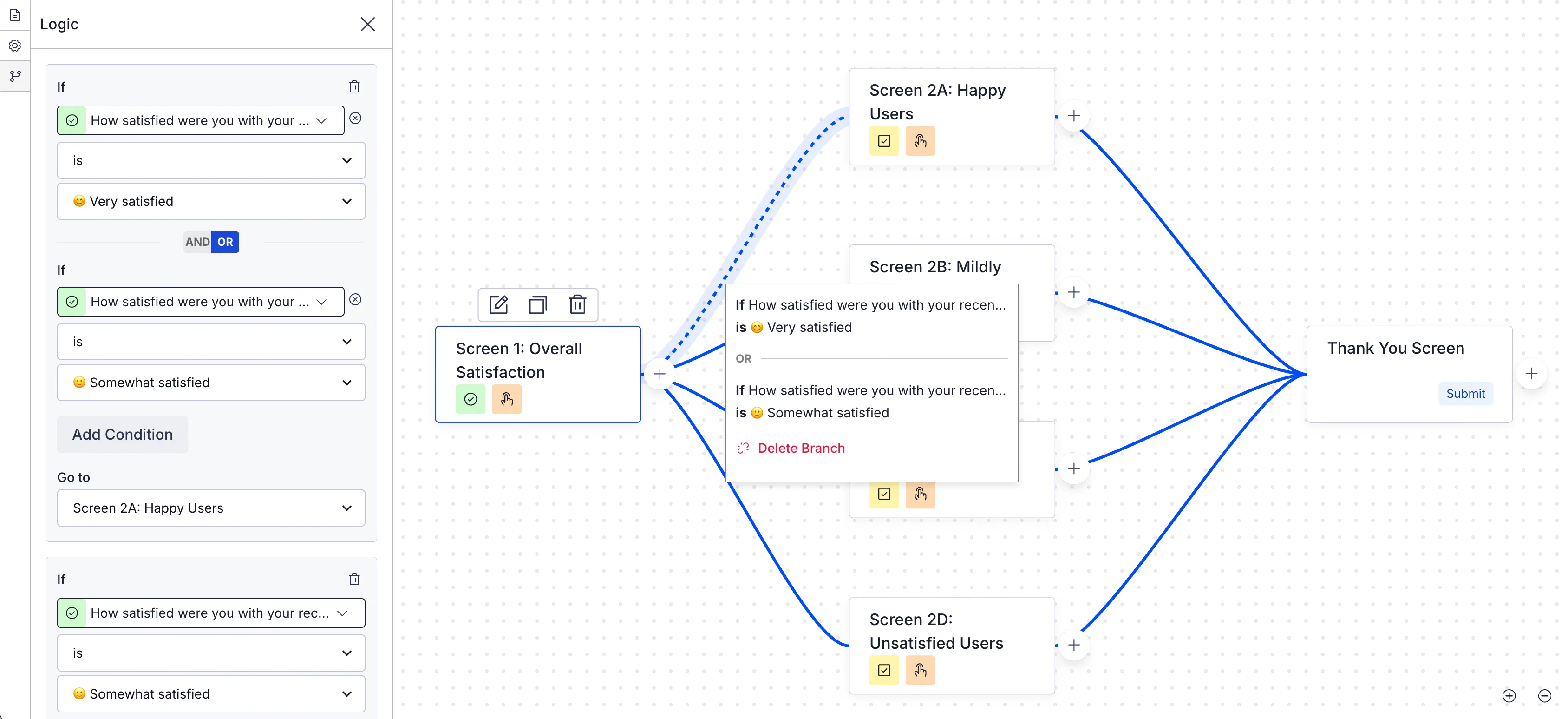
*Configuring Scene branching*
Implementing branching in your Scenes offers several benefits:
* **More interactive experiences** — Create adaptive flows that change based on user interactions to make your in-app content more customized and engaging.
* **Reduced drop-offs** — Present specific content to streamline the user experience and decrease abandonment rates.
* **Improved data collection** — Ask follow-up questions in surveys for more accurate, in-depth data and increased submission rates.
* **Better ROI on campaigns** — Drive more targeted interactions for more effective campaigns.
You can set up branching for the maximum 20 screens in a Scene. Branching is not available for [Stories](https://www.airship.com/docs/guides/features/messaging/scenes/surveys-stories/#story-mode) or when using [Custom HTML](https://www.airship.com/docs/guides/messaging/in-app-experiences/scenes/create/#provide-custom-html).
### Use cases
Example use cases for various industries:
* **Understand what's driving your NPS** — Uncover deeper customer insights on customer loyalty and identify key areas of improvement. Prioritize product, content, or experience enhancements based on real feedback.
* **Increase loyalty with a customer-centric loyalty program** — Drive adoption, loyalty, and referrals by offering unique incentives and offers based on what your customers want.
* **Prevent and convert abandoned carts** — Reduce cart abandonment and increase conversions with targeted interventions.
* **Fix FAQs before they lead to support tickets** — Reduce costs and encourage self-service by enhancing FAQ pages. Measure their effectiveness through real user insights.
* **Understand and improve in-store experiences** — Find out how your restaurant customers rate their experience and which branches shine the most.
* **Increase conversions by optimizing your booking process** — Gather customer feedback on preferences, the booking process, and the ease of finding information and payment options.
* **Refine your subscription model to drive growth** — Uncover customer and prospect satisfaction with your subscription model and its perceived value to guide pricing strategy and retention efforts.
* **Increase social media engagement with a data-driven strategy** — Grow your number of followers by directing interested users to your social media page. Measure which proposition resonates best to tailor your social media content strategy.
* **Provide personalized learning paths** — Adapt a learning experience to the user's level of understanding, ensuring they grasp the material before moving on.
### Testing and reports
You can test your branching logic as you build, and you can send the Scene to a [Test Group](https://www.airship.com/docs/reference/glossary/#preview_test_groups) to test on actual devices. Message reports for Scenes includes a flow chart that displays a visual representation of the user progression between screens and metrics associated with each screen and branch.
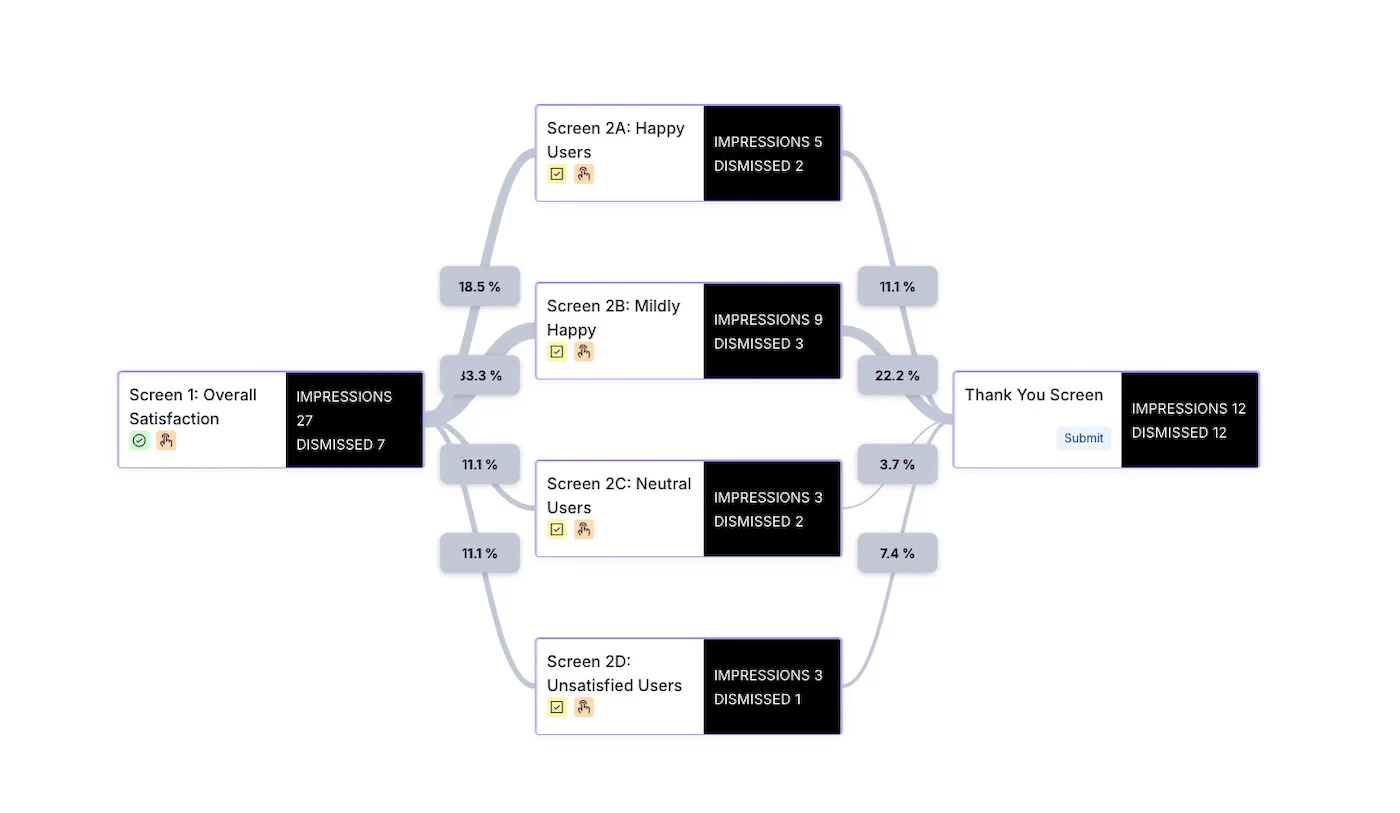
*Branching represented in a Scene message report*
## Getting started with Scene branching
See the [Scene branching](https://www.airship.com/docs/guides/messaging/editors/native/branching/) messaging guide to learn how to configure branching and for an example implementation.
# Conditional design overrides
> Optimize your Scenes across devices with conditional design overrides that automatically adjust your content based on screen size and orientation.
Sometimes a Scene that looks great on a phone screen in portrait orientation doesn't deliver the same impact on a tablet in landscape. Using conditional overrides, you can be sure your Scenes display as fullscreen on smartphones and modal on tablets, along with the orientation that best represents your content.
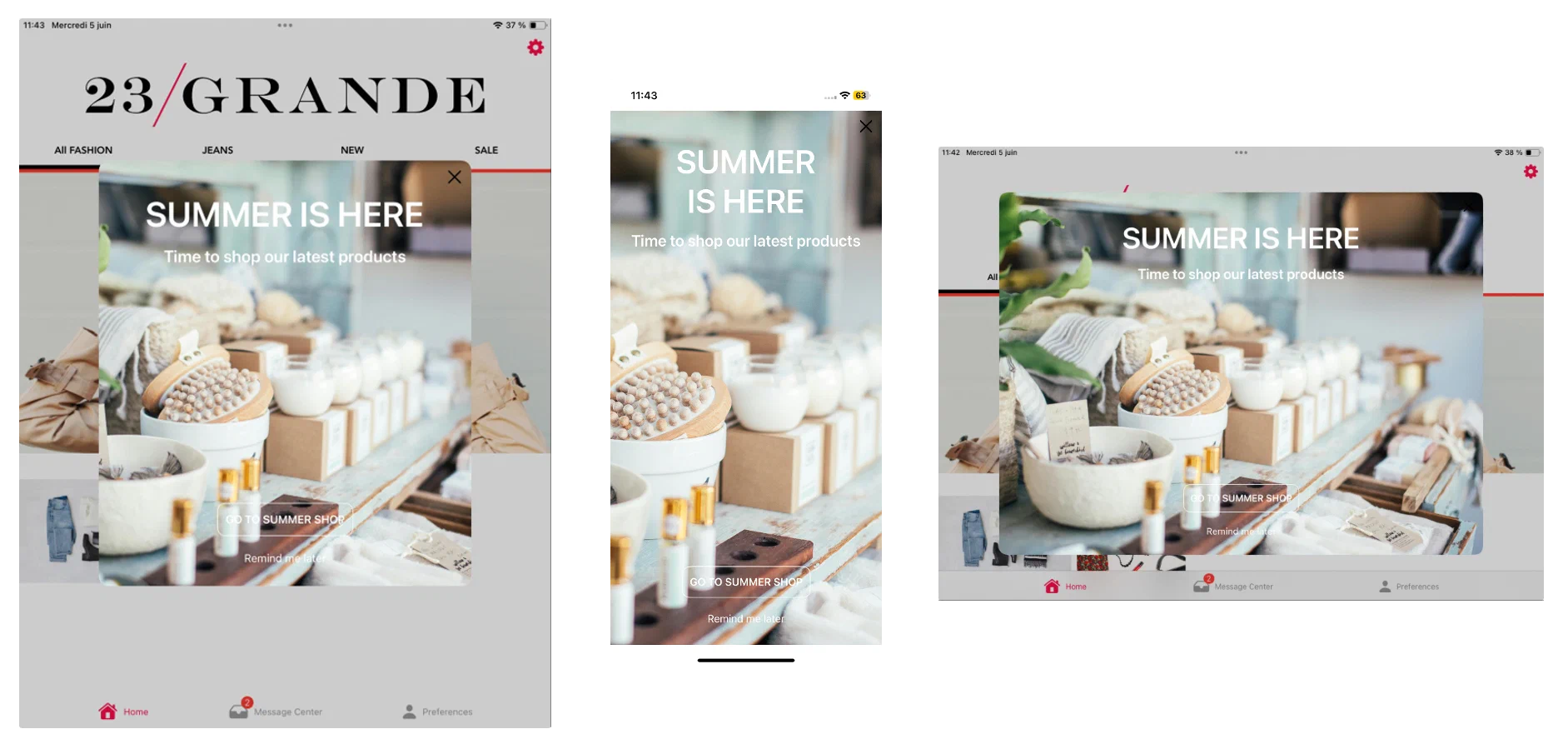
*Set conditional overrides to control how your Scenes are rendered on different devices and in different orientations*
Using a fullscreen view style as an example, without overrides the Scene is displayed as fullscreen on all devices in any orientation. On a large device, such as a 12.9" iPad Pro, this can be overwhelming. For a better experience, you could add overrides for these display scenarios:
* Large device in landscape orientation: Set height and width to 80%.
* Large device in portrait orientation: Set height to 60% and width to 70%.
These overrides ensure that when viewed on large devices, the Scene is reduced to a comfortable viewing size. It displays as fullscreen on all other devices.
You can add overrides for modal and fullscreen view styles in your project settings or when setting the root appearance for a Scene. See:
* [Set fullscreen and modal view styles](https://www.airship.com/docs/guides/messaging/in-app-experiences/configuration/defaults/#set-fullscreen-and-modal-view-styles) in *In-App Experience Defaults*
* [Root appearance](https://www.airship.com/docs/guides/messaging/editors/native/root/)
While creating a Scene, you can use the orientation and device/screen size [preview tools](https://www.airship.com/docs/guides/messaging/editors/native/about/#preview-tools) to see how your content will appear when a device is rotated and when viewed on specific devices and screen sizes.
# Scene rollouts
> {{< glossary_definition "scene_rollout" >}} {{< badge "addon" >}}
## About rollouts
Gradually roll out your Scenes so you can effectively manage feedback volume, server constraints, or other concerns. For example, retailers can put this to work when announcing a new loyalty program or sales offer. Start with a limited audience, then increase it as your customer service team adapts to the changed workflow or as you add staff to handle the increased workload.
When configuring your audience, you can limit by percentage. For example, with a limit of 10%:
* When targeting all users, 10% of your total number of users are included in the audience.
* When [targeting by conditions](https://www.airship.com/docs/guides/messaging/in-app-experiences/scenes/create/#audience), 10% of the users who meet the set conditions are included in the audience.
Audience members are randomly selected. You can change the percentage at any time.
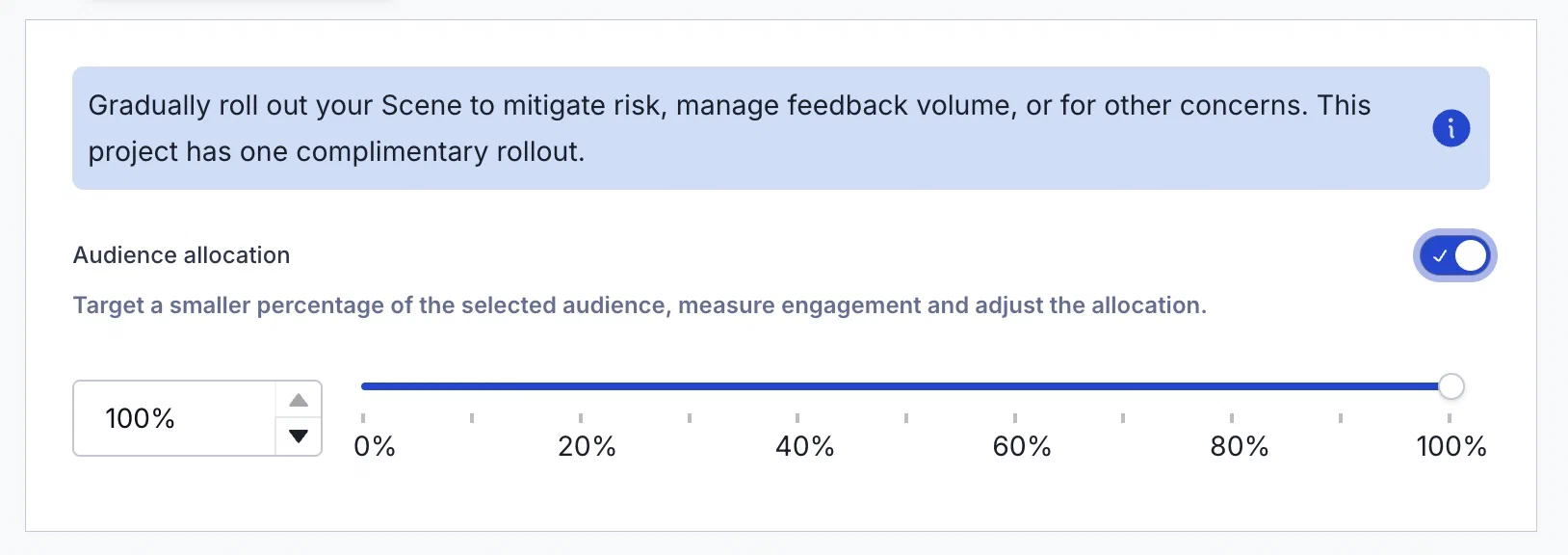
*Configuring a rollout for a Scene*
### Reports
The day's percentage appears in the Scene's message report. If the setting was changed that day, it appears as a percentage range. See [Engagement Over Time](https://www.airship.com/docs/guides/messaging/in-app-experiences/scenes/create/scene-reports/#performance) in the Performance section of *Scene Reports*.
Usage data is available in the dashboard. See [View Feature Flag and Scene Rollout usage](https://www.airship.com/docs/guides/getting-started/admin/usage-payment/#view-feature-flag-and-scene-rollout-usage).
## Getting started with rollouts
Rollouts for Scenes require the Feature Flags add-on for your Airship plan. However, all [AXP](https://www.airship.com/docs/reference/feature-packages/) plans include one complimentary rollout to try the feature.
You can sliders-horizontal [set up a rollout](https://www.airship.com/docs/guides/messaging/in-app-experiences/scenes/create/#rollout) in the Audience step of a Scene.
## Learn about Airship orchestration features
Learn how to coordinate multi-step customer journeys and cross-channel messaging sequences that respond to real-time user behavior and lifecycle events.
# Journeys
> {{< glossary_definition "journey" >}} Design multi-step, cross-channel messaging workflows to onboard, retain, and re-engage users.
Create each component from scratch or use AI to create draft Journeys.
## The Journey map
Select **Journeys** in the dashboard to access the Journey map. From there you can:
* **Create and edit** the individual components of a Journey: a [Sequence](https://www.airship.com/docs/reference/glossary/#sequence), [Scene](https://www.airship.com/docs/reference/glossary/#scene), or [In-App Automation](https://www.airship.com/docs/reference/glossary/#iaa).
* **Connect** components together to form a Journey.
* **View** performance information for an individual component and a **mapped view** of its triggers, events, outcomes, and upstream and downstream connections.
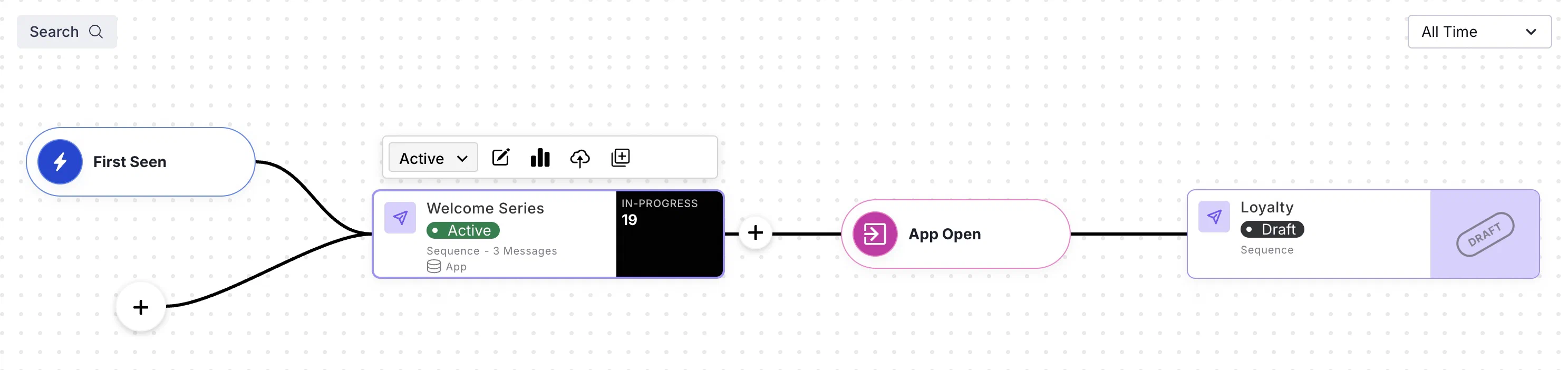
*A Journey of connected messaging components*
> **Tip:** You can access the Journey map from additional locations:
> * In the Sequence, Scene, or In-App Automation composer, select **Journey view**.
> * From [Messages Overview](https://www.airship.com/docs/reference/glossary/#messages_overview), select the map icon (
> ).
> * From the [Sequence Manager](https://www.airship.com/docs/reference/glossary/#sequence_manager) and [Performance](https://www.airship.com/docs/reference/glossary/#sequence_performance) screens, select **Outcomes**, then select **View in map**.
### Selecting a Journey component
After opening the map, all Journey components are listed by name, along with:
* **Status** — Draft, Live (Active), Paused, or Completed
* **Type** — Sequence, In-App Automation, or Scene
* **Last modified** — *Today*, or the number of days, months, etc., since the component was last edited, relative to the current date, time, and your time zone
* **Journey map icon (
)** — Appears next to the component name if it is part of a Journey
The default sort order is last modified, descending. Select the **Name** or **Last modified** column header to toggle ascending/descending order. The list filters as you enter search text, and you can manually filter by Status and Type. Archived components are not included in the list or returned in search results.
Select a component in the list to open it in the map.
### Map cards
After selecting a Journey component, it is represented as a card in the map, along with its triggers, events, outcomes, and upstream and downstream connections.
When a Journey component has multiple triggers, they appear stacked, with the most recently added on top. If a trigger requires additional configuration, the line connecting to its component appears dashed. Select the trigger stack to expand and view all triggers, or select the component card to collapse the stack.
The map displays data for all time by default. You can select a new time frame, and the map will reload with the data for that period.
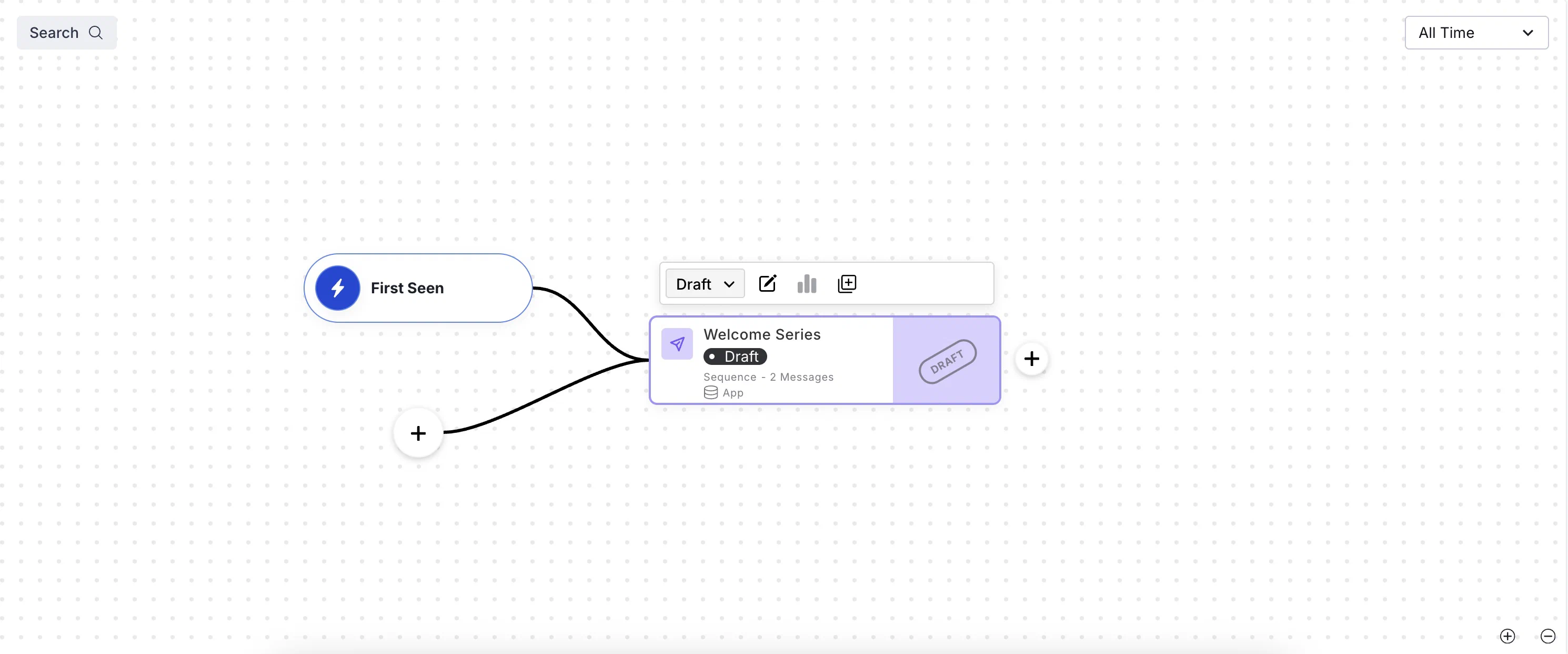
*A draft Sequence in the Journey map*
Each card in the Journey map displays its name, statistics, and status: Draft, Started, Paused, Completed, or Archived. Statistics do not appear for Draft and Archived. Sequences also display their number of messages, and Scenes also display their number of screens.
Trigger configuration appears to the left of map cards. Sequence triggers Date Attribute, Recurring Schedule, and Specific Date and Time will not appear if the specified timing is outside of the selected time frame in the map. See [Sequence Triggers](https://www.airship.com/docs/guides/messaging/messages/sequences/triggers/) and [In-App Experience Triggers](https://www.airship.com/docs/guides/messaging/in-app-experiences/configuration/triggers/).
Outcome configuration appears to the right of map cards. See [Sequence outcomes](https://www.airship.com/docs/guides/messaging/messages/sequences/create/outcomes/) and [Link Journey components](#link-journey-components).
#### Sequence statistics
After selecting a Sequence in the Journey map, these statistics appear on its card:
| Statistic | Description |
| --- | --- |
| **In Progress** | The sum of **Users eligible for message** counts for all messages in the Sequence. |
| **Conversions** | The rate of conversion, calculated by the number of users who exited the Sequence by a conversion event divided by the total number of times the Sequence was triggered. Conversions are labeled **Reactivations** for Sequences using the [Inactivity trigger](https://www.airship.com/docs/guides/messaging/messages/sequences/triggers/#inactivity). |
| **Conversion trend** | For Sequences with a [Control Group](https://www.airship.com/docs/guides/experimentation/control-groups/), the difference between the [Baseline](https://www.airship.com/docs/reference/glossary/#baseline) and current conversion rates for the selected time frame. It appears in green for a positive trend and red for a negative trend. Select the trend to see the [Lift Rate](https://www.airship.com/docs/reference/glossary/#lift_rate), baseline, and the date the baseline was set. |
#### In-App Automation and Scene statistics
After selecting an In-App Automation or Scene in the Journey map, these statistics appear on its card:
| Statistic | Description |
| --- | --- |
| **Impressions** | The total number of views by your audience |
| **Dismissals** | The total number of times your audience closed the message without engagement, such as following a link or clicking a button |
Select a Scene's **Impressions** count to view additional statistics, then select **View Detail** to open its message report. See [Scene Reports](https://www.airship.com/docs/guides/messaging/in-app-experiences/scenes/create/scene-reports/).
Scene Impressions statistics:
| Statistic | Description |
| --- | --- |
| **Completions** | For Scenes with more than one screen, the total number of times all screens in a Scene were displayed and the rate of completion |
| **NPS Score** | For Scenes containing an [NPS survey](https://www.airship.com/docs/guides/messaging/editors/native/elements/#nps), the overall Net Promoter Score. Select the score to show/hide the percentages of Promoters, Passives, and Detractors. |
| **Button Clicks** | For Scenes without an [NPS survey](https://www.airship.com/docs/guides/messaging/editors/native/elements/#nps), the total number of times your audience tapped the buttons in the Scene |
> **Note:** Impressions and dismissals include multiple views/dismissals by a single user. Button clicks include all buttons in a message, and multiple clicks by a single user.
### Actions
Select a card in the map to see available actions appear above the card. You may need to select the more menu icon (⋯) to expose some actions.
A message's current status is displayed in a dropdown menu. Make a selection from the dropdown menu to [change the message status](https://www.airship.com/docs/guides/messaging/manage/change-status/) or [archive the message](https://www.airship.com/docs/guides/messaging/manage/archive/).
Actions for components in the Journey map:
| Action | Description | Steps |
| --- | --- | --- |
| **Edit** | Opens the message in its composer. See also [Edit a Sequence](https://www.airship.com/docs/guides/messaging/messages/sequences/create/edit/) and [Edit a message](https://www.airship.com/docs/guides/messaging/manage/edit/). | Select the edit icon (✏). |
| **Publish Sequence changes** | Applies unpublished edits to a Sequence. For Paused Sequences, it also makes the Sequence Active/Live/Started, which is the same as selecting **play Start** from the [Sequence Manager](https://www.airship.com/docs/reference/glossary/#sequence_manager). | Select the cloud upload icon. |
| **Duplicate** | Creates a copy in draft state and reloads the map with the duplicate selected. The draft has the same name as the original, with "- Copy" appended. | Select the duplicate icon (
). |
| **Unlink** | Removes a component from a Journey. The map will refresh to focus on the component you unlinked. See also [Unlink Journey components](#unlink-journey-components) | Select the unlink icon. |
| **Delete** | Deletes a draft Scene or In-App Automation from your project. Once they have been started they cannot be deleted, only archived. Sequences cannot be deleted, only archived. | Select the delete icon (trash). |
| **Open report** | For Started/Live/Active messages, opens the Sequence [Performance report](https://www.airship.com/docs/reference/glossary/#sequence_performance), the [In-App Automation message report](https://www.airship.com/docs/guides/reports/message/), or the [Scene message report](https://www.airship.com/docs/guides/messaging/in-app-experiences/scenes/create/scene-reports/) | Select the report icon (
). |
## Create Journey components
Quickly create draft Sequences, In-App Automations, and Scenes in the Journey map by entering a message name or selecting a [Sequence Template](https://www.airship.com/docs/reference/glossary/#sequence_template). After creating the draft, the map opens with the new component selected.
For a Sequence based on a template, select the add icon (+) in the map, and then select a template.
For a Sequence, In-App Automation, or Scene:
1. Go to **Journeys**.
1. Select the add icon (+) in the map.
1. (Sequence only) Select **Start from scratch**, and then enter a name.
1. (In-App Automation or Scene only) Select **In-App Experience**, then select **In-App Automation** or **Scene**, and then enter a name.
1. Select **Continue**.
> **Note:** The add icon (+) is only available in the map when you first load the Journeys page. If you already made a selection from the sidebar list or map, select **Journeys** to restore the map to its initial state.
>
> You can also access the same menu from the sidebar: Select the **Create** dropdown menu (▼), then **Journey**.
## Create AI-generated Journeys
[AXP](https://www.airship.com/docs/reference/feature-packages/) [Generative AI](https://www.airship.com/docs/guides/features/intelligence-ai/ai/)
Use Generative AI to create draft Journeys. After generation, the map displays all linked components. You can create up to 100 AI Journeys per project. Explicit content is excluded for all languages.
1. Go to **Journeys**.
1. Select the add icon (+) in the map.
1. Configure the prompts:
| Prompt | Description | Steps |
| --- | --- | --- |
| **Generate a Journey for** | The purpose of the Journey, used to name each component and to generate message content | Enter text. |
| **include the following details** | The information you want to convey in your message content | Enter text. |
| **where we message users with** | The [message types](https://www.airship.com/docs/guides/getting-started/basics/#message-types) to include in the Journey: [Push Notification](https://www.airship.com/docs/reference/glossary/#push_notification), [Message Center](https://www.airship.com/docs/reference/glossary/#message_center), [Web Push Notification](https://www.airship.com/docs/reference/glossary/#web_push_notification), [SMS](https://www.airship.com/docs/reference/glossary/#sms), [MMS](https://www.airship.com/docs/reference/glossary/#sms), [Email](https://www.airship.com/docs/guides/messaging/messages/content/email/), [Scene](https://www.airship.com/docs/reference/glossary/#scene), [Story](https://www.airship.com/docs/reference/glossary/#story), and/or Survey (a Scene that includes an NPS survey or questions) | Select at least one message type. |
| **when they** | The user event that initiates the Journey
[Supported for Scenes](https://www.airship.com/docs/guides/messaging/in-app-experiences/configuration/triggers/): App Open, App Update, Feature Flag Interaction Event, Screenview
[Supported for Sequences](https://www.airship.com/docs/guides/messaging/messages/sequences/triggers/): Contact Association, Feature Flag Interaction Event, First Seen, Location, Predicted to Churn, Subscription | Select a trigger. |
| **presented in the language of** | The language of the message content | Select a language. |
| **using the personality** | The message content voice and tone determined by a personality defined in your [brand guidelines](https://www.airship.com/docs/guides/messaging/features/brand-guidelines/) | Select a personality. |
| **users will** | The outcome of a Sequence included in the Journey: **None** ensures all triggered messages are sent, **Convert** and **Cancel** remove a user from the Journey based on their performing a specific [Custom Event](https://www.airship.com/docs/reference/glossary/#custom_event) | Select an outcome. For **Convert** or **Cancel**, also search for and select a Custom Event or select **Use <search term>** to use an event name as entered. |
| **include images of** | Descriptions of images to include in messages | Enter text. |
{class="table-col-1-20 table-col-2-40"}
1. Select **Generate**.
Next, edit each component and finalize your trigger, content, and other settings. See full documentation:
* [Sequence configuration](https://www.airship.com/docs/guides/messaging/messages/sequences/create/)
* [Scene configuration](https://www.airship.com/docs/guides/messaging/in-app-experiences/configuration/)
> **Note:** **Opting In to AI Functions**
>
> If you opted out of AI usage, you must sign an updated contract to enable this feature. Contact your account manager for assistance.
>
> **Compliance Considerations in Using AI Functions**
>
> The Service incorporates AI functions, including Generative AI and Agentic AI.
>
> Generative AI generates content such as Notification copy, images, and Journeys based on your prompts.
>
> Agentic AI autonomously optimizes, personalizes, or executes cross-channel customer engagement actions, or analyzes audience and performance data, subject to the parameters and controls you set in the Service. These systems operate under human-defined parameters and do not initiate customer-facing actions without human interaction or pre-configured parameters. You are responsible for reviewing Generated Outputs for accuracy, appropriateness, and to ensure they do not violate third-party intellectual property or other rights. Airship does not publish Generated Outputs to end users without approval from the Customer.
>
> In addition to the applicable terms of your agreement with Airship (e.g., Use of Service, Customer Responsibilities sections), you must comply with the [Airship Acceptable Use Policy](https://www.airship.com/legal/acceptable-use/), which provides additional details about appropriate conduct when using the Service.
>
> The Service includes safety features to block harmful content, such as content that violates our Acceptable Use Policy. You may not attempt to bypass these protective measures or use content that violates your agreement with Airship.
>
> About the AI models:
>
> Airship utilizes Google Gemini and Imagen to generate copy and images for AI Scene screens. The content is created solely with Google's out-of-the-box models, and no customization or fine-tuning with Customer Data is applied. See [Responsible AI](https://cloud.google.com/responsible-ai?hl=en) in Google's *Google Cloud* documentation.
> **Tip:** When creating an AI Journey, use the **include the following details** field for essential information like product features, unique selling points, or call-to-action elements to make the generated content more accurate and aligned with your goals. For example, for a Mother's Day Sale, include details such as "The sale is for 2 weeks, the offer is 30% off beauty and luxury items." You could also provide the information in a shorter, keyword format: "2 week sale, 30% off beauty and luxury."
>
> For **include images of**, make sure to describe specific visual elements. Mention key visual details like colors, objects, setting, or style to ensure the images match your Journey vision. For example, "Create a soft, pastel-colored image featuring flowers, gift boxes, and a 'Mother's Day Sale' banner." Or use keywords "flowers, gift boxes, and 'Mothers Day Sale' banner, soft-pastel background."
>
> Also add context and emotion. Including the mood or context can help capture the desired tone or feeling for each image. For example, "Generate a warm, loving image of a mother receiving a gift."
## Link Journey components
You can link Journey components in these ways:
| Link from | To | Description | Steps |
| --- | --- | --- | --- |
| **Sequence** | **Sequence** | Route users to another Sequence when Airship sends the last message in the current Sequence or when a specific event occurs. | See [Sequence outcomes](https://www.airship.com/docs/guides/messaging/messages/sequences/create/outcomes/). |
| **Sequence** | **In-App Automation or Scene** | Route users to an in-app experience when Airship sends the last message in the current Sequence or when a specific event occurs. If the downstream In-App Automation or Scene does not display on a user's device within a certain period, they will exit the Journey. As an alternative to leaving the Journey, you can route to a fallback Sequence. | See [Sequence outcomes](https://www.airship.com/docs/guides/messaging/messages/sequences/create/outcomes/). |
| **In-App Automation or Scene** | **Sequence** | Route users to a Sequence when an in-app experience displays on a device or when a user selects a button.
For Scenes, you can also route to a Sequence when a user submits answers to [questions](https://www.airship.com/docs/guides/messaging/editors/native/elements/#question), submits responses to an [NPS survey](https://www.airship.com/docs/guides/messaging/editors/native/elements/#nps), or based on a user's response to a [location opt-in](https://www.airship.com/docs/guides/messaging/in-app-experiences/configuration/button-actions/#location-opt-in) or [push opt-in](https://www.airship.com/docs/guides/messaging/in-app-experiences/configuration/button-actions/#push-opt-in) prompt. | See steps following this table. |
| **In-App Automation or Scene** | **In-App Automation or Scene**1 | [iOS SDK 18.4+](/docs/docs/developer/sdk-integration/apple/ios-changelog/#18.4.0) (Android SDK 18+)
Route users to another In-App Automation or Scene after the first one displays on a device or when a user selects a button.
For Scenes, you can also route to an In-App Automation or Scene when a user submits answers to [questions](https://www.airship.com/docs/guides/messaging/editors/native/elements/#question), submits responses to an [NPS survey](https://www.airship.com/docs/guides/messaging/editors/native/elements/#nps), or based on a user's response to a [location opt-in](https://www.airship.com/docs/guides/messaging/in-app-experiences/configuration/button-actions/#location-opt-in) or [push opt-in](https://www.airship.com/docs/guides/messaging/in-app-experiences/configuration/button-actions/#push-opt-in) prompt.
**Not supported for Web Scenes.** | See steps following this table. |
{class="table-col-1-20 table-col-2-20 table-col-3-40"}
1. To hide this option in the dashboard, see [Enabling features](https://www.airship.com/docs/guides/messaging/project/enable-features/#enabling-features) in *Enable dashboard features and set behavioral defaults*.
To link from an In-App Automation or Scene to a Sequence, In-App Automation, or Scene:
1. Go to **Journeys** and [select an In-App Automation or Scene](#selecting-a-journey-component).
1. Select the add icon (+) to the right of its map card. A configuration drawer will open.
1. Select **Impression**, **Survey Submission**, **Button Tap**, or **Opt-in**.
1. (For Button Tap only) Select a button.
1. (For Opt-in only) Select the opt-in response for a button.
1. Select **Create New** or **Insert Existing**.
1. Select **Sequence**, **In-App Automation**, or **Scene**.
1. Search for and select an existing message or enter a name for a new draft. In search results, the node icon (
) appears next to items that are already part of a Journey.
1. Select **Save**.
The map will update to show the link to the downstream component.
## Unlink Journey components
Unlinking an In-App Automation or Scene disconnects it from all upstream Sequences. When unlinking a Sequence, you can view all its upstream components and select which ones to unlink from. Anything downstream of the unlinked component will remain unchanged. After unlinking, the map reloads to focus on the unlinked component.
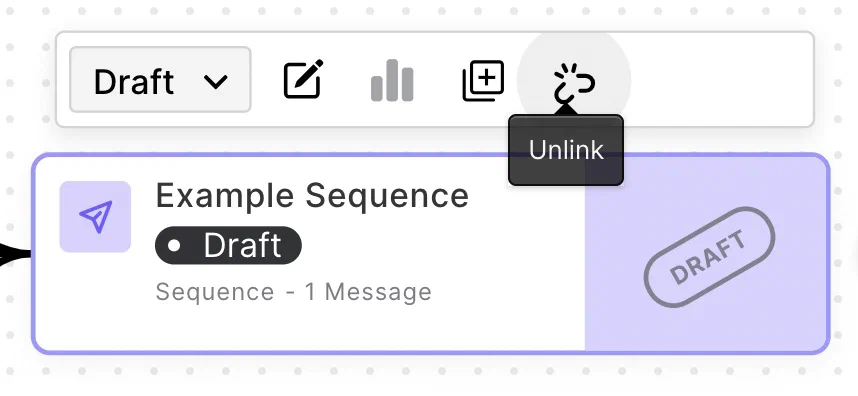
*Unlinking a Sequence from a Journey*
To unlink an In-App Automation or Scene from a Sequence:
1. Go to **Journeys**.
1. [Select an In-App Automation or Scene](#selecting-a-journey-component).
1. Select the more menu icon (⋯) on its card, then select **Unlink**.
To unlink a Sequence from any Journey component:
1. Go to **Journeys**.
1. [Select a Sequence](#selecting-a-journey-component), and then select the unlink icon. A modal displays a list of upstream components the Sequence is connected to. The top-level list items are each component by name. Under each component name is a list of its connections to the Sequence you want to unlink:
| Component | Connection types |
| --- | --- |
| **In-App Automation or Scene** | Impression, Survey Submission, Button Tap, or Opt-in |
| **Sequence** | Continuation, Conversion, or Cancellation
Conversion and Cancellation are followed by the outcome type (Contact Association or Subscription Event) or the actual Custom Event name or Tag ("<Event name or Tag>"). |
{class="table-col-1-30"}
1. Select which upstream components the Sequence should be unlinked from.
1. Select **Unlink Sequence**.
# Channel Coordination
> {{< glossary_definition "channel_coordination" >}}
Channel Coordination helps you target [Contacts](https://www.airship.com/docs/reference/glossary/#contact) who are opted in to multiple notification channels to maximize engagement. Choose an approach based on your message type, its urgency, and your specific use case.
## How Channel Coordination works
Airship listens for activity such as opens, custom events, and uninstalls, and automatically assigns Tags in the `ua:orchestration` [Tag Group](https://www.airship.com/docs/reference/glossary/#tag_group) to reflect each user's channel activity and availability. Each Tag-based strategy uses one of these Tags to determine message delivery.
When you send a message to a user who is opted in on multiple channels, Channel Coordination determines which channel receives it based on the strategy you've selected.
You can set a strategy in the dashboard or API.
For [Sequences](https://www.airship.com/docs/reference/glossary/#sequence), [Fan Out](#fan-out) is the default behavior when targeting Named Users, and [Originating Channel](#originating-channel) is used for all accounts not enabled for Channel Coordination.
> **Note:** For projects using the [channel-level segmentation system](https://www.airship.com/docs/guides/audience/segmentation/segmentation/#channel-level-segmentation), the strategies target a [Named User](https://www.airship.com/docs/reference/glossary/#named_user), not a Contact, so you must implement Named Users for your project. For [User Preference](#user-preference), you must also set user preference Tags on the Named User. Follow the steps in [Associating Channels with Named Users](https://www.airship.com/docs/guides/audience/named-users/#associate).
## Strategies
Each strategy determines which channel receives your message when a user is reachable on multiple channels.
### Fan Out
*Fan Out* is a Channel Coordination strategy that targets a Contact on all the channels they are opted in to, maximizing the chances they receive your message. This strategy is suitable for highly urgent messages, where the user will not be sensitive to over-messaging. This is the default strategy when a Sequence does not have a triggering channel, e.g., a message sent as a result of a Named User Custom Event or Tag change, which equally applies to all channels.
### Last Active
*Last Active* is a Channel Coordination strategy that targets a Contact on the opted-in channel they used most recently. In many cases user recency is the best indicator of preference. Last Active is supported for App, Web, and Email channels only.
Last Active is based on the following events for each channel:
* **App** — [App open](https://www.airship.com/docs/reference/data-collection/events/#app-open)
* **Web** — [Web session](https://www.airship.com/docs/reference/data-collection/events/#engagement)
* **Email** — [Email open](https://www.airship.com/docs/reference/data-collection/events/#delivery-and-opens), [Email click](https://www.airship.com/docs/reference/data-collection/events/#link-clicks)
A device that is opted-in will have higher priority than an opted-out device even if the opted-out device was active more recently. For example, if the Contact has two devices, iOS and Android, and the iOS device is opted-in while the Android device is opted-out, even if the Android device's app is opened more recently than the iOS device's app has been used, the iOS device will remain the "last active" because it is the only one that is still opted-in.
For example, when a user clicks a link in an email:
* If they are directed to a web page and are registered for web push, Last Active will be Web. Otherwise, it will be Email.
* If they are directed through a deep link to an app and are registered for mobile push notifications, Last Active will be App. Otherwise, it will be Email.
If there is more than one opted-in device for a particular Contact, the device that has most recently had activity will receive any push targeted to the last active device. Examples of possible activities are a registration event, opt-in event, open event, or a custom event.
### Originating Channel
*Originating Channel* is a Channel Coordination strategy that targets a Contact on the channel that triggered a Sequence. Messaging users on the channels they use to engage your brand can help ensure a consistent user experience. This strategy is used for all accounts not enabled for Channel Coordination.
Originating Channel will not work if the triggering behavior is a custom event applied to the Contact. In that case, there is no channel associated with the behavior. Airship will instead use the Fan Out strategy for delivery.
### Priority Channel with Fallback
*Priority Channel* is a Channel Coordination strategy that targets a Contact on the first channel they are opted in to, in the priority order you set. Use this strategy to drive engagement toward one strategic channel, such as directing users to the app to save SMS or email cost. For Sequences, you set priority order for each message.
The priority channel system actively monitors events such as app opens and opt-in status changes to track where your audience is reachable for messaging. However, not all channel state changes are received in real time:
* **Limitation** — On iOS and Android, push providers (APNs and FCM) do not send signals when a user uninstalls an app. Airship only learns of an uninstall when it attempts to send a push notification.
* **Handling** — When an uninstall is detected, Airship automatically redirects the message to the next available channel in the priority list in real time. The Priority Channel Tag is also reassigned at the same time.
> **Note:** For projects using the [channel-level segmentation system](https://www.airship.com/docs/guides/audience/segmentation/segmentation/#channel-level-segmentation), before you can use the Priority Channel strategy, you must set the priority order for your project. This setting determines the default channel order after selecting the Priority Channel strategy. You must have at least two channels configured and enabled.
>
>
Set the priority order of your project’s configured and enabled channels:
>
> - Next to your project name, select the dropdown menu (▼), then Settings.
> - Under Project settings, select Channel Priority.
> - Enable the channels you want to send the message to.
> - Drag your selected channels into priority order.
> - Select Save.
>
>
> After setting priority order for your project, additional processing time may be required to set the Priority Channel Tag for larger audiences. The Tag will be available for use after several minutes for smaller audiences and up to several hours for audiences of one million or more.
>
>
### User Preference
*User Preference* is a Channel Coordination strategy that targets a Contact on their preferred channel. This is understood to provide the optimal customer experience. This strategy is supported for projects using the [channel-level segmentation system](https://www.airship.com/docs/guides/audience/segmentation/segmentation/#channel-level-segmentation) only and is not supported for [Sequences](https://www.airship.com/docs/reference/glossary/#sequence).
#### Set channel priority
Before using the User Preference strategy, you must first set channel priority in your Airship project. This initializes the Tag class used for User Preference and makes it available to use.
Set the priority order of your project’s configured and enabled channels:
- Next to your project name, select the dropdown menu (▼), then Settings.
- Under Project settings, select Channel Priority.
- Enable the channels you want to send the message to.
- Drag your selected channels into priority order.
- Select Save.
You can then remove the settings and save again or keep them in place if you intend to also use the [Priority Channel with Fallback](#priority-channel-with-fallback) strategy.
#### Apply channel preference Tags
In order to set a preferred channel for a user, they must be opted in on at least two messaging channels, such as iOS and Web. Before you can target users based on their channel preference, you first need to set Tags expressing that preference.
For a user that is opted in on multiple channels and has provided an explicit communication preference, first add a `user_preferred` Tag to the preferred channel, then target that Tag in your messaging.
You will set a `"user_preferred"` Tag in the `"ua:orchestration"` Tag Group on one channel per Named User.
* List all channels for your Named User by using the [Named User Lookup API](https://www.airship.com/docs/developer/rest-api/ua/operations/named-users/).
* Once you parse the results to gather the [Channel IDs](https://www.airship.com/docs/reference/glossary/#channel_id), maintain the `"user_preferred"` Tag on each channel using our [Tags API](https://www.airship.com/docs/developer/rest-api/ua/operations/tags/):
```http
POST /api/channels/tags HTTP/1.1
Authorization: Basic
Accept: application/vnd.urbanairship+json; version=3
Content-Type: application/json
{
"audience": {
"ios_channel": "b8f9b663-0a3b-cf45-587a-be880946e881"
},
"add": {
"ua:orchestration": [
"user_preferred"
]
}
}
```
## Setting a strategy in the dashboard
You can set Channel Coordination in the following locations in the dashboard:
| Strategy | Message composer | Automation composer | Sequence messages | A/B test variants |
| --- | --- | --- | --- | --- |
| **Fan Out** | Yes | Yes | Yes | Yes |
| **Last Active** | Yes | Yes | Yes | Yes |
| **Priority Channel** | Yes | Yes | Yes | Yes |
| **Originating Channel** | No | No | Yes | No |
In the Message composer and A/B test variants, set Channel Coordination in the **Audience** step. In the Automation composer and each message in a Sequence, set it in the **Setup** step. Configuration is the same in all locations:
1. Under **Channel coordination**, select a strategy.
1. Enable the channel types to include in your audience. For Mobile Apps, also select from the available platforms.
1. For Priority Channel, drag the channel types into priority order.
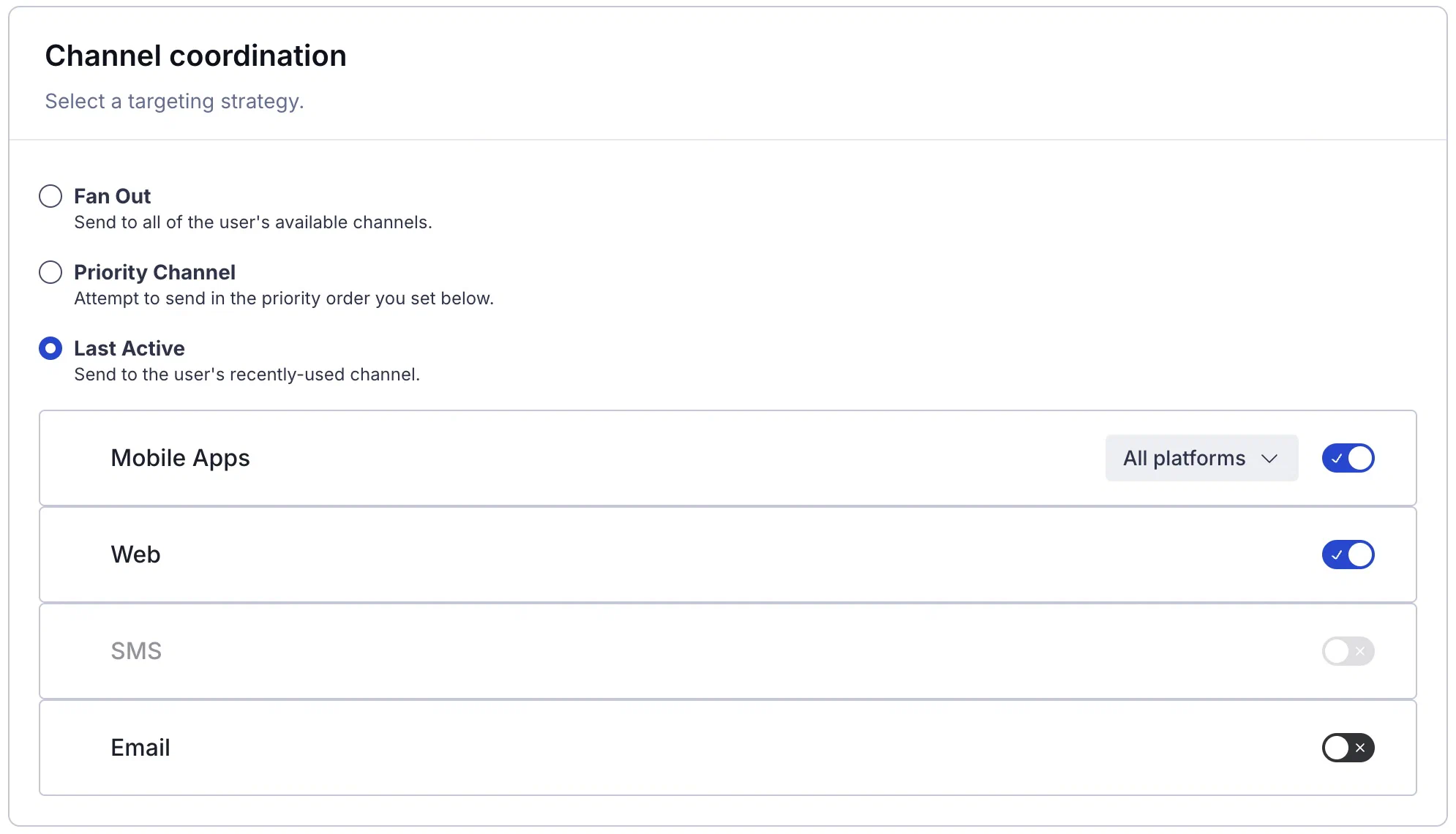
*Setting a Channel Coordination strategy in the Message composer*
### Channel-level segmentation
For projects using the [channel-level segmentation system](https://www.airship.com/docs/guides/audience/segmentation/segmentation/#channel-level-segmentation), you can set Channel Coordination in the following locations in the dashboard:
| Strategy | Message composer | Sequence messages | A/B tests | A/B tests (legacy) | Feature Flag Configurations |
| --- | --- | --- | --- | --- | --- |
| **Fan Out** | Yes | Yes | Yes | Yes | Yes |
| **Last Active** | Yes | Yes | Yes | Yes | Yes |
| **Priority Channel** | Yes | Yes | Yes | Yes | Yes |
| **User Preference** | Yes | No | Yes | Yes | Yes |
| **Originating Channel** | No | Yes | No | No | No |
In the Message composer, A/B tests, legacy A/B tests, and Feature Flag Configurations, configure Channel Coordination in the **Audience** step:
1. Select **Target Specific Users**.
1. (In Feature Flag Configurations only) Select **Segments**.
1. For Fan Out, search for a Named User and select from the listed results.
1. For Last Active, Priority Channel, and User Preference:
1. Search for and select the `Orchestration` Tag Group.
1. Search for the specific tag within the Tag Group:
* `last_active` for Last Active
* `priority_platform` for Priority Channel
* `user_preferred` for User Preference
1. Set the **True** operator to include users for whom the condition is true.
For Sequences, set Channel Coordination after selecting **Add message content** for a new message:
1. Select a strategy.
1. Enable the channel types to include in your audience.
1. For Priority Channel, drag the channel types into priority order.
> **Note:** For Priority Channel, when the App channel is enabled, Airship will send to any iOS, Android, or Fire OS devices that are opted-in to notifications.
In addition to audience configuration, you can also include Tags for Last Active, Priority Channel, and User Preference in a [Segment](https://www.airship.com/docs/reference/glossary/#segment):
1. Search for and select the `Orchestration` Tag Group.
1. Search for the `last_active`, `priority_platform`, or `user_preferred` Tag within the Tag Group.
1. Set the **True** operator to include users for whom the condition is true.
## Setting a strategy using the API
To set [Fan Out](#fan-out) using the API, enumerate all configured messaging platforms using the `device_types` selector.
**Setting the Fan Out strategy**
```http
POST /api/push HTTP/1.1
Authorization: Basic
Content-Type: application/json
Accept: application/vnd.urbanairship+json; version=3
{
"audience": {
"named_user": "ozymandias"
},
"notification": {
"alert": "Look upon which works now?"
},
"device_types": [
"ios",
"android",
"sms",
"web"
]
}
```
To set [Last Active](#last-active), [Priority Channel](#priority-channel-with-fallback), and [User Preference](#user-preference) using the API, use the `last_active`, `priority_platform`, or `user_preferred` Tag in the `ua:orchestration` Tag Group.
**Setting the Last Active strategy**
```http
POST /api/push HTTP/1.1
Authorization: Basic
Content-Type: application/json
Accept: application/vnd.urbanairship+json; version=3
{
"audience": {
"tag": "last_active",
"group": "ua:orchestration"
},
"notification": {
"alert": "Hi, last active!"
},
"device_types": [
"ios",
"android",
"sms",
"web"
]
}
```
## Learn about Airship intelligence and AI features
Explore AI-powered features for automated content generation, predictive send-time optimization, and analytics that surface which behaviors drive conversions.
# AI in Airship
> Airship uses AI to help you create better customer experiences faster. Our AI-powered features enhance efficiency and personalization while maintaining your brand identity and following responsible AI practices.
## Airship's AI principles
Airship's AI capabilities are built on principles of responsible innovation that prioritize trust, transparency, and human oversight. Our approach ensures that while AI enhances your marketing efficiency and personalization capabilities, you maintain complete control over your brand voice and customer interactions. We implement robust security measures and strict data privacy protections, ensuring that customer data is never used to train foundational AI models.
"Human in the Loop" principles are built into the platform by design. Our AI provides intelligent suggestions and starting points, but you always make the final decisions about content, targeting, and campaign execution. We've established comprehensive guardrails to ensure AI-generated content meets safety standards and avoids harmful material, while our continuous monitoring processes help maintain ethical AI practices. As global regulatory requirements develop, Airship remains committed to aligning our services with emerging compliance standards. This approach gives you confidence that our AI-powered solutions support business goals while upholding the highest ethical standards.
For more information about our AI principles, see [AI-Powered Customer Experiences: Airship's Commitment to Responsible Innovation](https://www.airship.com/resources/whitepaper/ai-powered-customer-experiences-airships-commitment-to-responsible-innovation/). See also [Airship Security Measures](https://www.airship.com/legal/security-measures/).
## AI features
AI features are available on [AXP](https://www.airship.com/docs/reference/feature-packages/) plans only.
Airship offers the following features that use generative AI:
* **Brand guidelines** — Ensure consistent brand identity by defining a profile, design elements, and personalities. Design elements automatically apply to specific message types, and you can also select them when creating messages. The profile and personalities are combined to create content for AI-generated Journeys.
See [Set brand guidelines from uploaded sources](https://www.airship.com/docs/guides/messaging/features/brand-guidelines/#set-brand-guidelines-from-uploaded-sources) and [Set personalities](https://www.airship.com/docs/guides/messaging/features/brand-guidelines/#set-personalities) in *Setting brand guidelines*.
* **Generative AI content** — AI-generated content is created from the text you provide. To refine the output, you can select a personality defined in your project's [Brand guidelines](https://www.airship.com/docs/guides/messaging/features/brand-guidelines/), include emojis :sunglasses:, and set the content length. The tool is available for most text fields when composing messages and templates. See [Generative AI content](https://www.airship.com/docs/guides/features/intelligence-ai/ai-content/).
* **AI-generated Journeys** — A Journey is a continuous user experience of connected Sequences, Scenes and/or In-App Automations. You can use Generative AI to create draft Journeys. After generation, the map displays all linked components. See [Create AI-generated Journeys](https://www.airship.com/docs/guides/features/orchestration-experimentation/journeys/#create-ai-generated-journeys) in *Journeys*.
We also provide AI agents that employ generative AI:
* **Campaigns AI agent** — Create or refine a [Campaign](https://www.airship.com/docs/reference/glossary/#campaign) through a conversational chat interface. Generate a campaign overview with your objective, audience, and goals, and draft or update messages from a prompt or by uploading a file. See [Create and refine Campaigns using AI](https://www.airship.com/docs/guides/messaging/features/campaigns/#create-and-refine-campaigns-using-ai) in *Campaigns*.
* **AI-generated Scene content** — Use the Native Experience AI Agent to generate and refine [Scene](https://www.airship.com/docs/reference/glossary/#scene) content through a conversational chat interface. Create screens from a prompt or mockup, set up [Branching](https://www.airship.com/docs/reference/glossary/#branching) paths, generate copy that matches your brand’s tone, and configure root appearance settings. See [Create Scene content using AI](https://www.airship.com/docs/guides/messaging/editors/native/ai-content/).
* **AI Accessibility agent** — The accessibility agent uses agentic and generative AI to automatically audit your content and identify potential accessibility issues, such as insufficient color contrast, missing alternative text, and text size that falls below recommended minimums. Addressing these issues helps ensure your content is usable by the greatest number of audience members, including those with disabilities. See [Accessibility audit](https://www.airship.com/docs/guides/messaging/editors/native/about/#accessibility-audit) in *Native Experience editor*.
* **AI recommendations** — Apply AI analysis to [Audience Pulse](https://www.airship.com/docs/reference/glossary/#audience_pulse) for deeper insights into audience activities and get actionable recommendations to build more effective, targeted campaigns. [AI recommendations](https://www.airship.com/docs/guides/audience/segmentation/audience-pulse/#ai-recommendations) in *Audience Pulse*.
## AI tools
Airship provides two developer AI tools for working with the platform from AI coding assistants:
* An MCP server gives assistants live access to Airship APIs and documentation.
* Skills are pre-built workflows that guide assistants through common implementation tasks.
For more information, see [AI tools for Airship developers](https://www.airship.com/docs/developer/ai-tools/ai-tools/).
# Generative AI content
> Use AI to create message content faster and according to guidelines you set. {{< badge "axp" >}} {{< badge "ai" "Generative AI" >}}
AI-generated content is created from the text you provide. To refine the output, you can select a personality defined in your project's [Brand guidelines](https://www.airship.com/docs/guides/messaging/features/brand-guidelines/), include emojis :sunglasses:, and set the content length. The tool is available for most text fields when composing messages and templates.
Use AI-generated text for quicker variant creation in A/B tests. See [About A/B testing](https://www.airship.com/docs/guides/experimentation/a-b-tests/about/).
> **Note:** **Opting In to AI Functions**
>
> If you opted out of AI usage, you must sign an updated contract to enable this feature. Contact your account manager for assistance.
>
> **Compliance Considerations in Using AI Functions**
>
> The Service incorporates AI functions, including Generative AI and Agentic AI.
>
> Generative AI generates content such as Notification copy, images, and Journeys based on your prompts.
>
> Agentic AI autonomously optimizes, personalizes, or executes cross-channel customer engagement actions, or analyzes audience and performance data, subject to the parameters and controls you set in the Service. These systems operate under human-defined parameters and do not initiate customer-facing actions without human interaction or pre-configured parameters. You are responsible for reviewing Generated Outputs for accuracy, appropriateness, and to ensure they do not violate third-party intellectual property or other rights. Airship does not publish Generated Outputs to end users without approval from the Customer.
>
> In addition to the applicable terms of your agreement with Airship (e.g., Use of Service, Customer Responsibilities sections), you must comply with the [Airship Acceptable Use Policy](https://www.airship.com/legal/acceptable-use/), which provides additional details about appropriate conduct when using the Service.
>
> The Service includes safety features to block harmful content, such as content that violates our Acceptable Use Policy. You may not attempt to bypass these protective measures or use content that violates your agreement with Airship.
>
> About the AI models:
>
> Airship utilizes Google Gemini and Imagen to generate copy and images for AI Scene screens. The content is created solely with Google's out-of-the-box models, and no customization or fine-tuning with Customer Data is applied. See [Responsible AI](https://cloud.google.com/responsible-ai?hl=en) in Google's *Google Cloud* documentation.
## Generate AI content
For each of your projects, you can generate AI content a maximum of 150 times per day.
For a text field:
1. 
*Accessing AI content generation*
Select the AI content generation icon (✨) for the field.
1. 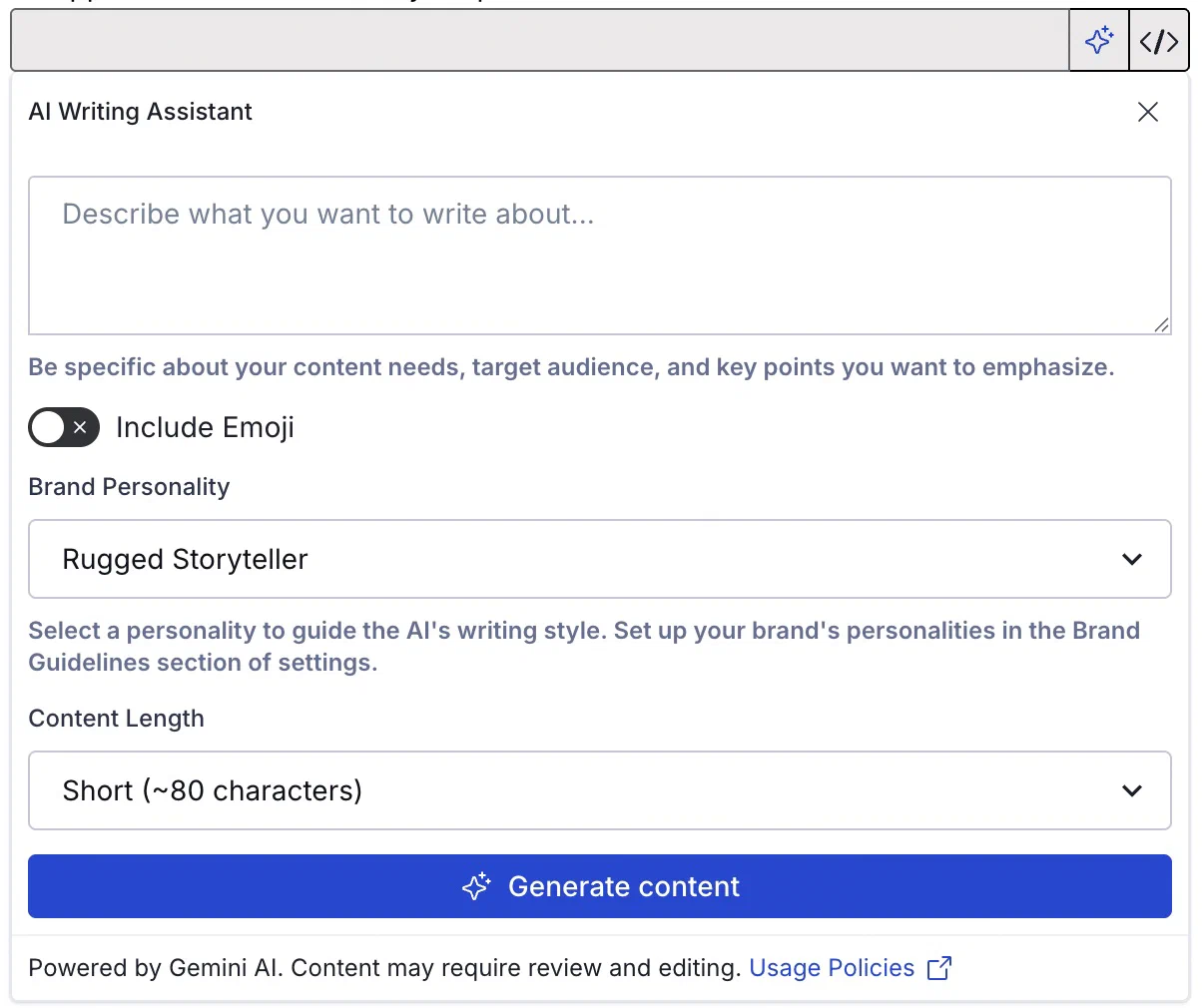
*Generating AI content*
Under **AI Writing Assistant**, enter the information you want to include in your message. This can be a full version of the intended content or just keywords. The text you enter determines the language, but you can specify a different language for the generated content.
Example text for a message: "A persuasive promotional email in Spanish encouraging users to join our new loyalty program and highlighting sign-up bonuses".
1. Make settings selections:
| Setting | Description |
| --- | --- |
| **Include emoji** | Optional. Related emoji will be included in the generated text. |
| **Brand personality** | The message content voice and tone will be determined by a personality defined in your [brand guidelines](https://www.airship.com/docs/guides/messaging/features/brand-guidelines/). If none is selected, voice and tone will be determined only from your provided text. |
| **Content length** | Your message can be Short (~80 characters), Medium (~240 characters), or Long (~400 characters). |
1. Select **✨ Generate content** and review the generated version. If it's not quite right, select **Try again**, edit your provided text, adjust the settings, and then generate content again.
1. Select **Use this text** to transfer the current generated content to the message's text field, where you can refine your text.
> **Note:** Review generated content transferred to text fields before sending a message.
### Predictive Analytics
Use predictive scores for churn risk and optimal send time to improve campaign performance and audience targeting.
# Predictive Churn
> {{< glossary_definition "predicted_to_churn" >}}
Churn is a natural part of engagement ebb and flow, and while a
certain amount of churn is normal and healthy, there are ways to identify
churn risk factors and take actions to prevent your user base from eroding.
## About Predictive Churn
With Predictive Churn, you can identify app and web users by their likelihood to churn, based on risk profiles Airship generates via machine learning, using [gradient boosted decision tree](https://en.wikipedia.org/wiki/Gradient_boosting) methodology.
Risk factors update weekly and are exposed as [Tags](https://www.airship.com/docs/reference/glossary/#tag) for [segmentation](https://www.airship.com/docs/guides/audience/segmentation/segmentation/) and analysis in [Performance Analytics](https://www.airship.com/docs/reference/glossary/#pa), and exposed as Tag Change events in [Real-Time Data Streaming](https://www.airship.com/docs/reference/glossary/#rtds).
Example use cases for Predictive Churn:
* Target users with offers before they churn.
* Run an A/B Test with a single variant and a control group to measure the message's impact on churn.
* Trigger an automation or [Sequence](https://www.airship.com/docs/reference/glossary/#sequence) based on a change in risk group.
* Send a message in a Sequence based on a change in risk group.
* Create a [Segment](https://www.airship.com/docs/reference/glossary/#segment) that blends risk groups based on the type of messaging and your goals.
### The Predictive Churn model
Predictive Churn belongs to Airship's *Predictive*
suite of products, which uses
[machine learning](https://en.wikipedia.org/wiki/Machine_learning) to
predict user behaviors and optimize engagement strategy for customer
lifecycle marketers.
The model is trained on recency and frequency of notification sends and app opens or website visits for a cross-section of anonymized apps and sites. It runs weekly on Mondays. It detects the most relevant risk factors for a churn outcome and assigns a high, medium, or low churn factor to each user who has been active in the past 60 days. By including your app key as an input, the model tailors its predictions to your audience based on your app or website usage.
Notable terms:
Active User
: An *active user* is a member of your audience that has opened your app, had an active web session, or clicked a web notification in the last 30 days.
Inactive User
: An *inactive user* is a member of your audience that had a predictive tag of high, medium, or low and has not opened your app, had an active web session, or clicked a web notification in the last 30 days.
Churn
: A *churn* outcome occurs when a previously active user becomes inactive, i.e., Airship has not seen any activity (measured in app opens, website visits, or web notification clicks) from a user in the last 30 days. Push opt-in status does not factor into the churn outcome, so it is possible that a user who opted out of notifications could still appear active for churn prediction purposes.
> **Note:** A churned user is not the same as an uninstalled user.
Churn Risk
: Predictive Churn makes a prediction about the likelihood of a future churn
outcome, meaning that a user will go inactive. We assign one of three
measures of risk for such an outcome:
* High — Users most likely to become inactive
* Medium — Users who exhibit signs of potentially becoming inactive
* Low — Users least likely to become inactive
### Tags and change events
A user's churn risk profile is represented as a `high`, `medium`, or `low` [Tag](https://www.airship.com/docs/reference/glossary/#tag) within the `ua_churn_prediction` [Tag Group](https://www.airship.com/docs/reference/glossary/#tag_group). Changes to that tag are represented as `TAG_CHANGE` events.
Tag changes return both the change in tag (`add` or `remove`) and the `current` tag. The `current` tag is the end result of the tag change. There are three scenarios for tag change events:
* **Add prediction** — Adds a new Predictive Churn tag to a channel that did not previously have a prediction. Not all devices begin with a churn prediction; churn prediction is assigned to active users when the Predictive Churn model runs (weekly on Mondays).
* **Prediction change** — Replaces the prediction on a channel.
* **Remove prediction** — Removes the prediction from a channel, typically when a channel becomes inactive.
The following is an example of a Predictive Churn tag change:
```json
{
"id": "e1559cd7-af96-45ab-bb74-a22cd99a01d5",
"offset": "1422600",
"occurred": "2017-01-15T09:26:30.362Z",
"processed": "2017-01-15T16:15:30.048Z",
"device": {
"android_channel": "d5ec96e3-5ced-47b0-a4dd-1b2b6bda442e",
"named_user_id": "job.bob@example.com",
"attributes": {
"locale_variant": "",
"app_version": "312",
"device_model": "LG-H811",
"app_package_name": "com.company.app",
"iana_timezone": "America/Los_Angeles",
"push_opt_in": "true",
"locale_country_code": "US",
"device_os": "6.0",
"locale_timezone": "-28800",
"locale_language_code": "en",
"location_enabled": "true",
"background_push_enabled": "true",
"ua_sdk_version": "6.1.2",
"location_permission": "ALWAYS_ALLOWED"
}
},
"body": {
"add": {
"ua_churn_prediction": [
"medium"
]
},
"remove": {
"ua_churn_prediction": [
"high"
]
},
"current": {
"ua_churn_prediction": [
"medium"
]
}
},
"type": "TAG_CHANGE"
}
```
See the [Tag change event](https://www.airship.com/docs/developer/rest-api/connect/schemas/events/#tag-change) in the [Real-Time Data Streaming](https://www.airship.com/docs/reference/glossary/#rtds) API reference.
## Use Predictive Churn in messaging
Before you can use Predictive Churn for targeting, you must enable it for your project. It is supported for production projects only. If your app and website both use the Airship SDK, you should enable the feature for both.
1. Next to your project name, select the dropdown menu (▼), then **Settings**.
1. Under **Project settings**, select **Predictive AI**.
1. Enable **Predictive App Churn** and/or **Predictive Web Churn**.
Tags are assigned the first Monday after enabling the feature.
### Segments
You can include a Predictive Churn risk profile in your [Segments](https://www.airship.com/docs/reference/glossary/#segment). First, search for and select **Predicted to Churn**, and then select an operator and a risk profile.
### Message and experiment audiences
Add a Predictive Churn risk profile as an audience condition for messages and experiments. See **Predicted to Churn** in [Targeting Specific Users](https://www.airship.com/docs/guides/audience/segmentation/target-specific-users/).
You can also specify a risk profile for individual Sequence messages. See **Conditions** in [Add messages to a Sequence](https://www.airship.com/docs/guides/messaging/messages/sequences/create/add-messages/).
### Automation and Sequence triggers
Trigger an [Automation](https://www.airship.com/docs/guides/messaging/messages/sequences/create-automation/) or [Sequence](https://www.airship.com/docs/reference/glossary/#sequence) based on changes to a user's Predictive Churn risk profile. For example, you might set up an automation to send users a special offer when their Predictive Churn risk changes to High, helping retain users at risk of leaving your audience. See **Predicted to Churn** in [Automation and Sequence triggers](https://www.airship.com/docs/guides/messaging/messages/sequences/triggers/). For automation using the API, see the next section.
You can also set a churn risk profile as a trigger condition. For Automations, see **Conditions** in [Create an Automation](https://www.airship.com/docs/guides/messaging/messages/sequences/create-automation/). For Sequences, see **Conditions** in the Trigger step in [Create a Sequence](https://www.airship.com/docs/guides/messaging/messages/sequences/create/create/).
### Audience definition in the API
With the API, use the [audience tag selector object](https://www.airship.com/docs/developer/rest-api/ua/schemas/audience-selection/) to target by the `ua_churn_prediction` Tag Group and Tag values `low`, `medium`, or `high`.
For example, the following is a notification to users of all device types whose current churn prediction is `medium`:
```http
POST /api/push HTTP/1.1
Authorization: Basic
Content-Type: application/json
Accept: application/vnd.urbanairship+json; version=3
{
"audience": {
"tag": "medium",
"group": "ua_churn_prediction"
},
"notification": {
"alert": "me·di·um, n., an agency or means of doing something."
},
"device_types": [
"ios",
"android",
"web"
]
}
```
## Analytics
In [Performance Analytics](https://www.airship.com/docs/reference/glossary/#pa), the [Predictive Dashboard](https://www.airship.com/docs/guides/reports/analytics/definitions/#predictive) helps you track churn risk factors over time. This Dashboard provides a view into Predictive Churn risk groups, distribution of users across risk groups, and the performance of churn mitigation tactics. If you have both Predictive App and Web Churn enabled, you can set the Device Family filter to Web or Mobile to see churn data for either audience.
Predictive tags update every Sunday, and reports default to the most recent update.
**Use cases:**
* Explore added or removed Predictive tags.
* Slice user behavior by churn risk tag.
* Export ad IDs, named users, and channel IDs based on their risk category.
* Export named users and ad IDs based on app opens, uninstalls, and risk category.
* Find churn cohorts and slice by the users' current tags.
* Find churn cohorts, filter, then analyze a funnel of past behavior.
# Optimal Send Time
> Optimal Send Time is an algorithm that determines the best hour for optimal engagement activity — when each individual member of your audience is most likely to receive and act on your message.
Take the guesswork out of scheduling messages and let Airship's
predictive models optimize send times for you.
Send time predictions update weekly and are exposed as [Tags](https://www.airship.com/docs/reference/glossary/#tag) for [segmentation](https://www.airship.com/docs/guides/audience/segmentation/segmentation/) and analysis in [Performance Analytics](https://www.airship.com/docs/reference/glossary/#pa), and exposed as Tag Change events in [Real-Time Data Streaming](https://www.airship.com/docs/reference/glossary/#rtds).
> **Note:** Optimal Send Time is available for iOS, Android, and Fire OS only.
## The Optimal Send Time model
Optimal send time is determined from recent engagement history. To start, app opens are localized to
the user's time zone and aggregated to the hour over the last 60 days of app activity. The best hour
is determined by striking a balance between the user's engagement patterns and a generalized model
of engagement patterns across the app audience. The model also outputs a general best hour, which
is applied to dormant or low-activity users. The general best hour aggregates opens across app users
and selects the best hour based on more frequent opening time for each app platform.
The determined best hour will occur within a three-day window around your selected delivery date. For example, if you choose February 2, the message will be delivered between February 1 and 3.
After enabling the feature, Airship runs the predictive model for your
iOS, Android, and Fire OS audience members, and you can start using the Optimal Send Time model for delivery.
## Optimal Send Time use cases
Schedule notifications without having to guess the optimal time for user engagement. By delivering a message to your users at the best time for them, you can optimize for a higher open rate.
* Send an important update to all users at the time they are most likely to read your message.
* Deliver a coupon to your users at a time when they are most likely to engage.
* Send a long form story to you readers at the best time for them.
* Distribute user engagement across the day to meter traffic flow to the app.
* Compare performance between regular scheduled messages and messages sent using Optimal Send Time.
* Analyze Optimal Send Time user level distribution across hours of the day.
* Analyze correlation between churn risk and user’s best send time.
## Optimal Send Time data and analytics
The Optimal Send Time dashboard in Performance Analytics provides a deeper look into the best time model, including a distribution of best hours across your audience, and the generalized best hour for your audience by platform and day of week.
You can also use Real-Time Data Streaming to observe changes in optimal send time as `TAG_CHANGE` events for the `ua_send_time_prediction` tag group.
## Enable Optimal Send Time
First you must enable Optimal Send Time in the dashboard. Send time prediction supports your production projects only and updates weekly on Wednesdays.
- Next to your project name, select the dropdown menu (▼), then Settings.
- Under Project settings, select Predictive AI.
- Enable Optimal Send Time.
## Schedule a message using Optimal Send Time
You can use Optimal Send Time in the Message and A/B Test composers. In the Delivery step:
- Select Optimize and enter a date.
OR (Message composer only)
- Select Recurring.
- Specify the delivery interval by number of hours/days/weeks/months/years.
- Set the date for the initial delivery. This is the first time that Airship will send your message.
- Select Optimal time.
Airship recommends scheduling your message at least three days in advance due to the combination
of time zones and optimal times. You can reduce the lead time if your audience is more localized, e.g.,
only in the United States or in a certain European region.
> **Note:** When your audience includes users without an optimal send time tag, those users will be dropped from delivery and will not receive the message. Since optimal send time is determined from user behavior over time, new users might not have an optimal send time determined for the first week or two after channel registration.
## Schedule `best_time` messages using the API
In the API, Optimal Send Time is represented as the best time key. To deliver notifications at your users’ optimal times via the API, schedule your message using best_time.
The following example shows two schedules for an upcoming message. The first schedule uses a specific scheduled_time for users with the “earlyBirds” tag, and the second schedule lets the model decide when to send the message, based on the best_time for users with the “normalPeople” tag.
```http
POST /api/schedules HTTP/1.1
Authorization: Basic
Content-Type: application/json
Accept: application/vnd.urbanairship+json; version=3
[
{
"name": "Morning People",
"schedule": {
"scheduled_time": "2018-06-03T09:15:00"
},
"push": {
"audience": {
"tag": "earlyBirds"
},
"notification": {
"alert": "Good Day Sunshine"
},
"device_types": [
"ios",
"android",
"sms",
"web"
]
}
},
{
"name": "Everybody Else",
"schedule": {
"best_time": {
"send_date": "2018-06-03"
}
},
"push": {
"audience": {
"tag": "normalPeople"
},
"notification": {
"alert": "Stay Up Late"
},
"device_types": [
"ios",
"android",
"sms",
"web"
]
}
}
]
```
## Look up a user's Optimal Send Time
You can look up optimal send time for an individual user from the dashboard. See also: [Contact management](https://www.airship.com/docs/guides/audience/contact-management/).
1. Go to *Audience » Contact Management*.
1. Enter a [Channel ID](https://www.airship.com/docs/reference/glossary/#channel_id), [Named User ID](https://www.airship.com/docs/reference/glossary/#named_user), or [Device Token](https://www.airship.com/docs/reference/glossary/#device_token).
1. Click a result to view the named user ID or channel ID page, then click the channel ID and go to the *Tag Groups* tab. The hour tag is listed in the UA_SEND_TIME_PREDICTION tag group.
In the API, the `ua_send_time_prediction` tag group represents Optimal Send Time. You can look up a channel or named user and check the `ua_send_time_prediction` tag group to find the optimal send time for a user. See [Channel Lookup](https://www.airship.com/docs/developer/rest-api/ua/operations/channels/#getchannel) and [Named User Listing or Lookup](https://www.airship.com/docs/developer/rest-api/ua/operations/named-users/#getnameduser) in our API documentation.
## Observe Optimal Send Time in Performance Analytics
The Optimal Send Time dashboard in Performance Analytics provides a deeper look into the best time model, including a distribution of best hours across your audience, and the generalized best hour for your audience by platform and day of week.
Go to the Optimal Send Time dashboard:
1. Go to *Reports » Performance Analytics*.
1. Go to *Spaces » Shared » Predictive* and select *Optimal Send Time*.
## Optimal Send Time events
The `ua_send_time_prediction` tag group contains the send time prediction for each channel. Changes in a user's `ua_send_time_prediction` tag appear as Tag Change Events in the event stream.
## Learn about Airship data and integration features
Connect data from your CDP, data warehouse, and third-party systems to power smarter segmentation, real-time personalization, and unified audience profiles.
# Zero-copy data integration
> Zero-copy data integration with Airship allows direct use of data from external systems, which means data remains in its original location instead of being copied or imported into Airship. You can access the data in real time for segmentation and personalization using Attributes.
A zero-copy data integration offers several benefits. It uses existing data infrastructure and tools, which makes it efficient. It also provides flexibility and control since data stays in its native environment. The data is always as fresh as your data warehouse, with no waiting for imports and no synchronizations job that can fail.
Your externally sourced [Attributes](https://www.airship.com/docs/reference/glossary/#attributes) behave the same as other Airship Attributes. You can use them to build [Segments](https://www.airship.com/docs/reference/glossary/#segment) and personalize content using [Handlebars](https://www.airship.com/docs/reference/glossary/#handlebars).
## How a zero-copy data integration works
The integration works in three steps:
1. **Grant external data access** — You provide Airship with credentials and define the specific data from your external source to be made available.
1. **On-demand data retrieval** — When an external Attribute is required, Airship requests and retrieves that specific data from your source. This information is efficiently transported via temporary, short-lived messages using a [Publish-Subscribe mechanism](https://en.wikipedia.org/wiki/Publish-subscribe_pattern), ensuring only the requested data is transferred.
1. **Data application and purge** — The retrieved data is immediately and temporarily used within Airship for segmentation and personalization, and is not permanently stored.
## Supported data source and types
Zero-copy data integration is supported for [Snowflake](https://snowflake.com/), a fully managed cloud-based data warehouse and analytics service for storing and analyzing data. For security information, see [Continuous Data Protection](https://docs.snowflake.com/en/user-guide/data-cdp) in Snowflake's user guide.
The integration supports the same data type as Attributes from other sources:
* **Text** — String values for personalization and segmentation
* **Number** — Integer, float, or string values for calculations and comparisons
* **Date** — Date and timestamp values for time-based targeting
* **JSON** — Complex structured data for advanced personalization
For more information, see [Attribute types](https://www.airship.com/docs/guides/audience/attributes/about/#attribute-types) in *About Attributes*.
To send Snowflake data to Airship without systems integration, see [Export Lists from Snowflake](https://www.airship.com/docs/integrations/snowflake-export-lists/). To send Airship data to Snowflake, see the [Real-Time Data Streaming integration](https://www.airship.com/docs/integrations/snowflake/).
## Benefits and use cases
Zero-copy data integration provides these benefits:
* **Real-time data access** — Use your most current Snowflake data without data copying or synchronization delays.
* **Data governance** — Maintain control over your data while still leveraging it for personalization and segmentation.
* **SQL expertise** — Leverage your existing SQL knowledge and workflows.
* **Seamless integration** — Access Snowflake attributes alongside Airship attributes in the same interfaces.
Consider these use cases:
* **Customer lifetime value targeting** — Use Snowflake-calculated CLV scores to segment high-value customers.
* **Subscription status targeting** — Target users based on subscription tiers and renewal dates.
* **Geographic segmentation** — Use location-based data for regional campaigns and local offers.
* **Product affinity personalization** — Personalize messages based on product categories and browsing history.
## Configuring the integration
Setup requires configuration by Airship. To get started, contact your Airship account manager or [Support](https://support.airship.com/) to request the integration.
Airship will help you with these steps:
* Setting up the integration for your Airship project
* Identifying the tables and views you want to be able to access in Airship — For example, tables containing customer profile data like demographics, preferences, or subscription status
* Mapping your Snowflake data to [Channel IDs](https://www.airship.com/docs/reference/glossary/#channel_id) and [Attributes](https://www.airship.com/docs/reference/glossary/#attributes)
## Using Attributes in Airship
Once the integration is set up, you can use your Attributes for segmentation and personalization. See:
* [Targeting your audience using Attributes](https://www.airship.com/docs/guides/audience/attributes/targeting/)
* [Personalizing messages using Attributes](https://www.airship.com/docs/guides/personalization/sources/attributes/)
To access a list of Attributes added to your project, go to **Audience**, then **Attributes**. Attributes from zero-copy data integration have badge **External**. You cannot edit or archive Attributes from zero-copy data integration in the dashboard. To make updates, contact your Airship account manager or [Support](https://support.airship.com/). See also [Managing Attributes](https://www.airship.com/docs/guides/audience/attributes/managing/).