Target Specific Users (Legacy)
Choose a recipient group based on tags, predefined segments, audience lists, and more.
When selecting your audience in the Message and A/B Test composers, you can Target Specific Users based on various target data.
See also: Segmenting Your Audience.
Steps
Find target data via search or explore. Your selections appear under Targeted Audience.
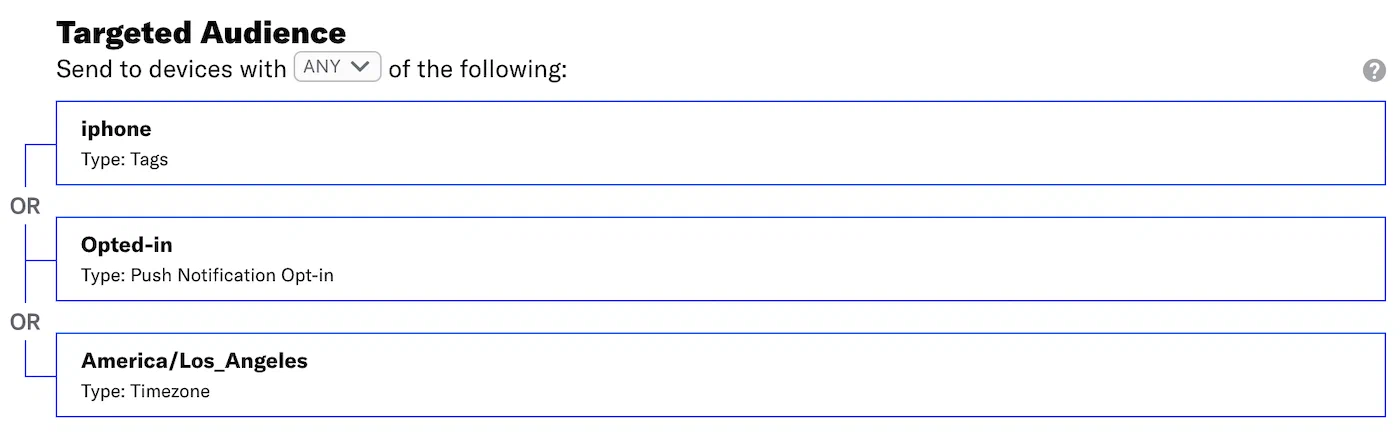
Targeted audience selections Search
- Enter a term in the search field, and select from the listed results. To filter results, select the filter menu () and make your selection.
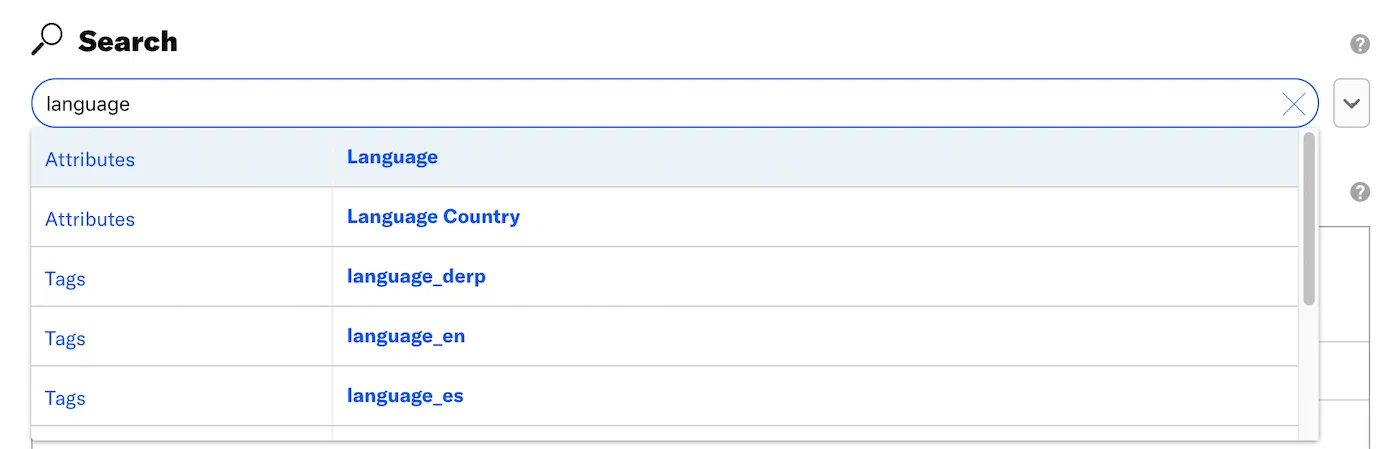
Searching for Attributes in the audience selector - (For attributes only) Set an operator determining how you want to evaluate the attribute: equals, does not equal, contains, etc.

Setting an operator for an Attribute condition
Explore
- Select a data type, and select from the listed results to drill down to your desired target. You can enter a term in the Filter results search box to help narrow your choices.
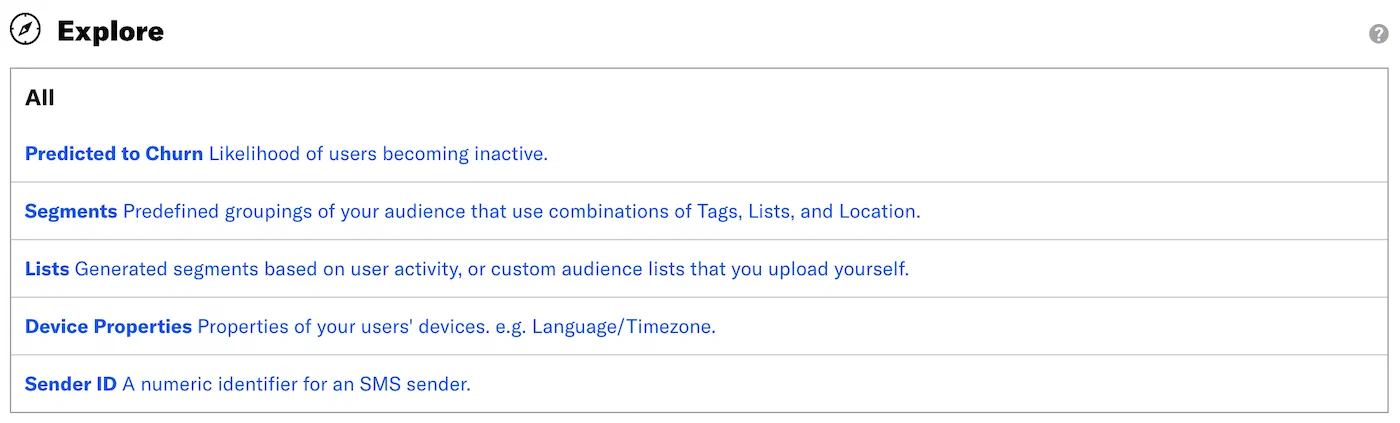
Exploring audience data types
- Select a data type, and select from the listed results to drill down to your desired target. You can enter a term in the Filter results search box to help narrow your choices.
(Optional) Click Add another target to add more audience criteria.
Select ALL/ANY to determine how to evaluate multiple targets.
- ALL = all criteria must be met (boolean AND)
- ANY = any criteria must be met (boolean OR)
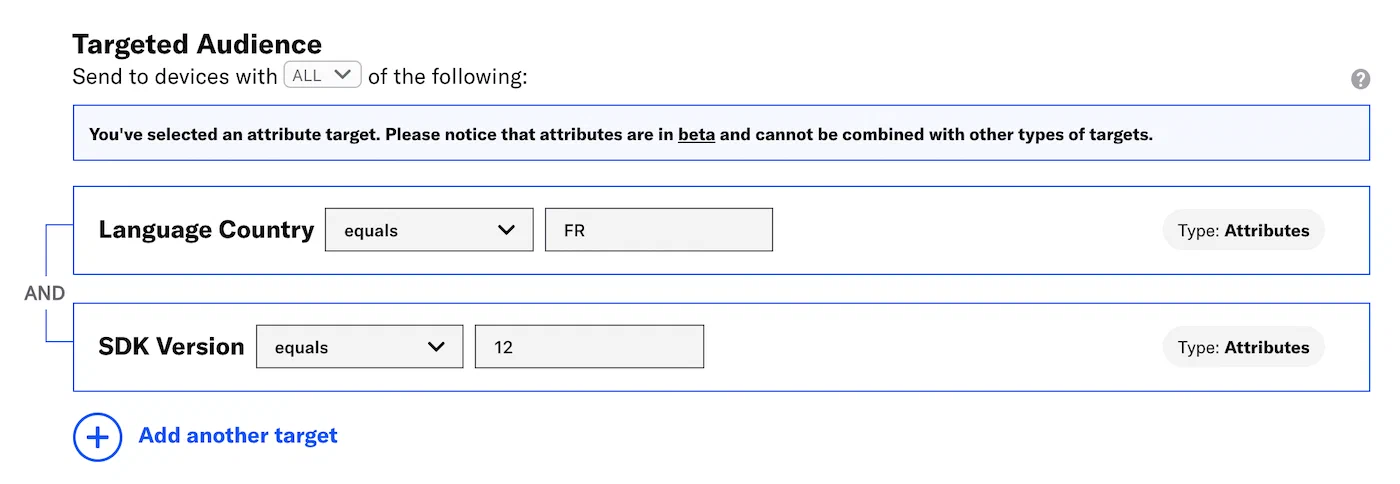
Evaluating multiple audience targets with ALL/ANY By default Airship only includes audience members meeting ALL the conditions you select. For example, if you selected ALL, with tags
VIPandhas_pets, you’d only reach VIP pet owners. If you selected ANY, you’d reach all VIPs and all pet owners.You can create a SegmentA reusable audience group you create by selecting unique or shared user data. to define more complex, nested logic.
Now you can complete the remaining steps in the composer.
Target Data
You can specify your message audience by a unique identifier, such as a device ID or email address, or by an identifier that may belong to or include multiple users, such as a tag or audience list. Learn more in Segmentation.
Lifecycle audience lists are not supported for Web, Email, SMS, or Open channels.