Segments
Create audience groups for selection in your messages and experiments.
How segments work
A segment is a reusable audience group you create by selecting unique or shared user data. You name the segment, save it to your project, and select it whenever you need that audience. A segment can also include other segments.
Airship evaluates segment membership when a message or automation runs, not when you save the segment. If you edit a segment after scheduling a message that targets it, the scheduled send uses the updated criteria. The same behavior applies to recurring messages.
You can create segments in the dashboard or with the API.
Structure
You build segments by adding segmentation data as conditions organized in blocks. For the data you can use in segments, see Audience data reference.
Most data types require a value and an operator for evaluating the condition: True/False, Equals/Does not equal, etc. Most data types use True/False and require no additional selections or values.
AND and OR operators between conditions and between blocks determine how they are evaluated. For example, use the AND operator to combine conditions or blocks, and use the OR operator to create alternatives.
In the image below, the segment includes a Text attribute targeting users whose favorite food is lasagna. The attribute name is “Favorite Food”, the operator is Equals, and the value is lasagna.
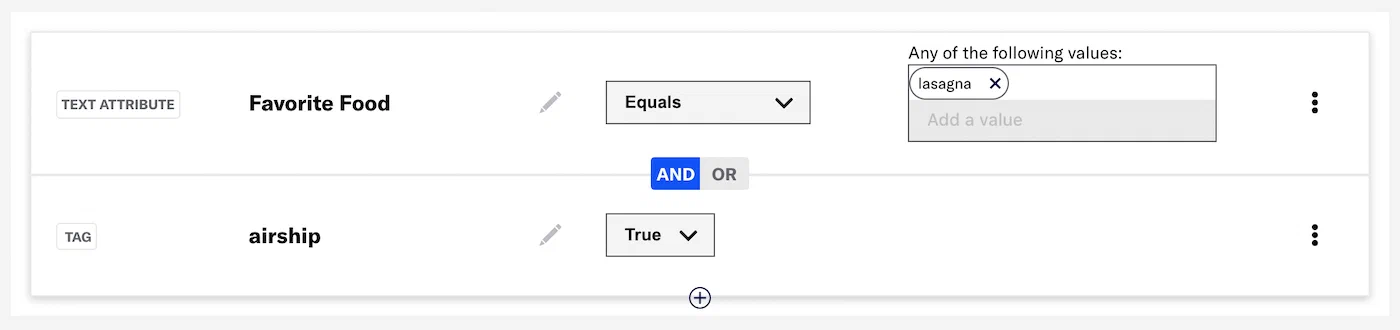
The example also shows the use of the Boolean AND. The segment includes audience members who have the tagMetadata that you can associate with a channel or named user for audience segmentation. Generally, a tag is a descriptive term indicating a user preference or other categorization, such as wine_enthusiast or weather_alerts_los_angeles. airship and also have the Text attribute “Favorite Food” that equals lasagna. If a user does not meet both conditions, they are not included in the segment.
Using segments with messaging
Segments support the following messaging capabilities:
- Targeting — Select a segment as the audience, or include a segment as a condition, for messages, feature flagsAn experimentation tool for controlling the availability of content or functionality in your app or website. A flag’s Configurations determine the audience, schedule, and property values to apply when the flag is enabled. Flag properties enable making immediate code updates, bypassing the need for traditional code changes and release processes., A/B tests, and Intelligent Rollouts. See Targeting segments. For feature flags, you can also include a segment under Channel conditions.
- Triggering — Enter a segment into a SequenceA series of messages that is initiated by a trigger. Airship sends messages in the series based on your timing settings, and you can also set conditions that determine its audience and continuation. Sequences can be connected to each other and to other messaging components to create continuous user experiences in a Journey.. See the following in Automation and Sequence triggers:
- Conditions — For Sequence triggers that support Conditions, filter who enters with conditions that can include a segment. See Trigger in Create a Sequence. You can also require segment membership for each message. See the segmentation option for Conditions in Add messages to a Sequence.
Create a segment
To create a segment for your project:
- Go to Audience, then Segments, and select Create segment.
- Enter a name and description, then select Save and continue. Search for segments using this name when targeting message and experiment audiences.
- Build your segment as described in the following sections, and then select Save & exit.
For the API, use the Segments endpoint.
Adding conditions
When adding conditions, you can search all your segmentation data. The default filter is All, and you can select a different filter before or after entering a search term.
Search behavior for tags and tag groups varies by filter:
| Selected filter | Steps |
|---|---|
| Tags | Search for primary device tagsAny tag that is set without specifying a custom tag group. Primary device tags belong to the device tag group and apply to a channel only, not a named user.. |
| Tag Groups | Select the search field and select a tag group, or search for and select a tag group, and then search within that tag group. |
| All | This combines the behaviors of the Tags and Tag Groups filters. Use this filter to search for tags in all tag groups. |
| Predictive AI | Select the search field and then Predicted to Churn. You can then select a value: High risk, Medium risk, or Low risk. |
| NPS Category | Select the search field and then NPS Category. You can then select a value: Promoter, Passive, or Detractor. |
| Autogroup | Select the search field and then Autogroup. You can then enter a value, 1-100. For projects using contact-level evaluation, Autogroup is available as a channel condition when you configure the audience in a message, not when creating segments. |
In some locations of this interface, you have quick access to your 10 most recently created or modified segments, uploaded listsAn audience list you populate by uploading a CSV of channel or named user IDs. In the API, uploaded lists are called static lists., and subscription listsAn audience list users opt in to for a specific messaging topic. Users can manage their opt-in status using a Preference Center., and all your lifecycle listsAn audience list Airship automatically populates based on user activity in your app, such as app opens, uninstalls, notifications received, and dormancy.. Below the search field, select Segments, Uploaded Lists, Subscription Lists, or Lifecycle Lists, and choose from the listed items to add it as a condition.
Editing conditions and blocks
Use these options for adding and editing conditions:
- Select the edit icon () to change your selection within a condition, for example, changing a tag from
airshiptostarship. - Select the add icon () to add a condition to a block.
- To duplicate or delete, select the more menu icon (). Deleting all conditions in a block deletes the block.
- Select Add a block to add separate conditions.
After adding a block, you can hover over it and select Edit block to make changes.
Setting Boolean logic
Select AND or OR between conditions and blocks to apply Boolean logic:
- AND = all conditions must be met
- OR = any condition must be met
When using JSON attributes, you cannot mix AND and OR selections between conditions or blocks.
Configuring specific conditions
For information about configuring attribute conditions, see Targeting your audience using attributes. For event conditions, see Targeting your audience using events.
For device propertiesInformation about a channel, such as language and time zone settings, OS and browser versions, and notification opt-in status. Device properties apply to a channel only, not a named user. Values come from the user’s device when an SDK is present, or are set via the API for channels without one. Each property is automatically made available as an attribute, a tag, or both for audience segmentation., first select an operator. Then, select, search for, or enter a value. Multiple values are evaluated as a Boolean OR. No configuration is required for operators Empty and Not Empty.

When using Application Version, SDK Version, or Device OS Version, the value field accepts the following formats:
- Major version:
1,123 - Full version:
1.2.3 - Major and minor version with wildcard patch:
1.2.X, which matches any patch of that minor version
Generate audience count
When creating a segment, select Generate Audience Count to see the total number of contactsAny user in your project. Contacts are identified as either an anonymous contact or a named user. Airship can set targeting data on these identifiers, which are also used to map devices and channels to a specific user. for the segment. Total Contacts is the number of contacts that meet all segment requirements. Select the show count details icon () to see the following:
- The total number of contacts and channels in the audience
- The total number of channels and the number of opted-in channels for each engagement channel and mobile app platform
If the segment has three or fewer blocks, you can select View channel breakdown to see the same information for a block. Select the regenerate count icon () after adding or removing criteria.
In the list of all segments, select the segment name to see the contact and channel counts, if they were already generated when creating the segment. If not, select Generate audience count. Select Channel breakdown for the same breakdown available when creating or editing a segment. Counts appear for seven days, and then you can generate a new count.
You can generate the same counts in the Review step in the Message composer. When configuring the Target Specific Users option for an A/B test audience, you can generate the number of channels.
For projects using channel-level evaluation, audience counts do not include contacts:
- Total Contacts is instead Total Count, which is the total number of channels in the segment.
- The count details displays the total number of channels and a breakdown of channels and opted-in channels for each engagement channel and mobile app platform.
- If the segment has three or fewer blocks, the number of channels in the block displays by default, along with the same channel breakdown.
Also, in the list of all segments the channels count is displayed in the Audience Count column if it was already generated when creating the segment. Select Generate for any segment that does not already display its count. Counts appear for seven days, and then you can generate a new count. Select the expand icon () to see the number of channels and opted-in users per engagement channel and mobile app platform.
- Calculations can take multiple minutes to complete, depending on audience size and query complexity.
- For iOS, the opted-in counts only include devices opted-in to notifications and do not include devices where only background push is enabled.
- For Android, the opted-in counts include devices opted-in to notifications as well as devices where only background push is enabled.
- For email, the audience count (within a block and for the segment) is the sum of channel IDs for transactional and commercial messages, and you can hover over the count to see the breakdown. Opted-in is for commercial messages only.
Targeting segments
You can include a segment when using the Target by conditions and Target Specific Users audience options for messages, A/B tests, feature flagsAn experimentation tool for controlling the availability of content or functionality in your app or website. A flag’s Configurations determine the audience, schedule, and property values to apply when the flag is enabled. Flag properties enable making immediate code updates, bypassing the need for traditional code changes and release processes., and Intelligent Rollouts.
For the API, target a segment using the audience object. See Audience Selection in the Data Formats section of the API reference.
Export a segment
Export a CSV list of audience members in a segment to add to or reconcile with external systems. You can select contactAny user in your project. Contacts are identified as either an anonymous contact or a named user. Airship can set targeting data on these identifiers, which are also used to map devices and channels to a specific user. or channelA device or address registered with Airship to receive messages, such as a mobile app, web browser, email address, or SMS number. It stores opt-in status, device-specific information, and metadata used for targeting. Each channel has a unique channel ID. ID as the identifier. A list of channel IDs also includes the channel platform. Once the file is available, Airship sends a download link to your account email address, and you can also download the file from the dashboard. The CSV files are available for download seven days after the request date.
You can export a segment while creating or editing it:
- Select Export.
- Select an identifier.
- Select Save and export to confirm saving the segment in its current state and starting the export process. The segment Exports screen will automatically load and display a list of all your requested exports from the last seven days.
- Once the export status is Done, select the download icon () for the segment, or follow the link in your email to download the file.
One segment per project can be exported at a time. If you or another user for your project already have an export processing, you must wait until processing is complete before you can request another export.
To return to your requested exports, go to Audience, then Segments, and then Go to exports. The processing status and the request date and time are listed for each segment. To stop processing a Queued or Running export, select the stop icon ().
For projects using channel-level evaluation, you can export a list of channel IDs and the channel platform for each audience member. There is no option to select contacts instead.
Managing segments
Go to Audience, then Segments to view the list of segments in your project. The list displays segments created in the dashboard or with the Segments API, including Audience PulseAnalysis of user activity using the Recency, Frequency, Monetary (RFM) method. You can create Segments from selected tiers and transitions within the reports and use them to target specific users. segments. You can search for segments by name.
You can manage segments from two locations:
More menu — Select the more menu icon () for a segment for the options to edit, duplicate, or delete. Editing is not available for Audience Pulse segments that update weekly. Duplicating is not available for Audience Pulse segments. Deleting a segment that is in use may impact messaging.
Drawer — Select the segment name to view its description and targeted audience, and to generate an audience count or view an existing count and channel breakdown.
Some complex segments created using the API cannot be edited or duplicated in the dashboard. Use the Update Segment API.
For projects using channel-level evaluation, use the edit, duplicate, and delete icons in the list instead of the more menu. Select Generate for audience count, and expand a row to view details and channel breakdown. See Generate audience count for how counts differ under channel-level evaluation.