SFTP upload for CSV files
You can upload audience lists, attributes, named user association lists, and Coupons data directly to Airship using SFTP.
Many CRM platforms export data as CSV files. You can take advantage of Airship’s SFTP interface to upload that data to:
Add users to your project in an uploaded listAn audience list you populate by uploading a CSV of channel or named user IDs. In the API, uploaded lists are called static lists. — You can select the list as your messaging audience or include it in a segmentA reusable audience group you create by selecting unique or shared user data..
Set or remove user attributesMetadata used for audience segmentation and personalization. Attributes extend the concept of tags by adding comparison operators and values to determine whether or not to target a user, helping you better evaluate your audience. — Attributes can be associated with channelsA device or address registered with Airship to receive messages, such as a mobile app, web browser, email address, or SMS number. It stores opt-in status, device-specific information, and metadata used for targeting. Each channel has a unique channel ID., named usersA customer-provided identifier used for mapping multiple devices and channels to a specific individual., MSISDNsThe mobile phone number, including country code, of a device in your Airship audience. Each MSISDN represents an individual mobile device., or email addresses, but you cannot mix identifiers. For MSISDNs and email addresses, Airship will generate new channels for identifiers we don’t recognize.
Associate channelsA device or address registered with Airship to receive messages, such as a mobile app, web browser, email address, or SMS number. It stores opt-in status, device-specific information, and metadata used for targeting. Each channel has a unique channel ID. with named usersA customer-provided identifier used for mapping multiple devices and channels to a specific individual. — Upon upload, Airship registers channels that are new to your project and creates the named user ID if it does not already exist.
Add more codes for a CouponsA service for adding promotional codes to messages. You provide a CSV file with the codes and other optional campaign data and reference the data using Handlebars in your message content. When you send the message, Airship uses the information from your uploaded CSV file to insert the code into the message. campaign — You can also overwrite existing campaign settings using the values in the CSV file.
All uploaded files are encrypted in transit and at rest.
You will need:
- An FTP/SFTP client — Many CRM platforms support SFTP directly, or you can use a client like FileZilla.
- SSH keys — Airship’s implementation of SFTP uses public key authentication.
- A properly formatted CSV file
You must add Custom and Predefined attributes to your project before setting them on users. Otherwise, setting those attributes will result in an error. See Adding attributes to your project.
JSON attributes cannot be set through CSV upload. Use the Airship SDKs or the Channels or Named Users API.
You can also upload audience lists, attributes, named user association lists, and Coupons data in the dashboard. See:
Format your CSV
Prepare your CSV according to the formatting reference for the data you want to upload:
- Attributes CSV format
- Named user association CSV format
- Uploaded audience list CSV format
- Coupons CSV format
Generate keys
Airship’s SFTP implementation uses SSH key pairs for authentication. You will create a pair of keys: a private key for your client and a public key for Airship. The ssh-keygen command is included with macOS, Linux, and Windows 10 and later.
- Open your terminal. On Windows, use PowerShell or Command Prompt.
- At the command line, enter
ssh-keygen -t rsa. You can set other options, but the key type must be set to RSA (-t rsa). - Enter the directory and file name (without extension) for your new keys, e.g.,
/Users/your_username/Documents/rsa_keys/<filename>, and optionally enter a passphrase and confirm. This process generates two files based on the file name you provide:<filename>contains your private key.<filename>.pubcontains your public key.
- Copy the contents of your
.pubfile. This is what you’ll paste when adding the key to Airship.
If you need to remove a key from your project:
- Next to your project name, select the dropdown menu (), then Settings.
- Under Project settings, select SFTP.
- Select the delete icon () for a key.
Add your public key to Airship
When you add your public key to Airship, you select the Purpose for the key (audience/static lists or attributes), then we generate a username for your SFTP connection. You can use the same key pair to upload both audience/static lists and attributes, but you must add the public key to Airship twice — once for each purpose.
In Airship:
- Next to your project name, select the dropdown menu (), then Settings.
- Under Project settings, select SFTP.
- Select Add key and configure:
- Purpose: Select Static Lists (Uploaded audience lists), Attributes, Attributes Snapshot, Named Users, or Coupons.
- Name: Enter a name to help you identify the key in Airship.
- Public key: Paste the contents of the
<filename>.pubfile you saved in the previous step.
- Select Save key.
Set up your client and transfer CSVs
You can set up any client to use Airship’s SFTP interface, using SSH or an SFTP client. Many CRM platforms natively support SFTP. First retrieve configuration information for the key you added to Airship, then enter it in your SFTP client configuration.
- Next to your project name, select the dropdown menu (), then Settings.
- Under Project settings, select SFTP.
- Select the view icon () for a key to see values for:
- SSH command line
- Username
- Host:
sftp.airship.com(sftp.airship.eufor EU customers) - Port:
5222
- Copy and paste the values from the previous step for use in your SFTP configuration. Authentication also requires your private key.
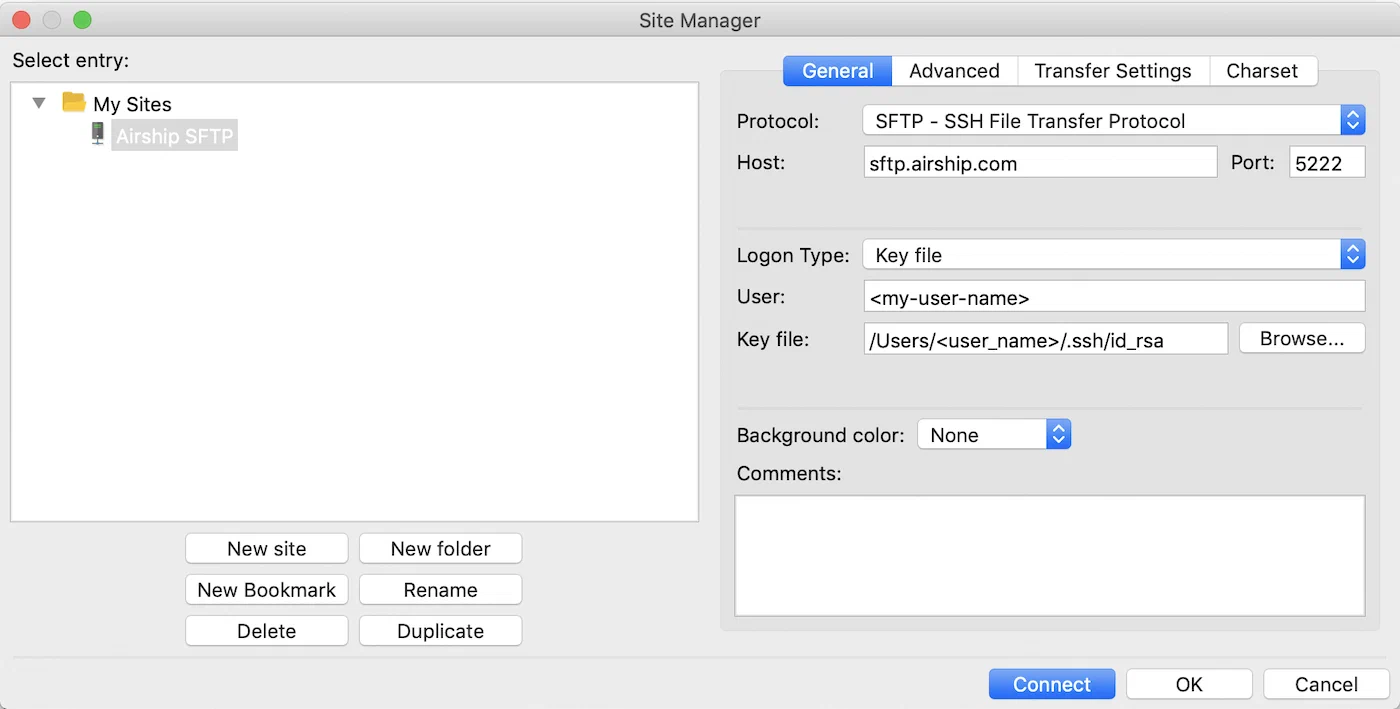
SFTP client configuration
After your connection is set up, you can transfer CSV lists to Airship.
After file transfer, see the following locations to access each upload type:
Audience lists — Go to Audience, then Lists, then Uploaded. See Uploaded lists.
Attributes — Go to Audience, then Attributes, then Attribute List. See Targeting your audience using attributes and Managing attributes.
Coupons — Next to your project name, select the dropdown menu (), then Settings. Under Project settings, select Coupons. See Coupons.
Named users — To view user data, go to Audience, then Contact Management. See Contact Management.
Attributes and Named users — For your upload history, go to Audience, then Attributes, then Upload History. The latest upload is listed first, with columns for:
- File name
- User name — The user who performed the upload in the dashboard
- Source — Dashboard or SFTP
- Upload date
- Status — Processed, Processed with errors, Processing, or Failed
For status “Processed with errors”, select the download icon () to download a CSV file of the identifiers that failed processing and their error reasons.