Segments
A Segment is a reusable audience group you create by selecting unique or shared user data. Create Segments for a project and also use the same method to define audience conditions in messages and experiments.
Segment structure
You build Segments by adding segmentation data as conditions organized in blocks. For the data you can use in Segments, see Segmenting your audience.
Most data types require a value and an operator for evaluating the condition: True/False, Equals/Does not equal, etc. True/False determines whether to include users for whom the condition is true or false. Most data types use this operator and require no additional selections or values.
AND and OR operators between conditions and between blocks determine how they are evaluated. For example, use the AND operator to combine conditions or blocks, and use the OR operator to create alternatives.
In the image below, the Segment includes a Text Attribute targeting users whose favorite food is lasagna. The Attribute name is “Favorite Food”, the operator is Equals, and the value is lasagna.
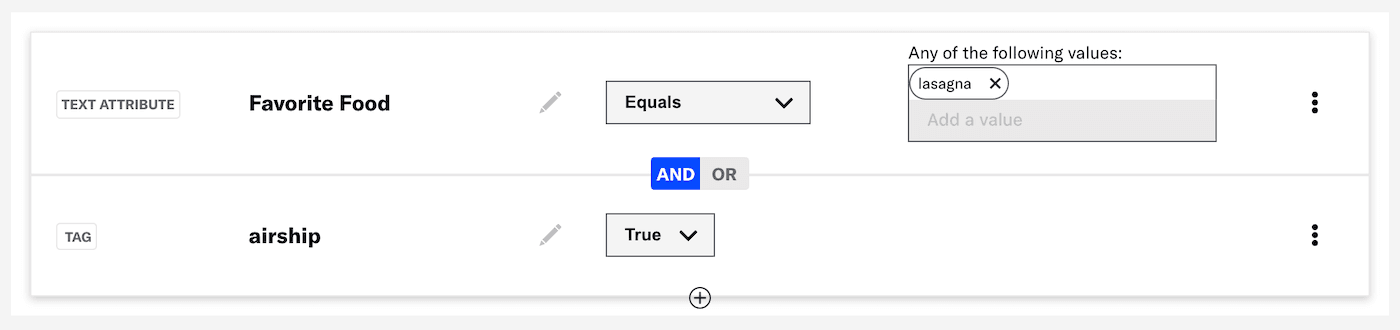
The example also shows the use of the Boolean AND. Overall, the Segment dictates including audience members who have the TagMetadata that you can associate with channels or Named Users for audience segmentation. Generally, they are descriptive terms indicating user preferences or other categorizations, e.g., wine_enthusiast or weather_alerts_los_angeles. Tags are case-sensitive. airship and also have the Text Attribute “Favorite Food” that equals lasagna. If a user does not meet both conditions, they will not be included in the message audience.
Create a Segment
To create a reusable Segment for your project:
- Go to Audience, then Segments, and select Create Segment.
- Enter a name and description, then select Save and continue. Search for Segments using this name when targeting message and experiment audiences.
- Build your Segment as described in the following sections, and then select Save & exit.
For the API, use the Segments endpoint.
The same method of building a Segment is used for the Target by conditions, Target Specific Users, and Channel conditions options for the following:
- Messages (Message composer)
- Scenes
- In-App Automations
- Feature Flag Configurations
- A/B tests
- Sequence messages
The same method is also used for setting Sequence trigger conditions.
Adding conditions
When adding conditions, you can search all your segmentation data. The default filter is All, and you can select a different filter before or after entering a search term.
Search behavior for Tags and Tag Groups varies by filter:
| Selected filter | Steps |
|---|---|
| Tags | Search for primary device Tags (Tags in the device Tag Group) only. |
| Tag Groups | Select the search field and select a Tag Group, or search for and select a Tag Group, and then search within that Tag Group. |
| All | This combines the behaviors of the Tags and Tag Groups filters. Use this filter to search for Tags in all Tag Groups. |
| Predictive AI | Select the search field and then Predicted to Churn. You can then select a value: High risk, Medium risk, or Low risk. |
| NPS Category | Select the search field and then NPS Category. You can then select a value: Promoter, Passive, or Detractor. |
| Autogroup | Select the search field and then Autogroup. You can then enter a value, 1-100. Autogroup is only available for accounts not using the channel-level segmentation system. |
In some locations of this interface, you have quick access to your 10 most recently created or modified Segments, Uploaded listsA reusable audience list that you create. Uploaded lists are static and updatable. In the API, they are referred to as Static Lists., and Subscription listsAn audience list of users who are opted in to messaging about a specific topic. Users can manage their opt-in status per list using a Preference Center., and all your Lifecycle listsAutomatically generated audience lists that capture app open, uninstall, notification, and dormancy information within the past 24 hours, one week, or 30 days.. Below the search field, select Segments, Uploaded Lists, Subscription Lists, or Lifecycle Lists, and choose from the listed items to add it as a condition.
Editing conditions and blocks
Use these options for adding and editing conditions:
- Select the edit icon () to change your selection within a condition, for example, changing a Tag from
airshiptostarship. - Select the add icon () to add a condition to a block.
- To duplicate or delete, select the more icon (). Deleting all conditions in a block deletes the block.
- Select Add a block to add separate conditions.
After adding a block, you can hover over it and select Edit block to make changes.
Setting Boolean logic
Select AND or OR between conditions and blocks to apply Boolean logic:
- AND = all conditions must be met
- OR = any condition must be met
When using JSON Attributes, you cannot mix AND and OR selections between conditions or blocks.
Configuring specific conditions
For information about configuring Attribute conditions, see Targeting your audience using Attributes. For event conditions, see Event segmentation in the Events guide.
For device properties, first select an operator. Then, select, search for, or enter a value. Multiple values are evaluated as a Boolean OR. No configuration is required for operators Empty and Not Empty.

For device property conditions:
Equals and Does not equal are the default operators. To make all operators available:
- Next to your project name, select the dropdown menu (), then Settings.
- Under Project settings, select Dashboard Settings.
- Enable Segment Operators.
When using Application Version, SDK Version, or Device OS Version:
- Only semantic versioning is accepted.
- Anything after the third decimal place is excluded.
For example,
12.2.3-alphais evaluated as12.2.3.
Generate audience count
When creating a Segment, select Generate Audience Count to see the total number of ContactsAny user in your project. Contacts are identified as either an Anonymous Contact or a Named User. Airship can set targeting data on these identifiers, which are also used to map devices and channels to a specific user. for the Segment. Total Contacts is the number of Contacts that meet all Segment requirements. Select the show count details icon () to see the following:
- The total number of Contacts and channels in the audience
- The total number of channels and the number of opted-in channels for each Channel (Engagement)A communication medium supported by the Airship service. Supported channels include app, web, email, SMS, and Open Channels. Within some channels there may be specific platforms with individual characteristics. Example platforms include Chrome for the web channel and Android for the mobile app channel. and mobile app platform
If the Segment has three or fewer blocks, you can select View channel breakdown to see the same information for a block. Select the regenerate count icon () after adding or removing criteria.
In the list of all Segments, select the Segment name to see the Contact and channel counts, if they were already generated when creating the Segment. If not, select Generate audience count. Select Channel breakdown for the same breakdown available when creating or editing a Segment. Counts appear for seven days, and then you can generate a new count.
You can generate the same counts in the Review step in the Message composer. When configuring the Target Specific Users option for an A/B test audience, you can generate the number of channels.
For projects using the channel-level segmentation system, audience counts do not include Contacts:
- Total Contacts is instead Total Count, which is the total number of channels in the Segment.
- The count details displays the total number of channels and a breakdown of channels and opted-in channels for each engagement channel and mobile app platform.
- If the Segment has three or fewer blocks, the number of channels in the block displays by default, along with the same channel breakdown.
Also, in the list of all Segments the channels count is displayed in the Audience Count column if it was already generated when creating the Segment. Select Generate for any Segment that does not already display its count. Counts appear for seven days, and then you can generate a new count. Select the expand icon () to see the number of channels and opted-in users per engagement channel and mobile app platform.
- Calculations can take multiple minutes to complete, depending on audience size and query complexity.
- For iOS, the opted-in counts only include devices opted-in to notifications and do not include devices where only background push is enabled.
- For Android, the opted-in counts include devices opted-in to notifications as well as devices where only background push is enabled.
- For email, the audience count (within a block and for the Segment) is the sum of Channel IDs for transactional and commercial messages, and you can hover over the count to see the breakdown. Opted-in is for commercial messages only.
Target a Segment
In the API, target a Segment using the "audience" object. See: API: Audience Selection.
In the dashboard, you can target a Segment when configuring the Audience step for messages and experiments:
- (In the Message, Scene, In-App and Automation composers and in A/B tests) Select Target by conditions.
- (In Feature Flag Configurations) Select Target specific users, then Segments.
- Define your audience using the same method as when building a Segment.
For projects using the channel-level segmentation system:
In the Audience step of the following for messages and A/B tests:
- (In the Message composer) Select Target by specific users.
- (In the Scene and In-App Automation composers and A/B tests) Select Target specific users, then Segments.
- Define your audience using the same method as when building a Segment.
When configuring triggers for Scenes and In-App Automations in the Journey map:
- Select Audience conditions.
- Select Target specific users, then Segments.
- Define your audience using the same method as when building a Segment.
To enter a Segment into a SequenceA series of messages that is initiated by a trigger. Airship sends messages in the series based on your timing settings, and you can also set conditions that determine its audience and continuation. Sequences can be connected to each other and to other messaging components to create continuous user experiences in a Journey., select the Segment when configuring these triggers in the Journey MapA visualization of messaging components that can be connected to create a continuous user experience. You can also create and edit from the map.:
When configuring the triggers, you filter the audience members entering the Sequence by setting conditions, which can include a Segment. Setting conditions uses the same method as when building a Segment. See Trigger in Create a Sequence.
You can also specify for each message in a Sequence that Contacts in the audience must be a member of a Segment. See the Segmentation option for Conditions in Add messages to a Sequence.
Export a Segment
Export a CSV list of audience members in a Segment to add to or reconcile with external systems. You can select ContactAny user in your project. Contacts are identified as either an Anonymous Contact or a Named User. Airship can set targeting data on these identifiers, which are also used to map devices and channels to a specific user. or Channel IDAn Airship-specific unique identifier used to address a channel instance, e.g., a smartphone, web browser, email address. as the identifier. A list of Channel IDs also includes the channel platform. Once the file is available, Airship sends a download link to your account email address, and you can also download the file from the dashboard. The CSV files are available for download seven days after the request date.
While creating or editing a Segment:
- Select Export.
- Select an identifier.
- Select Save and export to confirm saving the Segment in its current state and starting the export process. The Segment Exports screen will automatically load and display a list of all your requested exports from the last seven days.
- Once the export status is Done, select the download icon () for the Segment, or follow the link in your email to download the file.
One Segment per project can be exported at a time. If you or another user for your project already have an export processing, you must wait until processing is complete before you can request another export.
To return to your requested exports, go to Audience, then Segments, and then Go to exports. The processing status and the request date and time are listed for each Segment. To stop processing a Queued or Running export, select the stop icon ().
For projects using the channel-level segmentation system, you can export a list of Channel IDs and the channel platform for each audience member. There is no option to select Contacts instead.
Manage Segments
Go to Audience, then Segments to view and manage your saved Segments. All Segments appear in this list, whether created using the API or dashboard, including Audience PulseAnalysis of user activity using the Recency, Frequency, Monetary model. You can create Segments from selected tiers and transitions within the reports and use them to target specific users. Segments.
Your last modified Segment is listed first. You can search for Segments by name and sort the list by name, date created, or date last modified.
Select from available actions:
| Action | Description | Steps |
|---|---|---|
| Generate audience count | Calculate and display the number of Contacts and channels in a Segment. | Select the Segment name, then Generate audience count. For more information, see Generate audience count above. |
| View details | Show a Segment's description and targeted audience. | Select a Segment name. |
| Edit1 | You can edit any part of a Segment. Not available for Audience PulseAnalysis of user activity using the Recency, Frequency, Monetary model. You can create Segments from selected tiers and transitions within the reports and use them to target specific users. Segments that update weekly. Segmentation data is evaluated at send time. If you schedule a message that targets a Segment and then edit that Segment, the scheduled message automatically uses the updated Segment criteria. "Scheduled" includes recurring messages. | Select the more icon () for a Segment, edit as you would a new Segment, then select Save & exit. |
| Duplicate1 | Make a copy of a Segment. Not available for Audience Pulse Segments. | Select the more icon (), then Duplicate, and then complete the same steps as when creating a Segment. |
| Delete | Remove a Segment from your project. Deleting a Segment that is in use may impact messaging. | Select the more icon (), then Delete. |
For projects using the channel-level segmentation system, use the following reference to manage your Segments:
| Action | Description | Steps |
|---|---|---|
| Generate audience count | Calculate and display the number of Channel IDsAn Airship-specific unique identifier used to address a channel instance, e.g., a smartphone, web browser, email address. in a Segment. | Select Generate for a Segment. See Generate audience count above. |
| View details | Show a Segment's description and targeted audience, as well as the number of Channel IDs and opted-in users per engagement channelA communication medium supported by the Airship service. Supported channels include app, web, email, SMS, and Open Channels. Within some channels there may be specific platforms with individual characteristics. Example platforms include Chrome for the web channel and Android for the mobile app channel. after generating the audience count. | Select the expand icon () to view details for a Segment and collapse icon () to close. |
| Edit1 | You can edit any part of a Segment. Not available for Audience Pulse Segments that update weekly. Segmentation data is evaluated at send time. If you schedule a message that targets a Segment and then edit that Segment, the scheduled message automatically uses the updated Segment criteria. "Scheduled" includes recurring messages. | Select the pencil icon () for a Segment, edit as you would a new Segment, then select Save and exit. |
| Duplicate1 | Make a copy of a Segment. Not available for Audience Pulse Segments. | Select the duplicate icon ( ), enter a name and description, edit as you would a new Segment, then select Save and exit. |
| Delete | Remove a Segment from your project. Deleting a Segment that is in use may impact messaging. | Select the trash can icon () for a Segment. |