# Track Rich Pages With Google Analytics
Track rich page opens and clicks via Google Analytics.
While Airship messaging supports tracking of rich page opens out of the box, you can also
track opens and clicks within [Rich Page](https://www.airship.com/docs/reference/glossary/#rich_page) content with a third-party tool like *Google
Analytics*. These directions assume you already have created a Google Analytics account.
See:
* [Message Center content](https://www.airship.com/docs/guides/messaging/messages/content/app/message-center/)
* [Landing pages](https://www.airship.com/docs/guides/messaging/messages/content/app/landing-pages/)
## Configure Google Analytics
1. Navigate to the Admin page in
[Google Analytics](https://analytics.google.com).
1. In the *Property* column, click **+ Create property**, and name
it something like "Airship Rich Pages."
1. Set the Default URL to `https://device-api.urbanairship.com`.
1. Click **Get Tracking ID**, then you will see a page displaying the tracking ID.
1. Note the Tracking ID assigned to this property.
## Track Page Opens
To track page opens you need to embed the Google Analytics JavaScript.
If you just completed creating a new property, you will
already have this page open, and you can skip to step 4.
1. Navigate to the Admin page in
[Google Analytics](https://analytics.google.com).
1. In the *Property* column, select your property and click *Tracking Info* then *Tracking Code*.
1. Copy the code from the *Website tracking* section.
1. Paste the code into every page you want to track. Sample code is below.
Make sure to replace `YOUR TRACKING ID HERE` with your actual tracking ID.
```html
```
> **Note:** It may take several hours before results appear in Google Analytics.
### View Page Opens
Because Airship generates a unique URL for each page per user, you will
want to first create a filter so that Google Analytics will roll up your URLs
to the page level.
1. Navigate to the Admin page in [Google Analytics](https://analytics.google.com).
1. In the *View* column, click *Filters* then *+ Create Filter*.
1. Set the filter so it looks like this:
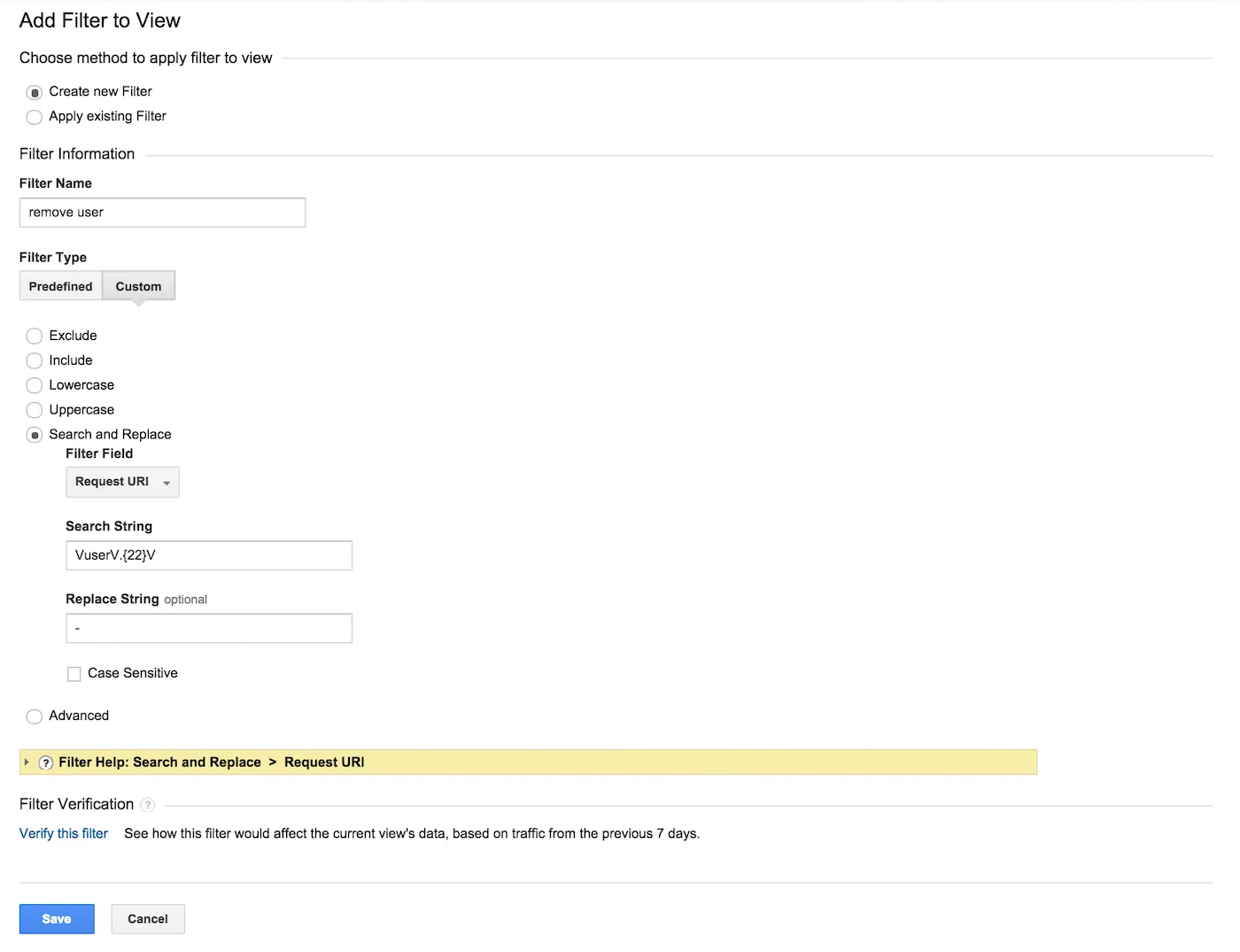
*Creating a Google Analytics filter for Airship data*
1. Click **Save**.
The filter converts URLs from this format, with user info embedded:
```text
https://device-api.urbanairship.com/api/user/3BIi_uawQaa8HShcJJxooA/messages/message/iyHEOIqcTq-drAx78p4FYw/body/
```
To this, which is how message-level URLs will appear in Google Analytics
reports:
```text
/api-messages/message/iyHEOIqcTq-drAx78p4FYw/body/
```
## Track Link Clicks
1. Paste this code into every page you want to track:
```html
```
You can modify the values of 'category' and 'action' to organize the
information in Google Analytics. See
[Google's documentation](https://developers.google.com/analytics/devguides/collection/analyticsjs/events) for more information.
1. Wire up the event to your event, passing a unique ID to the
`sendLink()` method:
```html
Download Now
```
### View Link Clicks
If you are tracking Link Clicks, you can view
the events in the Overview or Content sections of the Google Analytics
*Realtime* report.