Targeting your audience using events
Use event conditions in the dashboard or API to build audiences and to start, cancel, or exit automated messages.
Audience targeting evaluates historical event activity. Triggers and cancellation act on events as they occur.
Segment evaluation
Airship uses a 90-day lookback for events and event properties used in segmentation. The exception is for first and last occurrences, which are stored even if they are more than 90 days old. For custom and predefined events, this window, and the storage of first and last occurrences, starts when the event is activated for segmentation.
Last-performed occurrences are included when evaluating segmentation queries for events without properties, even when not using the Last performed event operator.
For example, if you target all users who performed added_to_cart one or more times, the audience includes users who performed the event one or more times in the last 90 days and users whose last performance of the event was before that 90-day period.
If the query includes a property, such as added_to_cart one or more times where category is shoes, the evaluation does not include last-performed occurrences outside the 90-day window.
Targeting in the dashboard
In messages, ScenesA mobile app or web experience of one or more screens displayed with fully native UI components in real time, providing immediate, contextual responses to user behaviors. Scenes can be presented in full-screen, modal, or embedded format using the default swipe/click mode or as a story. Scene content can also be displayed in a Message Center message and contain survey questions., In-App AutomationsMessages cached on users’ devices and displayed when users meet certain conditions within your app, such as viewing a particular screen or opening the app a certain number of times., A/B tests, feature flagsAn experimentation tool for controlling the availability of content or functionality in your app or website. A flag’s Configurations determine the audience, schedule, and property values to apply when the flag is enabled. Flag properties enable making immediate code updates, bypassing the need for traditional code changes and release processes., and Intelligent Rollouts, select Target by conditions and Target specific users in the Audience step. Instead of recreating the same audience each time, create segmentsA reusable audience group you create by selecting unique or shared user data.. Configuration in the audience step uses the same interface and process as creating segments.
Events can be combined with other segmentation data, such as attributes and tags. For full instructions and usage locations, see Segments.
When defining your audience, add each event as a condition. In the image below, the segment targets users with the purchased event occurring twice between September 1, 2020, and September 15, 2020.
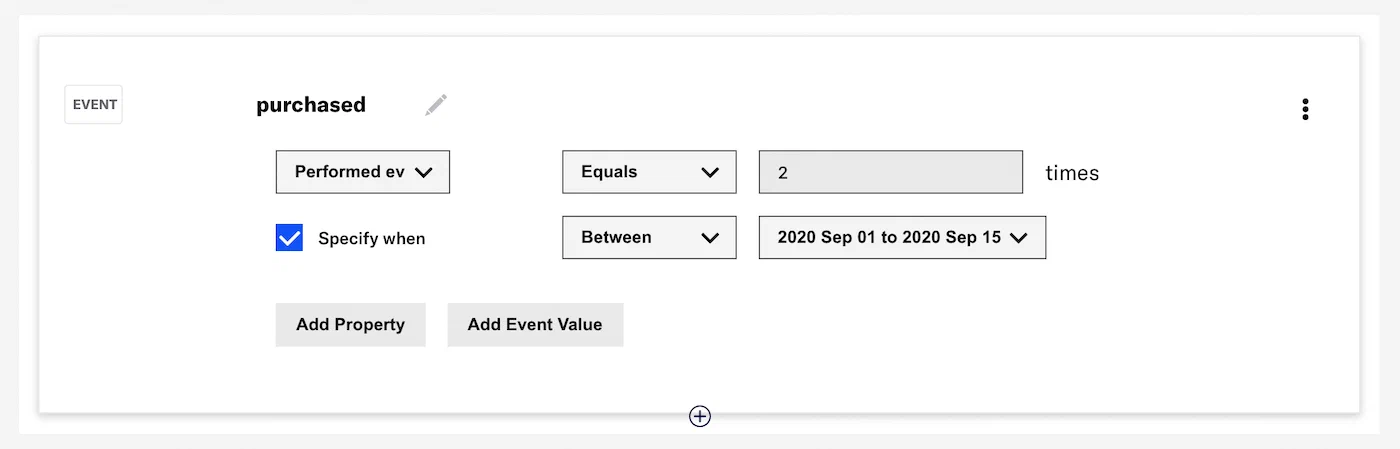
Configure conditions
Follow these steps to configure event conditions for an audience:
- Select Performed event, First performed event, Last performed event, or Did not perform event.
- (For Performed event and Did not perform event only) Select the Equals or Between operator and configure the frequency of the event.
- (Optional) Select Specify when to target when the event was performed, then select an operator and configure a date or range. Availability and requirements depend on the operator. For the Between operator, the end date is not inclusive. For example,
Between July 5 - July 17includes dates July 5 to July 16. - (Optional) Filter events using numeric values associated with the events or by key/value properties attached to the events:
- Select Add Property and search for a property, or select Add Event Value.
- Where applicable, select the operator you want to use for evaluation. Use Contains for arrays of strings. Use String contains to match a substring in a string value, and enter at least one character.
- Enter a value, then select outside the field or press Enter on your keyboard to save it. Multiple values are evaluated as a Boolean OR.
- Select AND/OR to determine how to evaluate multiple filters and alternatives within each filter. AND means all criteria must be met. OR means any criteria must be met.
Note Array properties can have multiple values for the same sub-property. When filtering on those sub-properties, set AND/OR to match how you want multiple values evaluated.
Targeting using the API
Use the Event Segmentation schema in any endpoint that takes an audience object, such as Send pushes. Specify the event as activity, then set metric, operator, and value.
Event names in Real-Time Data StreamingA service that delivers user-level events in real time to your backend or third-party systems using the Data Streaming API. can differ from the activity name used for segmentation. For example, an email unsubscribe appears in Real-Time Data Streaming as a COMPLIANCE event with registration_type of unsubscribe, but you target it with email_unsubscribe. See also Differentiating email and SMS event types.
{
   "audience": {
      "activity": "email_unsubscribe",
      "metric": "count",
      "operator": "equals",
      "value": 1
   }
}
Use Boolean NOT, AND, and OR operators to combine event conditions or mix events with other audience criteria. See Audience Selection in the Data Formats section of the API reference.
As in the dashboard, you can save an audience as a reusable segment and reference it by segment ID from any audience selector. See Segments in the API reference.
Filtering by event properties
In addition to targeting by how often or when an event occurred, you can filter on event properties. Use the where object and include the path to the property along with the values you are filtering for, such as a push ID, email address, or campaign category.
The following example targets users who opened the app by tapping a push notification with the push_id of 28e9d533-c8a7-4abf-93f4-4794b09391eb.
{
   "audience": {
      "activity": "app_open",
      "value": 0,
      "operator": "greater",
      "metric": "count",
      "where": {
         "property": "/_triggering_push/push_id",
         "operator": "equals",
         "compare_as": "text",
         "value": "28e9d533-c8a7-4abf-93f4-4794b09391eb"
      }
   }
}
Using events in automated messages
Events can act on automated messages at several points:
- Trigger — Start an AutomationA set of conditions that your audience must meet before they receive a message., SequenceA series of messages that is initiated by a trigger. Airship sends messages in the series based on your timing settings, and you can also set conditions that determine its audience and continuation. Sequences can be connected to each other and to other messaging components to create continuous user experiences in a Journey., SceneA mobile app or web experience of one or more screens displayed with fully native UI components in real time, providing immediate, contextual responses to user behaviors. Scenes can be presented in full-screen, modal, or embedded format using the default swipe/click mode or as a story. Scene content can also be displayed in a Message Center message and contain survey questions., or In-App AutomationMessages cached on users’ devices and displayed when users meet certain conditions within your app, such as viewing a particular screen or opening the app a certain number of times..
- Cancellation — Prevent a pending Automation, Scene, or In-App Automation from sending or displaying.
- Condition — Require event criteria to deliver a Sequence message. Include events in a Segmentation condition. Users who do not meet the condition exit the Sequence.
- Exit — Remove users from a Sequence when an event occurs.
Automations and Sequences can use events from any source. Scenes and In-App Automations require events tracked with an Airship SDK: the Web SDK for Web Scenes, and the Mobile SDK for App Scenes and In-App Automations.
When an event starts an Automation or Sequence, you can personalize the message with dynamic contentVariable message content created using Handlebars syntax. The content is populated at send time, resulting in personalized messaging for each member of your audience. from that event’s properties. For example, if the event includes a user_name property, you can add {{user_name}} to the message.
In the dashboard
Set event triggers and cancellation for Scenes and In-App Automations:
- Custom Event and Screenview triggers in In-app experience triggers
- Cancellation events in In-app experience triggers
Set event triggers, cancellation, conditions, and exits for Automations and Sequences:
- Custom Event in Automation and Sequence triggers
- Cancellation events in Create an Automation
- Conditions in Add Messages to a Sequence, using a Segmentation condition that includes events
- Exit events in Sequence outcomes, using a custom event as the exit signal
Using the API
Use the Create an Automation endpoint to create event-driven Automations. Sequences, Scenes, and In-App Automations cannot be created using the API.