Hope you come back some day!
" }, "device_types": [ "email" ] } ``` In the dashboard, you can create this audience when building a [Segment](https://www.airship.com/docs/reference/glossary/#segment) or targeting a specific audience: 1. Search for and select the `email_unsubscribe` event. 1. Select *Performed event*. 1. Select the *Equals* operator and enter the value `1`. 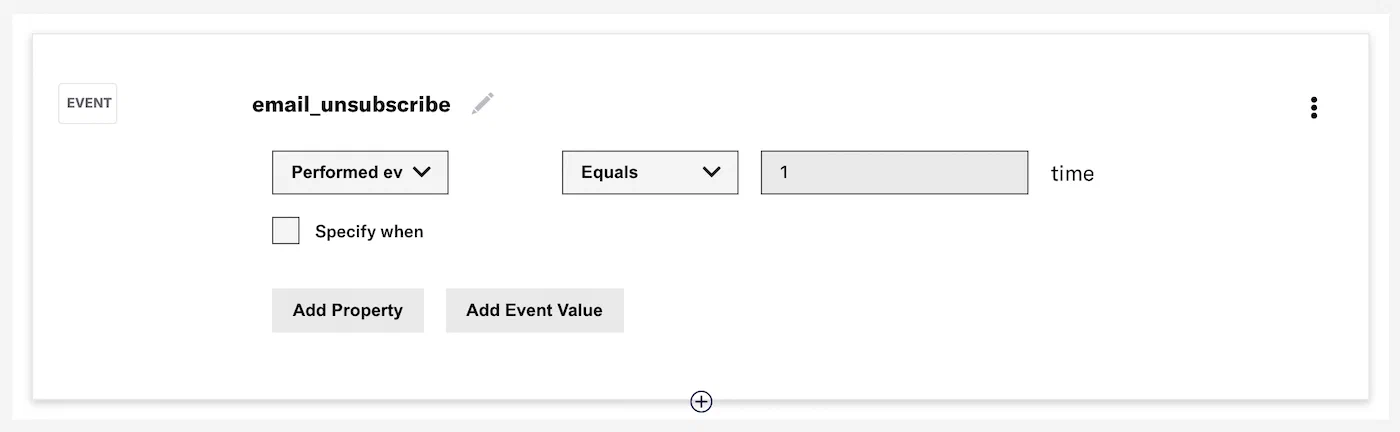 *Targeting users by email unsubscribe event* ### Predefined events Predefined events are `CUSTOM` events, and are available to use out-of-the-box with built-in templates in our iOS, Android, and Web SDKs. Predefined event are available for many common retail-, media- and account-related use cases. The properties for these events are also predefined, but you can edit or remove them and also add custom properties. See: [Manage Events](https://www.airship.com/docs/guides/audience/events/manage/). You must implement and track the events in your app or website using [Custom Event Templates](https://www.airship.com/docs/sdk-topics/custom-events/). The following example uses the retail template in our Web SDK to create and track a `purchased` event, passing in optional properties. ```js new sdk.CustomEvent.templates.retail.PurchasedEvent(99.99, { id: "12345", category: "mens shoes", description: "Low top", brand: "SpecialBrand", new_item: true, }, "13579").track() ``` Adding and tracking events in the SDK, however, does not activate them for segmentation. See [Manage Events](https://www.airship.com/docs/guides/audience/events/manage/) to learn how to activate predefined events in the dashboard. ### Custom events If predefined events don't meet your requirements, you can create and track your own custom events in our SDKs, or submit events with our [Custom Events API](https://www.airship.com/docs/developer/rest-api/ua/operations/custom-events/). Unlike predefined events, you must define your own event name and properties. Custom events will appear in RTDS and Performance Analytics under the `name` that you define for the event. As with predefined events, you must activate your custom event in the UI for segmentation. **Example custom event** ```json { "id": "036ea86a-4336-40c5-80af-27c4d30fb3d1", "offset": "1000060042791", "occurred": "2020-08-18T04:52:00.000Z", "processed": "2020-08-18T04:52:04.695Z", "device": { "channel": "aafe7a54-e1f6-463e-8821-3ccfedf0cf3c", "device_type": "WEB", "named_user_id": "ivan_ivanovich" }, "body": { "name": "my_event", "interaction_type": "url", "interaction_id": "https://example.com", "value": 20, "session_id": "774afcd9-c5dd-47bf-94c9-a4f209d49f4a", "source": "SDK", "properties": { "mood": "happy", "value": 55 } }, "type": "CUSTOM" } ``` Custom events will have a `type` of `custom` and can represent any user action you wish to track in the SDK. You can also add events that are unrelated to an Airship app or site by using the API. To learn more about custom events, see our [Custom Events Guide](https://www.airship.com/docs/guides/audience/events/custom-events/). ## Event segmentation You can target your message and experiment audiences using events. Example audience targeting: * Users who opened your app three times in the past seven days * Users who opened your app in the past six weeks * Users who were sent an SMS six times in the last two weeks * Users who made a purchase of more than $100 in the last 15 days * Users who have not viewed more than five pieces of content Using the API, see the [Segments endpoint](https://www.airship.com/docs/developer/rest-api/ua/operations/segments/). See also the [Event Segmentation schema](https://www.airship.com/docs/developer/rest-api/ua/schemas/event-segmentation/). In the dashboard, you can include events when using the **Target by conditions** and **Target specific users** audience options for messages and experiments. You can also create [Segments](https://www.airship.com/docs/reference/glossary/#segment) instead of having to recreate your audience selections. Both use the same process. Events can be combined with other segmentation data, such as Attributes and Tags. For full instructions and usage locations, see [Segments](https://www.airship.com/docs/guides/audience/segmentation/segments/). Details about configuring event conditions, see the next section. When defining your audience, add each event as a condition, choose whether or not the event was performed, and set the frequency of occurrence. You can also specify a date or range when the event occurred and filter by properties associated with the event. To configure event conditions: 1. Select **Performed event**, **First performed event**, **Last performed event**, or **Did not perform event**. 1. (For *Performed event* and *Did not perform event* only) Select the *Equals* or *Between* operator and configure the frequency of the event. 1. (Optional) Select **Specify when** to target when the event was performed, then select an operator and configure a date or range. Availability and requirements depend on the operator. * **Specific** — Select a Year/Month/Day. With the *Equals* operator you can also use formats Month/Day, and Year/Month. * **Relative** — Specify the number of years/months/days/hours/minutes from today's date. With the *Equals* operator, also select Month/Day or Year/Month/Day. * **Today** — Select Month/Day or Year/Month/Day. > **Note:** For the *Between* operator, the end date is not inclusive, e.g., selection `Between July 5 - July 17` includes dates July 5 to July 16. 1. (Optional) Filter events using numeric values associated with the events or by key/value properties attached to the events. Filtering events this way can help you more precisely target your audience. 1. Select **Add Property** and search for a property, or select **Add Event Value**. 1. If applicable, select the operator you want to use to evaluate the value or property. 1. Enter a value, then select outside the field or hit Enter on your keyboard to save the value. Repeat for multiple values. Multiple values are evaluated as a boolean OR. 1. (Optional) Select **Add Property** or **Add Event Value** to add more filters. 1. Select *AND/OR* to determine how to evaluate multiple filters and alternatives within each filter. * **AND** = all criteria must be met * **OR** = any criteria must be met > **Note:** Properties of type "Array" may have [multiple values defined for the same sub-property](https://www.airship.com/docs/guides/audience/events/manage/#create-a-new-event). When segmenting with array sub-properties that can hold multiple values, be aware that the evaluation of AND and OR conditions can be complex. Ensure your boolean logic precisely matches how you intend to filter based on these potentially multiple values within a single sub-property. This example shows a segment that targets users with the `purchased` event occurring twice between the dates September 1, 2020, and September 15, 2020: 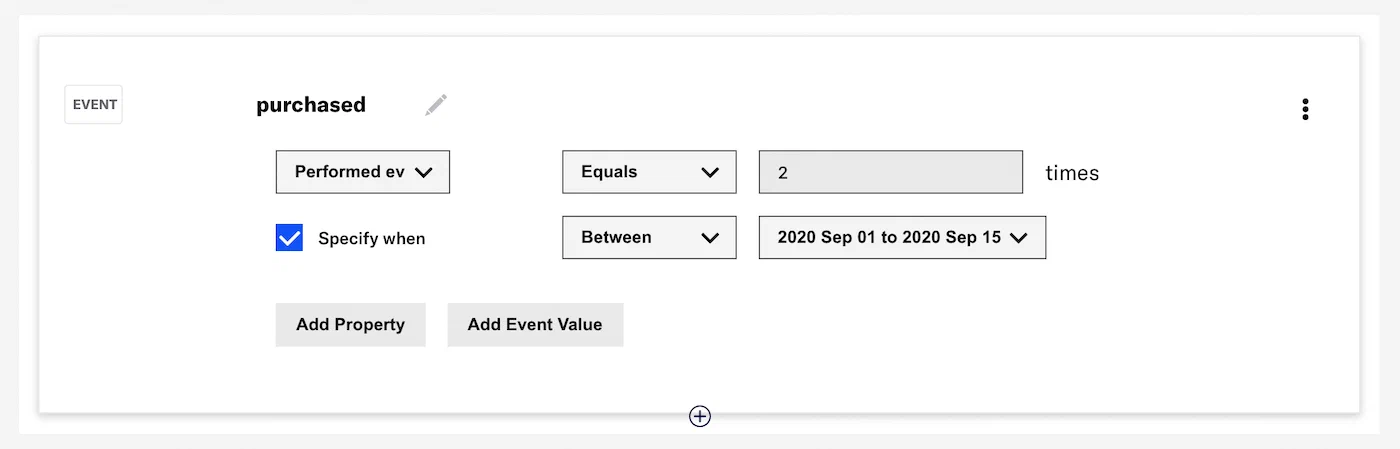 *Targeting users by event count and date range* ### Segment evaluation Airship uses a 90-day "look back" for events and event properties used in segmentation. The exception is for "first" and "last" occurrences, which are stored even if they are more than 90 days old. This window (and the storage of first/last occurrences) starts when an event is [activated for segmentation](https://www.airship.com/docs/guides/audience/events/manage/). As of January 2023, “last performed” occurrences are included when evaluating segmentation queries **for events without properties**, even when not using the "last performed" operator. For example, prior to this change, if you targeted all users who performed the event `added_to_cart` one or more times, **only** users who performed the event one or more times in the last 90 days were included in the target audience. With the change, users who performed the event one or more times in the last 90 days **AND** users who "last performed" the event prior to the 90-day period would be included in the target audience. If the query includes a property, such as "added to cart 1 or more times, where the category = shoes," the evaluation does not include “last performed” occurrences. ### Filtering by event properties {#filtering} In addition to targeting your audience by event count, value, and recency, you may further refine your selection by filtering on event properties. To target event properties, use the [where object](https://www.airship.com/docs/developer/rest-api/ua/schemas/event-segmentation/#whereobject) in the API, and include the path to the property along with the values you are filtering for, e.g., push ID, email address, or campaign category. In the example below, the audience is users who have opened the app by tapping a push notification with the `push_id` of `"28e9d533-c8a7-4abf-93f4-4794b09391eb"`: ```json { "audience": { "activity": "app_open", "value": 0, "operator": "greater", "metric": "count", "where": { "property": "/_triggering_push/push_id", "operator": "equals", "compare_as": "text", "value": "28e9d533-c8a7-4abf-93f4-4794b09391eb" } } } ``` In the dashboard, you can create this audience in a condition: 1. Add the `app_open` event. 1. Select **Performed event**. 1. Select the *Greater than* operator and enter the value `0`. 1. Select **Add Property**. 1. Search for and select `/_triggering_push/push_id`. 1. Select the *Equals* operator and enter the value `28e9d533-c8a7-4abf-93f4-4794b09391eb`. 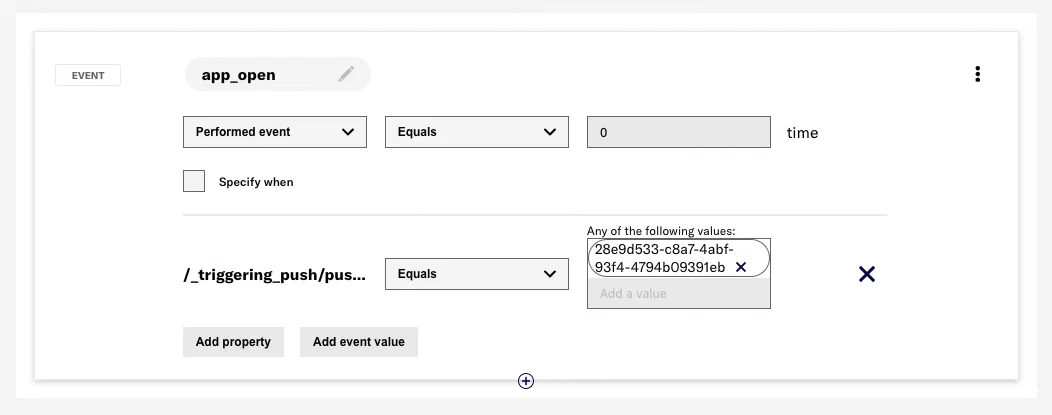 *Filtering by push ID in a Segment* # Custom Events > Track user activity and conversions in your Airship channels, submit external events to Airship, trigger messages and sequences, and segment your audience with custom events. ## Overview Custom events extend our [default events](https://www.airship.com/docs/guides/audience/events/events/). Such events as *opens* or *tag change* are applicable to all apps and websites. Custom events, on the other hand, are specific to the needs of your app or website. For example, you may be interested in tracking the *order created* event in your e-commerce app, the *playback started* event in your content delivery platform, or the *OnParticipatedInExperimentNotification* event in your A/B testing application for tracking user participation. You may track custom events either via our mobile and web SDKs or by using any other event tracking system. In this guide, we will show you how to tie your digital engagement activities together using custom events: Set up via templates or directly in code : Setting up a custom event for your app is easy. For common event types, we provide ready-made templates in our [Mobile and Web](https://www.airship.com/docs/sdk-topics/custom-events/) SDKs. Alternatively, you can set up custom events directly in your code by instantiating a class from the SDK that implements the custom event API and passing a string that represents the name of the event. Extend with properties : To provide more detail and customization to the events you are tracking, you may make use of event properties. These are key/value pairs, where the key represents the name of a property and the value is the information associated with this property. Examples of event properties are *a product SKU on a purchase event*, or *a category on a viewed video event*. Stream in real time : Our *Real-Time Data Streaming* supports streaming custom events to your business systems in real time. See our [Data Streaming API Reference](https://www.airship.com/docs/developer/rest-api/connect/schemas/events/#custom) for details. Trigger automation or sequence : You may set up custom events and their properties to trigger an automation or sequence: members of your audience may receive personalized messages with [Dynamic Content](https://www.airship.com/docs/reference/glossary/#dynamic_content) that includes information from the custom event. For example, if your custom event has a `user_name` property, you can add `{{user_name}}` to your message, and anybody receiving the message would see their *user name* — the value of the `user_name` property. ## Emitting Custom Events from Message Actions You can emit custom events when users interact with [Scenes](https://www.airship.com/docs/reference/glossary/#scene), [push notifications](https://www.airship.com/docs/reference/glossary/#push_notification), or [in-app messages](https://www.airship.com/docs/reference/glossary/#in_app_message). This allows you to track user interactions with specific message elements without implementing SDK code. **Scenes** — Emit an event when a user taps a button, image, or screen. See [Emit a Custom Event](https://www.airship.com/docs/guides/messaging/in-app-experiences/configuration/button-actions/#emit-a-custom-event) in *Actions* for Scenes. **Push notifications and in-app messages** (iOS SDK 20+) (Android SDK 20+) — Emit an event when a user taps the message or a button within the message. See: * [Creating content](https://www.airship.com/docs/guides/messaging/messages/content/app/push-notifications/#creating-content) in *Push Notification Content* * [Creating content](https://www.airship.com/docs/guides/messaging/messages/content/app/in-app-messages/#creating-content) in *In-App Message Content* * [Add buttons to message content](https://www.airship.com/docs/guides/messaging/messages/buttons/#add-buttons-to-message-content) in *Buttons* To emit Custom Events from the API, use the [add_custom_event](https://www.airship.com/docs/developer/rest-api/ua/schemas/push/#actionsobject) notification action. ## Tracking Custom Events We recommend starting by identifying a few most important actions that users perform in your app or site. These could include: * Registering for an account * Using a new feature * Watching a video * Viewing a specific screen * Saving or sharing content * Adding a product to a list or cart * Making a purchase Custom events track *actions* and not *objects*. For this reason, a good practice is to apply the *verb-first* naming convention to custom events. You can also track these events in varying levels of detail, based on how you name them, and optionally include values with each event. You may have other systems that track the granular specifics of your e-commerce engine or content consumption. To measure the impact of push, consider keeping reports at a higher level when starting out. For example, as a publisher, you could track a purchase event in a few ways: * Purchased a Magazine * Purchased a Sports Magazine * Purchased *Sports Illustrated*, Volume 17, Issue 9 While the third variation above might provide the most detail, you can start with the first level of granularity to keep your reports easy to digest and roll-up, and still see which push notifications were driving the most engagement or ROI. Here are some examples in more detail: > **Tip:** In our examples below, event names are lowercased. We use dashes to separate levels of granularity, and underscores > for multi-word names/values. > For example: > > * event_name-event_category > * purchased_item-sports_magazine | Market vertical | Description | Example event name | Event value | | --- | --- | --- | --- | | All | User registers for an account | registered_account | | All | User stars any product, article, or content | starred_content | | Media | User browses a category articles or content | browsed_content | | Media | User plays a video *Could use the event value to set the amount of time spent watching the video. Report the event after the user navigates away from the video or stops the video.* | consumed_content | Percentage of content consumed | | Media | User shares content | shared_content | | Retail | User adds item to cart | added_to_cart | | Retail | User purchases an item *Use event value to capture the value of the item* | purchased | Purchase Price | We provide ready-made templates for our mobile and web SDKs to get you started with a number of common account-, media-, and retail-related events. See the templates in our [Custom Events](https://www.airship.com/docs/sdk-topics/custom-events/) SDK documentation. With our mobile and web SDKs, tracking custom events is similar to [adding an Airship segmentation tag](https://www.airship.com/docs/developer/sdk-integration/web/segmentation/). Set specific properties and assign a range of values that must be met in order to trigger automation rules. Custom event properties can contain objects and arrays of objects. Use dot notation to access nested properties: `parent_property.child_property`. * API: [Custom Event Selectors](https://www.airship.com/docs/developer/rest-api/ua/schemas/pipeline-objects/#eventidentifier) * Dashboard: [Manage Events](https://www.airship.com/docs/guides/audience/events/manage/) > **Note:** Custom event properties used to be referenced in the `$data.events.[0].properties` namespace. If you have templates referencing properties in this namespace, they'll still work, but you'll have to continue using this namespace until you [contact Airship Support](https://support.airship.com/) and move over to the simplified namespace for custom event properties. To minimize battery consumption, custom events are automatically combined and sent batched in the background. For more information, see [Tips and Code Samples](#tips-and-code-samples). Simple example : Here is a simple example that demonstrates how to track a custom event named **consumed_content**: **iOS** ```swift var event = CustomEvent(name: "consumed_content", value: 123.12) // Set custom event properties event.setProperty(bool: true, forKey: "boolean_property") event.setProperty(string: "string_value", forKey: "string_property") event.setProperty(double: 11.0, forKey: "number_property") // Record the event in analytics event.track() ``` **Android** ```java // Create and name an event Builder builder = CustomEvent.newBuilder("consumed_content"); // Set custom event properties on the builder builder.addProperty("bool_property", true); builder.addProperty("string_property", "string_property_value"); builder.addProperty("int_property", 11); builder.addProperty("double_property", 11.0d); builder.addProperty("long_property", 11L); ArrayList
```
Our example detects if a page is a landing page, sets the
`interaction_type` and `interaction_id` if needed, emits an event to the Custom Events
system, and writes debugging information to the DOM.
Under the hood, a *landing page* is simply a web view, so in order to propagate
the knowledge that the event was fired from a landing page to the custom events
system, we must set the `interaction_type` to `ua_landing_page` and the
`interaction_id` to the URL of the landing page.
For a [Message Center page](https://www.airship.com/docs/guides/features/messaging/message-center/), the Airship SDK is able to detect that the event is fired from a
Message Center page so `interaction_type` and the `interaction_id`
will be taken care of by the SDK.
### Injecting the Airship JavaScript Interface
If you have a WebView that exists outside of a Message Center, you can use the
following examples to inject the Airship JavaScript interface in to your
WebView to enable sending custom events.
> **Important:** The Airship JavaScript interface runs Airship actions and
> exposes information about the application. It should only be loaded in WebViews
> that are displaying content from trusted sources and that only link to other
> trusted sources.
#### iOS Example
The Airship JavaScript interface can be added to any `WKWebView`
whose navigation delegate is an instance of [NativeBridge](https://urbanairship.github.io/ios-library/v20/AirshipCore/documentation/airshipcore/nativebridge)
. Custom WebViews can also
implement the [NativeBridgeExtensionDelegate](https://urbanairship.github.io/ios-library/v20/AirshipCore/documentation/airshipcore/nativebridgeextensiondelegate)
to extend the JavaScript environment
or respond to SDK-defined JavaScript commands.
```swift
self.nativeBridge = NativeBridge()
self.nativeBridge.nativeBridgeExtensionDelegate = self.nativeBridgeExtension
self.nativeBridge.forwardNavigationDelegate = self
webView.navigationDelegate = self.nativeBridge
```
Optionally, enable `UAirship.close()` by having the controller implement the `close` method in the `NativeBridgeDelegate` protocol:
```swift
func close() {
// Close the current window
}
```
#### Allowlist Rules
For iOS, the [URLAllowList](https://urbanairship.github.io/ios-library/v20/AirshipCore/documentation/airshipcore/airshipurlallowlist)
controls which URLs the Airship SDK is able to act on. As of SDK 17, all URLs are allowed by default. See: [iOS: Configuring Airship](https://www.airship.com/docs/developer/sdk-integration/apple/installation/advanced-integration/#url-allowlist).
#### Android and Fire OS example
The Airship JavaScript interface can be added to any web view as long as JavaScript is enabled and the client is set to an
instance of UAWebViewClient.
```java
webView.getSettings().setJavaScriptEnabled(true);
webView.setWebViewClient(new UAWebViewClient())
```
#### Allowlist Rules
For Android, the [UrlAllowList](https://www.airship.com/docs/reference/libraries/android-kotlin/latest/urbanairship-core/com.urbanairship/-url-allow-list)
controls which URLs the Airship SDK is able to act on. As of SDK 17, all URLs are allowed by default. See: [URL Allowlist](https://www.airship.com/docs/developer/sdk-integration/android/installation/advanced-integration/#url-allowlist).
# Manage Events
> Configure events and event properties for segmentation, automation, and Goals.
[Custom Events](https://www.airship.com/docs/reference/glossary/#custom_event) can contain properties that you have defined outside of Airship. To make these events and their properties accessible to our segmentation and automation services, add them to your project to enable use with these features:
* [Custom Event Triggers](https://www.airship.com/docs/reference/glossary/#custom_event_trigger) in Automations and Sequences — See Custom Event in [*Automation triggers*](https://www.airship.com/docs/guides/messaging/messages/sequences/triggers/#custom-event) and [*Sequence triggers*](https://www.airship.com/docs/guides/messaging/messages/sequences/triggers/#custom-event).
* [Custom Event Triggers](https://www.airship.com/docs/reference/glossary/#custom_event_iaa_trigger) for In-App Automations and Scenes — See [Custom Event](https://www.airship.com/docs/guides/messaging/in-app-experiences/configuration/triggers/#custom-event) in *In-app experience triggers*.
* [Cancellation Events](https://www.airship.com/docs/reference/glossary/#cancellation_events_event_option)
* Emitting a Custom Event when a user clicks/taps a button, image, or screen in a Scene — See [Emit a Custom Event](https://www.airship.com/docs/guides/messaging/in-app-experiences/configuration/button-actions/#emit-a-custom-event) in *Actions* for In-app Experiences.
* [Goals](https://www.airship.com/docs/reference/glossary/#goals)
When adding events to your project, you have the option to activate them for event segmentation. See [Event Segmentation](https://www.airship.com/docs/guides/audience/events/events/#event-segmentation) for details on event types and properties.
See also [Holdout Experiments](https://www.airship.com/docs/reference/glossary/#holdout_experiment).
## Create a new event
Add a new custom or predefined event to your project.
1. Next to your project name, select the dropdown menu (▼), then **Settings**.
1. Under **Project settings**, select **Events**.
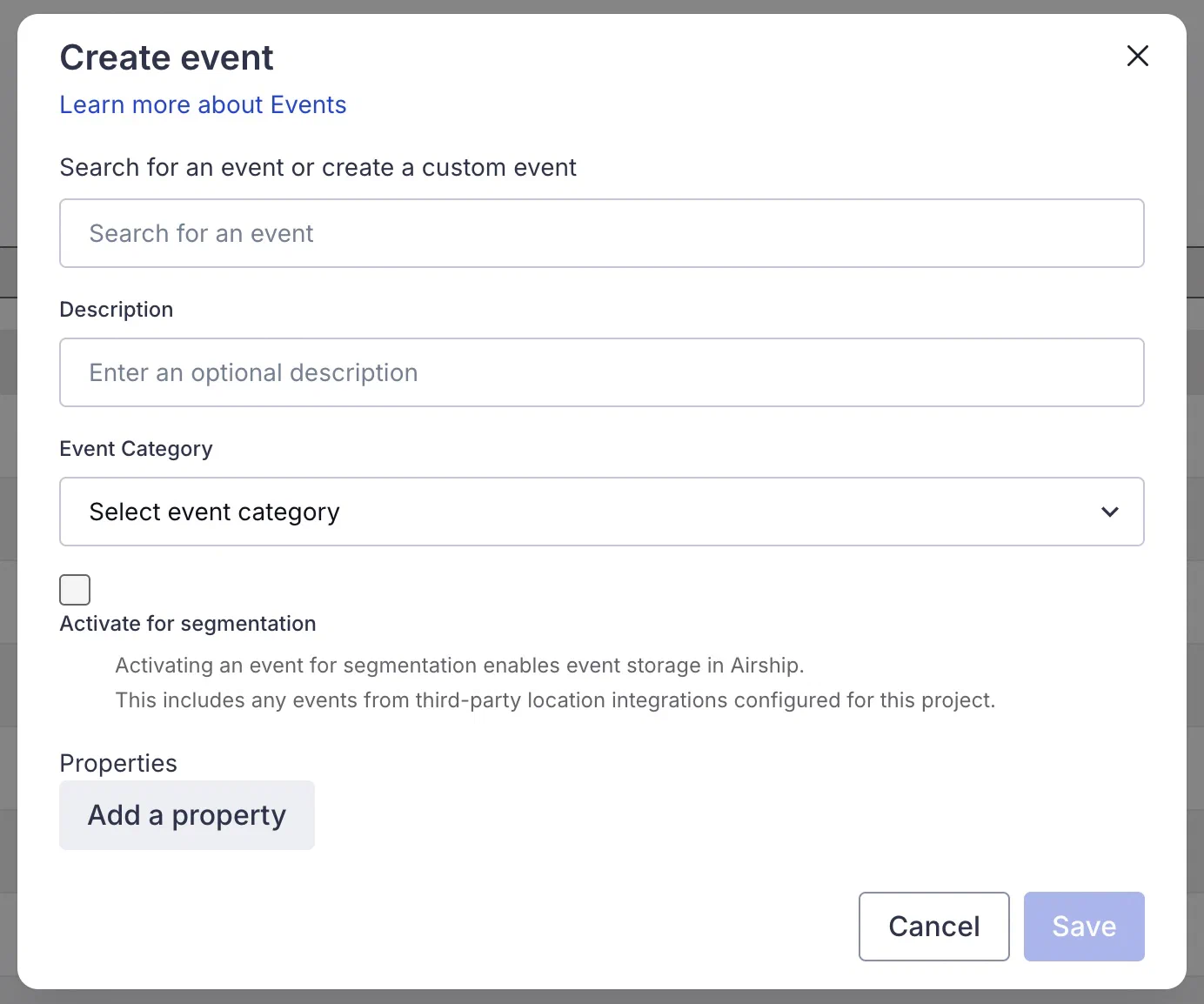
1. Select **Create event**.
1. 
*Creating a new event*
Enter a name for your new custom event or search for a predefined event to activate.
Predefined events have reserved names and will appear in search results with a `Predefined event` flag. For a list of available predefined events, see [Predefined events](https://www.airship.com/docs/reference/data-collection/events/#predefined-events) in the *Events Reference*.
If you choose one of the predefined events, the event properties will be populated for you. If you are creating a new custom event that is unknown to Airship, select **Create custom "[search term]" event** to create it.
1. (Optional) Enter a description for the event.
1. Select an event category or select **Create category** and enter a category name.
> **Note:** When Airship adds a new default category that matches a custom category, the default category will replace the custom one. For example, if Airship adds a default "Shipped" category, it will replace your custom "Shipment sent" category, and "Shipment sent" will be removed from your project.
1. (Optional) Check the box to **Activate for segmentation**.
1. (Optional) Add event properties. Predefined events are already populated with properties, and you can add more. You can also edit or remove properties for predefined events.
Select **Add property**, then enter a property name and select its type: String, Number, Boolean, Date, Array, or Any. The type determines which operators are available to you when using event segmentation. Select **Any** if the value for the property is unknown or if it could be multiple types. Select **Add another** and repeat to assign additional properties for the event.
> **Note:** Properties of type "Any" cannot be used for segmentation. They will not appear in the dashboard when building Segments or targeting using segmentation data, and they cannot be referenced using the API.
>
> Similarly, properties of type "Array" have these restrictions by default. However, you can make the contents of an array accessible for segmentation by defining their nested properties. See [Defining nested array properties](#defining-nested-array-properties) below.
1. Select **Save**.
### Defining nested array properties
When adding an "Array" type property for an event, you can make the contents of the array accessible for segmentation by defining its nested properties using JSON Path expressions.
After adding the array property, add sub-properties using the syntax `$.arrayproperty[*].subproperty`. The asterisk (`*`) acts as a wildcard, indicating that the path should match the sub-property for any item within the array property. This makes it possible to segment your audience based on the characteristics of individual items within an array without needing to refer to their specific locations.
For example, consider a `Products` array where each product object has a name and price:
```json
{
"Products": [
{
"name": "Laptop",
"price": 1200
},
{
"name": "Mouse",
"price": 25
}
]
}
```
To enable segmentation on the name and price of individual products within the `Products` array, you would define the following properties for the event in your project:
* `Products` of type Array, to acknowledge the array itself
* `$.Products[*].name` of type String, for segmentation using the name of any product in the array
* `$.Products[*].price` of type Number, for segmentation using the price of any product in the array
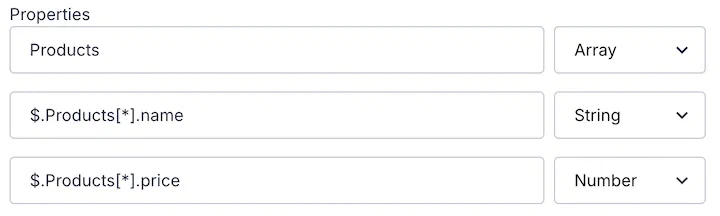
*Specifying properties within an array property*
## Edit or delete events
Deleted events or event properties will no longer be available for use in segmentation. If you change an event's name, only the new name will be available for use in segmentation.
Similarly, deleted event properties will no longer be available for selection when configuring Automation and Sequence triggers. However, the event itself will still remain available for triggers.
1. Next to your project name, select the dropdown menu (▼), then **Settings**.
1. Under **Project settings**, select **Events**. The table includes a maximum of 1,000 events.
1. Search for an event, and select the more menu icon (⋯) for its row, and then **Delete** or **Edit**.