Hope you come back some day!
" }, "device_types": [ "email" ] } ``` In the dashboard, you can create this audience when building a [Segment](https://www.airship.com/docs/reference/glossary/#segment) or targeting a specific audience: 1. Search for and select the `email_unsubscribe` event. 1. Select *Performed event*. 1. Select the *Equals* operator and enter the value `1`. 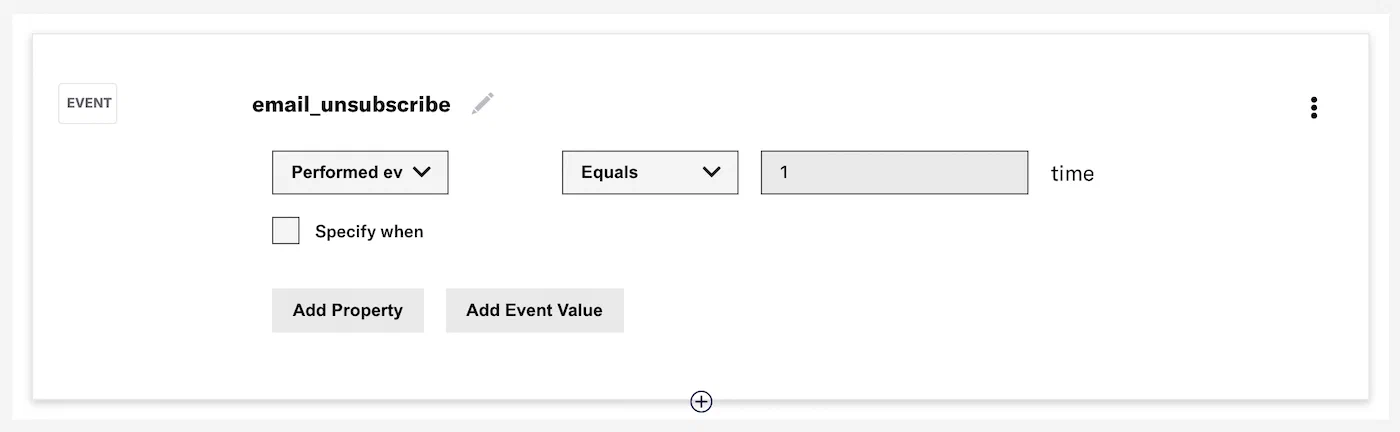 *Targeting users by email unsubscribe event* ### Predefined events Predefined events are `CUSTOM` events, and are available to use out-of-the-box with built-in templates in our iOS, Android, and Web SDKs. Predefined event are available for many common retail-, media- and account-related use cases. The properties for these events are also predefined, but you can edit or remove them and also add custom properties. See: [Manage Events](https://www.airship.com/docs/guides/audience/events/manage/). You must implement and track the events in your app or website using [Custom Event Templates](https://www.airship.com/docs/sdk-topics/custom-events/). The following example uses the retail template in our Web SDK to create and track a `purchased` event, passing in optional properties. ```js new sdk.CustomEvent.templates.retail.PurchasedEvent(99.99, { id: "12345", category: "mens shoes", description: "Low top", brand: "SpecialBrand", new_item: true, }, "13579").track() ``` Adding and tracking events in the SDK, however, does not activate them for segmentation. See [Manage Events](https://www.airship.com/docs/guides/audience/events/manage/) to learn how to activate predefined events in the dashboard. ### Custom events If predefined events don't meet your requirements, you can create and track your own custom events in our SDKs, or submit events with our [Custom Events API](https://www.airship.com/docs/developer/rest-api/ua/operations/custom-events/). Unlike predefined events, you must define your own event name and properties. Custom events will appear in RTDS and Performance Analytics under the `name` that you define for the event. As with predefined events, you must activate your custom event in the UI for segmentation. **Example custom event** ```json { "id": "036ea86a-4336-40c5-80af-27c4d30fb3d1", "offset": "1000060042791", "occurred": "2020-08-18T04:52:00.000Z", "processed": "2020-08-18T04:52:04.695Z", "device": { "channel": "aafe7a54-e1f6-463e-8821-3ccfedf0cf3c", "device_type": "WEB", "named_user_id": "ivan_ivanovich" }, "body": { "name": "my_event", "interaction_type": "url", "interaction_id": "https://example.com", "value": 20, "session_id": "774afcd9-c5dd-47bf-94c9-a4f209d49f4a", "source": "SDK", "properties": { "mood": "happy", "value": 55 } }, "type": "CUSTOM" } ``` Custom events will have a `type` of `custom` and can represent any user action you wish to track in the SDK. You can also add events that are unrelated to an Airship app or site by using the API. To learn more about custom events, see our [Custom Events Guide](https://www.airship.com/docs/guides/audience/events/custom-events/). ## Event segmentation You can target your message and experiment audiences using events. Example audience targeting: * Users who opened your app three times in the past seven days * Users who opened your app in the past six weeks * Users who were sent an SMS six times in the last two weeks * Users who made a purchase of more than $100 in the last 15 days * Users who have not viewed more than five pieces of content Using the API, see the [Segments endpoint](https://www.airship.com/docs/developer/rest-api/ua/operations/segments/). See also the [Event Segmentation schema](https://www.airship.com/docs/developer/rest-api/ua/schemas/event-segmentation/). In the dashboard, you can include events when using the **Target by conditions** and **Target specific users** audience options for messages and experiments. You can also create [Segments](https://www.airship.com/docs/reference/glossary/#segment) instead of having to recreate your audience selections. Both use the same process. Events can be combined with other segmentation data, such as Attributes and Tags. For full instructions and usage locations, see [Segments](https://www.airship.com/docs/guides/audience/segmentation/segments/). Details about configuring event conditions, see the next section. When defining your audience, add each event as a condition, choose whether or not the event was performed, and set the frequency of occurrence. You can also specify a date or range when the event occurred and filter by properties associated with the event. To configure event conditions: 1. Select **Performed event**, **First performed event**, **Last performed event**, or **Did not perform event**. 1. (For *Performed event* and *Did not perform event* only) Select the *Equals* or *Between* operator and configure the frequency of the event. 1. (Optional) Select **Specify when** to target when the event was performed, then select an operator and configure a date or range. Availability and requirements depend on the operator. * **Specific** — Select a Year/Month/Day. With the *Equals* operator you can also use formats Month/Day, and Year/Month. * **Relative** — Specify the number of years/months/days/hours/minutes from today's date. With the *Equals* operator, also select Month/Day or Year/Month/Day. * **Today** — Select Month/Day or Year/Month/Day. > **Note:** For the *Between* operator, the end date is not inclusive, e.g., selection `Between July 5 - July 17` includes dates July 5 to July 16. 1. (Optional) Filter events using numeric values associated with the events or by key/value properties attached to the events. Filtering events this way can help you more precisely target your audience. 1. Select **Add Property** and search for a property, or select **Add Event Value**. 1. If applicable, select the operator you want to use to evaluate the value or property. 1. Enter a value, then select outside the field or hit Enter on your keyboard to save the value. Repeat for multiple values. Multiple values are evaluated as a boolean OR. 1. (Optional) Select **Add Property** or **Add Event Value** to add more filters. 1. Select *AND/OR* to determine how to evaluate multiple filters and alternatives within each filter. * **AND** = all criteria must be met * **OR** = any criteria must be met > **Note:** Properties of type "Array" may have [multiple values defined for the same sub-property](https://www.airship.com/docs/guides/audience/events/manage/#create-a-new-event). When segmenting with array sub-properties that can hold multiple values, be aware that the evaluation of AND and OR conditions can be complex. Ensure your boolean logic precisely matches how you intend to filter based on these potentially multiple values within a single sub-property. This example shows a segment that targets users with the `purchased` event occurring twice between the dates September 1, 2020, and September 15, 2020: 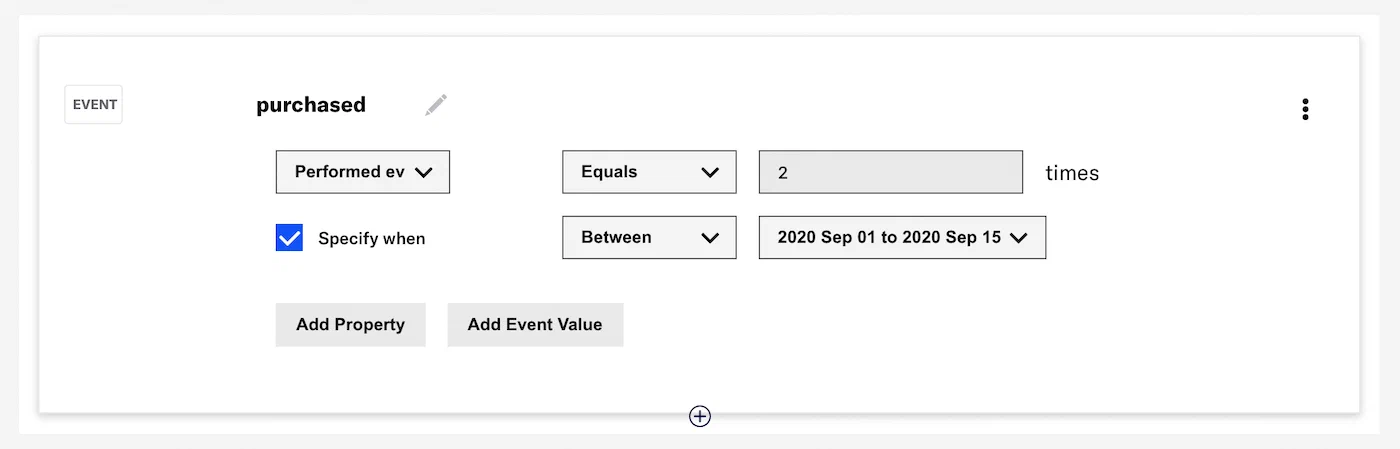 *Targeting users by event count and date range* ### Segment evaluation Airship uses a 90-day "look back" for events and event properties used in segmentation. The exception is for "first" and "last" occurrences, which are stored even if they are more than 90 days old. This window (and the storage of first/last occurrences) starts when an event is [activated for segmentation](https://www.airship.com/docs/guides/audience/events/manage/). As of January 2023, “last performed” occurrences are included when evaluating segmentation queries **for events without properties**, even when not using the "last performed" operator. For example, prior to this change, if you targeted all users who performed the event `added_to_cart` one or more times, **only** users who performed the event one or more times in the last 90 days were included in the target audience. With the change, users who performed the event one or more times in the last 90 days **AND** users who "last performed" the event prior to the 90-day period would be included in the target audience. If the query includes a property, such as "added to cart 1 or more times, where the category = shoes," the evaluation does not include “last performed” occurrences. ### Filtering by event properties {#filtering} In addition to targeting your audience by event count, value, and recency, you may further refine your selection by filtering on event properties. To target event properties, use the [where object](https://www.airship.com/docs/developer/rest-api/ua/schemas/event-segmentation/#whereobject) in the API, and include the path to the property along with the values you are filtering for, e.g., push ID, email address, or campaign category. In the example below, the audience is users who have opened the app by tapping a push notification with the `push_id` of `"28e9d533-c8a7-4abf-93f4-4794b09391eb"`: ```json { "audience": { "activity": "app_open", "value": 0, "operator": "greater", "metric": "count", "where": { "property": "/_triggering_push/push_id", "operator": "equals", "compare_as": "text", "value": "28e9d533-c8a7-4abf-93f4-4794b09391eb" } } } ``` In the dashboard, you can create this audience in a condition: 1. Add the `app_open` event. 1. Select **Performed event**. 1. Select the *Greater than* operator and enter the value `0`. 1. Select **Add Property**. 1. Search for and select `/_triggering_push/push_id`. 1. Select the *Equals* operator and enter the value `28e9d533-c8a7-4abf-93f4-4794b09391eb`. 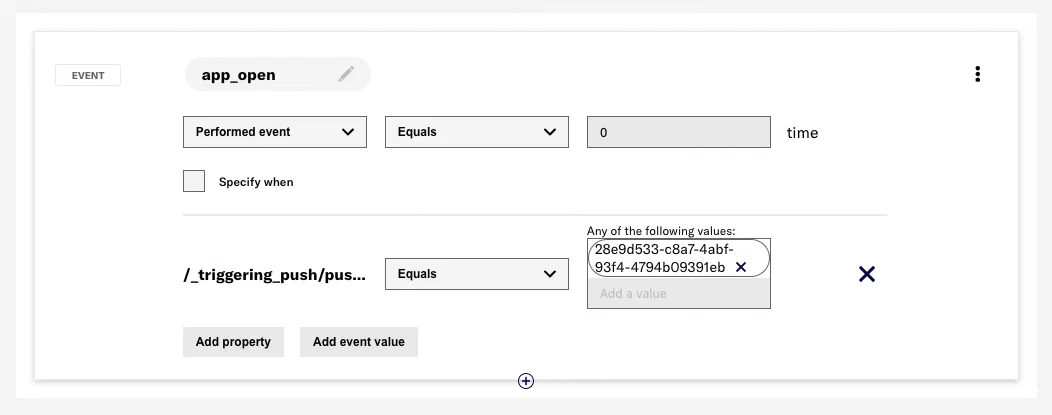 *Filtering by push ID in a Segment*