# Getting Started for the Web SDK

This is a developer's guide for setting up Airship web push notifications and Scenes.
Set up your project to register users for [Web Push Notifications](https://www.airship.com/docs/reference/glossary/#web_push_notification) and Web [Scenes](https://www.airship.com/docs/reference/glossary/#scene). Both are referred to generally as "notifications" and "web notifications" on this page.

Airship supports web push notifications and Scenes on:

<ul>
<li><strong>Desktop:</strong> Google Chrome, Mozilla Firefox, Microsoft Edge, Opera, and Safari (v16 and above)</li>
<li><strong>Android Mobile:</strong> Google Chrome, Mozilla Firefox, Opera</li>
<li><strong>iOS and iPadOS Mobile:</strong> Safari (iOS and iPadOS 16.4 and above, as a standalone web app)</li>
</ul>

The Airship Web SDK is hosted on a secure content delivery network (CDN).

In order to enable these notifications, you will add two components to your site:

1. An asynchronous loading snippet that allows use of the SDK before and after it is fully loaded.
1. A service worker that handles incoming push requests and communicates with the Airship Service.

> **Tip:** If you use an AI coding assistant, you can connect it to Airship with Skills and an MCP server. See [Airship AI Tools](https://www.airship.com/docs/developer/ai-tools/ai-tools/).

## Resources
* [Web SDK Reference](https://www.airship.com/docs/reference/libraries/web-notify-sdk/v2-latest/index.html)

* [Web Platform Overrides](https://www.airship.com/docs/developer/rest-api/ua/schemas/platform-overrides/#weboverrideobject)


## Airship Setup

> **Important:** Airship Web SDK v2 was released August 1, 2024.
> 
> * **Channel configuration** — The default title, action URL, and icon URL for web push are required for configuring the Web channel and will be included in the SDK bundle's JavaScript snippet, even if you intend to only use Web [Scenes](https://www.airship.com/docs/reference/glossary/#scene) in your project.
> 
> * **Opt-in** — User opt in is not required for Web Scenes. You only need an opt-in prompt for web push.
> 
> * **Billing** — If you register channels for Web users who do not opt in to web notifications, you are agreeing to be billed for [Monthly Unique Visitors](https://www.airship.com/docs/reference/billing/#monthly-unique-visitors). This may require an amendment to existing contracts. Contact your account manager for details.
> 
> Removed support for Web SDK v2:
> 
> * **AMP** — We will continue to support Web configurations that previously had Accelerated Mobile Pages (AMP) enabled, but AMP is not supported for new configurations.
> 
> * **Secure bridge** — For Web SDK v1, we provided a workaround script for sites that were not fully HTTPS. This workaround was not required for non-HTTPS sites on Safari. Secure bridge is not supported for v2 integrations.
> 
>    We will continue to support Web configurations that previously had Secure Bridge enabled, but we no longer provide the script or setup instructions for sites still on Web SDK v1.
> 
> * **Safari versions older than 16** — Web SDK v1 supports Safari versions older than 16, which requires an Apple Safari Web Push certificate in your Airship Web channel configuration. This is not supported for Web SDK v2 integrations.
> 
>    If your Web channel was already configured for Safari support, you must either:
>    
>    * **Maintain your existing Safari certificate** — This option is for supporting existing users who have opted in to web notifications, even if/when they upgrade to Safari 16 or above. See [Apple Safari Web Push certificates](#apple-safari-web-push-certificates) below.
>    * **Rebuild your Safari audience** — If you stop maintaining your Safari certificate, users will re-register upon their next visit to your website since they are already opted in at the browser level.
> 
> Upgrading to Web SDK v2:
> 
> * For Web channels already configured for AMP, Secure Bridge, and/or Safari versions older than 16, you will see an **Upgrade** button in the Web channel settings.
> * After selecting **Upgrade** and confirming understanding of the consequences:
>    1. The options for AMP, Secure Bridge, and Safari configuration will no longer appear in the Web channel settings.
>    1. You must update your website. See [Updating an Existing Integration](https://www.airship.com/docs/developer/sdk-integration/web/v2-sdk/#updating-an-existing-integration) in *Implementing Web SDK v2*.


Begin by configuring your site in the dashboard. Navigation to the settings differs depending on whether you have App or Web [Scenes](https://www.airship.com/docs/reference/glossary/#scene) enabled for your project.

> **Warning:** The downloadable SDK bundle is for Web SDK v2 only. If you need to update your web push default values (Title, Action, Icon URL) and **do not need to migrate to v2**, do not make changes to your Web channel configuration. Instead, directly edit the content from [your `snippet.html`](#add-javascript-snippet-to-web-pages) that you added to each page of your website.


1. Next to your project name, select the dropdown menu (
), then **Settings**.
1. Under **Channels**, select **Web**.
1. Configure default values for each field. The preview updates as you enter information. You can override your default values on a per message basis via the dashboard or API.
   | Field | Description | Steps |
   | --- | --- | --- |
   | **Default Title** | The bolded title that appears above the message body, typically your brand name | Enter text. |
   | **Default Action URL** | The URL that opens when a user clicks/taps your message, typically your brand's homepage URL | Enter a publicly accessible URL. |
   | **Default Icon URL** | The path to the image that will appear in your web push notifications. If you have CDN enabled, you also have the option to upload an icon. See also [Web icon](https://www.airship.com/docs/reference/messages/media-guidelines/#web-icon) in our _Media guidelines_ documentation. | Enter a publicly accessible URL or select **Upload icon** and select an image file. |
1. Manage the following options for websites where they are already in use. The options are not present when configuring a Web channel for the first time.

   | Option | Description | Steps |
   | --- | --- | --- |
   | **Secure Bridge** | Allows support for non-secure (non-HTTPS) websites | Toggle to enable or disable. |
   | **AMP Support** | Allows support for notifications on [Accelerated Mobile Pages](https://en.wikipedia.org/wiki/Accelerated_Mobile_Pages) | Toggle to enable or disable. |
   | **Safari Configuration** | For configurations supporting Safari versions older than 16, these are the domains that are allowed to request Safari registration permission from the user, and the required [Apple Safari Web Push certificate](#apple-safari-web-push-certificates) .p12 file and password | Enter the domains, starting with "http://" or "https://", either comma-separated or one per line. To replace the certificate, select **Choose File**, upload your .p12 file, and then enter the certificate password, if any. |
1. Select **Save**. The button will be labeled **Update** if you are editing an existing configuration.
1. Select **Download SDK Bundle** and save the zip file.
1. Unzip the bundle so you can use its files to complete the next steps.

> **Important:** When you edit your web channel configuration, you must ALSO update your website with the new configuration files.
> 
> After making changes and selecting **Update**, complete the final steps in the above procedure: download and unzip your new SDK bundle. Then you can proceed with the web SDK steps.


## Add JavaScript Snippet to Web Pages

Locate file `snippet.html` in your unzipped SDK bundle and add the file content to all pages of your site.

This file provides an asynchronous loading snippet that allows use of the Web SDK before it loads and comes populated with the configuration values required for your site.

### UA Object

The loading snippet adds a `UA` object to the global scope. This object is a [Promise](https://developer.mozilla.org/en-US/docs/Web/JavaScript/Reference/Global_Objects/Promise) which resolves to the SDK object:

```js
const sdk = await UA
const {channelId} = await sdk.create()
console.log("Channel ID: %s", channelId)
```


> **Note:** Our documentation uses the async/await syntax for promises, which may not be available to you depending on your environment. If this is the case, you may use the classic `then` syntax, such as:
> 
> ```js
> UA.then(function (sdk) {
>    sdk.create().then(function (result) {
>       console.log("Channel ID: %s", result.channelId)
>    })
> })
> ```


<!-- Hidden when we released Web SDK v2 since AMP is untested.

### AMP

You can use web notifications with [AMP pages](https://amp.dev/) in mobile Chrome on Android devices.

> **Note:** Web notifications do not currently work in AMP pages on Firefox. You can [follow the open issue on the AMP project's Github page](https://github.com/ampproject/amphtml/issues/34564).


1. Once you have [created your AMP pages](https://amp.dev/documentation/guides-and-tutorials/start/create/), add the AMP Web Push script to the head of all AMP pages.

   ```html
<script async custom-element="amp-web-push" src="https://cdn.ampproject.org/v0/amp-web-push-0.1.js"></script>
```


1. Upload the two additional files included in the unzipped SDK bundle to your server: `amp-web-push-helper-iframe.html` and `amp-web-push-permission-dialog.html`. You can edit `amp-web-push-permission-dialog.html` to customize the subscribing and unblocking messages.

1. Update the AMP-compatible snippet provided in the SDK bundle with the domain URL, and add it only to your APM pages, instead of the regular page snippet.

   ```html
/*
  Make sure to replace the placeholders with your domain name in this snippet.
  Also, if you changed the service worker file path, please adapt `service-worker-url` pathname.
*/

<amp-web-push
  id="amp-web-push"
  layout="nodisplay"
  helper-iframe-url="https://REPLACE_WITH_YOUR_DOMAIN/amp-web-push-helper-iframe.html"
  permission-dialog-url="https://REPLACE_WITH_YOUR_DOMAIN/amp-web-push-permission-dialog.html"
  service-worker-url="https://REPLACE_WITH_YOUR_DOMAIN/push-worker.js"
></amp-web-push>
```


1. (Optional) On AMP pages, you can include a subscribe/unsubscribe button, without the need to include the [register function](#register), by including these snippets:

   **Subscribe button**

   ```html
<amp-web-push-widget visibility="unsubscribed" layout="responsive" height="80" width="auto">
  <button class="subscribe" on="tap:amp-web-push.subscribe">
    Subscribe to notifications
  </button>
</amp-web-push-widget>
```


   **Unsubscribe button**

   ```html
<amp-web-push-widget visibility="subscribed" layout="responsive" height="80" width="auto">
  <button class="unsubscribe" on="tap:amp-web-push.unsubscribe">Unsubscribe from notifications</button>
</amp-web-push-widget>
```


-->

### iOS and iPadOS Safari

Apple added Safari support for web push in iOS and iPadOS 16.4. To use web notifications and Scenes on iOS/iPadOS devices, Apple first requires a user to save the website to their home screen as a web app. This essentially means bookmarking a web page by selecting the *Share* action and then *Add to Home Screen*. After that, you can direct users to take specific actions to opt in to receiving notifications.

Once opted in, users can manage those permissions per web app/site in their device *Notifications* settings. The notifications from web apps work exactly like notifications from native iOS and iPadOS apps and appear on the Lock Screen, in Notification Center, and on a paired Apple Watch.

> **Important:** This is not a comprehensive guide on Home Screen web pages. If you wish to add full support for these features, it's recommended you see the following articles for further details:
> 
> * [WebKit: Release Announcement](https://webkit.org/blog/13878/web-push-for-web-apps-on-ios-and-ipados/)
> * [Apple: Supported Meta Tags](https://developer.apple.com/library/archive/documentation/AppleApplications/Reference/SafariHTMLRef/Articles/MetaTags.html)


In preparation for sending web notifications to your iOS and iPadOS users, you will need to configure your site to operate as a web app.

At a minimum, add the following metadata to the `head` of your pages, which specifies to the browser that an app can run in "standalone" mode:

**Site Metadata**

```html
<meta name="apple-mobile-web-app-capable" content="yes">
<meta name="mobile-web-app-capable" content="yes">
```


> **Note:** The Airship-provided [HTML Prompt plugin](https://www.airship.com/docs/developer/sdk-integration/web/plugins/html-prompt/) does not prompt a browser that is in an unsupported context. It does not instruct the user to take any further action.


If you are handling your own opt-in, you may also wish to handle iOS/iPadOS Safari opt-in differently, as calling `sdk.register()` will fail if the app is not running in standalone mode. The following [SDK Properties](https://www.airship.com/docs/reference/libraries/web-notify-sdk/v2-latest/UaSDK.html)
 are available:

- `sdk.isSupported` is `true` if the SDK can load and track events; web push
  support is not considered
- `sdk.isWebPushSupported` is `true` if the browser is supported _and_ supports
  web push; it does not consider if the current _context_ is supported (such as
  requiring it be added to the home screen on iOS)
- `sdk.isAllowedPushRegistrationContext` is `true` if the browser is currently
  in an allowed registration context; note this does not otherwise check for
  browser features, so should only be checked after an `sdk.isWebPushSupported`
  check
- `sdk.canRegister()` is a comprehensive check against _all_ checks required for
  web push registration, and returns a promise which resolves to `true` if:
  - the browser supports web push
  - the page is a secure context
  - the browser is in an allowable context (such as being saved to the home
    screen on iOS)
  - push permission has not already been denied

When registering for web push, if `isSupported` is `true` and the value returned from `canRegister()` resolves to `false`, your site may be in a context that disallows registration. You can prompt the user to add the page to their home screen if they wish to receive notifications.

This can also be detected using the [`Navigator.standalone`](https://developer.mozilla.org/en-US/docs/Web/API/Navigator#non-standard_properties) property, which is only available on iOS/iPadOS Safari, using code similar to the following:

**iOS Safari Context Detection**

```javascript
const sdk = await UA

const canRegister = await sdk.canRegister()
if (sdk.isSupported && !canRegister) {
   if ('standalone' in navigator) {
      // this is an iOS Safari context; prompt the user
   }
}
```


## Place Service Worker

Web push employs a *service worker*, which runs as a background process until woken up to perform
SDK tasks, e.g., displaying notifications. 

Locate the service worker file `push-worker.js` in your unzipped SDK bundle and place it in the **root directory of
your site**.

It is imperative that you do so **at the beginning of your implementation** so that your entire website
is within the scope of the worker. The [JavaScript snippet](#add-javascript-snippet-to-web-pages)
that you added to your site pages contains a URL for `push-worker.js` and
assumes it is placed in the root. **If you are unable to place the file at root, your entire site may not be able
to access the service.**

If you need to combine the push worker with an existing service worker, you may
need to specify a new location for your worker file. You can do this by adding a
`workerUrl: '/service-worker.js',` setting to your on-page snippet, inside your
service worker.

For further reading on service workers, see these excellent primers from Google
and Mozilla:

* [Chrome Developers: Service worker overview](https://developer.chrome.com/docs/workbox/service-worker-overview/)
* [Mozilla Developer Network: Service Worker API](https://developer.mozilla.org/en-US/docs/Web/API/Service_Worker_API)

### Troubleshooting: Duplicate Web Notifications

If for any reason you have moved the service worker, e.g., from a non-root
location to the root directory, users may receive duplicate push notifications.

This is because users may have a browser-cached service worker running even
though the file has been moved, and subscriptions are tied to push worker
location. If they register again with the new (or newly-moved) service worker,
they will have a new channel ID.

**Add a new push-worker.js in prior location of service worker to unsubscribe users from duplicate notifications**


```js
self.onactivate = function (ev) {
  self.registration.pushManager.getSubscription().then(subscription => {
    if (subscription) {
      subscription.unsubscribe()
    }
  })
}
```


To help out in situations like this, we have provided a bit of code (think of
it as a "cleanup" service worker) that can be placed at the location of the
original service worker. The process here is simple. All you have to do is put
this code in a `push-worker.js` file placed where your previous service worker
lived.

Once you've done this, browsers will detect the change and unsubscribe any
subscriptions tied to that worker location. And don't worry, this will not
affect your Airship channels or any registrations tied to any other
service worker locations.

## Send Your First Push Notification

Now that you have configured your project for web push and are able to
register users, it's time to send a test notification. You can do this via
either the dashboard or our API.

To send a notification via the dashboard, see:

* [Create a message](https://www.airship.com/docs/guides/messaging/messages/create/) and [Web content](https://www.airship.com/docs/guides/messaging/messages/content/web/).
* [Create a Scene](https://www.airship.com/docs/guides/messaging/in-app-experiences/scenes/create/)

To send a web push via our API, two examples are provided below, one only to
web browsers, and one to web, iOS, and Android.

### Web-Only Push

In this example, we will introduce the
[push object](https://www.airship.com/docs/developer/rest-api/ua/schemas/push/#pushobject),
the required request body for sending a web push notification via the push API, using
the three required attributes `audience`, `device_types`, and `notification`.

Audience
: We'll start with the simplest [audience
selector](https://www.airship.com/docs/developer/rest-api/ua/schemas/audience-selection/#audienceselector1000) possible: an
individual channel ID.  For testing purposes, you can retrieve your channel ID
from a registered browser by entering the following in the JavaScript console:

```js
const sdk = await UA
const channelId = await sdk.channel.id()
console.log("Channel ID: %s", channelId)
```


Device Types
: Since we are only sending to web devices, we will specify the `"web"` device
type as an array of one. In the next example, we will include additional device
types.

Notification
: Finally, we will specify the values for our test notification, including the
alert text, and web push-specific attributes that we will include in the
[web platform override](https://www.airship.com/docs/developer/rest-api/ua/schemas/platform-overrides/#weboverrideobject)
object. Platform overrides can be used either to override a value for a
specific platform or to specify values that are only applicable to that
platform.

**Example Request: Web only push**


```http
POST /api/push HTTP/1.1
Authorization: Basic <master authorization string>
Content-Type: application/json
Accept: application/vnd.urbanairship+json; version=3

{
   "audience": {
      "channel": "<YOUR_CHANNEL_ID>"
   },
   "device_types": [
      "web"
   ],
   "notification": {
      "alert": "Hello, Web!",
      "web": {
         "title": "My First Web Push Title",
         "require_interaction": true,
         "icon": {
            "url": "https://example.com/icon.png"
         }
      }
   }
}
```


### Push to Multiple Platforms

This example illustrates sending a web push notification to a named user,
"sven_svensson", who is registered on multiple platforms, including web.

In the top-level `notification` attribute of the payload, the value for the
`alert` property is "Hello, World!". Since we want our web users to experience
the most relevant content possible, we are going to use the `web` override on
the `notification` object to specify the more appropriate "Hello, Web!" alert
message for web users.

**Example Request: Push to multiple platforms**


```http
POST /api/push HTTP/1.1
Authorization: Basic <master authorization string>
Content-Type: application/json
Accept: application/vnd.urbanairship+json; version=3

{
   "audience": {
      "named_user": "sven_svensson"
   },
   "device_types": [
      "web",
      "ios",
      "android"
   ],
   "notification": {
      "alert": "Hello, World!",
      "web": {
         "alert": "Hello, Web!",
         "title": "My First Web Push Title",
         "require_interaction": true,
         "icon": {
            "url": "https://example.com/icon.png"
         }
      }
   }
}
```


### Additional Resources

* [Web Content](https://www.airship.com/docs/guides/messaging/messages/content/web/)
* [Web Platform Overrides](https://www.airship.com/docs/developer/rest-api/ua/schemas/platform-overrides/#weboverrideobject)

## Web SDK

This section is an introduction to the Web SDK and associated methods.

Please visit our [Airship Web SDK Reference](https://www.airship.com/docs/reference/libraries/web-notify-sdk/v2-latest/index.html)

for a complete reference.

### UaSDK

The main Web SDK object. It cannot be instantiated manually. It is returned by the async loader.

#### Creating a Channel

You may create a channel by using the Airship SDK's `create` method; using this
method will make the current browser known to Airship, and allow you to use the
SDK features.

```js
const sdk = await UA
await sdk.create()
```


#### Registering for Push Notifications

Follow these steps to register the current browser with Airship.

* Fetch the browser's subscription object, prompting the user for permission if
  necessary.
* Collect browser information for out-of-the-box tag segmentation.
* Register with Airship and resolve the returned channel object.
* Resolves an error that can be caught if there is an error while registering or
  if the browser is in an unsupported context.

> **Note:** A request to register for push notifications _must_ happen as the result of a
> user interaction, otherwise the registration will be rejected by the browser
> without prompting the user.


**Example registration**


```js
const sdk = await UA

// now that the SDK is available, add a registration button to the DOM
const button = document.createElement('button')
button.innerHTML = "Register for Notifications"
button.onclick = async (el) => {
   await sdk.register()
}
document.body.append(button)
```


#### Checking Browser Capabilities

Make sure that the current browser has web push features AND is in a secure
context capable of attempting registration.

- `sdk.isSupported` is `true` if the SDK can load and track events; web push
  support is not considered
- `sdk.isWebPushSupported` is `true` if the browser is supported _and_ supports
  web push; it does not consider if the current _context_ is supported (such as
  requiring it be added to the home screen on iOS)
- `sdk.isAllowedPushRegistrationContext` is `true` if the browser is currently
  in an allowed registration context; note this does not otherwise check for
  browser features, so should only be checked after an `sdk.isWebPushSupported`
  check
- `sdk.canRegister()` is a comprehensive check against _all_ checks required for
  web push registration, and returns a promise that resolves to `true` if:
  - the browser supports web push
  - the page is a secure context
  - the browser is in an allowable context (such as being saved to the home
    screen on iOS)
  - push permission has not already been denied

Using these methods may be important if you wish to support Safari on iOS or
iPad OS, as those have special requirements before push notification
registration is allowed:

**Checking for Push Notification Registration Support**


```js
const permission = await sdk.getNotificationPermission()
if (permission === 'granted') {
  await sdk.register()
}

if (permission === 'denied') {
   // user has denied notifications at the browser level, and opt-in is not
   // possible without the user changing their browser settings
} else if (sdk.isWebPushSupported && !sdk.isAllowedPushRegistrationContext) {
  // prompt user to add the website to their home screen
} else if (await sdk.canRegister()) {
  // is in an allowed context; prompt the user to opt into push notifications
}
```


### Channel Object {#channel-object}

The property `sdk.channel` returns the channel interface for the current
browser. It contains methods for retrieving or setting information on the
channel.


**Example**


```js
const sdk = await UA
// the current channel id, a string. will be `null` if no channel exists
const channelId = await sdk.channel.id()
// the current opted-in status, a boolean
const optedIn = await sdk.channel.optedIn()
// opt out the channel for push notifications
const optedIn = await sdk.channel.optOut()
```


### Event Listeners

The channel interface fires a `channel` event when a channel is loaded or
registered.

> **Note:** If you intend to set attributes, tags, named user, or anything that could modify
> the channel within your event listener, make sure to set the `once` option to
> `true` in order to prevent an infinite loop.


```js
const sdk = await UA
sdk.channel.addEventListener('channel', ev => {
   console.log('channel id:', ev.detail.id)
}, { once: true })
```


If you are on a page that is in-scope of your push-worker.js: The main SDK
object fires a `push` event when the browser receives a push.

```js
const sdk = await UA
sdk.addEventListener('push', ev => {
   // ev.detail is the push payload object
})
```


## Apple Safari Web Push certificates

If your [Web channel was already configured for Safari support](#airship-setup), you must maintain your existing Safari certificate to keep supporting existing users who have opted in to web notifications, even if/when they upgrade to Safari 16 or above. Otherwise, you will need to rebuild your audience.

To create an Apple Safari Website Push certificate, you will need:
* An Apple Developer account
* A Certificate Signing Request (CSR). If you don't already have this file saved locally, [follow Apple's instructions](https://developer.apple.com/help/account/create-certificates/create-a-certificate-signing-request) to create one.

First, download your SSL certificate:

1. Log in to your [Apple Developer account](https://developer.apple.com/account).
1. Go to **Account**, then **Certificates, Identifiers & Profiles**.
1. Select **Identifiers**, select the **Website Push IDs** filter, and then select your web push identifier from the list.
1. Select **Create Certificate** under **Production Certificates**. This will generate a Website Push Notification service SSL (Sandbox & Production) certificate compatible with both the Production and Development environments.
1. Select **Choose File** and upload your CSR file, and then select **Continue**.
1. Select **Download** and save the SSL certificate file for use in the next step. You may need to reload the page if the Download button is not yet active.

Next, install your certificate, export it as a .p12 file, and create a password:

1. Open the certificate you downloaded in the previous step. It should open in the Keychain Access app and be listed in **My Certificates**.
1. ![Getting Started for the Web SDK](https://www.airship.com/docs/images/p-export-p12_hu_853f430fb03d4b60.webp)
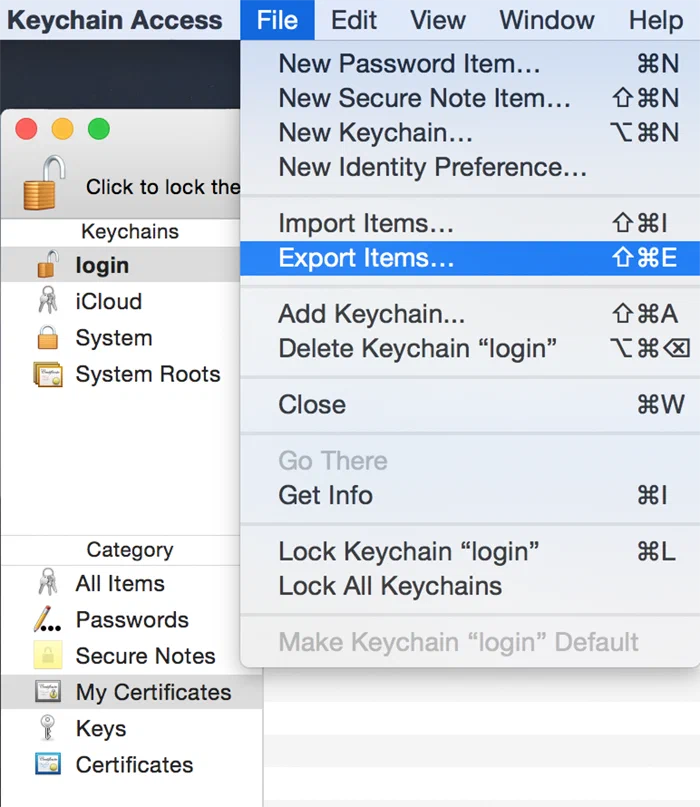
Select the certificate in the list, then go to the **File** menu and select **Export Items...**.<p>Also be sure to select the **My Certificates** category in the sidebar. If **My Certificates** is not highlighted, you will not be able to export the certificate as a .p12 file.
1. ![Getting Started for the Web SDK](https://www.airship.com/docs/images/export-filename_hu_a67ac4824a950386.webp)
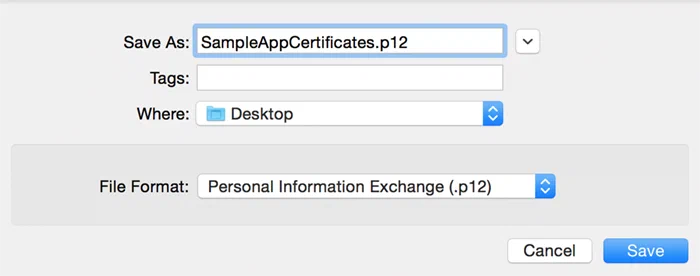
Save the file in the Personal Information Exchange (.p12) format.
   <p>You will be prompted to create a certificate password, which you will enter when you upload the .p12 file in the Airship dashboard.

Now you can upload the .p12 file and provide the password when [configuring the Web channel in the Airship dashboard](#airship-setup).