Get started with Push Notifications on Unity
How to configure your application to receive and respond to notifications.
Before you can send and receive push notifications, you need to configure your app for the platform(s) you’re targeting.
Platform Setup
Follow the platform-specific setup instructions below to enable push notifications in your Unity app.
iOS
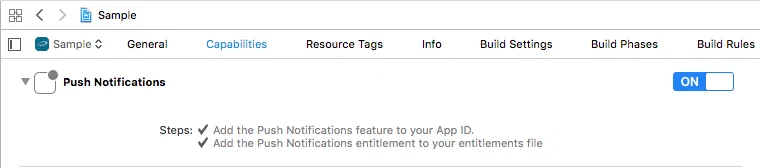
After generating a project for iOS, enable Push Notifications in the project editor’s Capabilities pane:
Notification Service Extension
To take advantage of notification attachments, such as images, animated gifs, and video, you will need to create a notification service extension.
Follow the steps in the iOS Notification Service Extension Guide.Android
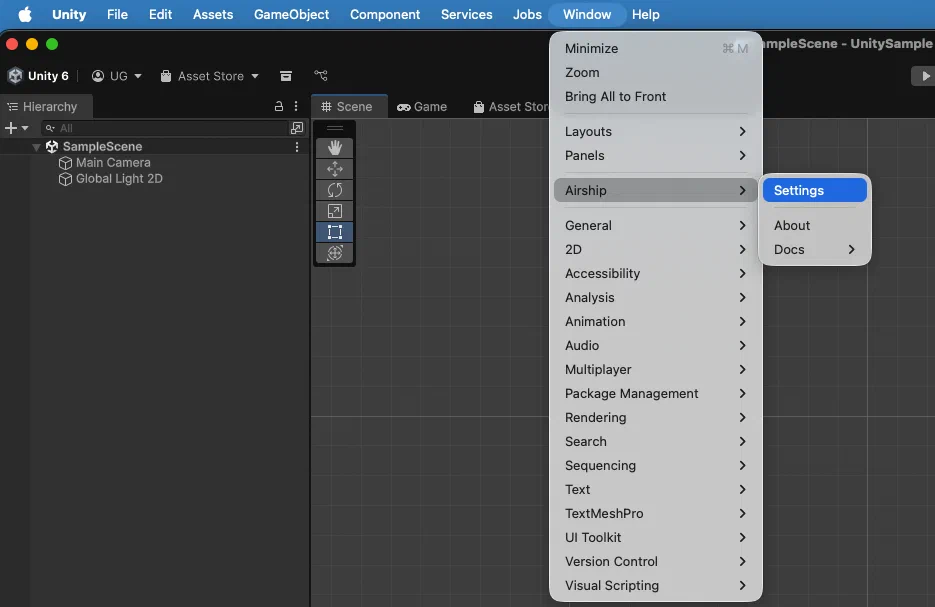
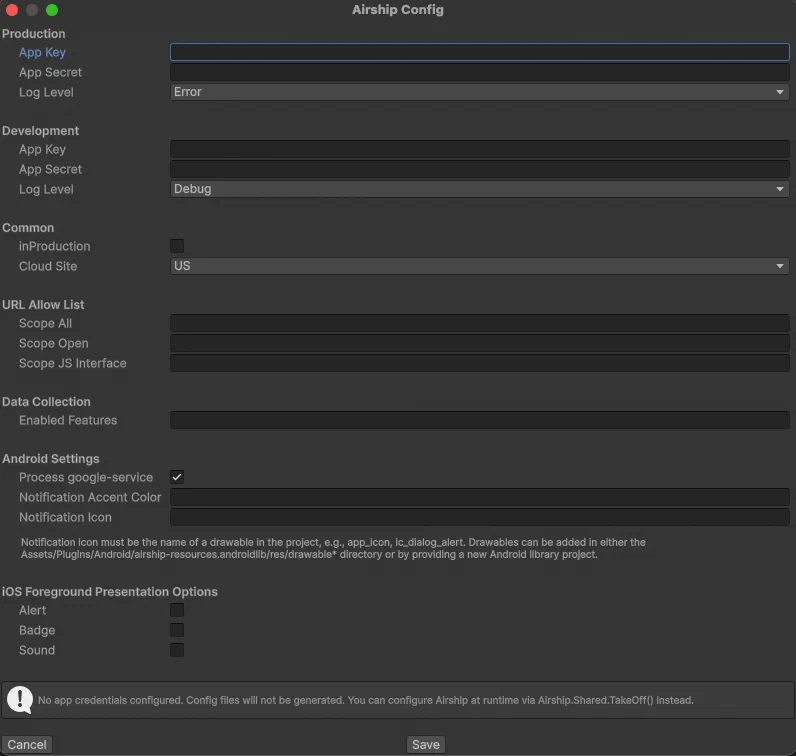
Download the Android Firebase configuration file, google-services.json, from the application’s Firebase console and add it to the Assets directory. The plugin converts it into Android resources during the build, controlled by the Process google-service setting in the Settings window.
If your Unity application does not have an associated application in the Firebase console, follow the FCM setup instructions to set one up.
Enable User Notifications
The Airship SDK makes a distinction between user notifications, which can be seen by the user, and other forms of push that allow you to send data to your app silently, or in the background. Enabling or disabling user notifications is a preference often best left up to the user, so by default, user notifications are disabled.
Basic Enablement
Enable user notifications with SetUserNotificationsEnabled. This prompts the user for permission if it has not already been granted, but does not provide feedback on whether the user accepted or denied it.
Airship.Shared.push.SetUserNotificationsEnabled(true);For apps that target Android 13 (API 33) and above, enabling user notifications will display a runtime permission prompt to allow notifications to be sent.
To increase the likelihood that the user will accept, you should avoid prompting the user for permission immediately on app startup, and instead wait for a more appropriate time to prompt for notification permission.
Async Enablement with Fallback
For more control over the permission flow, use the EnableUserNotifications coroutine, which returns the permission result and supports a fallback option.
StartCoroutine(Airship.Shared.push.EnableUserNotifications(
    new EnabledUserPushNotificationsArgs() {
        fallback = PromptPermissionFallback.SystemSettings
    },
    onComplete: (result) => {
        Debug.Log("User notifications enabled: " + result);
    },
    onError: (error) => {
        Debug.LogError("Error enabling user notifications: " + error.Message);
    }
));
The SystemSettings fallback prompts the user to open system settings if permission is denied on iOS or denied silently on Android. This gives users a second chance to enable notifications if they initially declined.
Checking Notification Status
To check whether user notifications are currently enabled:
bool enabled = Airship.Shared.push.IsUserNotificationEnabled();For more detailed status information, use the GetNotificationStatus coroutine.
StartCoroutine(Airship.Shared.push.GetNotificationStatus((PushNotificationStatus status) => {
    Debug.Log("Are notifications allowed: " + status.areNotificationsAllowed);
    Debug.Log("Is opted in: " + status.isOptedIn);
}));
Getting the Registration Token
To get the platform-specific push token, which is the APNs token on iOS and the FCM token on Android:
string token = Airship.Shared.push.GetPushToken();For event handling, active notification management, and silent notifications, see Notification Events. To customize notification appearance and options, see Customize Notifications.
Verify Push Notifications
After completing the setup, verify that your app can receive push notifications:
- Run your app on an iOS or Android device.
- Enable user notifications in your app and accept the notification permission prompt when it appears.
- Get the channel ID to target your device directly.
- Send a test notification to your device.
- Confirm the notification appears on your device.
If push notifications aren’t working as expected, see Troubleshooting Push Notifications to check notification status and fix common issues.