Install and Set Up the Unity Plugin
How to install the Airship Unity plugin.
Requirements
- Unity 6+
- iOS: Xcode 16+
- iOS: Minimum deployment target iOS 16+
- Android: Android SDK installed and updated (requires
minSdkVersion= 26) - Android: Using Android SDK manager, install API 36 (
compileSdk/targetSdk).- If a Custom Gradle Template is used, the gradle template needs to be configured to use API VERSION 36.
- Android: Kotlin 2.2.20+
Setup
Download the latest plugin
and import the unitypackage into the Unity project: Open Assets -> Import Package -> Custom Package.
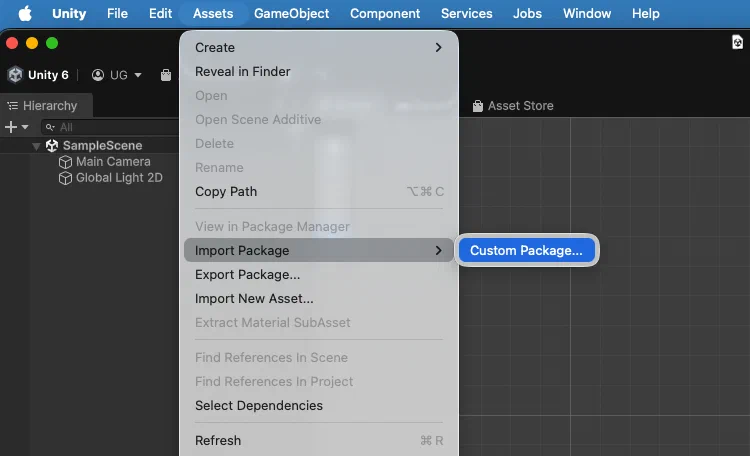
You can configure Airship using the editor Settings window or at runtime with TakeOff.
Configure with the editor
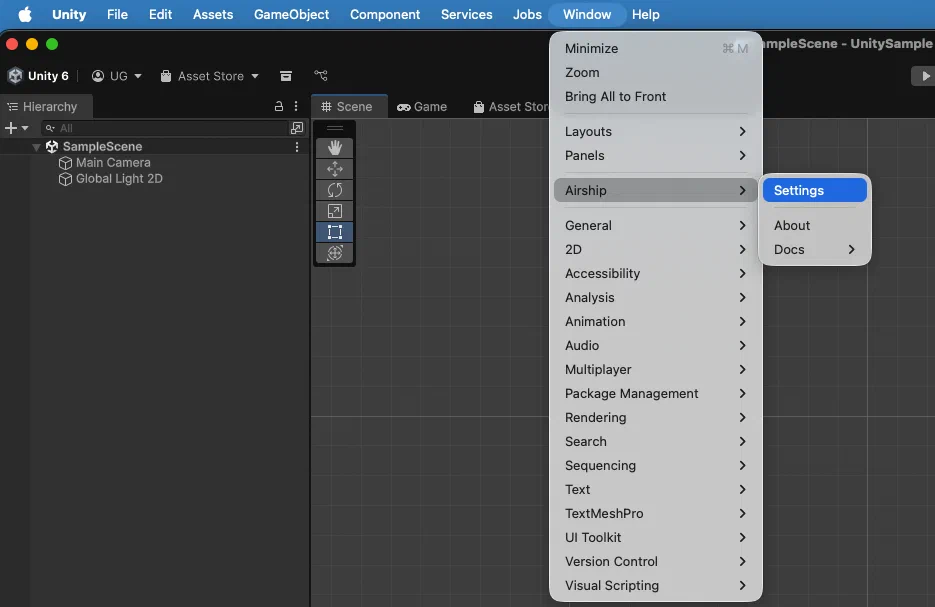
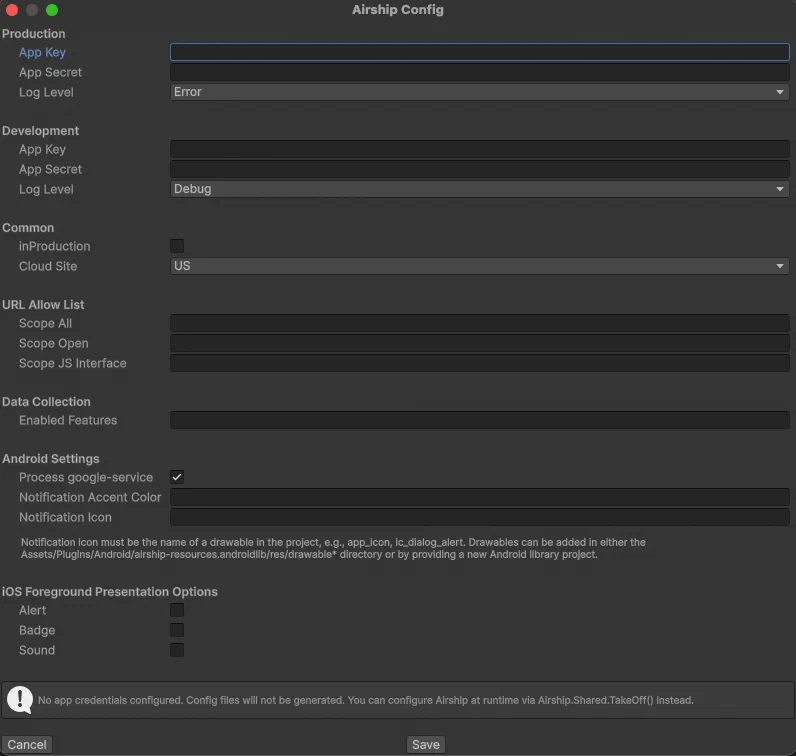
Configure Airship Settings: Open Window -> Airship -> Settings and set the Airship settings.
If your app uses Airship’s EU cloud site, you will need to configure that using the Cloud Site setting.
Configure at runtime
Alternatively, call TakeOff early in your app lifecycle. For the full set of configuration options, see Advanced Configuration.
Leave the App Key and the App Secret fields BLANK from the editor configuration in order to use the runtime configuration.
using AirshipSDK;

Airship.Shared.TakeOff(new AirshipConfig() {
    @default = new ConfigEnvironment() {
        appKey = "<APP_KEY>",
        appSecret = "<APP_SECRET>",
        logLevel = LogLevel.Verbose,
    },
    site = Site.US, // use Site.EU for EU cloud projects
    inProduction = false,
    urlAllowList = new string[] { "*" },
});
An example integration is provided in Assets/Scripts/AirshipBehaviour.cs. Import it into your project’s scripts and attach it to a game object in a scene for a basic reference.
Asynchronous methods
Methods that return data, such as WaitForChannelId, GetMessages, and Flag, are asynchronous. They return an IEnumerator and must be run with Unity’s StartCoroutine, passing an onComplete callback that receives the result. Editors and most setters are synchronous and can be called directly. The exceptions are SetDisplayInterval and SetBadgeNumber, which are also coroutines.
StartCoroutine(Airship.Shared.channel.WaitForChannelId((string channelId) => {
    Debug.Log("Channel ID: " + channelId);
}));
ProGuard
If proguard is enabled, add Airship settings to the proguard-user.txt file:
-keep public class com.urbanairship.unityplugin.UnityPlugin
-keepclassmembers class com.urbanairship.unityplugin.UnityPlugin {
public ;
public ;
static ;
}
Test the integration
After completing the setup, verify your integration:
- Build and run your app on an iOS or Android device, simulator, or emulator.
- Check the console output for the Airship channel ID, which confirms the SDK initialized successfully. Listen for the
OnChannelCreatedevent to log the channel ID when it becomes available.
Airship.Shared.OnChannelCreated += (string channelId) => {
    Debug.Log("Channel created: " + channelId);
};- iOS: view the log message in the Xcode console.
- Android: view the log message in logcat.
- For more detailed logging, see Logging.
If you see the channel ID in the console and no errors, your integration is successful.
Next steps
- Advanced Configuration: Configure URL allowlists and other advanced settings.
- Get started with Push Notifications: Configure your app to receive and handle notifications.
- Audience Management: Identify contacts and set tags, attributes, and subscription lists.
- Deep Links: Handle deep links in your app.
If you don’t see a channel ID or encounter errors during initialization, see Troubleshooting Initialization for common problems and solutions.