# Push Notifications
Configure and handle push notifications in your Flutter app for iOS and Android.
# Push Notifications
> Set up push notifications for Flutter applications on iOS and Android.
Before you can send and receive push notifications, you need to configure your app for the platform(s) you're targeting.
## Platform Setup
Follow the platform-specific setup instructions below to enable push notifications in your Flutter app.
### iOS
Configure iOS capabilities and extensions to enable push notifications.
#### Enable Push Notifications Capability
1. Open your Flutter project's iOS module in Xcode:
* Navigate to your Flutter project directory
* Run `open ios/Runner.xcworkspace` (or open the workspace file manually)
2. Select your app target in Xcode, then go to **Signing & Capabilities**.
3. If you do not see Push Notifications enabled, click **+ Capability** and add **Push Notifications**.
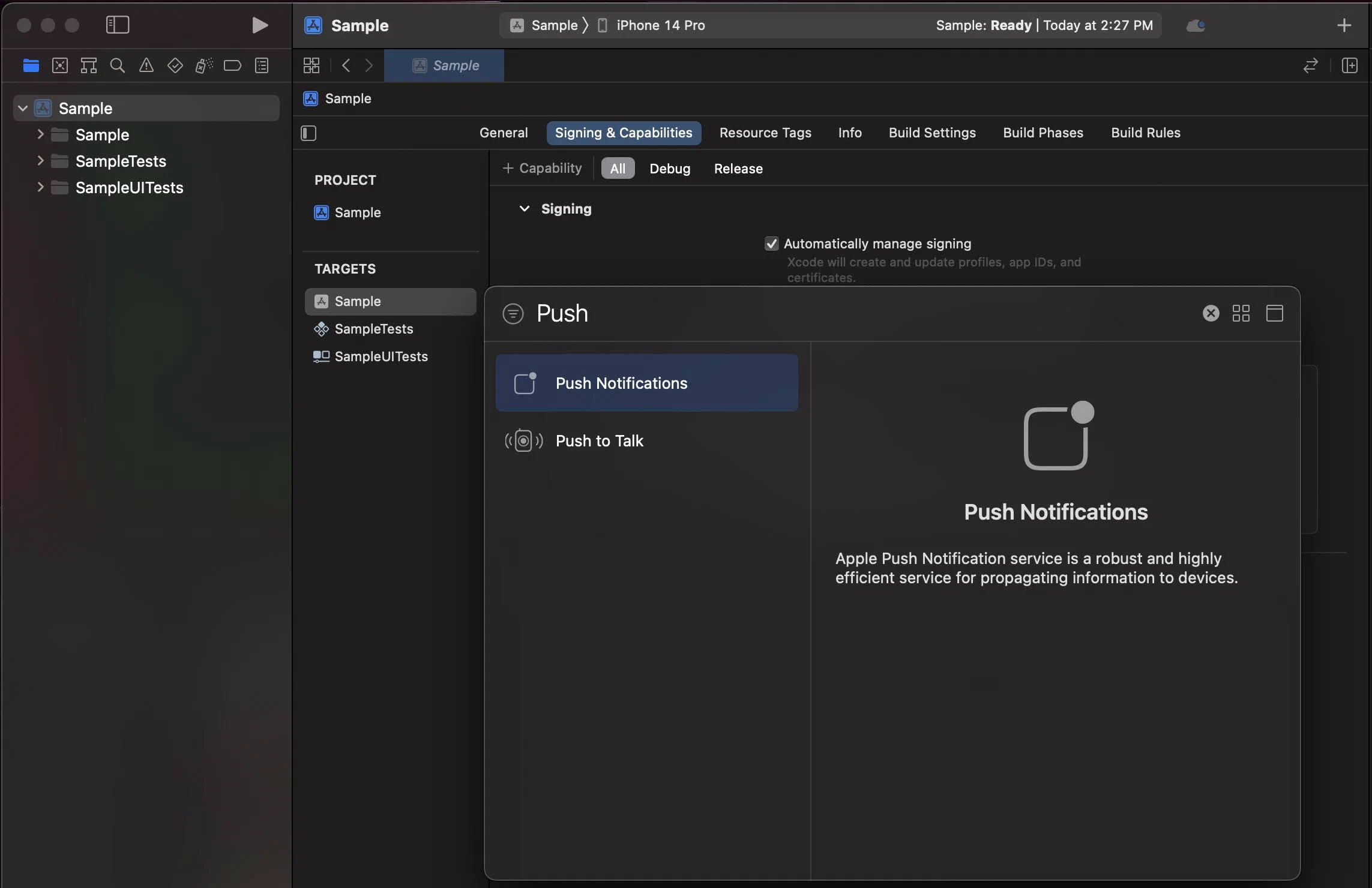
*Adding the Push Notifications capability in Xcode*
#### Enable Background Modes
1. Select your app target and then click the **Signing & Capabilities** tab.
2. Click **+ Capability** and add **Background Modes**.
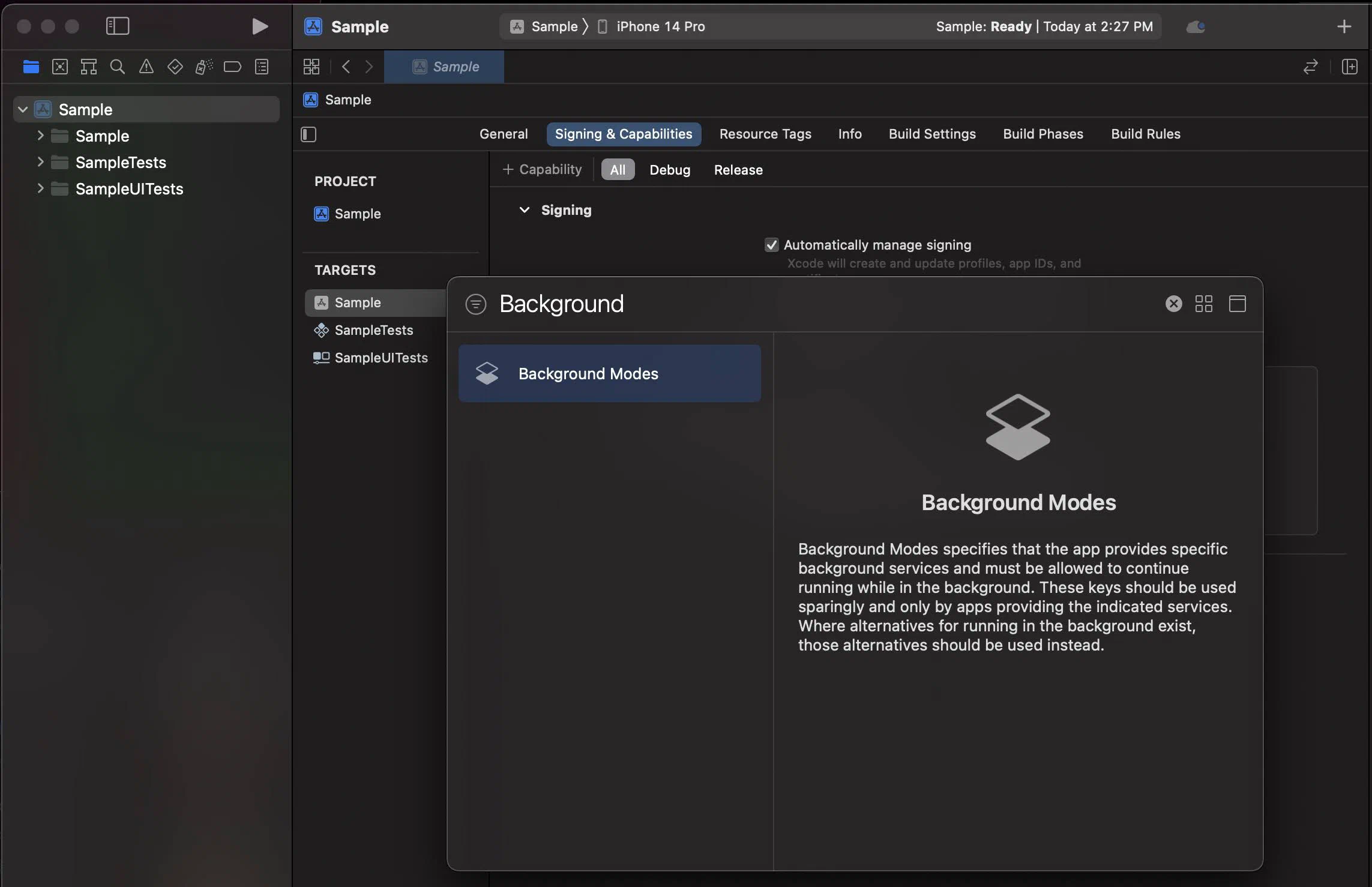
*Adding the Background Modes capability in Xcode*
3. In the **Background Modes** section, select the **Remote notifications** checkbox.
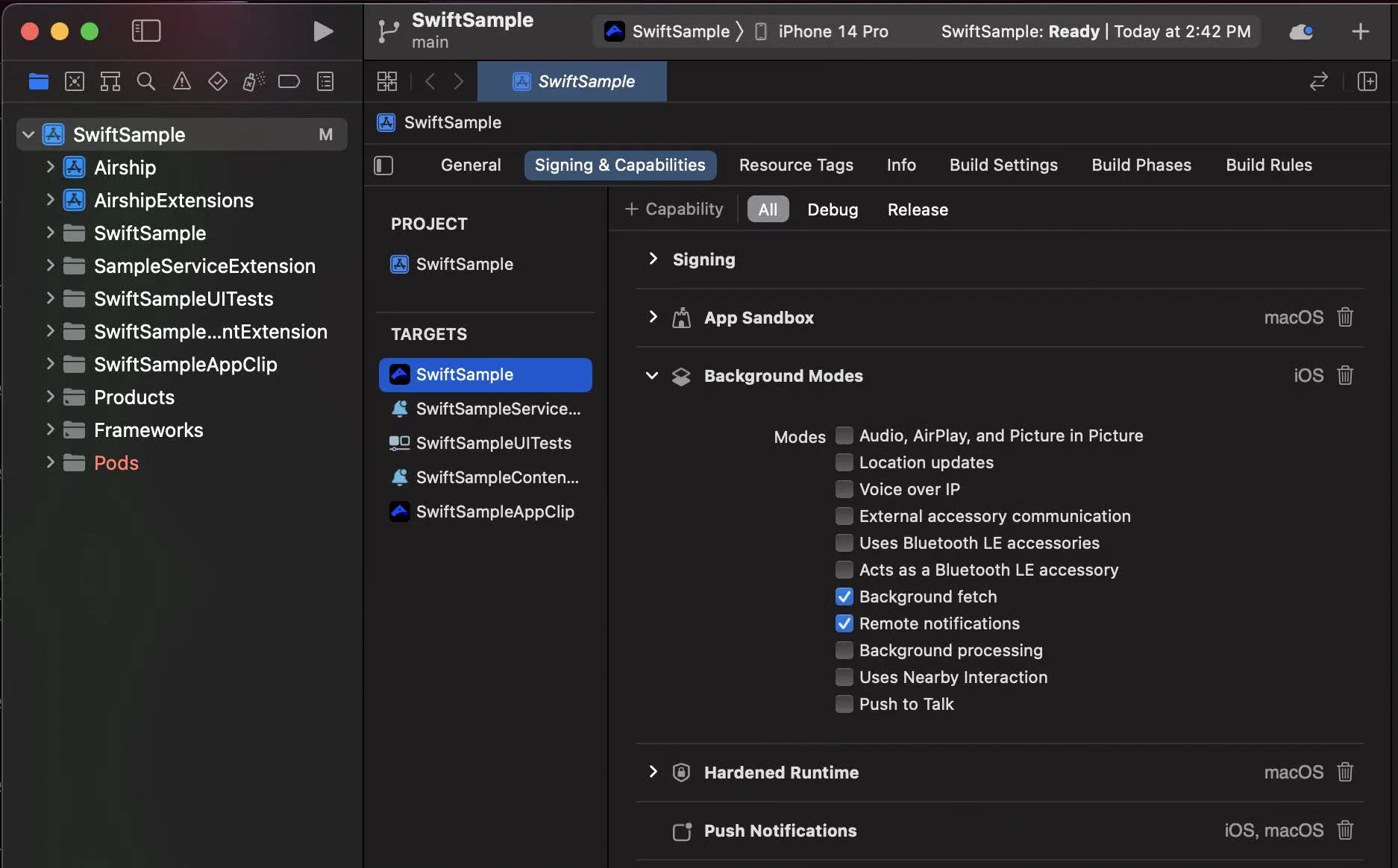
*Enabling Remote notifications in Background Modes*
#### Notification Service Extension
To take advantage of notification attachments, such as images,
animated gifs, and video, you will need to create a notification service extension .
Follow the steps in the [iOS Notification Service Extension Guide](https://www.airship.com/docs/developer/sdk-integration/apple/push-notifications/notification-service-extension/).
### Android
Configure Firebase Cloud Messaging (FCM) or Huawei Mobile Services (HMS) to enable push notifications on Android.
#### FCM Setup
1. If you haven't already, create a Firebase project and add your Android app in the [Firebase Console](https://console.firebase.google.com/).
2. Download the `google-services.json` configuration file from your Firebase project.
3. Place `google-services.json` in your Flutter project at `android/app/google-services.json`.
#### Configure Gradle
1. Add the Google Services plugin to your project-level `build.gradle` file (`android/build.gradle`):
```gradle
buildscript {
dependencies {
// Add this line
classpath 'com.google.gms:google-services:4.3.15'
}
}
```
2. Apply the Google Services plugin in your app-level `build.gradle` file (`android/app/build.gradle`):
```gradle
apply plugin: 'com.android.application'
apply plugin: 'kotlin-android'
apply plugin: 'dev.flutter.flutter-gradle-plugin'
// Add this line at the bottom
apply plugin: 'com.google.gms.google-services'
```
#### Notification Configuration
Configure the notification icon and accent color in your `takeOff` config:
```dart
var config = AirshipConfig(
defaultEnvironment: ConfigEnvironment(
appKey: "YOUR_APP_KEY",
appSecret: "YOUR_APP_SECRET"
),
site: Site.us,
androidConfig: AndroidConfig(
notificationConfig: AndroidNotificationConfig(
icon: "ic_notification",
accentColor: "#00ff00"
)
)
);
Airship.takeOff(config);
```
See the [Flutter Setup guide](https://www.airship.com/docs/developer/sdk-integration/flutter/installation/getting-started/) for complete `takeOff` configuration options.
## Enable User Notifications
By default, user notifications are disabled to give you control over when to request permission.
### Request notification permission
Enable user notifications to prompt for permission:
```dart
// Enable user notifications (prompts for permission)
await Airship.push.setUserNotificationsEnabled(true);
```
### When to request permission
**Don't prompt immediately**: Requesting notification permission on app launch typically results in low opt-in rates because users don't yet understand your app's value.
**Wait for context**: Request permission when users understand the benefit. Good times include:
* After completing onboarding
* When a user wants to be notified about specific content
* After a user takes an action that would benefit from notifications
* When explaining the value notifications provide
### Example: Contextual permission request
```dart
Future requestNotificationPermission(BuildContext context) async {
// Show a dialog explaining the value of notifications
bool? shouldEnable = await showDialog(
context: context,
builder: (context) => AlertDialog(
title: Text('Stay Updated'),
content: Text(
'Enable notifications to receive important updates '
'and special offers directly on your device.',
),
actions: [
TextButton(
onPressed: () => Navigator.pop(context, false),
child: Text('Not Now'),
),
TextButton(
onPressed: () => Navigator.pop(context, true),
child: Text('Enable'),
),
],
),
);
if (shouldEnable == true) {
await Airship.push.setUserNotificationsEnabled(true);
}
}
```
> **Note:** **Android 13+ (API 33)**: On Android 13 and above, enabling user notifications displays a runtime permission prompt. If users deny permission, they must manually enable notifications in system settings.
>
> To maximize opt-in rates, avoid prompting immediately on app startup and instead wait for an appropriate moment when users understand the value of notifications.
## Check Notification Status
Check if notifications are currently enabled on Airship:
```dart
bool enabled = await Airship.push.isUserNotificationsEnabled;
print('User notifications enabled: $enabled');
```
For a detailed breakdown of notification status:
```dart
PushNotificationStatus? status = await Airship.push.notificationStatus;
print('User notifications enabled: ${status?.isUserNotificationsEnabled}');
print('System notifications allowed: ${status?.areNotificationsAllowed}');
print('Push privacy feature enabled: ${status?.isPushPrivacyFeatureEnabled}');
print('Push token registered: ${status?.isPushTokenRegistered}');
print('Fully opted in: ${status?.isOptedIn}');
```
The notification status provides:
* `isUserNotificationsEnabled`: If user notifications are enabled on Airship
* `areNotificationsAllowed`: If notifications are allowed at the system level
* `isPushPrivacyFeatureEnabled`: If the push feature is enabled on Privacy Manager
* `isPushTokenRegistered`: If push registration was able to generate a token
* `isOptedIn`: If Airship is able to send and display push notifications (requires all of the above)
See the [Troubleshooting](https://www.airship.com/docs/developer/sdk-integration/flutter/troubleshooting/#push-notification-issues) guide for help diagnosing notification issues.
## Get Push Token
For debugging or integration purposes, you can access the device's push token:
```dart
// Get the push token (FCM registration token on Android, APNs device token on iOS)
String? pushToken = await Airship.push.registrationToken;
print('Push token: $pushToken');
```
Listen for token changes:
```dart
Airship.push.onPushTokenReceived.listen((event) {
print('Push token received: ${event.pushToken}');
});
```
## Next Steps
* [**Handling Notification Events**](https://www.airship.com/docs/developer/sdk-integration/flutter/push-notifications/handling-notification-events/) — Listen for push received and notification response events
* [**Customizing Notifications**](https://www.airship.com/docs/developer/sdk-integration/flutter/push-notifications/customizing-notifications/) — Configure iOS notification options, badges, and foreground presentation
If push notifications aren't working as expected, see [Troubleshooting Push Notifications](https://www.airship.com/docs/developer/sdk-integration/flutter/troubleshooting/push-notifications/) to check notification status and fix common issues.
# Notification Events
> Learn how to listen for push received events, notification responses, and implement background message handling.
The Airship SDK provides event streams to listen for push notifications and user interactions. These callbacks allow you to perform custom processing, navigate to specific content, or update your app's state.
## Listen for Push Received Events
The `onPushReceived` stream fires when a push notification is received while your app is in the foreground or background:
```dart
import 'dart:async';
import 'package:airship_flutter/airship_flutter.dart';
StreamSubscription? _pushSubscription;
@override
void initState() {
super.initState();
// Listen for push notifications
_pushSubscription = Airship.push.onPushReceived.listen((event) {
print('Push received:');
print('Alert: ${event.pushPayload.alert}');
print('Extras: ${event.pushPayload.extras}');
// Handle the push notification
// e.g., show an in-app banner, update UI, etc.
});
}
@override
void dispose() {
_pushSubscription?.cancel();
super.dispose();
}
```
> **Note:** **Android**: The `onPushReceived` listener is not called when the app is terminated. For terminated app states on Android, use the [background message handler](#android-background-message-handler) instead.
## Listen for Notification Responses
The `onNotificationResponse` stream fires when a user interacts with a notification (taps it, taps an action button, or dismisses it):
```dart
StreamSubscription? _responseSubscription;
@override
void initState() {
super.initState();
// Listen for notification interactions
_responseSubscription = Airship.push.onNotificationResponse.listen((event) {
print('Notification tapped:');
print('Action ID: ${event.actionId}'); // null for default tap
print('Alert: ${event.pushPayload.alert}');
// Navigate to specific content based on the push
if (event.pushPayload.extras['deep_link'] != null) {
String deepLink = event.pushPayload.extras['deep_link'];
_navigateToDeepLink(deepLink);
}
});
}
void _navigateToDeepLink(String deepLink) {
// Navigate to the appropriate screen
Navigator.pushNamed(context, deepLink);
}
@override
void dispose() {
_responseSubscription?.cancel();
super.dispose();
}
```
## Listen for Notification Status Changes
Monitor changes to the notification status:
```dart
StreamSubscription? _statusSubscription;
@override
void initState() {
super.initState();
_statusSubscription = Airship.push.onNotificationStatusChanged.listen((event) {
print('Notification status changed:');
print('Opted in: ${event.status.isOptedIn}');
print('System allowed: ${event.status.areNotificationsAllowed}');
});
}
@override
void dispose() {
_statusSubscription?.cancel();
super.dispose();
}
```
## Complete Example
Here's a complete example showing how to handle both push received and notification response events:
```dart
import 'package:flutter/material.dart';
import 'package:airship_flutter/airship_flutter.dart';
import 'dart:async';
class NotificationHandler extends StatefulWidget {
@override
_NotificationHandlerState createState() => _NotificationHandlerState();
}
class _NotificationHandlerState extends State {
StreamSubscription? _pushSubscription;
StreamSubscription? _responseSubscription;
String _lastNotification = 'No notifications yet';
@override
void initState() {
super.initState();
_setupNotificationListeners();
}
void _setupNotificationListeners() {
// Handle push received (foreground/background)
_pushSubscription = Airship.push.onPushReceived.listen((event) {
setState(() {
_lastNotification = 'Received: ${event.pushPayload.alert ?? "No alert"}';
});
// Show an in-app notification
ScaffoldMessenger.of(context).showSnackBar(
SnackBar(content: Text(event.pushPayload.alert ?? 'New notification')),
);
});
// Handle notification interaction
_responseSubscription = Airship.push.onNotificationResponse.listen((event) {
setState(() {
_lastNotification = 'Tapped: ${event.pushPayload.alert ?? "No alert"}';
});
// Handle deep links or custom actions
Map extras = event.pushPayload.extras;
if (extras.containsKey('screen')) {
Navigator.pushNamed(context, extras['screen']);
} else if (extras.containsKey('url')) {
// Open URL with url_launcher package
// launch(extras['url']);
}
});
}
@override
void dispose() {
_pushSubscription?.cancel();
_responseSubscription?.cancel();
super.dispose();
}
@override
Widget build(BuildContext context) {
return Scaffold(
appBar: AppBar(title: Text('Notifications')),
body: Center(
child: Text(_lastNotification),
),
);
}
}
```
## Android Background Message Handler
For Android, you must set up a background message handler to receive push notifications when the app is completely terminated (not running in the foreground or background).
```dart
import 'package:flutter/material.dart';
import 'package:airship_flutter/airship_flutter.dart';
// Background message handler (must be a top-level function)
Future backgroundMessageHandler(PushReceivedEvent event) async {
print('Received background push:');
print('Alert: ${event.pushPayload.alert}');
print('Extras: ${event.pushPayload.extras}');
// Perform background work
// Note: Keep this lightweight and fast
// Avoid UI operations or heavy processing
}
void main() {
WidgetsFlutterBinding.ensureInitialized();
// Register the background message handler (Android only)
Airship.push.android.setBackgroundPushReceivedHandler(backgroundMessageHandler);
// Initialize Airship
var config = AirshipConfig(
defaultEnvironment: ConfigEnvironment(
appKey: "YOUR_APP_KEY",
appSecret: "YOUR_APP_SECRET"
),
site: Site.us,
);
Airship.takeOff(config);
runApp(MyApp());
}
```
> **Important:** **Background handler requirements:**
> * Must be a top-level function (not a class method)
> * Should complete quickly (within a few seconds)
> * Avoid UI operations or long-running tasks
> * Cannot access `BuildContext` or app state directly
> * Only applies to Android (iOS handles background notifications differently)
## Working with Push Payloads
The `PushPayload` object contains all notification data:
```dart
Airship.push.onNotificationResponse.listen((event) {
PushPayload payload = event.pushPayload;
// Standard fields
print('Alert: ${payload.alert}');
print('Title: ${payload.title}');
print('Subtitle: ${payload.subtitle}');
print('Notification ID: ${payload.notificationId}');
// Custom data
Map extras = payload.extras;
if (extras.containsKey('product_id')) {
String productId = extras['product_id'];
// Navigate to product details
}
});
```
# Customize Notifications
> Configure iOS notification options, badges, foreground presentation, and silent notifications.
Customize how notifications appear and behave on iOS and Android platforms.
## iOS Notification Options
By default, the Airship SDK will request `Alert`, `Badge`, and `Sound` notification options for remote notifications. You can customize these options by setting them before enabling user notifications:
```dart
Airship.push.iOS.setNotificationOptions([
IOSNotificationOption.alert,
IOSNotificationOption.badge,
IOSNotificationOption.sound,
]);
// Then enable user notifications
await Airship.push.setUserNotificationsEnabled(true);
```
### Available Options
* `IOSNotificationOption.alert` - Display alerts
* `IOSNotificationOption.badge` - Update the app badge
* `IOSNotificationOption.sound` - Play sounds
* `IOSNotificationOption.carPlay` - Display notifications in CarPlay
* `IOSNotificationOption.criticalAlert` - Display critical alerts (requires special entitlement)
* `IOSNotificationOption.providesAppNotificationSettings` - Indicates the app has custom notification settings
* `IOSNotificationOption.provisional` - Enables provisional authorization
## Provisional Authorization
Apps can request provisional authorization along with the usual notification options. When requesting provisional authorization, apps do not need to prompt the user for permission initially, and notifications will be delivered in a non-interruptive manner to the Notification Center until the user explicitly chooses to keep delivering messages either prominently or quietly.
```dart
Airship.push.iOS.setNotificationOptions([
IOSNotificationOption.alert,
IOSNotificationOption.badge,
IOSNotificationOption.sound,
IOSNotificationOption.provisional,
]);
// Enable notifications (no prompt will be shown)
await Airship.push.setUserNotificationsEnabled(true);
```
> **Note:** Provisional notifications appear in Notification Center but not as banners or with sounds. Users can then choose to keep or turn off notifications from Notification Center.
## iOS Foreground Presentation Options
When a push is received in the foreground on iOS, how the notification is displayed to the user is controlled by foreground presentation options. By default, the SDK will not set any options so the notification will be silenced.
```dart
Airship.push.iOS.setForegroundPresentationOptions([
IOSForegroundPresentationOption.banner,
IOSForegroundPresentationOption.list,
IOSForegroundPresentationOption.sound,
]);
```
### Available Presentation Options
* `IOSForegroundPresentationOption.sound` - Play the sound associated with the notification
* `IOSForegroundPresentationOption.badge` - Apply the notification's badge value to the app's icon
* `IOSForegroundPresentationOption.list` - Show the notification in Notification Center (and as a banner on iOS 13 and older)
* `IOSForegroundPresentationOption.banner` - Present the notification as a banner (and in Notification Center on iOS 13 and older)
> **Note:** If no foreground presentation options are set, notifications received while the app is in the foreground will be silently received without displaying any UI to the user.
## iOS Badge Management
The badge on iOS presents a counter on top of the application icon. You can control this directly through Airship:
```dart
// Set badge number
await Airship.push.iOS.setBadge(20);
// Get current badge number
int currentBadge = await Airship.push.iOS.badge;
print('Current badge: $currentBadge');
// Reset badge
await Airship.push.iOS.resetBadge();
```
### Auto-Badge
Auto-badge automatically increments the badge when a notification is received and decrements it when the notification is cleared:
```dart
// Enable auto-badge
await Airship.push.iOS.setAutoBadgeEnabled(true);
// Check if auto-badge is enabled
bool isEnabled = await Airship.push.iOS.isAutoBadgeEnabled();
```
> **Important:** When using auto-badge, only modify the badge value through Airship methods to ensure the value stays in sync.
## iOS Authorized Notification Settings
Check which notification settings the user has authorized:
```dart
// Get authorized notification settings
List settings =
await Airship.push.iOS.authorizedNotificationSettings;
print('Authorized settings: $settings');
// Get authorization status
IOSAuthorizedNotificationStatus status =
await Airship.push.iOS.authorizedNotificationStatus;
print('Authorization status: $status');
```
Listen for changes to authorized settings:
```dart
Airship.push.iOS.onAuthorizedSettingsChanged.listen((event) {
print('Authorized settings changed: ${event.authorizedSettings}');
});
```
## Silent Notifications
Silent notifications are push messages that do not present a notification to the user. These are typically used to briefly wake the app from a background state to perform processing tasks or fetch remote content.
> **Important:** We recommend that you thoroughly test your implementation to confirm that silent notifications do not generate any device notifications.
### Platform-Specific Behavior
* **Android**: All push messages are delivered in the background. By default, Airship treats messages without an `alert` as silent.
* **iOS**: Set the `content_available` property to `true` in the [iOS override object](https://www.airship.com/docs/developer/rest-api/ua/schemas/platform-overrides/#iosoverrideobject) when sending the push.
### Example Silent Notification Payload
```json
{
"audience": "all",
"notification": {
"ios": {
"content_available": true,
"extra": {
"update_type": "content_refresh"
}
},
"android": {
"extra": {
"update_type": "content_refresh"
}
}
},
"device_types": ["ios", "android"]
}
```
> **Note:** Pushes sent with the `content_available` property (iOS) or without an `alert` (Android) do not have guaranteed delivery. Factors affecting delivery include battery life, whether the device is connected to WiFi, and the number of silent pushes sent within a recent time period. These metrics are determined solely by iOS/Android and APNs/FCM. Therefore, this feature is best used for supplementing the regular behavior of the app rather than providing critical functionality. For instance, an app could use a silent push to pre-fetch new data ahead of time in order to reduce load times when the app is later launched by the user.
## Clear Notifications
Clear notifications programmatically:
```dart
// Clear all notifications
await Airship.push.clearNotifications();
// Clear a specific notification by ID
await Airship.push.clearNotification('notification_id');
// Get active notifications
List activeNotifications = await Airship.push.activeNotifications;
print('Active notifications: ${activeNotifications.length}');
```
> **Note:** On Android, this only clears notifications sent through Airship. On iOS, it clears all notifications for the app.