# Push Notifications
Configure and implement push notifications for iOS and Android platforms.
# Push Notifications
> How to configure your application to receive and respond to notifications.
## Platform Setup
Before you can send and receive push notifications, you need to configure your app for the platform(s) you're targeting. Follow the platform-specific setup instructions below.
### iOS
#### Enable Push Notifications Capability
1. Open your project in Xcode.
2. Click on your project in the Project Navigator.
3. Select your main app target and then click the **Signing & Capabilities** tab.
4. If you do not see Push Notifications enabled, click **+ Capability** and add **Push Notifications**.
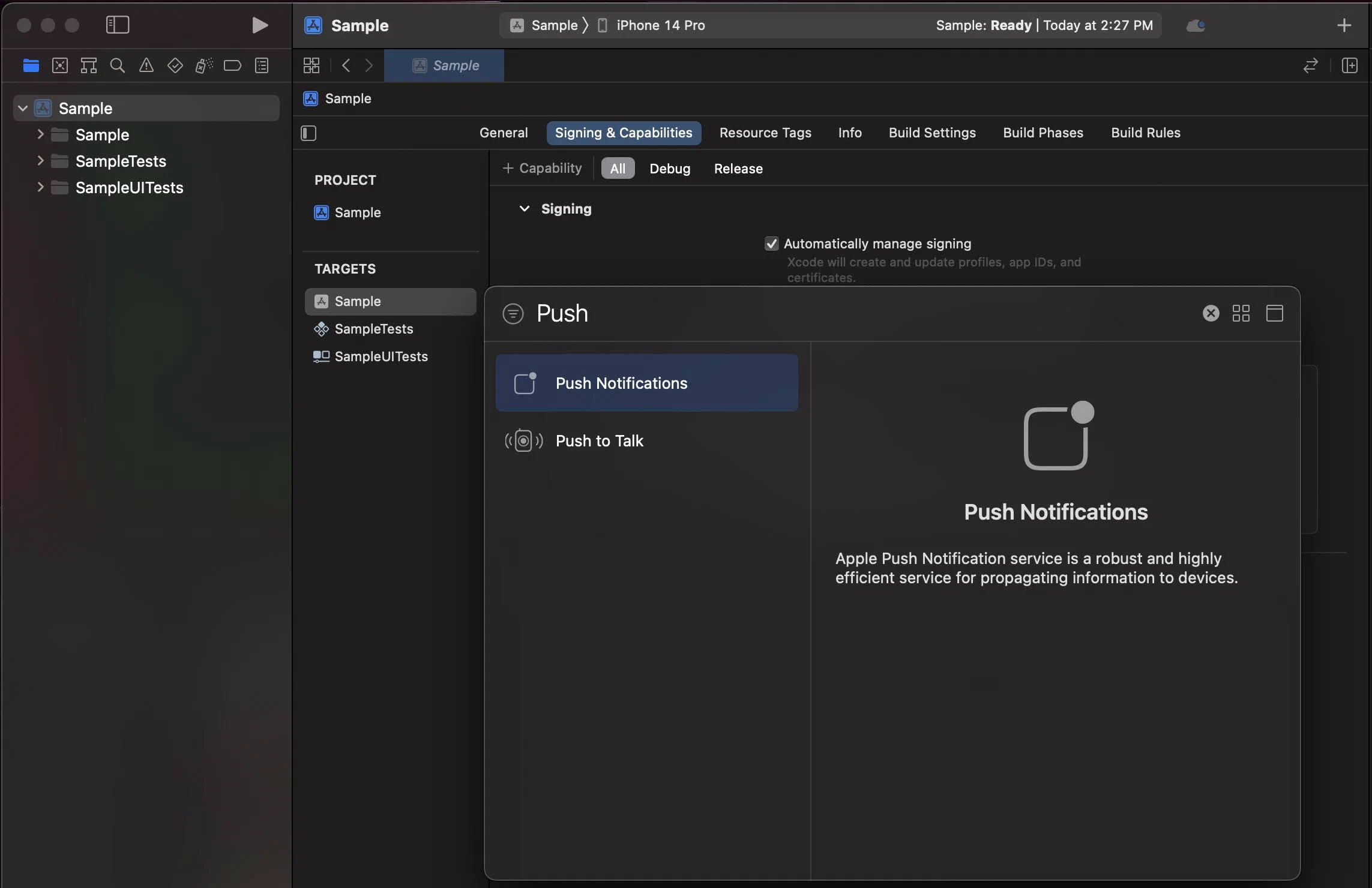
*Adding the Push Notifications capability in Xcode*
#### Enable Background Modes
1. Select your main app target and then click the **Signing & Capabilities** tab.
2. Click **+ Capability** and add **Background Modes**.
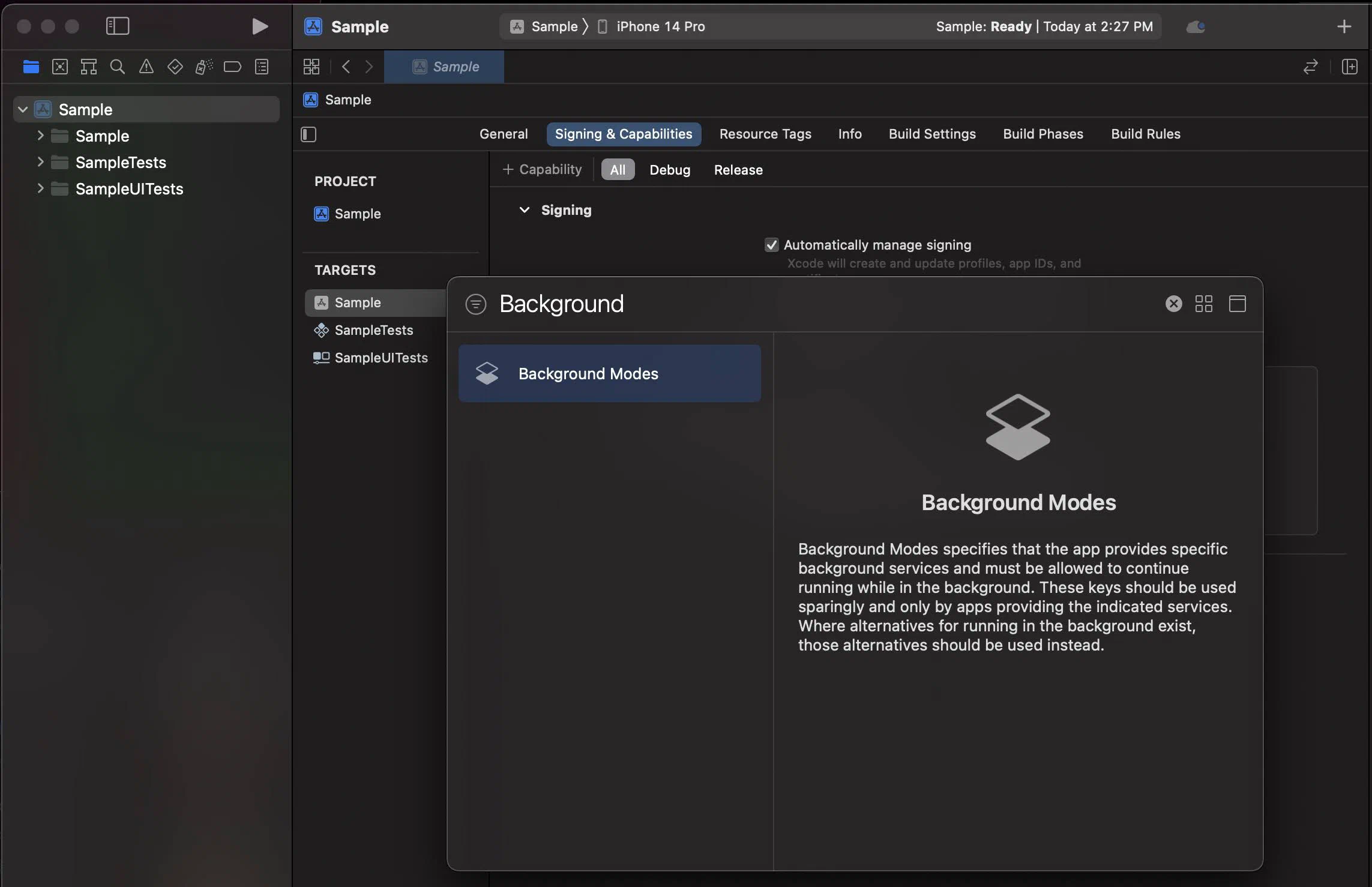
*Adding the Background Modes capability in Xcode*
3. In the **Background Modes** section, select the **Remote notifications** checkbox.
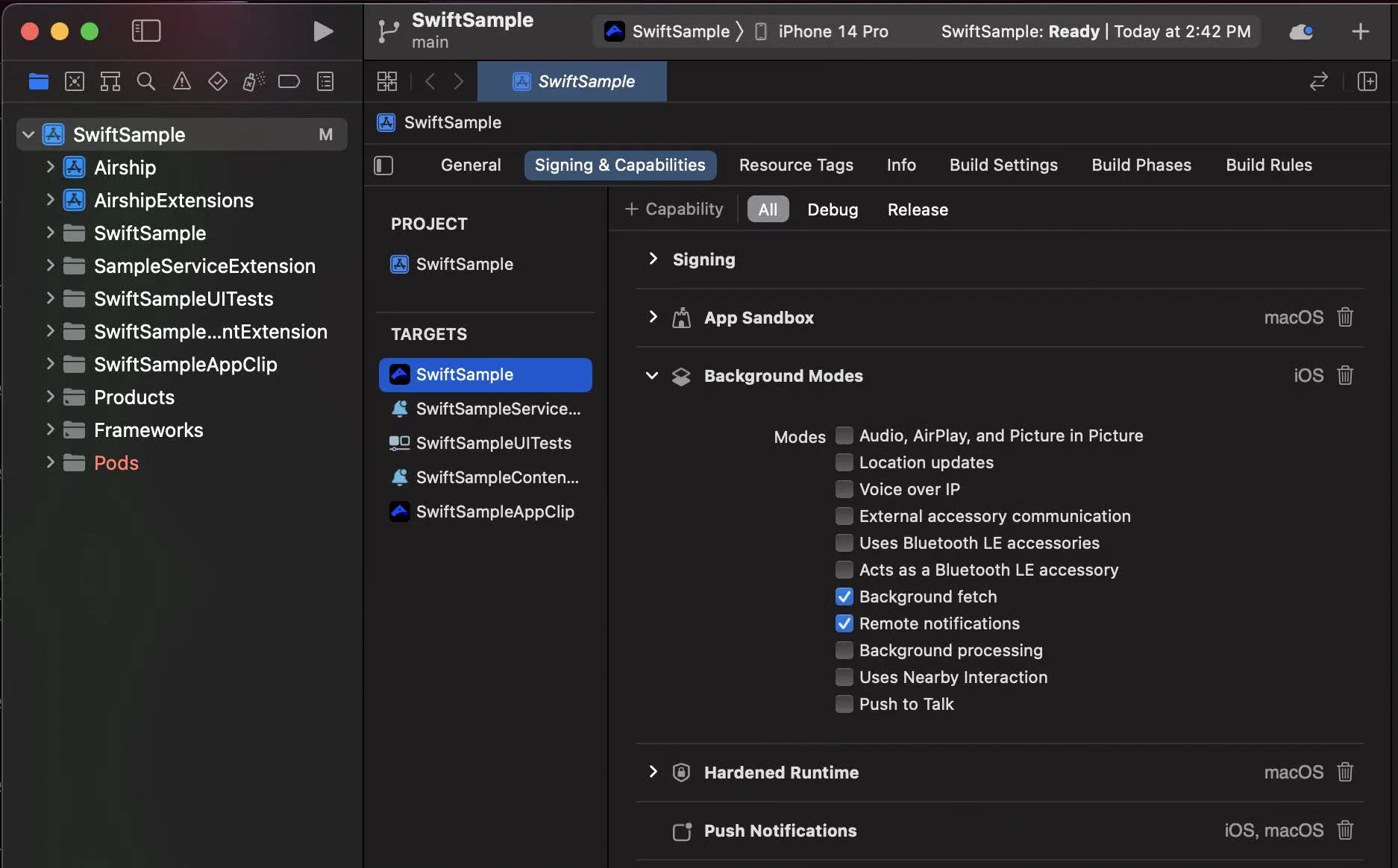
*Enabling Remote notifications in Background Modes*
#### Signing
Add your Apple Developer Account Team ID to the [build.json](https://cordova.apache.org/docs/en/latest/guide/platforms/ios/#using-buildjson).
```json
{
"ios": {
"debug": {
"developmentTeam": "XXXXXXXXXX"
},
"release": {
"developmentTeam": "XXXXXXXXXX"
}
}
}
```
Your iOS builds will need to reference the `build.json` using Cordova's `--buildConfig` flag.
#### Notification Service Extension
To take advantage of notification attachments, such as images,
animated gifs, and video, you will need to create a notification service extension .
Follow the steps in the [iOS Notification Service Extension Guide](https://www.airship.com/docs/developer/sdk-integration/apple/push-notifications/notification-service-extension/).
### Android
Configure Firebase Cloud Messaging (FCM) to enable push notifications on Android.
#### FCM Setup
Add a reference to your `google-services.json` file in the app's `config.xml` and enable Google Services plugin:
```xml
...
```
#### Notification Configuration
Configure the notification icon and accent color in your `takeOff` config:
```javascript
Airship.takeOff({
production: {
appKey: "",
appSecret: ""
},
development: {
appKey: "",
appSecret: ""
},
inProduction: true,
site: "us",
android: {
notificationConfig: {
icon: "ic_notification",
accentColor: "#00ff00"
}
}
})
```
See the [Cordova Plugin Setup guide](https://www.airship.com/docs/developer/sdk-integration/cordova/installation/getting-started/) for complete `takeOff` configuration options.
## Enable User Notifications
The Airship SDK distinguishes between *user notifications* (visible to users) and *silent push notifications* (background data delivery). User notifications require explicit permission from the user.
By default, user notifications are disabled. Enable them when you want to show visible notifications to users.
### Basic Enablement
The simplest way to enable user notifications is with `setUserNotificationsEnabled()`:
```javascript
Airship.push.setUserNotificationsEnabled(true)
```
This will prompt the user for permission if not already granted. However, it does not provide feedback on whether the user accepted or denied the permission.
> **Note:** For apps that target Android 13 (API 33) and above, enabling user notifications will display a runtime permission prompt.
>
> To increase the likelihood that the user will accept, you should avoid prompting the user for permission immediately on app startup, and instead wait for a more appropriate time to prompt for notification permission.
### Async Enablement
For more control over the permission flow, use `enableUserNotifications()` which returns the permission result:
```javascript
Airship.push.enableUserNotifications((granted) => {
if (granted) {
console.log('Notifications enabled')
} else {
console.log('Notifications denied')
}
})
```
### Checking Notification Status
To check if user notifications are currently enabled:
```javascript
Airship.push.isUserNotificationsEnabled((enabled) => {
console.log('User notifications enabled:', enabled)
})
```
For more detailed status information, use `getNotificationStatus()`:
```javascript
Airship.push.getNotificationStatus((status) => {
console.log('Are notifications allowed:', status.areNotificationsAllowed)
console.log('Is opted in:', status.isOptedIn)
})
```
To monitor notification status changes in real-time:
```javascript
const subscription = Airship.push.onNotificationStatusChanged((event) => {
console.log('Notification status changed:', event.status)
console.log('Is opted in:', event.status.isOptedIn)
})
// Later, to cancel the subscription
subscription.cancel()
```
### Getting the Push Token
To get the platform-specific push token (APNs token on iOS, FCM token on Android):
```javascript
Airship.push.getPushToken((token) => {
console.log('Push token:', token)
})
// Or listen for token updates
const subscription = Airship.push.onPushTokenReceived((event) => {
console.log('Push token:', event.pushToken)
})
```
If push notifications aren't working as expected, see [Troubleshooting Push Notifications](https://www.airship.com/docs/developer/sdk-integration/cordova/troubleshooting/push-notifications/) to check notification status and fix common issues.
# Notification Events
> How to handle push notification events, respond to user interactions, and manage active notifications.
The Airship SDK provides event listeners for when a push is received or a notification is interacted with.
## Push Received
Listen for when a push notification is received:
```javascript
const subscription = Airship.push.onPushReceived((event) => {
console.log('Push received:', event.pushPayload)
console.log('Is foreground:', event.isForeground)
})
// Later, to cancel the subscription
subscription.cancel()
```
This event fires when a push notification arrives. On iOS, it fires regardless of whether the app is in the foreground or background. On Android, this event only fires in the foreground.
## Notification Response
Listen for when a user interacts with a notification:
```javascript
const subscription = Airship.push.onNotificationResponse((event) => {
console.log('Notification tapped:', event)
console.log('Action ID:', event.actionId)
console.log('Is foreground action:', event.isForeground)
if (event.actionId === 'custom_action') {
// Handle custom action
}
})
// Later, to cancel the subscription
subscription.cancel()
```
This event fires when a user taps on a notification or a notification action button.
## Managing Active Notifications
You can retrieve and clear notifications that are currently displayed in the notification center.
### Get Active Notifications
Retrieve the list of currently displayed notifications:
```javascript
Airship.push.getActiveNotifications((notifications) => {
console.log('Active notifications:', notifications)
})
```
> **Note:** On Android, this list only includes notifications sent through Airship.
### Clear Notifications
Clear all notifications for the app:
```javascript
Airship.push.clearNotifications()
```
Clear a specific notification by identifier:
```javascript
Airship.push.clearNotification(identifier)
```
> **Note:** On Android, you can use this method to clear notifications outside of Airship. The identifier is in the format `:`.
# Customize Notifications
> How to customize push notification presentation, badges, quiet time, and foreground display behavior.
## iOS Notification Options
By default, the Airship SDK will request `alert`, `badge`, and `sound` notification options for remote notifications. This can be configured by setting notification options before enabling user notifications.
```javascript
Airship.push.iOS.setNotificationOptions([
"alert",
"badge",
"sound"
])
```
### Provisional Authorization
Apps can request provisional authorization along with the usual notification options. When requesting provisional authorization, apps do not need to prompt the user for permission initially, and notifications will be delivered in a non-interruptive manner to the Notification Center until the user explicitly chooses to keep delivering messages either prominently or quietly.
```javascript
Airship.push.iOS.setNotificationOptions([
"alert",
"badge",
"sound",
"provisional"
])
```
### Foreground Presentation Options
When a push is received in the foreground on iOS, how the notification is displayed to the user is controlled by foreground presentation options. By default, the SDK will not set any options so the notification will be silenced.
```javascript
Airship.push.ios.setForegroundPresentationOptions([
"banner",
"list",
"sound"
])
```
### Badges
The badge on iOS presents a counter on top of the application icon. You can control this directly through Airship.
```javascript
// Set badge number
Airship.push.ios.setBadgeNumber(20)
// Reset badge
Airship.push.ios.resetBadge()
// Enable auto-badge
Airship.push.ios.setAutobadgeEnabled(true)
```
> **Important:** When using auto-badge, only modify the badge value through Airship methods to ensure the value stays in sync.
### Quiet Time
Quiet time allows you to suppress notifications during specific hours. Notifications are still received but won't be displayed to the user during the quiet time window.
```javascript
// Set quiet time hours
Airship.push.ios.setQuietTime({
startHour: 22,
startMinute: 0,
endHour: 7,
endMinute: 0
})
// Enable quiet time
Airship.push.ios.setQuietTimeEnabled(true)
```
> **Note:** Quiet time is only supported on iOS.
## Android Foreground Notifications
By default, push notifications received while the app is in the foreground on Android are displayed to the user. You can control this behavior globally:
```javascript
// Disable foreground notifications
Airship.push.android.setForegroundNotificationsEnabled(false)
// Enable foreground notifications
Airship.push.android.setForegroundNotificationsEnabled(true)
```
## Silent Notifications
Silent notifications are push messages that do not present a notification to the user. These are typically used to briefly wake the app from a background state to perform processing tasks or fetch remote content.
> **Important:** We recommend that you thoroughly test your implementation to confirm that silent notifications do not generate any device notifications.
For Android, all push messages are delivered in the background, but default Airship will treat messages without an `alert` as silent. For iOS, set the `content_available` property to `true` in the [iOS override object](https://www.airship.com/docs/developer/rest-api/ua/schemas/platform-overrides/#iosoverrideobject).
> **Note:** Pushes sent with the `content_available` property (iOS) or without an `alert` (Android) do not have guaranteed delivery. Factors affecting delivery include battery life, whether the device is connected to WiFi, and the number of silent pushes sent within a recent time period. These metrics are determined solely by iOS/Android and APNs/FCM. Therefore, this feature is best used for supplementing the regular behavior of the app rather than providing critical functionality. For instance, an app could use a silent push to pre-fetch new data ahead of time in order to reduce load times when the app is later launched by the user.