# Push Notifications for the Capacitor Plugin
How to configure your application to receive and respond to notifications.
## Platform Setup
Before you can send and receive push notifications, you need to configure your app for the platform(s) you're targeting. Follow the platform-specific setup instructions below.
### iOS
#### Enable Push Notifications Capability
1. Open your project in Xcode.
2. Click on your project in the Project Navigator.
3. Select your main app target and then click the **Signing & Capabilities** tab.
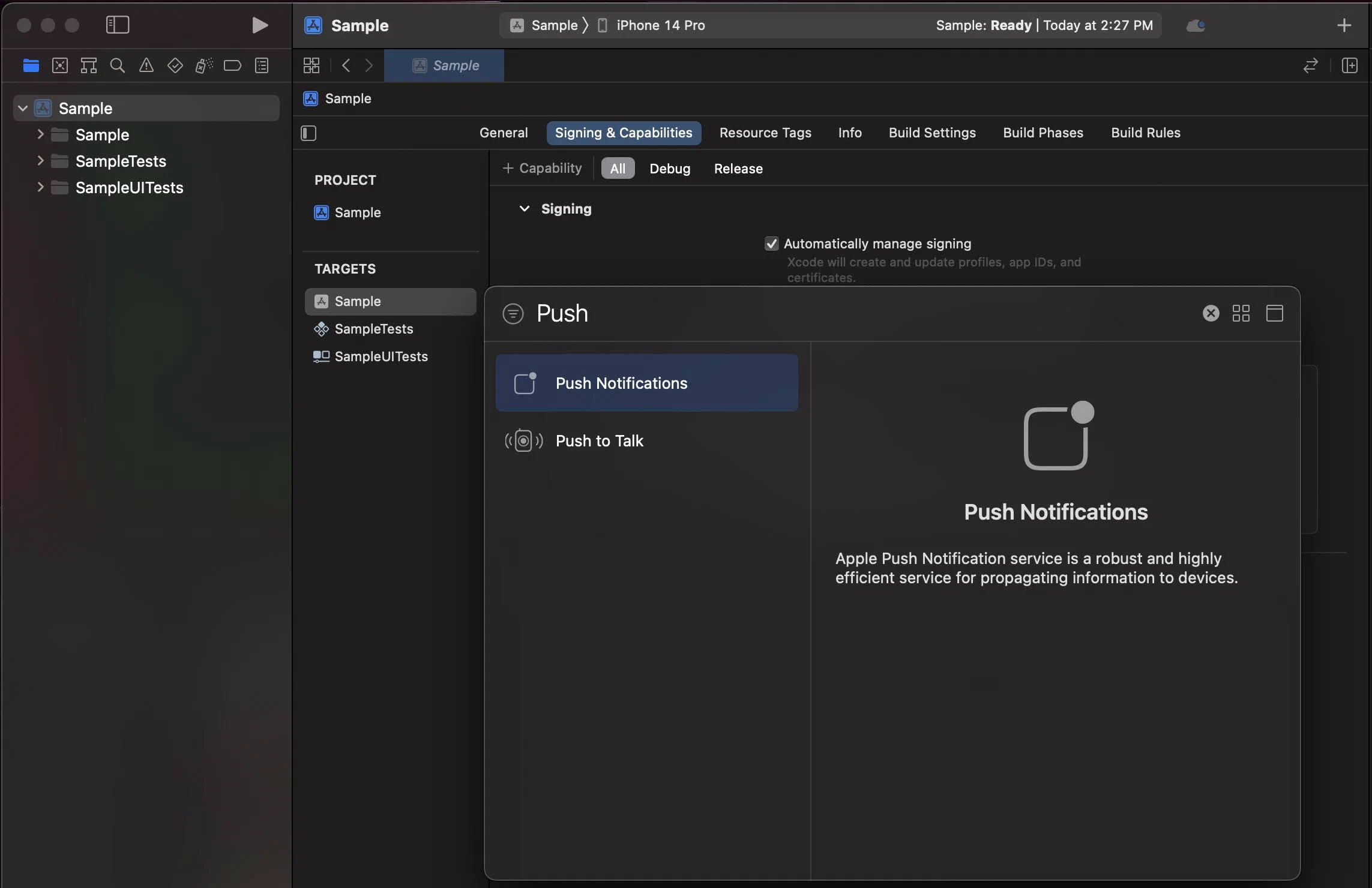
4. If you do not see Push Notifications enabled, click **+ Capability** and add **Push Notifications**.
#### Enable Background Modes
1. Select your main app target and then click the **Signing & Capabilities** tab.
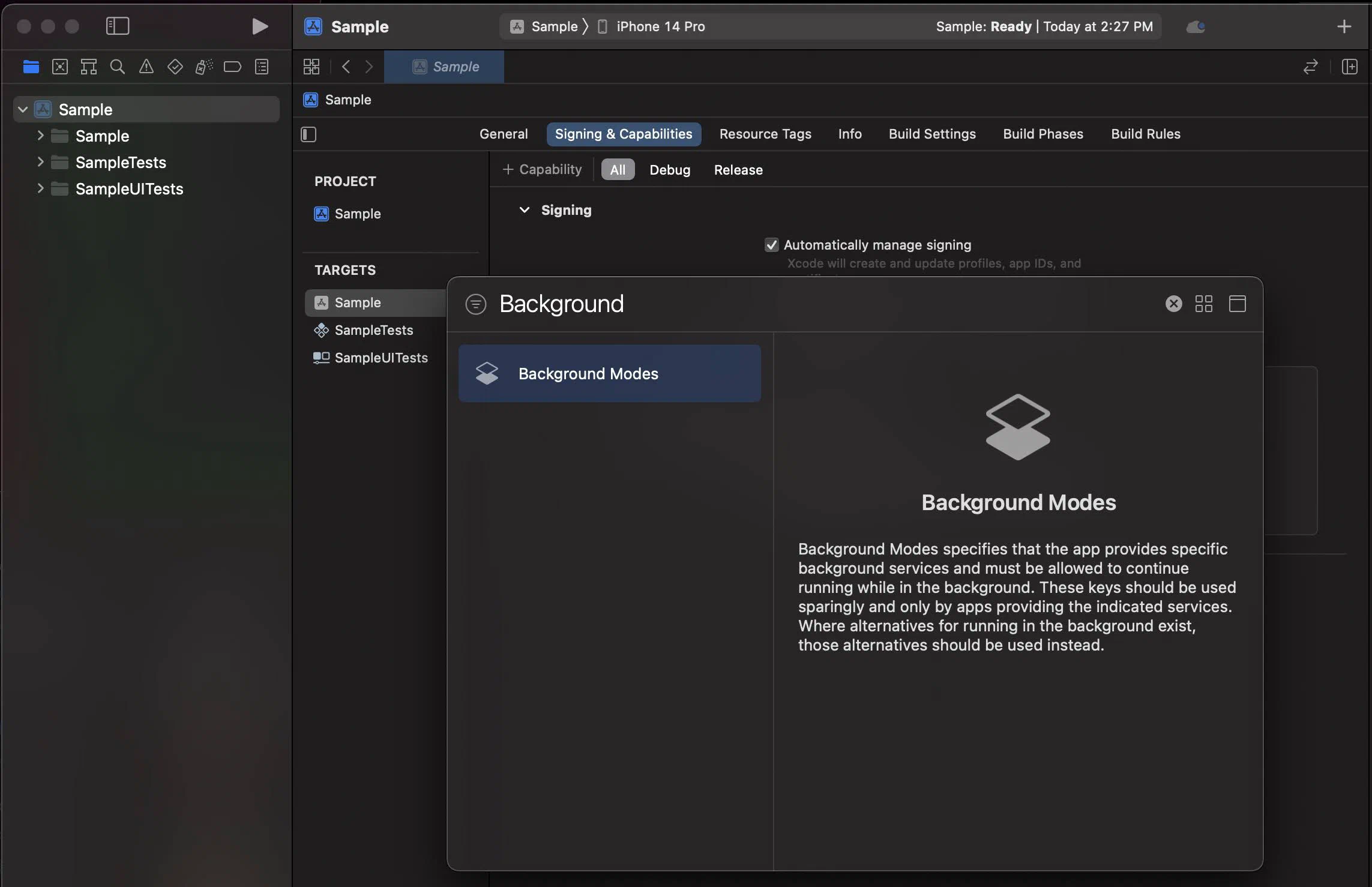
2. Click **+ Capability** and add **Background Modes**.
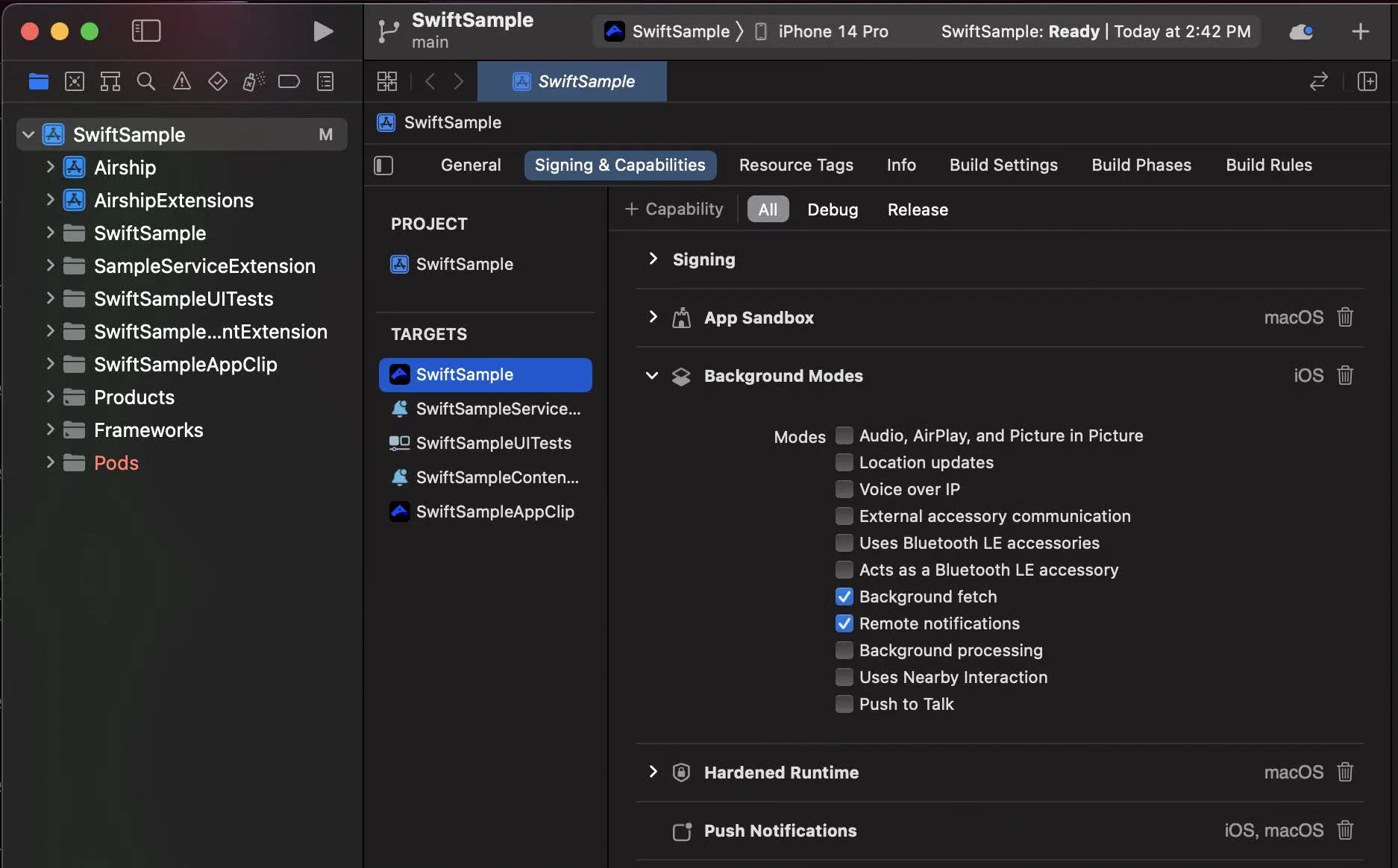
3. In the **Background Modes** section, select the **Remote notifications** checkbox.
#### Notification Service Extension
To take advantage of notification attachments, such as images,
animated gifs, and video, you will need to create a notification service extension .
Follow the steps in the [iOS Notification Service Extension Guide](https://www.airship.com/docs/developer/sdk-integration/apple/push-notifications/notification-service-extension/).
### Android
Configure Firebase Cloud Messaging (FCM) or Huawei Mobile Services (HMS) to enable push notifications on Android.
#### FCM Setup
Follow the [Android FCM setup instructions](https://www.airship.com/docs/developer/sdk-integration/android/installation/getting-started/#fcm-setup).
#### HMS Setup
1. Follow [Huawei's documentation](https://developer.huawei.com/consumer/en/doc/development/HMSCore-Guides/android-integrating-sdk-0000001050040084) to set up the HMS SDK.
> **Note:** Airship requires HMS Core Push SDK 6.3.0.304 or newer.
2. Add `airshipHmsEnabled=true` to the app's gradle.properties.
#### Notification Configuration
Configure the notification icon and accent color in your `takeOff` config:
```typescript
await Airship.takeOff({
production: {
appKey: "",
appSecret: ""
},
development: {
appKey: "",
appSecret: ""
},
inProduction: true,
site: "us",
android: {
notificationConfig: {
icon: "ic_notification",
accentColor: "#00ff00"
}
}
})
```
See the [Capacitor Plugin Setup guide](https://www.airship.com/docs/developer/sdk-integration/capacitor/installation/getting-started/) for complete `takeOff` configuration options.
## Enable User Notifications
The Airship SDK distinguishes between *user notifications* (visible to users) and *silent push notifications* (background data delivery). User notifications require explicit permission from the user.
By default, user notifications are disabled. Enable them when you want to show visible notifications to users.
### Basic Enablement
The simplest way to enable user notifications is with `setUserNotificationsEnabled()`:
```typescript
await Airship.push.setUserNotificationsEnabled(true)
```
This will prompt the user for permission if not already granted. However, it does not provide feedback on whether the user accepted or denied the permission.
> **Note:** For apps that target Android 13 (API 33) and above, enabling user notifications will display a runtime permission prompt.
>
> To increase the likelihood that the user will accept, you should avoid prompting the user for permission immediately on app startup, and instead wait for a more appropriate time to prompt for notification permission.
### Async Enablement with Fallback
For more control over the permission flow, use `enableUserNotifications()` which returns the permission result and supports a fallback option:
```typescript
// Enable with system settings fallback
const granted = await Airship.push.enableUserNotifications({
fallback: "systemSettings"
})
if (granted) {
console.log('Notifications enabled')
} else {
console.log('Notifications denied')
}
```
The `systemSettings` fallback option will prompt the user to open system settings if permission is denied on iOS or denied silently on Android. This gives users a second chance to enable notifications if they initially declined.
### Checking Notification Status
To check if user notifications are currently enabled:
```typescript
const enabled = await Airship.push.isUserNotificationsEnabled()
```
For more detailed status information, use `getNotificationStatus()`:
```typescript
const status = await Airship.push.getNotificationStatus()
console.log('Are notifications allowed:', status.areNotificationsAllowed)
console.log('Is opted in:', status.isOptedIn)
```
To monitor notification status changes in real-time:
```typescript
const handle = await Airship.push.onNotificationStatusChanged(event => {
console.log('Notification status changed:', event.status)
console.log('Is opted in:', event.status.isOptedIn)
})
```
### Getting the Push Token
To get the platform-specific push token (APNs token on iOS, FCM token on Android):
```typescript
const token = await Airship.push.getPushToken()
// Or listen for token updates
const handle = await Airship.push.onPushTokenReceived(event => {
console.log('Push token:', event.pushToken)
})
```
If push notifications aren't working as expected, see [Troubleshooting Push Notifications](https://www.airship.com/docs/developer/sdk-integration/capacitor/troubleshooting/push-notifications/) to check notification status and fix common issues.