# Preference Center
Implement Preference Centers to allow users to manage their subscription preferences, including display, theming, and embedding options.
# Preference Center
> Display Preference Centers using the Airship UI, which automatically handles user preferences and syncs with the Airship backend.
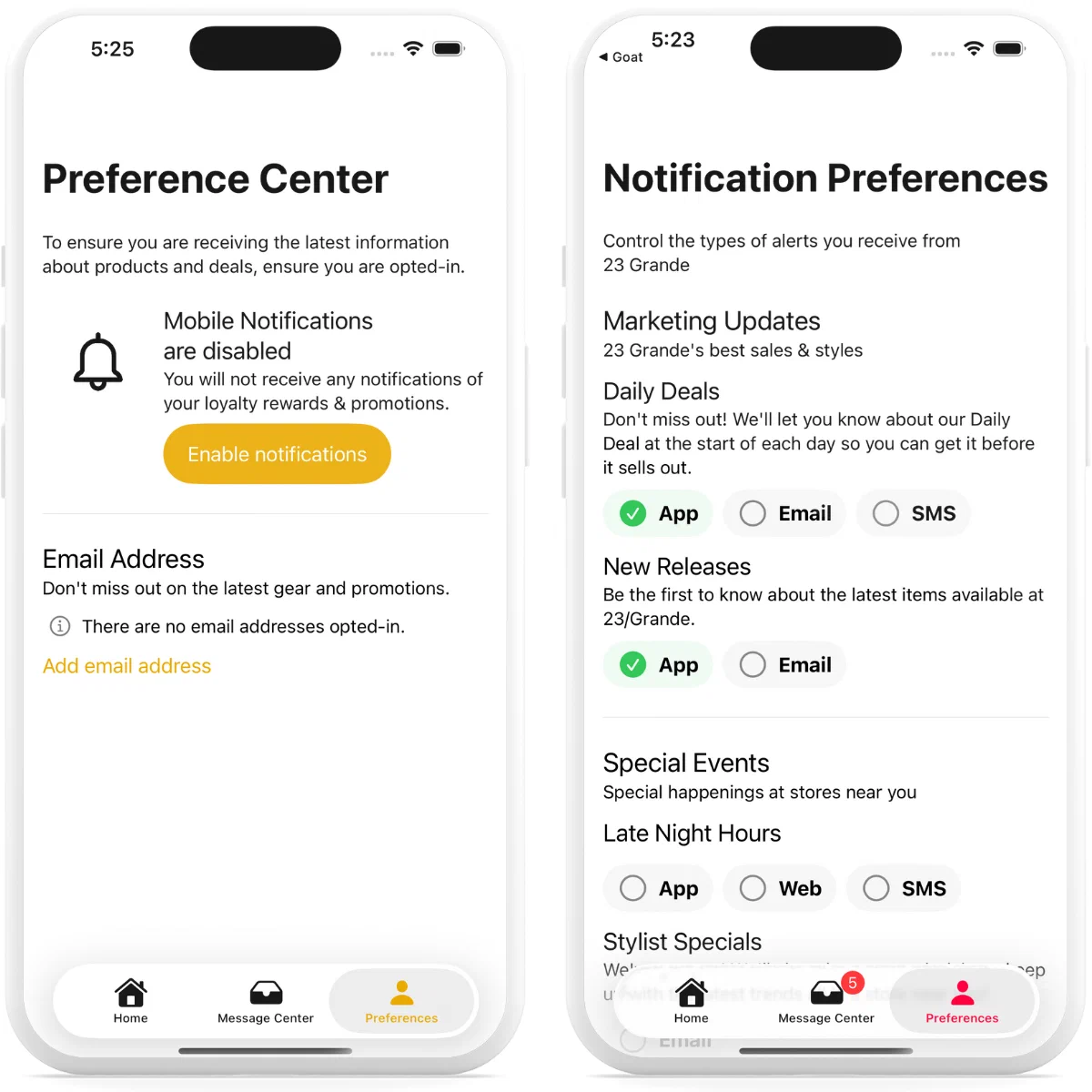
*Preference Center on iOS*
> **Important:** Airship Preference Centers are widgets that can be embedded in a page in an app or website. Please verify with your legal team that your full Preference Center page, including any web page for email Preference Centers, is compliant with local privacy regulations.
The Preference Center allows users to opt in and out of subscription lists configured in the Airship Dashboard. The `AirshipPreferenceCenter` module provides a complete, ready-to-use UI that displays over your app.
For more information about configuring Preference Centers, see the [Preference Center user guide](https://www.airship.com/docs/guides/messaging/features/preference-centers/).
## Displaying a Preference Center
Display a Preference Center with a single method call. The Preference Center will appear in its own window over your app with the provided Airship UI.
#### Swift
```swift
Airship.preferenceCenter.display("my-first-pref-center")
```
#### Objective-C
```objc
[UAirship.preferenceCenter display:@"my-first-pref-center"];
```
This displays the Preference Center as an overlay window, allowing users to manage their subscription preferences. When the user closes the Preference Center, any changes are automatically synced with Airship.
> **Note:** To embed the Preference Center directly in your app's navigation instead of displaying it as an overlay, see [Embedding the Preference Center](https://www.airship.com/docs/developer/sdk-integration/apple/preference-center/embedding/). You can also [intercept display requests](https://www.airship.com/docs/developer/sdk-integration/apple/preference-center/embedding/#handling-display-requests) to handle navigation to your embedded Preference Center.
## Applying a Custom Theme
You can customize the appearance of the Preference Center by creating a `PreferenceCenterTheme` instance and setting its properties. The theme applies globally to all Preference Centers displayed in your app.
### Setting the Theme Programmatically (Swift)
#### Swift
```swift
// Customize your Theme
var theme = PreferenceCenterTheme()
theme.viewController = PreferenceCenterTheme.ViewController(
navigationBar: PreferenceCenterTheme.NavigationBar(
title: "My preference center",
backgroundColor: .orange
)
)
theme.preferenceCenter = PreferenceCenterTheme.PreferenceCenter(
subtitleAppearance: PreferenceCenterTheme.TextAppearance(
font: .subheadline,
color: .yellow
),
retryButtonBackgroundColor: .green,
retryButtonLabelAppearance: PreferenceCenterTheme.TextAppearance(
font: .title3,
color: .black
)
)
theme.contactSubscription = PreferenceCenterTheme.ContactSubscription(
titleAppearance: PreferenceCenterTheme.TextAppearance(
font: .title,
color: .red
),
subtitleAppearance: PreferenceCenterTheme.TextAppearance(
font: .title2,
color: .yellow
)
)
theme.channelSubscription = PreferenceCenterTheme.ChannelSubscription(
titleAppearance: PreferenceCenterTheme.TextAppearance(
font: .title,
color: .red
),
subtitleAppearance: PreferenceCenterTheme.TextAppearance(
font: .title2,
color: .yellow
)
)
// Set the Theme on the Preference Center
Airship.preferenceCenter.theme = theme
```
### Setting the Theme in SwiftUI
In SwiftUI, you can apply a theme directly to the `PreferenceCenterView`:
#### Swift
```swift
PreferenceCenterView(
preferenceCenterID: "preferenceCenter-ID"
)
.preferenceCenterTheme(theme)
```
### Setting the Theme from a Plist
You can also customize the theme without writing code by creating a plist file. All keys in the plist correspond to properties on the `PreferenceCenterTheme` class.
Colors are represented by strings, either a valid color hexadecimal (e.g., `#FF0000`) or a named color. Named color strings must correspond to a named color defined in a color asset within the main bundle.
> **Note:** If your app is written in Objective-C, you must use the plist file to customize your theme, as `PreferenceCenterTheme` is a Swift struct.
Save the plist as `AirshipPreferenceCenterTheme.plist` in your app bundle, then load it:
#### Swift
```swift
try Airship.preferenceCenter.setThemeFromPlist("AirshipPreferenceCenterTheme")
```
#### Objective-C
```objc
NSError *error = nil;
[UAirship.preferenceCenter setThemeFromPlist:@"AirshipPreferenceCenterTheme" error:&error];
if (error) {
NSLog(@"Failed to set theme: %@", error);
}
```
#### Example Theme Plist
**AirshipPreferenceCenterTheme.plist**
```xml
viewController
navigationBar
title
Preference Center
titleFont
fontName
Helvetica
fontSize
15
titleColor
#0000FF
preferenceCenter
subtitleAppearance
commonSection
titleAppearance
color
#de0000
font
fontName
Helvetica
fontSize
32
subtitleAppearance
color
#da833b
font
fontName
Helvetica
fontSize
25
labeledSectionBreak
titleAppearance
channelSubscription
titleAppearance
color
#034710
font
fontName
Helvetica
fontSize
20
subtitleAppearance
color
#8fe388
font
fontName
Helvetica
fontSize
15
contactSubscription
titleAppearance
color
#034710
font
fontName
Helvetica
fontSize
20
subtitleAppearance
color
#8fe388
font
fontName
Helvetica
fontSize
15
contactSubscriptionGroup
titleAppearance
color
#034710
font
fontName
Helvetica
fontSize
20
subtitleAppearance
color
#8fe388
font
fontName
Helvetica
fontSize
15
chip
checkColor
#3bd2d6
borderColor
#0a0fc9
labelAppearance
color
#7c6bea
font
fontName
Helvetica
fontSize
15
alert
titleAppearance
color
#0a0fc9
font
fontName
Helvetica
fontSize
15
subtitleAppearance
color
#d1b4d4
buttonLabelAppearance
color
#78c8c0
font
fontName
Helvetica
fontSize
25
buttonBackgroundColor
#da833b
```
# Embed the Preference Center
> Embed the Preference Center view directly in your app's navigation instead of displaying it as an overlay.
By default, Airship displays the Preference Center as an overlay on top of your app. For tighter integration with your app's navigation flow, you can embed the Preference Center views directly into your app.
## Embedding the Preference Center View
The `PreferenceCenterView` (Swift) or `UAPreferenceCenterViewControllerFactory` (Objective-C) provides a complete Preference Center with a built-in navigation stack.
#### Swift
```swift
import SwiftUI
import AirshipPreferenceCenter
struct MyPreferenceCenterScreen: View {
var body: some View {
PreferenceCenterView(preferenceCenterID: "my_preference_center_id")
}
}
```
#### Objective-C
```objc
@import AirshipCore;
// Create a view controller
UIViewController *preferenceCenterVC = [UAPreferenceCenterViewControllerFactory
makeViewControllerWithPreferenceCenterID:@"my_preference_center_id"];
// Present or push the view controller
[self.navigationController pushViewController:preferenceCenterVC animated:YES];
```
Or embed it in a container view:
```objc
@import AirshipCore;
// Embed the preference center in a container view
NSError *error = nil;
UIView *containerView = [UAPreferenceCenterViewControllerFactory
embedWithPreferenceCenterID:@"my_preference_center_id"
preferenceCenterThemePlist:nil
inParentViewController:self
error:&error];
if (error) {
NSLog(@"Failed to embed preference center: %@", error);
} else {
// Add the container view to your view hierarchy
containerView.translatesAutoresizingMaskIntoConstraints = NO;
[self.view addSubview:containerView];
[NSLayoutConstraint activateConstraints:@[
[containerView.topAnchor constraintEqualToAnchor:self.view.topAnchor],
[containerView.leadingAnchor constraintEqualToAnchor:self.view.leadingAnchor],
[containerView.trailingAnchor constraintEqualToAnchor:self.view.trailingAnchor],
[containerView.bottomAnchor constraintEqualToAnchor:self.view.bottomAnchor]
]];
}
```
### Content View Without Navigation Stack
For more control over the navigation, use `PreferenceCenterContent` (Swift only) which provides just the content without a built-in navigation stack.
```swift
import SwiftUI
import AirshipPreferenceCenter
struct MyPreferenceCenterScreen: View {
var body: some View {
NavigationView {
PreferenceCenterContent(preferenceCenterID: "my_preference_center_id")
.navigationTitle("Preferences")
}
}
}
```
> **Note:** To apply a custom theme globally, see [Getting Started: Applying a Custom Theme](https://www.airship.com/docs/developer/sdk-integration/apple/preference-center/getting-started/#applying-a-custom-theme).
## Customizing View Styles (Swift Only)
For SwiftUI views, you can apply style overrides to customize individual components within the Preference Center. These view modifiers allow granular control over specific sections without affecting the global theme.
### Available Style Overrides
- **`.channelSubscriptionStyle(_:)`** - Customize channel subscription views
- **`.commonSectionViewStyle(_:)`** - Adjust common sections
- **`.contactManagementSectionStyle(_:)`** - Modify contact management sections
- **`.contactSubscriptionGroupStyle(_:)`** - Tailor contact subscription groups
- **`.contactSubscriptionStyle(_:)`** - Customize individual contact subscriptions
- **`.labeledSectionBreakStyle(_:)`** - Define labeled section breaks
- **`.alertStyle(_:)`** - Adjust alert appearance
### Example
```swift
import SwiftUI
import AirshipPreferenceCenter
struct MyPreferenceCenterScreen: View {
var body: some View {
PreferenceCenterView(preferenceCenterID: "my_preference_center_id")
.channelSubscriptionStyle(MyCustomChannelStyle())
.contactSubscriptionStyle(MyCustomContactStyle())
.alertStyle(MyCustomAlertStyle())
}
}
// Define custom styles by conforming to the respective protocols
struct MyCustomChannelStyle: ChannelSubscriptionStyle {
// Implement required style methods
}
struct MyCustomContactStyle: ContactSubscriptionStyle {
// Implement required style methods
}
struct MyCustomAlertStyle: AlertStyle {
// Implement required style methods
}
```
For detailed information on creating custom styles and the available properties for each style protocol, see the [AirshipPreferenceCenter View extension documentation](https://urbanairship.github.io/ios-library/v20/AirshipPreferenceCenter/documentation/airshippreferencecenter/swiftuicore/view).
## Advanced: Custom Loading (Swift Only)
For SwiftUI apps, you can customize the loading behavior and respond to phase changes using `PreferenceCenterContent`:
```swift
import SwiftUI
import AirshipPreferenceCenter
struct MyPreferenceCenterScreen: View {
var body: some View {
NavigationView {
PreferenceCenterContent(
preferenceCenterID: "my_preference_center_id",
onLoad: { preferenceCenterID in
// Custom loading logic
// Return a PreferenceCenterContentPhase
return await loadPreferenceCenter(preferenceCenterID)
},
onPhaseChange: { phase in
switch phase {
case .loading:
print("Loading preference center...")
case .error(let error):
print("Failed to load: \(error)")
case .loaded(let state):
print("Loaded with state: \(state)")
}
}
)
.navigationTitle("Preferences")
}
}
func loadPreferenceCenter(_ id: String) async -> PreferenceCenterContentPhase {
// Custom loading implementation
// Return .loading, .error, or .loaded
return .loading
}
}
```
The `PreferenceCenterViewPhase` enum represents the current state of the Preference Center:
- `.loading` — The view is loading
- `.error(Error)` — The view failed to load the config
- `.loaded(PreferenceCenterState)` — The view is loaded with the state
## Handling Display Requests
When embedding a Preference Center, you need to intercept Airship's display requests and navigate to your embedded view instead of showing the default overlay.
#### Swift
```swift
Airship.preferenceCenter.onDisplay = { preferenceCenterID in
guard preferenceCenterID == "my_embedded_preference_center_id" else {
// Not the embedded one, allow Airship to display it as an overlay
return false
}
// Navigate to your embedded view
// Example: Use your app's navigation system to show the screen
NotificationCenter.default.post(
name: .showEmbeddedPreferenceCenter,
object: nil,
userInfo: ["id": preferenceCenterID]
)
// Return true to indicate you handled the display
return true
}
```
#### Objective-C
```objc
@import AirshipCore;
// In your app delegate or preference center manager
@interface MyAppDelegate ()
@end
@implementation MyAppDelegate
- (BOOL)application:(UIApplication *)application
didFinishLaunchingWithOptions:(NSDictionary *)launchOptions {
// Set the open delegate
UAirship.preferenceCenter.openDelegate = self;
return YES;
}
- (BOOL)openPreferenceCenter:(NSString *)preferenceCenterID {
if (![preferenceCenterID isEqualToString:@"my_embedded_preference_center_id"]) {
// Not the embedded one, allow Airship to display it as an overlay
return NO;
}
// Navigate to your embedded view
[[NSNotificationCenter defaultCenter]
postNotificationName:@"ShowEmbeddedPreferenceCenter"
object:nil
userInfo:@{@"id": preferenceCenterID}];
// Return YES to indicate you handled the display
return YES;
}
@end
```
By returning `true` (or `YES` in Objective-C), you tell Airship that you've handled the display request, preventing the default overlay from appearing.