# Message Center for the Android SDK
Message Center provides an inbox for rich HTML-based messages that users can view at their convenience, with support for custom theming and display handling.
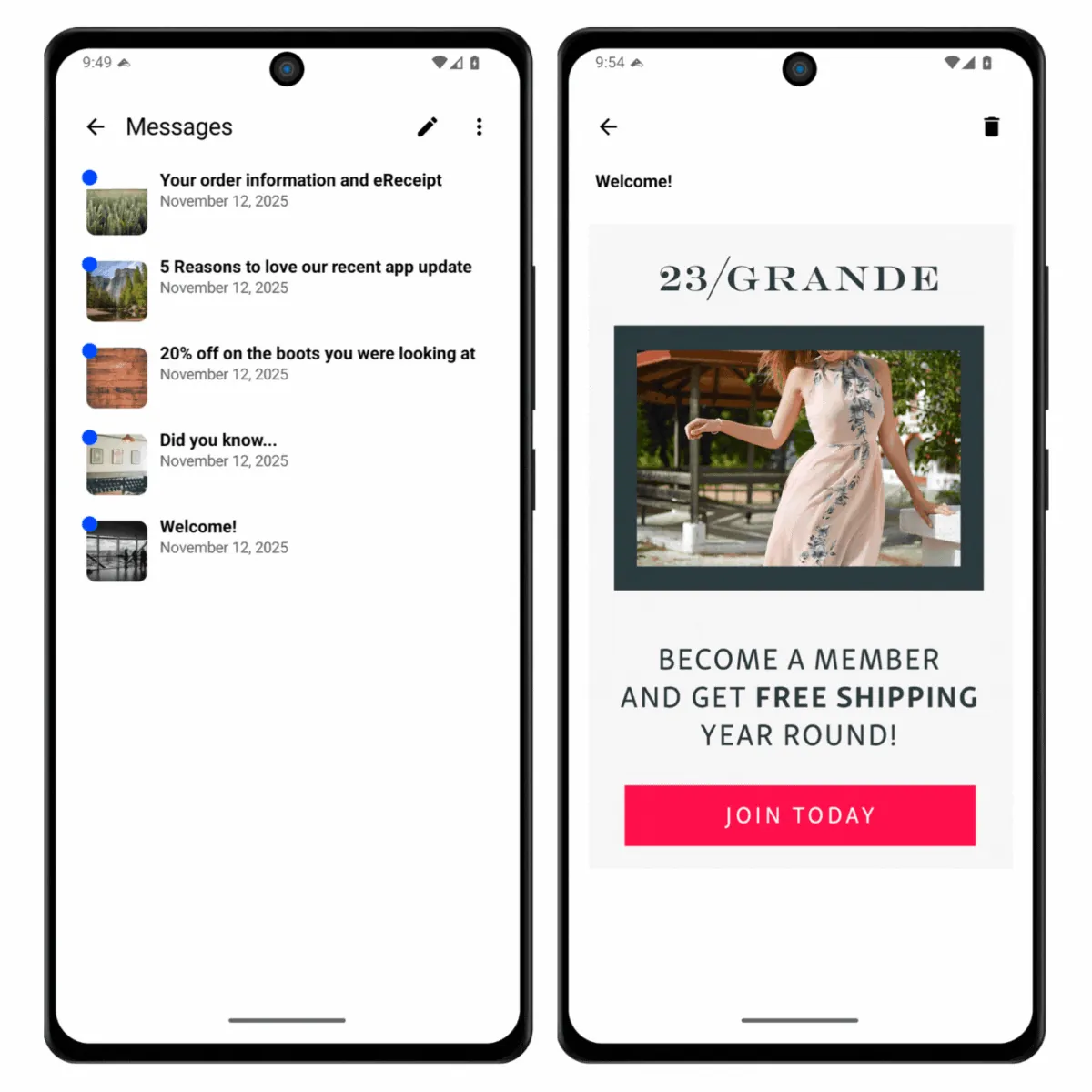
Message Center provides an inbox for rich, HTML-based messages that users can view at their convenience. By default, when your app receives a push notification with a Message Center action, the Message Center automatically displays in a modal activity.
The Message Center can also be displayed manually by calling a simple method, making it easy to add a Message Center button to your app's navigation. Message Center inboxes are associated with channel IDs, which persist across app launches, allowing users to access their message history.
Airship provides two distinct modules for displaying Message Center on Android, depending on your app's UI framework:
- **`urbanairship-message-center-compose`**: Provides Compose-based Message Center UI components, for apps built with Jetpack Compose.
- **`urbanairship-message-center`**: Provides XML-based Message Center UI components, for apps using traditional Android Views (XML layouts).
You should select only one module based on your UI framework—do not include both modules in the same app.
For more information about Message Center messages, see the [Message Center feature guide](https://www.airship.com/docs/guides/features/messaging/message-center/).
## Installation
Include the correct module for your chosen UI framework:
#### Jetpack Compose
```kotlin
dependencies {
val airshipVersion = "androidSdkVersion"
implementation("com.urbanairship.android:urbanairship-message-center-compose:$airshipVersion")
}
```
#### XML Views
```kotlin
dependencies {
val airshipVersion = "androidSdkVersion"
implementation("com.urbanairship.android:urbanairship-message-center:$airshipVersion")
}
```
## Display the Message Center
Display the Message Center with a single method call:
#### Kotlin
```kotlin
Airship.messageCenter.showMessageCenter()
```
#### Java
```java
MessageCenter.shared().showMessageCenter();
```
This displays the Message Center as a modal activity, allowing users to view and manage their messages. When the user closes the Message Center, any changes (such as marking messages as read) are automatically synced with Airship.
> **Note:** To embed the Message Center directly in your app's navigation instead of displaying it as an overlay, see [Embedding the Message Center](https://www.airship.com/docs/developer/sdk-integration/android/message-center/embedding/). You can also [intercept display requests](https://www.airship.com/docs/developer/sdk-integration/android/message-center/embedding/#handling-display-requests) to handle navigation to your embedded Message Center.
## Applying a Custom Theme
You can customize the appearance of the Message Center to match your app's style. Android supports theme customization through both Jetpack Compose and XML Views.
#### Jetpack Compose
To apply a custom theme to the ready-to-use Message Center UI, create a theme and set it on the `MessageCenter` instance early in your app's lifecycle. The overridden `onAirshipReady()` method in your Autopilot class is a good place to do this.
**Customizing the theme with Jetpack Compose**
```kotlin
// Configure Message Center Theme
val messageCenterTheme = MessageCenterTheme(
lightColors = MessageCenterColors.lightDefaults(
background = Color(0xDEDEDE),
surface = Color(0xFFFFFF),
accent = Color(0x6200EE),
),
darkColors = MessageCenterColors.darkDefaults(
background = Color(0x121212),
surface = Color(0x1E1E1E),
accent = Color(0xBB86FC),
),
typography = MessageCenterTypography.defaults(
fontFamily = FontFamily(context.resources.getFont(R.font.roboto_regular))
)
)
// Apply theme to default Message Center UI
Airship.messageCenter.theme = messageCenterTheme
```
#### XML Views
The ready-to-use Message Center UI uses the `UrbanAirship.MessageCenter` style. You can use xml resource merging to override the default styles, by defining the style in your app.
### Theme Attributes
The Message Center supports the following theme attributes:
**messageCenterToolbarTitle**
: String to use for the Message Center toolbar title
**messageCenterIconsEnabled**
: Flag to enable message thumbnails in the message list
**messageCenterPlaceholderIcon**
: The default placeholder image for message thumbnails
**messageCenterItemDividersEnabled**
: Flag to enable dividers between messages in the list
**messageCenterItemDividerInsetStart**
: The start inset for message list dividers
**messageCenterItemDividerInsetEnd**
: The end inset for message list dividers
**dividerColor** (set via Material Theme)
: The message list divider color, if dividers are enabled
**Extending from a Material3 app theme**
```xml
```
> **Note:** If your app doesn't use a `Material3` theme or you need the ability to further customize Message Center styles, the Android resource merging feature can be used to override the default styles that the SDK provides. Copy the [style sheet](https://github.com/urbanairship/android-library/blob/master/urbanairship-message-center/src/main/res/values/style_message_center.xml)
> into the application's resource directory, then change any of the styles.
## Working with Messages
The Message Center provides methods to fetch, mark as read, and delete messages programmatically.
### Fetch Messages
Retrieve messages from the inbox:
#### Kotlin
```kotlin
// Suspending call
scope.launch {
val messages = Airship.messageCenter.inbox.getMessages()
}
// Flow
scope.launch {
// Collect the messages flow, which emits a new list whenever the inbox is updated
Airship.messageCenter.inbox.getMessagesFlow().collect { messages ->
// Handle messages
}
}
```
#### Java
```java
PendingResult> messagesResult = MessageCenter.shared().getInbox().getMessagesPendingResult();
messagesResult.addResultCallback(messages -> {
// Handle messages
});
```
### Listen for Message Updates
Subscribe to message updates using a listener or Flow:
#### Kotlin
```kotlin
// Option 1: Messages Flow
scope.launch {
Airship.messageCenter.inbox.getMessagesFlow().collect { messages ->
// Update your UI with the new messages
}
}
// Option 2: InboxListener
Airship.messageCenter.inbox.addListener(object: InboxListener {
override fun onInboxUpdated() {
// Update your UI
}
})
```
#### Java
```java
MessageCenter.shared().getInbox().addListener(() -> {
// Update your UI
});
```
### Listen for Unread Count Changes
Subscribe to unread count updates:
#### Kotlin
```kotlin
scope.launch {
Airship.messageCenter.inbox.getUnreadCountFlow().collect { unreadCount ->
// Update badge or UI
}
}
```
#### Java
```java
MessageCenter.shared().getInbox().getUnreadCountPendingResult()
.addResultCallback(unreadCount -> {
// Update badge or UI
});
```
### Refresh Messages
Manually refresh the message list from the server:
#### Kotlin
```kotlin
Airship.messageCenter.inbox.fetchMessages { success ->
// Handle result
}
```
#### Java
```java
MessageCenter.shared().getInbox().fetchMessages(new Inbox.FetchMessagesCallback() {
@Override
public void onFinished(boolean success) {
// Handle the result
}
});
```
### Mark Messages as Read
Mark one or more messages as read:
#### Kotlin
```kotlin
Airship.messageCenter.inbox.markMessagesRead(messageId)
```
#### Java
```java
MessageCenter.shared().getInbox().markMessagesRead("messageId");
```
### Delete Messages
Delete one or more messages:
#### Kotlin
```kotlin
Airship.messageCenter.inbox.deleteMessages("messageId")
```
#### Java
```java
MessageCenter.shared().getInbox().deleteMessages("messageId");
```
## Filter Messages by Named User
By default, Message Center displays all messages sent to the device's channel. If multiple users log into your app on the same device, they'll all see the same messages.
To filter messages by named user, set up filtering in your custom Message Center implementation. See [Message Center Filtering](https://www.airship.com/docs/developer/sdk-integration/android/message-center/embedding/#message-center-filtering) in the Embedding guide.
When creating Message Center messages, include a custom key with `named_user_id` as the key and the user's actual ID as the value:
- **For the API**: Use the `extra` object in the [Message Center object](https://www.airship.com/docs/developer/rest-api/ua/schemas/push/#messageobject).
- **In the dashboard**: See [Add custom keys](https://www.airship.com/docs/guides/messaging/messages/content/app/message-center/#add-custom-keys) in the Message Center content guide.
### Filtering Behavior
With named user filtering enabled:
- If you target `User A` in a message while they are logged in, the message appears in their inbox.
- If you target `User B` in a message while they are logged in, the message appears in their inbox.
- If you target `User A` or `User B` while the other is logged in, the message does not appear.
- If you target `User A` or `User B` while neither is logged in, the message does not appear.