Content-Type: application/json
{
"msisdn": "15035551234",
"sender": "28444",
"app_key": "YOUR_APP_KEY",
"channel_id": "a828de17-b315-4e80-9d2d-35a906afeacf",
"mobile_originated_message": "balance",
"mobile_originated_id": "28883743-4868-4083-ab5d-77ac4542531a",
"received_timestamp": "2019-04-29T12:00:01.492",
"operator_timestamp": "2019-04-29T11:58:13.100"
}
```
* `msisdn` (string) – The [MSISDN](https://www.airship.com/docs/reference/glossary/#msisdn) of the audience member (mobile device) who sent the mobile-originated message.
* `sender` (string) – The [Sender ID](https://www.airship.com/docs/reference/glossary/#sender_id) that received the mobile-originated message. This is important if you have more than one sender.
* `app_key` (string) – The app key that the sender is configured for.
* `channel_id` (string) – (Optional) The channel ID associated with the MSISDN/sender. You can use this value to make opt-in, opt-out, or tag changes. If a channel does not exist for the MSISDN/sender and the keyword is not configured to create a channel if none exists, this field is absent.
* `mobile_originated_message` (string) – The contents of the mobile-originated message; this message consists of, or contains, a keyword.
* `mobile_originated_id` (string) – A unique ID for the message. Use this ID to respond to the mobile-originated message.
* `received_timestamp` (string) — An ISO 8601 UTC timestamp of the current time (the time of the webhook request). This represents the beginning of a 10-minute window to send a response to the `mobile_originated_id`.
* `operator_timestamp` (string) — An ISO 8601 UTC timestamp of when the mobile-originated message was originally sent, according to the carrier or aggregator.
> **Note:** Due to carrier maintenance and delays outside of Airship's control, mobile-originated messages can arrive at the webhook significantly after they are sent from the device (represented by the `operator_timestamp`). You may want to alter your messaging if a mobile-originated message is not received in a timely manner.
### Webhook Signature Hash Security {#signature-security}
Rather than basic authentication, you can configure
a signature that your webhook server can use to verify that requests come from Airship. To enable this signature, select Signature Hash authorization and set a secret_key when configuring your webhook or open channel.
When you enable and set a secret_key, outgoing requests include a hash-based
authentication code computed using the sha256 hash function in an X-UA-SIGNATURE header. You can use this same algorithm to verify the signature
on the receiving server.
X-UA-SIGNATURE is composed of the secret_key and a message, both of
which must be UTF-8 encoded. The message is a concatenation of the following
string values:
- The
X-UA-TIMESTAMP header — the unix timestamp when the request was sent.
- The
: character.
- The JSON request body.
To prevent replay attacks, you should validate the X-UA-TIMESTAMP within a threshold of the current time. We recommend that you use a 5-minute threshold to account for time drift, though Airship uses NTP and we recommend that your webhook server does the same. To prevent timing attacks, you should employ a constant time-compare function when checking signatures.
**Request headers with secret key**
```http
POST /yourWebhookServer/push HTTP/1.1
Content-Type: application/vnd.urbanairship+json; version=3
Content-encoding: gzip
X-UA-TIMESTAMP: 1536947409
X-UA-SIGNATURE: 68688b9dbd5c381851d3cd51dba3093c6633ceef58e6fee6ad4757f857f59aea
Data-Attribute: values
```
## Sending Custom Responses to Mobile-Originated Messages
You can issue custom SMS or MMS responses to mobile-originated messages using the `mobile_originated_id`. You have 10 minutes from the `received_timestamp` to respond to a mobile-originated message; the `mobile_originated_id` expires after 10 minutes.
The `/sms/custom-response` API uses Bearer Token authorization. You must create a token with the **All Access** role to send custom responses. See [Creating bearer tokens](https://www.airship.com/docs/guides/getting-started/developers/api-security/#creating-bearer-tokens) in *Airship API Security*.
```http
POST /api/sms/custom-response HTTP/1.1
Authorization: Bearer
X-UA-Appkey:
Accept: application/vnd.urbanairship+json; version=3
Content-Type: application/json
{
"sms" : {
"alert": "Your balance is $12.34"
},
"mobile_originated_id" : "28883743-4868-4083-ab5d-77ac4542531a"
}
```
# SMS Senders
> {{< glossary_definition "sender_id" >}}## Sender types
There are various types of SMS senders, each with their own advantages and disadvantages.
Primary differences between sender types:
| Sender type | Description | Example | Communication | Best use | Provisioning time |
| --- | --- | --- | --- | --- | --- |
| **Short code** (Dedicated or Shared) | Numeric, 3-8 digits, typically 5-6 digits | 56582 | Two-way1 | Notifications, alerts, marketing | Dedicated: Weeks to months
Shared: Days to weeks |
| **Long code** | Numeric, a standard phone number, 10 digits in most countries | 15556059987 | Two-way and voice | Communication with one recipient at a time | Hours to weeks |
| **Alphanumeric code** | Alphanumeric, 2-11 characters and can include spaces, also known as an "alpha" code | AIRSHIP, BrandName, PSA123 | One-way | Notifications, alerts, marketing | Days to weeks |
1. Support for two-way communication varies by country.
### Short codes
Short codes have several advantages that make them the superior sender type, including:
* Designed to send high volumes of messages at high throughput
* Short in length, making them easy for consumers to recall
* Capable of two-way messaging, so you can effectively manage opt-in and compliance workflows with keyword responses
However, they are the most expensive sender type and can take months to provision.
There are two short code types: dedicated and shared. In 2021, US mobile carriers discontinued approval for new shared short codes. Airship does not support shared short codes for outbound messaging.
Primary differences between short code types:
| | Dedicated short code | Shared short code |
| --- | --- | --- |
| **Operation** | Used by a single brand to communicate with consumers | Used by multiple brands to communicate with consumbers, where permitted |
| **Region support** | Available in all countries with SMS service | Not approved for use in all countries with SMS service |
| **Lease** | Must be leased from a service provider for a period of three, six, or 12 months | No lease requirement, but Airship may or may not have a shared short code available in your desired country |
| **Provisioning time** | Weeks to months | Days to weeks |
### Long codes
Long code advantages:
* Less expensive and shorter provisioning time than short codes
* Support both voice and text
* May be recognizable to consumers if otherwise associated with your business
* Capable of two-way messaging, so you can effectively manage opt-in and compliance workflows with keyword responses
They are generally used for lower volume, transactional messaging and at lower throughput than short codes or alpha codes.
Primary differences between long code types:
| | Virtual number | 10-digit long code (10DLC) | Toll-free number (TFN) |
| --- | --- | --- | --- |
| **Format** | International standard or local number | US or CA standard or local number | Business number beginning with a recognizable prefix: 800, 888, 877, 866, 855, 844, or 833 |
| **Region support** | Available in most countries with SMS service | Available in US and Canada | Available in US and Canada |
| **Traffic** | Reserved for person-to-person (P2P) traffic, can be used for limited application-to-person (A2P) interactions | Reserved for A2P traffic | Reserved for A2P traffic |
| **Throughput** | Low: 1 MPS | Varies by carrier, use case and brand score, starts at 1 MPS | Varies by use case, starts at 10 MPS |
| **Daily message limit** | Varies by country | Varies by carrier | Varies by carrier |
| **Provisioning time** | Days | Days to weeks, requires campaign registration | Hours to days, requires sender verification |
### Alpha codes
Alpha codes have become a common sender type for SMS marketers throughout the world, largely because of their advantages:
* Can be a brand name or other recognizable term
* Shorter provisioning time than short codes
* Lower in cost than dedicated short codes since they don't require leasing and may not require registration
* Capable of high volume messaging
However, they are a one-way sender, so cannot receive inbound SMS (mobile originating, or MO) messages. This can be a problem for brands required to maintain regulatory compliance with SMS keywords. The next section explains how to maintain keyword compliance when using alpha senders.
## Message forwarding
Brands may be required use a two-way sender in order to receive inbound (MO) messages so they can maintain regulatory compliance with SMS keywords. Maintaining compliance is not possible when using only a one-way sender, for example an [alpha sender](#alpha-codes).
The main compliance concerns are opting users out of commercial messaging and providing a way to contact the sender for more information. Example keywords for compliance: STOP, HELP, CONTACT.
You can maintain compliance by forwarding messages from a two-way sender to an alpha sender.
* **Inbound message handling** — Inbound messages (MO) are forwarded to whichever associated alpha sender sent the last outbound (MO) message to the corresponding MSISDN within the last 72 hours.
If an alpha sender has not sent an outbound (MT) message to a MSISDN within the last 72 hours, the inbound (MO) message will not be forwarded, and the subscriber will receive a generic response telling them that their request cannot be processed.
* **Multiple alpha senders** — You can use a single forwarding sender for multiple alpha senders. Inbound message forward to the alpha sender that last sent an outbound (mobile terminated, or MT) message to the recipient [MSISDN](https://www.airship.com/docs/reference/glossary/#msisdn). This behavior is significant when using the same forwarding sender for multiple projects or using a shared short code as a forwarding sender.
* **Keyword responses and actions** — The alpha sender handles all keyword processing of requests and actions, such as triggering a text response, opting in a user, or applying a tag for segmentation. Keyword responses are also sent from the alpha sender, as if it had received the inbound (MO) message without forwarding. See [SMS Keywords](https://www.airship.com/docs/guides/messaging/features/sms-keywords/).
Any sender capable of receiving inbound (MO) messages can be configured as a forwarding sender. Forwarding senders operate in the same country of origin as the alpha sender.
See also [SMS Compliance](https://www.airship.com/docs/developer/api-integrations/sms/compliance/).
### Setting up message forwarding
Airship configures forwarding senders for your project, however the forwarding sender cannot be configured to handle any keywords. Remove keywords for that sender before making your request. See [SMS Keywords](https://www.airship.com/docs/guides/messaging/features/sms-keywords/).
[Contact Support](https://support.airship.com/) or your account manager with your request and include these identifiers:
| Identifier | Description | Where to find it in your Airship project |
| --- | --- | --- |
| **Project app key** | The identifier for the project you want enabled for forwarding SMS messages | Go to **Settings** and copy the app key from the sidebar. |
| **Forwarding sender** | The sender ID for the two-way sender that should forward messages to your alpha code | See instructions that follow this table. If you do not have a two-way sender to use as your forwarding sender, instead request that Airship provision one for you. |
| **Alpha sender** | The sender ID for the alpha code that should receive the forwarded messages | See instructions that follow this table. If you do not have an alpha code, instead request that Airship provision one for you. |
If you do not know what senders are already configured for your project, you can find them in the Airship dashboard:
1. Go to **Messages**, then **SMS Keywords**.
1. Select **+ Create new keyword**.
1. Select **Settings**, then the **SMS Sender** menu. You will see all the long codes and short codes for your project. Each sender in the list is formatted as a 2-character country code followed by the actual long or short code.
1. Note the long and short codes, then leave the page without saving a new keyword.
If you need forwarding senders for multiple projects, you may want to make a separate request per project for easier tracking.
---
Support or your account manager will tell you when configuration is complete and you can start including the forwarding sender ID in your SMS messages.
### Setting up keywords
Outbound messages should include instructions explaining how your SMS subscribers can respond. For example, you might include `Text STOP to to opt out`. See [SMS Keywords](https://www.airship.com/docs/guides/messaging/features/sms-keywords/) to set up keywords for your alpha sender.
# RCS branded senders
> Set up an RCS branded sender to send branded, professional messages that recipients recognize and trust.## What is RCS and why use a branded sender?
Rich Communication Services (RCS) is an advanced messaging protocol that enables interactive, media-rich communications. RCS messages automatically fall back to SMS/MMS when not supported.
Using an RCS branded sender solves a key problem with traditional text messaging: recipients often don't know who's contacting them, leading to lower engagement and higher opt-out rates. Instead of messages appearing from an unfamiliar phone number, RCS displays your business name, logo, custom color, and a Verified badge with every message.
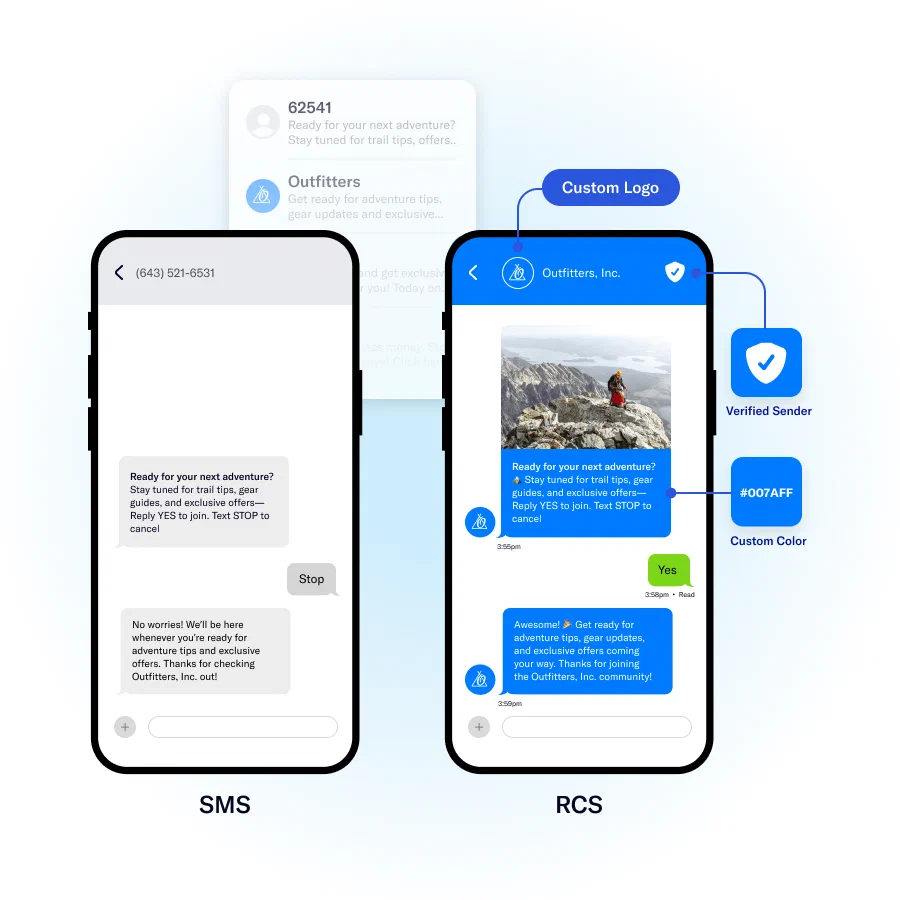
*RCS branded messaging provides immediate sender recognition compared to SMS*
With an RCS branded sender, you get the following:
* **A branded identity that builds trust** — Recipients immediately recognize who's contacting them, which typically results in higher open and response rates. The verified badge confirms your business identity has been authenticated, reducing concerns about spam or fraudulent messages.
* **Better engagement insights** — RCS provides read receipts that show when recipients have seen your messages, giving you visibility into message performance that standard SMS delivery reports can't provide. This helps you understand actual engagement, not just delivery.
* **A seamless user experience** — RCS works within the same messaging apps people already use on their phones — no downloads, new accounts, or app switching required.
* **More effective communication** — RCS is particularly useful for messages where recognition and trust matter most:
* Appointment reminders and confirmations
* Delivery and shipping notifications
* Account alerts and updates
* Customer service communications
These types of messages see the biggest improvement in engagement when recipients can immediately identify the sender as a legitimate business rather than wondering about an unknown number.
## How RCS works with Airship
Because RCS is not supported by all devices and carriers, we pair your RCS branded sender with an [SMS sender](https://www.airship.com/docs/developer/api-integrations/sms/senders/) to handle fallback.
* **Automatic routing** — When you send a message, Airship determines if the recipient can receive RCS.
* **RCS delivery** — If RCS is available, your message displays with full branding.
* **SMS fallback** — If RCS isn't available, the message sends as SMS/MMS instead.
* **No workflow changes** — You create and send messages exactly as you do now.
**The paired sender setup:**
* Your RCS branded sender handles the branded messaging experience.
* Your SMS sender handles fallback delivery.
* Keywords configured for your SMS sender also apply to the RCS branded sender.
* Airship manages the routing between them automatically.
### RCS event reporting
An RCS read report event occurs when an RCS message is read. See [RCS read report](https://www.airship.com/docs/developer/rest-api/connect/schemas/custom-sms-events/#rcs-read-report) in the Custom Events information in the [Real-Time Data Streaming](https://www.airship.com/docs/reference/glossary/#rtds) API reference.
You can also access information about RCS reads in [Performance Analytics](https://www.airship.com/docs/reference/glossary/#pa). The Message Delivery field includes the Dimension **SMS Deliveries — Is RCS (Yes / No)** and the Measure **RCS Read Count**. See [SMS in Performance Analytics](https://www.airship.com/docs/guides/reports/analytics/sms/).
### Availability and support
RCS is available to US data center-hosted customers. RCS capability varies per carrier.
**Device support:**
* iOS 18.1 and later
* Android devices with RCS-capable messaging clients
## Setting up an RCS branded sender
To get started, contact your Airship account manager or [contact Support](https://support.airship.com/) and request adding RCS to your plan.
Airship will:
1. Help you register an RCS branded sender
1. Pair your RCS branded sender with a new or existing [SMS sender](https://www.airship.com/docs/developer/api-integrations/sms/senders/), which can be a short code, long code, or toll‑free number
1. Confirm when RCS routing and fallback are enabled for your account
Once enabled, your messages will automatically display with RCS branding when available and fall back to SMS/MMS when not.
## Related documentation
See the following for information about setting up and using SMS with Airship:
* [Getting started](https://www.airship.com/docs/developer/api-integrations/sms/getting-started/) for the SMS platform
* [SMS/MMS/RCS content](https://www.airship.com/docs/guides/messaging/messages/content/sms/)
* [SMS keywords](https://www.airship.com/docs/guides/messaging/features/sms-keywords/) and opt‑in handling
* [SMS compliance](https://www.airship.com/docs/developer/api-integrations/sms/compliance/)
# Link Shortening
> Use shortened links and tag actions in your SMS messages.Airship can shorten links in your SMS messages, saving valuable characters for your message and helping you track engagement with your SMS messages. When you enable link shortening, Airship replaces your URL with unique, shortened URLs for each member of your audience.
Shortened URLs:
* Reduce the total number of characters in your messages — Shortened links using the default `airsp.co` and `airsp.eu` domains consume exactly 25 characters.
* Track engagement with SMS messages — Airship generates `short_link_click` events in the [Real-Time Data Streaming](https://www.airship.com/docs/reference/glossary/#rtds) (RTDS), and generates engagement reports based on short-link usage to help you track the effectiveness of your messages and engagement down to individual audience members.
* Support adding or removing tags from your audience when they tap or click a link by adding query parameters to your URL — `?ua-tag-add=tag_group:tag` or `?ua-tag-remove=tag_group:tag`.
* Expire 60 days after they are sent.
For Airship to recognize and shorten your links, your URLs must:
* Begin with `http://` or `https://`.
* Begin and end with a space. Your URL cannot contain beginning or trailing punctuation or space characters; spaces determine the beginning and end of the URL.
You can use custom domains for your shorten links, e.g., `mysite.co`, or use the default `airsp.co` or `airsp.eu` domains. [Contact Airship Support](https://support.airship.com/) if you want to use a custom domain for shortened links. To support a custom domain, [you must configure your web server appropriately](https://www.airship.com/docs/developer/api-integrations/sms/custom-short-link/).
> **Note:** You may not want to use shortened links for static, easily recognizable URLs, e.g, links to your terms and conditions. If you want to use a persistent shortened link like `https://example.com/help`, you must provide the URL yourself. You can enable or disable link shortening whenever you send a message using the Airship dashboard.
## Using Shortened Links
In the dashboard, you enable link shortening in the *Content* step in a composer:
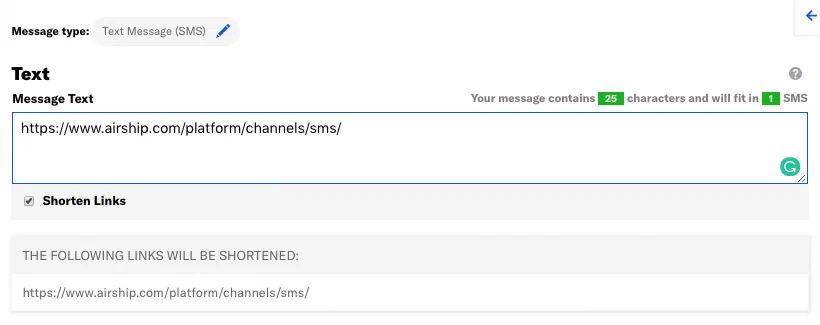
*Link shortening option in the SMS composer*
You can also set your project to automatically shorten links in all messages created using the dashboard:
1. Next to your project name, select the dropdown menu (▼), then **Settings**.
1. Under **Project settings**, select **Dashboard Settings**.
1. Enable **SMS Link Shortening**.
> **Note:** Your project's link shortening setting does not affect operations in the API.
Using the API, add `"shorten_links": true` to your payload. See the [SMS Object](https://www.airship.com/docs/developer/rest-api/ua/schemas/platform-overrides/#smsoverrideobject) for more information.
```http
POST /api/templates/push HTTP/1.1
Authorization: Basic
Accept: application/vnd.urbanairship+json; version=3
Content-Type: application/json
{
"audience": {
"named_user": "user"
},
"notification": {
"sms": {
"alert": "An alert with a link for SMS users https://www.example.com/long_url?ua-tag-add=my_tag_group:cool_tag",
"expiry": 172800,
"shorten_links": true
}
},
"device_types": [ "sms" ]
}
```
## Tag Actions with Shortened Links {#tag-actions}
You can add or remove tags from users who engage with Airship-shortened links in your SMS messages. Shortened links with tag actions are the same length as URLs without. You can also use tag change events to kick off automation rules or sequences, making it easier to integrate SMS messaging campaigns into your larger messaging strategy. You can perform up to 100 total tag actions (add and remove) per SMS message.
In the dashboard, a **Set tags** button appears when you add a URL in your SMS text (or SMS fallback text) and enable link shortening. Tag actions add query parameters to your URL, but users will still see the shortened URL in your SMS messages.
Using the API, you add query parameters to your URLs:
* Add a tag: `?ua-tag-add=my_tag_group:tag_to_add`
* Remove a tag: `?ua-tag-remove=my_tag_group:tag_to_remove`
The following payload is a simple example in which Airship would apply the `blazers` tag and remove the `no_preference` tag in the `fav_team` tag group for anybody who engages with the link.
**Add and Remove a tag in an SMS Notification**
```http
POST /api/push HTTP/1.1
Authorization: Basic
Accept: application/vnd.urbanairship+json; version=3
Content-Type: application/json
{
"audience": {
"AND": [
{
"tag": "basketball",
"group": "interests"
},
{
"tag": "portland",
"group" "metro_area"
}
]
},
"notification": {
"sms": {
"alert": "Vote for the Blazers as your favorite team! https://www.example.com/long_url?ua-tag-add=fav_team:blazers&ua-tag-remove=fav_team:no_preference",
"expiry": 172800,
"shorten_links": true
}
},
"device_types": [ "sms" ]
}
```
# Custom Domains for Short Links
> Take advantage of your highly-recognizable brand and increase conversions while saving characters in SMS messages using Airship-shortened links with a custom domain.You can replace Airship's standard `airsp.co` or `airsp.eu` domains for shortened links with your own **custom short link domain**. To take advantage of a shortened, custom domain, you must:
1. Register your short domain name with a Domain Name Registrar. Your custom short link domain can include a subdomain, but it cannot include a path.
* **Supported**: `https://my.site.co`
* **Not Supported**: `https://mysite.co/path`
The links that you use in your messages can, of course, contain paths.
1. Host your domain. Airship supports custom short link domains using HTTP and HTTPS.
1. Implement a redirect configuration applicable to the web server you use. This document contains instructions for a few common web servers.
* [nginx server configuration](#nginx)
* [Apache server configuration](#apache)
* [Microsoft IIS configuration](#microsoft-iis)
> **Note:** Sample configurations on this page may differ from your actual setup.
1. [Contact Airship Support](https://support.airship.com/) to enable your custom short link domain.
When you send an SMS/MMS message from Airship with link shortening enabled:
* Your end users will receive a shortened link, e.g., `http://mysite.co/abcd1234`.
* Your domain must forward `http://mysite.co/abcd1234` to `https://airsp.co/abcd1234` or `https://airsp.eu/abcd1234` (depending on your Airship data center).
* Airship will handle the final redirect to the full URL that you provided in your original message, e.g., `http://myfullsite.example.com/longURL?query=1234`.
```mermaid
sequenceDiagram
Airship->>Audience: Send SMS with shortened link
Audience ->>Custom Domain: Clicks custom link
Custom Domain ->> Airship: Forwards custom domain to airsp.com or .eu with request_uri
Airship ->> Airship: Resolves short link to original URL
```
## Nginx Server Configuration {#nginx}
Use one of the following configurations to redirect your custom short link domain to Airship. The `request_uri` appended to your custom short link domain — e.g., `https://mysite.co/abcd1234` — passes through to Airship's short link domain — e.g., `https://airsp.co/abcd1234`. Airship then resolves the shortened link, redirecting the user to the original link in your message — e.g., `https://myfullsite.example.com/deals?cart=4321id=0987lkjh`.
**HTTP-only redirect:**
```nginx
server {
listen 80;
location / {
return 303 https://airsp.co$request_uri;
}
}
```
**HTTP and HTTPS redirect:**
```nginx
server {
listen 80;
location / {
return 303 https://airsp.co$request_uri;
}
}
server {
listen 443 ssl;
ssl on;
ssl_certificate /etc/nginx/ssl-certs/airsp.crt;
ssl_certificate /etc/nginx/ssl-certs/airsp.key;
location / {
return 303 https://airsp.co$request_uri;
}
}
```
## Apache Server Configuration {#apache}
Use one of the following configurations to redirect your custom short link domain to Airship. The `request_uri` appended to your custom short link domain — e.g., `https://mysite.co/abcd1234` — passes through to Airship's short link domain — e.g., `https://airsp.co/abcd1234`. Airship then resolves the shortened link, redirecting the user to the original link in your message — e.g., `https://myfullsite.example.com/deals?cart=4321id=0987lkjh`.
**HTTP-only redirect:**
If the `mod_rewrite` module is enabled, add the following lines to your `sites-available/000-default.conf` file.
```apacheconf
... other .conf code...
Redirect 303 https://airsp.co%{REQUEST_URI}
```
**HTTP and HTTPS redirect:**
In your `sites-available/default-ssl.conf` file, add a `Location` directive block containing the following:
```apacheconf
... other .conf code...
Redirect 303 https://airsp.co%{REQUEST_URI}
```
In your `sites-available/000-default.conf` file add the following two lines. This assumes that the `mod_rewrite` module is enabled for your server.
```apacheconf
... other .conf code...
Redirect 303 https://airsp.co%{REQUEST_URI}
```
## Microsoft IIS Configuration {#microsoft-iis}
Use the following configuration to redirect your custom short link domain to Airship. The `request_uri` appended to your custom short link domain — e.g., `https://mysite.co/abcd1234` — passes through to Airship's short link domain — e.g., `https://airsp.co/abcd1234`. Airship then resolves the shortened link, redirecting the user to the original link in your message — e.g., `https://myfullsite.example.com/deals?cart=4321id=0987lkjh`.
1. Click **Default Web Site**.
1. In the *Feature View*, click **URL Rewrite**.
1. In the *Actions* panel, click **Add rules…**.
1. In the *Add Rules* dialog, select **Blank Rule** and click **OK**.
1. When defining the *Rewrite Rule*, set the following:
* **Requested URL**: `Matches the Pattern`
* **Using**: `Regular Expressions`
* **Pattern**: `[^/]*$`, which matches the request URI through the end of the regex string
* **Ignore Case**: unchecked
* **Action Type**: **Redirect**
* **Redirect URL**: `https://airsp.co/{R:0}` where `{R:0}` specifies the request URI
* **Append query string**: unchecked
* **Redirect type**: **See Other (303)**
# Segmentation
> Target SMS devices based on tags, named users, test groups, and audience lists.Target SMS devices as you would any other supported channel, using [audience selectors](https://www.airship.com/docs/developer/rest-api/ua/schemas/audience-selection/#audienceselector1000).
## Tags
When setting tags on an SMS channel, use the [Channel Tags](https://www.airship.com/docs/developer/rest-api/ua/operations/tags/#modifychanneltags) endpoint.
In the provided examples, we will first add a new tag to our SMS channel using tag groups, then send
a push to an audience defined by channels containing the new tag with the device type `sms`.
**Example Request: Add tag to SMS channel using tag groups**
```http
POST /api/channels/tags HTTP/1.1
Authorization: Basic
Accept: application/vnd.urbanairship+json; version=3
Content-Type: application/json
{
"audience": {
"channel": "34b3dfc1-d717-40fe-89e8-10584ed1c123"
},
"add": {
"fish_numbers": [
"one",
"two"
],
"fish_colors": [
"red",
"blue"
]
}
}
```
**Example Request: Send to SMS using your new tag**
```http
POST /api/push HTTP/1.1
Authorization: Basic
Accept: application/vnd.urbanairship+json; version=3
Content-Type: application/json
{
"audience": {
"tag": "blue",
"group": "fish_colors"
},
"notification": {
"alert": "This one has a little star."
},
"device_types": [
"sms"
]
}
```
## Named Users
Named Users let you associate an ID of your choosing with a single user who is opted in across
multiple engagement channels. Typically a Named User ID is an internal identifier in your
CRM system.
Associate Named Users with individual SMS channels using the [Named Users API](#api-named-users).
In the provided examples, we take our new channel and associate it with a named user,
then use the Push API to deliver the SMS alert.
**Example Request: Associate Named User with SMS channel**
```http
POST /api/named_users/associate HTTP/1.1
Authorization: Basic
Accept: application/vnd.urbanairship+json; version=3
Content-Type: application/json
{
"channel_id": "adc9465c-68d6-481e-b5b4-6ab5a185b35f",
"named_user_id": "erika_mustermann"
}
```
**Example Request: Send to SMS using your new tag**
```http
POST /api/push HTTP/1.1
Authorization: Basic
Accept: application/vnd.urbanairship+json; version=3
Content-Type: application/json
{
"audience": {
"named_user": "erika_mustermann"
},
"notification": {
"alert": "Test SMS to Named User"
},
"device_types": [
"sms"
]
}
```
## Test Groups
Make testing easy by creating Test Groups for use in the Message Composer. Add your SMS
channels for testing in the [Test Group UI](https://www.airship.com/docs/guides/audience/preview-test-groups/).
## Audience Lists
Upload lists of Named Users or SMS channels via the [Static Lists API](https://www.airship.com/docs/developer/rest-api/ua/operations/static-lists/) or in the [dashboard](https://www.airship.com/docs/guides/audience/segmentation/audience-lists/uploaded/) and use those for targeting through the Push API or Message Composer.
# Analytics and Reporting
> Airship provides reporting on messages sent.Sends from Airship systems are counted per message. Reporting on sends is available in:
* [Message reports](https://www.airship.com/docs/guides/reports/message/)
* [Real-Time Data Streaming](https://www.airship.com/docs/reference/glossary/#rtds)
* [Performance Analytics](https://www.airship.com/docs/reference/glossary/#pa)
Opt in/out events are shown in the
[Devices report](https://www.airship.com/docs/guides/reports/engagement/#devices) and message reports. Message reports also include delivery events and errors.
# SMS Delivery Report Error Codes
> Delivery reports track the status of SMS messages from Airship's third-party providers to your audience and may contain an `error_code` to describe why your message was not delivered.Airship's standard error codes for the most common errors encountered:
| Error code | Description |
| --- | ---- |
| 0 | Unknown error |
| 10 | Landline or unreachable carrier |
| 16 | Message blocked |
| 61 | Message filtered |
| 64 | Error, blocked due to exceeded quota |
| 150 | Unknown destination handset |
| 152 | Numeric Sender ID Not Provisioned on Carrier |
| 300 | Unreachable destination handset |
Some codes aren't necessarily errors and indicate that a message has not yet been delivered, most notably `400` (queued) and `401` (dispatched).
The following example shows one of many `error_code` values relevant to SMS delivery report events:
**Example SMS Delivery Report**
```json
{
"body": {
"interaction_type": "delivery_report",
"name": "dispatched",
"properties": {
"error_code": "401",
"sender": 18587323362,
"vendor": "CLX",
"vendorDeliveryId": "ZLOiTjmZfV6r0-Eo"
},
"source": "API",
"triggering_push": {
"push_id": "7764f7bd-a206-4219-9933-a9bcb7dc9979"
}
},
"device": {
"channel": "73c29b53-a00a-4567-9ccd-1d726013699d",
"delivery_address": "19712754475",
"device_type": "SMS",
"identifiers": {
"sender": "18587323362"
}
},
"id": "0f7d521f-dc6c-4530-9623-91fb8d370db5",
"occurred": "2020-06-01T18:26:12.575Z",
"offset": "1000032182771",
"processed": "2020-06-01T18:26:13.558Z",
"type": "CUSTOM"
}
```
In addition to these common errors, other errors might be returned, depending on your delivery service provider, Sinch or Twilio. Review the following sections relevant to your service provider to determine the meanings of error codes.
## Sinch (CLX) Error Codes
Sinch was formerly known as CLX. For all `error_code` values that apply when a delivery report's `vendor` property is `CLX`, see [Message Error Specification](https://developers.sinch.com/docs/sms/other/sms-other-http-basic/#message-error-specification) in Sinch's *HTTP Basic for SMS* documentation.
### Sinch (CLX) MMS Result/Error Codes
The following `error_code` and `report_code` values are most common and relevant for MMS messages when a delivery report's `vendor` property is `CLX`:
| Error or report code | Description |
| --- | --- |
| N101 | Message Sent |
| N102 | Message Sent/Delivered |
| E101 | Message Failed |
| E102 | Message Sent/Expired, Sent/Rejected, Sent/Failed or, Sent/Not Supported |
For all Sinch MMS error codes, see [](https://developers.sinch.com/docs/mms/xml-service/appendix/) in Sinch's *XML Service Appendix*.
## Twilio Error Codes
For `error_code` values that apply when a delivery report's `vendor` property is `TWILIO`, see Twilio's [Error and Warning Dictionary](https://www.twilio.com/docs/api/errors).
# SMS Compliance
> Airship supports SMS notifications best practices.> **Important:** Please note that this content is provided for information purposes only and is not intended to be nor should be relied on as legal or compliance advice.
>
> Different locations may have varying legal and privacy requirements for SMS/MMS/RCS notifications, so please verify with your legal or regulatory compliance team that your SMS/MMS/RCS usage, proposed use cases, and messaging configuration are compliant with applicable local laws and regulations.
The Airship Service provides customers with a platform for building successful SMS marketing programs by supporting compliance with laws and industry best practices as summarized in this document. These guidelines represent our current understanding of common compliance requirements generally applicable to Airship and our customers and do not constitute legal advice.
## Some Background on SMS Regulation
Meeting regulatory requirements and maintaining best practices to support customer relationships are critical for brands that use SMS in their marketing strategy. Regulations such as the US Telephone Consumer Protection Act of 1991 (TCPA), the Canadian Anti-Spam Law (CASL), the General Data Protection Regulation (GDPR), the Directive on Privacy and Electronic Communications (the EU's ePrivacy Directive), and a variety of local US state laws and individual EU countries' regulations include strict requirements for sending SMS marketing messages.
In addition to country- and state-specific laws and regulations that govern SMS messaging, wireless industry groups publish best practice guidelines for companies engaged in SMS marketing. These include key standards from the wireless industry association CTIA:
* [CTIA Messaging Principles and Best Practices](https://api.ctia.org/wp-content/uploads/2019/07/190719-CTIA-Messaging-Principles-and-Best-Practices-FINAL.pdf)
* [CTIA Short Code Monitoring Handbook](https://api.ctia.org/wp-content/uploads/2024/01/CTIA-Short-Code-Monitoring-Handbook-v1.9-FINAL.pdf)
Certain telecommunications providers may also have their own Code of Conduct to govern traffic through their services, such as T-Mobile's Code of Conduct and Mobile Marketing Association's [Consumer Best Practices for Messaging](https://www.mmaglobal.com/files/bestpractices.pdf).
## General Requirements
You must obtain consent and provide disclosure.
### Prior Express Written Consent
TCPA in the US, and other applicable laws around the world, a business must provide clear and conspicuous information about its practices and get the recipient's express written consent to receive text messages before sending an automated message. Brands should never send messages to opt-in lists that have been shared or sold. Also, brands should check for the legal age of consent and the types of disclosures required based on their use case and where the recipient is located. In addition, brands should verify their use cases and numbers against local Do Not Call (DNC) registries to ensure no other restrictions may apply. Because considerations regarding DNC registries are highly specific to each use case, Airship cannot apply number filtering or automated channel uninstall for mobile numbers that appear on a DNC, in the US or any other known DNC.
### Clear and Conspicuous Disclosure
Brands must be clear, concise and upfront in the call to action that prompts the consumer to opt in to receive SMS messages:
* Identify the business to whom consent is being provided
* Identify the consumer's phone number
* Include a description of the recurring text messaging program and types of messages the consumer will receive (e.g., account alerts, news alerts, promotional alerts, coupons, reminders, etc.)
* Disclose that texts will be sent using automated technology
* Disclose that the consumer is not required to provide consent as a condition of a purchase
* Disclose specific message frequency or that "message frequency varies"
* Disclose that message and data rates may apply
* Provide Customer Care and Opt-Out instructions
* Provide links to applicable Terms of Use and Privacy Policy.
* Terms of Use should include a section that details the SMS program, including program description and opt-in, opt-out, and help information
* Privacy Policy must explicitly state that mobile opt-in data will not be shared or sold
**Example of a call to action (e.g., on a website, store display, etc.)**
```text
Text JOIN to 22255 to receive recurring autodialed
offers and information from {BRAND NAME} Terms and
Privacy Policy at [brand.example.com/sms-terms]. Message
frequency varies with use. No purchase required.
Reply HELP for help, STOP to end, Msg&data rates
may apply.
```
### Canada (CWTA) — Link Disclosure Requirement
For SMS programs operating in Canada under Canadian Wireless Telecommunications Association (CWTA) guidance, if a message contains a clickable link, include the disclosure "Std msg & data rates may apply." in that message. This requirement helps satisfy carrier and CWTA expectations for clear consumer disclosures related to messages that drive to the web. Apply this disclosure alongside existing HELP/STOP language as appropriate.
### Written Consent (Opt-In)
Brands may obtain digital consent via text message, email, website form, voice recording, etc. with the
following requirements:
* Cannot use a pre-checked box
* Cannot require consent to receive SMS messages as a condition of sale
* Should keep records of consent for at least four years (the statute of limitation for TCPA claims is four years)
* Double opt-in, while not strictly required, is supported and recommended by Airship as a best practice
* With single or double opt-in, the first text message should be a compliance message confirming opt-in and reiterating important information:
* Identifying the brand
* Message frequency, if not already provided
* What types of messages
* Message and data rates may apply
* Customer Care and Opt-Out instructions
* Provide links to terms and privacy policy, if not already provided
Some jurisdictions may have additional consent requirements, including requirements around obtaining express written consent, which may need to include the consumer's phone number, express authorization to receive the message, and other notifications. Brands should check with their legal or regulatory compliance teams for the types of disclosures required based on their use case and where the recipient is located.
**Example of confirmation message**
```text
{BRAND NAME}: You've subscribed to receive recurring
promotional msgs. Reply HELP for help, STOP to end.
Msg&data rates may apply.
```
### Time of Day Guidelines
Brands should schedule their SMS notifications to account for carrier delivery delays, especially in locations with time of day requirements, including those required under TCPA and local state laws, which may be more restrictive.
The TCPA prohibits telephone solicitation (including text messages) before 8 AM and after 9 PM in the recipient's time zone. A best practice is to send SMS notifications between 9 AM and 8 PM in the recipient's time zone. Local restrictions may be more stringent than the 8 AM to 9 PM TCPA standard. Brands should confirm time of day requirements for each location of operation. If brands have recipients in different time zones, then multiple time zones should be taken into consideration.
In addition, if brands are targeting large audiences, scheduling further in advance of the prohibited period is advisable. Otherwise, the volume of messages may cause additional delivery delays.
### Customer Care and Opt-Out Instructions
SMS programs should promote customer care contact and opt-out instructions in initial SMS program disclosures and then with every recurring message or at least once per month.
```text
Reply HELP for help, STOP to end
```
### Special Considerations for Transactional SMS
SMS cannot be the only method for transactional messaging. Mobile carriers require an alternative method such as email or a phone call. An example of a common transactional SMS message is a one-time password.
## State-Specific Requirements
Some US states have "mini-TCPA" or similar telemarketing laws that differ from federal requirements. Variations may include:
- Consent standards for automated sales texts
- Restricted contact hours based on recipients' local time
- Frequency or attempt limits within a defined period
- Pre-suit cure requirements, such as STOP and grace periods, and private rights of action
- Content and identification expectations, such as disclosures and return-call capabilities
- Registration, record keeping, and other program obligations
- Presumptions tied to area codes or residency
- Requirements to regularly include a callback-capable phone number in outbound messages
Recommended approach:
- Consult counsel to determine which state rules apply to your audience and use cases.
- Configure opt-in flows and unsubscribe handling
- Schedule sends to comply with the most restrictive applicable sending hours.
- Maintain auditable consent and suppression records, and monitor state-level changes.
Because state requirements evolve, verify current obligations and enforcement trends before launching campaigns. Airship does not enforce state-by-state rules automatically. Brands are responsible for the appropriate configuration and scheduling.
## Opt-In Methods
Airship SMS supports two opt-in methods. Based on local regulatory requirements, additional consents may be needed as described above. Brands should check with their legal or regulatory compliance teams for the types of disclosures required based on their use case and where the recipient is located to complement the Airship Service configuration.
### Mobile-Originated Opt-In
In response to a call to action from the brand, a consumer texts `JOIN` from their mobile device or responds through another form — i.e., a website, app, or any means other than sending a text with an opt-in keyword. This triggers the Airship SMS channel to send a double opt-in request (example message below, customizable for your brand):
```text
{BRAND NAME}: Reply Y to agree to receive recurring
autodialed {type of messages/alerts} and to our Terms
of Service [insert TOS hyperlink] and Privacy Policy
[insert PP hyperlink]. No purchase rqd. Message
frequency varies. Reply HELP for help, STOP to end.
Msg&data rates may apply.
```
In the Airship SMS channel, the consumer will not get added to the opt-in list until they reply with the keyword `Y`. Once added to the list, Airship SMS sends an automatic confirmation alert:
```text
{BRAND NAME}: You've subscribed to receive
recurring {type of messages/alerts}. Message
frequency varies. Reply HELP for help, STOP
to end. Msg&data rates may apply.
```
### Brand-Managed Opt-In
Opt-in owned by the brand and uploaded to Airship SMS via API or CSV file
: The consumer uses the brand's website, app, paper form or other means to opt in to receiving SMS messages. The phone number and opt-in date/ time are then passed to Airship by the brand via the Airship API or uploaded via the Airship platform, and Airship SMS tracks the opt-in date/time in our database along with the phone number.
If the number is not already in the Airship opt-in database for that brand, the number is automatically added to that opt-in database. If uploading via CSV, any number on the uploaded list that does not include an opt-in date/time is not added to the opt-in database and no message is sent to that number.
Brands must make sure that the call to action for the opt-in clearly provides all necessary information under applicable law and that the consent meets applicable legal requirements.
Transactional messages
: Transactional messages are messages that are directly related to the service being provided, such as delivery updates for a package or appointment reminders. Once the consumer provides the brand with legally appropriate consent to receive transactional messages, the brand triggers the sending of the transactional message by providing the phone number and opt-in date to Airship SMS via our API as described above.
It is important to note that consent to receive a transactional SMS notification cannot be used for sending any marketing SMS messages. Each opt-in database for a brand will have the same scope of messages, such as promotional alerts or account update alerts.
A separate code will be required to add another type of campaign. Brands should make sure that written consents from legacy or existing customers include all legally required elements of a consent, and if in doubt, obtain new consents from existing consumers covering any missing requirements.
## Opt-Out Methods
Under the TCPA in the US, and other applicable laws around the world, a consumer may revoke consent through any reasonable method, including verbal communication or, in the context of text messaging with keyword such as `STOP`. The brand should confirm that it is able to process requests received (1) via text, using words other than STOP (i.e., unsubscribe, cancel, etc.), and (2) via other channels, for example if a customer contacts customer support and asks to be opted-out of text messages. The business should unsubscribe that consumer out of all recurring text messaging programs and cease text messaging to that consumer, unless that consumer subsequently opts-in.
### Mobile-Originated Opt-Out
When a consumer texts the brand with a keyword like STOP (or any of the other opt-out keywords specified by law or best practices), Airship SMS automatically responds with a confirmation and adds an opt-out date/time to our database (example message below, marketers can tailor the content of this opt-out confirmation message to fit their workflow and brand requirements):
```text
{BRAND NAME}: You have opted-out and will no longer
receive messages. Reply HELP for help
```
Airship does not send messages to any numbers that have opt-out dates associated with them. If the consumer decides to opt in again, the Double Opt-In or Brand Managed Opt-In methods described above will register a new opt-in date.
### Website- or App-Originated Opt-Out
If a consumer changes their preferences in a Preference Center—or in some other way via the brand's website or app—the brand must pass the opt-out information to the Airship platform using the Airship API. Airship then adds the opt-out date/time to our database.
### Brand-Managed Opt-Out
If you choose to manage SMS opt-outs outside of Airship, it is your responsibility to ensure that the opt-out status remains synchronized between your systems and Airship. Airship does not automatically track or enforce opt-out compliance unless explicitly configured to do so. To ensure users who have opted out in your environment are also suppressed within Airship, you must automate opt-out synchronization or maintain it manually.
For automated management, you configure your external systems to notify Airship when a user opts out. For example, you would forward STOP messages or user opt-out actions to Airship's [Opt-out of SMS messages API endpoint](https://www.airship.com/docs/developer/rest-api/ua/operations/sms/#optoutsmschannel).
For individual channels, you can change opt-in status manually in the dashboard. See [Viewing channel details](https://www.airship.com/docs/guides/audience/contact-management/#viewing-channel-details) in *Contact Management*.
Without either automated management or regular manual updates, Airship will continue to treat those SMS channels as opted-in, and may continue sending messages. In this case, Airship bears no responsibility for message delivery to users you have marked as opted out in your system.
### Carrier Deactivation
Mobile network operators in the USA (like AT&T, Verizon, etc.) provide Airship with a list of deactivated phone numbers on a daily basis (i.e., consumers who have disconnected service with that operator). Airship SMS automatically uninstalls these numbers (removes them from our database entirely) so that the brands don't inadvertently message the wrong person if that number gets reassigned.
### National Do Not Call Registry (DNC)
Airship does not apply number filtering or automated channel uninstall for mobile numbers that appear on a DNC, in the US or any other known DNC registry.
## Reporting and Records
Airship [SMS reports](https://www.airship.com/docs/guides/reports/engagement/#sms) give brands the ability to view opt-in and opt-out status for consumers who have provided consent to receive SMS messages from the brand.
Brands should also maintain all consent records that provide relevant details. Various locations will have different requirements for how long a brand should maintain opt-in and opt-out records for SMS. Airship retains opt-in date/time records and opt-out date/time records for a mobile phone number in our database for four years. Airship customers can download their full channel listing via the [Channel Listing API](https://www.airship.com/docs/developer/rest-api/ua/operations/channels/#getchannels), which includes channel created-on date, the [MSISDN](https://www.airship.com/docs/reference/glossary/#msisdn), associated [Sender ID](https://www.airship.com/docs/reference/glossary/#sender_id) (short code or long code), current opt-in or opt-out status, and opt-in or opt-out date for all SMS channels. You can also send opt-in and opt-out events into other business systems via [Real-Time Data Streaming](https://www.airship.com/docs/reference/glossary/#rtds).
Mobile numbers that are uninstalled through Carrier Deactivation numbers will have their SMS message history purged from Airship.
## RCS Compliance Guidelines
Rich Communication Services (RCS) is an advanced messaging protocol that enables interactive, media-rich communications. RCS messages automatically fall back to SMS/MMS when not supported.
### General Requirements
You must obtain consent and provide disclosure.
- All rules applicable to SMS/MMS also apply to RCS. Review this SMS Compliance document and the [Airship Acceptable Use Policy](https://www.airship.com/legal/acceptable-use/).
- Obtain explicit, documented consent from each recipient before sending RCS messages. Consent must clearly indicate the types of messages the recipient will receive and must not be bundled with other consents.
- Consent must be specific to the brand and campaign and cannot be transferred, bought, sold, or obtained from third‑party lists.
- Maintain records of consent — including timestamps, consent method, and scope — for at least four years or as required by local law.
- If you do not send the first message within a reasonable period after consent is obtained, reconfirm consent in the initial message.
### Consent and Opt‑In
Consent must be obtained via a clear call to action, for example a website form, app, SMS, or other digital means. Do not use pre‑checked boxes or require consent as a condition of purchase. The call to action must:
- Identify the brand
- Specify the recipient’s phone number
- Describe the types and frequency of RCS messages
- Disclose that messages may be sent using automated technology
- State that consent is not required for purchase
- Provide links to Terms of Use and Privacy Policy
- Include [opt‑out instructions](#optout-and-revocation-of-consent)
### Sender Identification
Every RCS message must clearly identify the sender, which is the party that obtained consent, except for follow‑up messages in an ongoing conversation thread.
### Opt‑Out and Revocation of Consent
Regarding consent:
- Recipients must be able to revoke consent at any time by replying with standard opt‑out keywords such as STOP, UNSUBSCRIBE, CANCEL, END, QUIT.
- The initial RCS message must include opt‑out instructions, such as "Reply STOP to unsubscribe."
- When a recipient opts out, you may send one final confirmation message. No further messages may be sent unless new consent is obtained.
- Opt‑out requests must be processed promptly and applied across all recurring RCS messaging programs.
### Content Restrictions
Do not send RCS messages containing:
* Counterfeit goods
* Dangerous products or services
* Products, services, or content that enable dishonest behaviors
* Dangerous or derogatory content
* Shocking content
* Capitalizing on sensitive events
* Animal cruelty
* Adult or sexual content
* Tobacco
* Political content
* Unauthorized content
* Gambling or gambling-related activities
* Firearms/weapons
* Cannabis
* Prescription drugs/medications
* Alcohol
For additional information, see Google's [Acceptable Use Policy](https://developers.google.com/business-communications/rcs-business-messaging/terms-and-policies/aup) in their *RCS for Business* documentation.
### Country‑Specific Requirements
Always review and comply with country‑specific RCS messaging requirements, which may include additional consent, content, or technical restrictions.
### Recordkeeping and Reporting
Maintain records of opt‑in and opt‑out status, including timestamps and consent method, for at least four years or as required by local law. Be prepared to provide proof of consent and compliance upon request from Airship or regulators.
### Enforcement and Violation Handling
Violations of these RCS requirements may result in suspension or removal of messaging capabilities by Airship or its providers. Report suspected violations to Airship immediately by contacting your account manager or [Airship Support](https://support.airship.com).