Airship MCP Server
Learn about the Airship MCP server, which lets you interact with Airship features through natural language using AI-powered tools. Agentic AI
Model Context Protocol (MCP) is an open standard that allows AI assistants to securely connect to external tools and data sources. The Airship MCP server works with Claude Code, Claude Desktop, Cursor, and other MCP-compatible clients.
Why use the Airship MCP server
The Airship MCP server is a development tool for building and maintaining Airship integrations. It connects AI assistants to the Airship platform in real time, so you can query channel data, test push flows, and migrate SDKs without leaving your editor.
If you spend time switching between Airship documentation, the dashboard, and your codebase, the MCP server brings those workflows into a single conversation. Common use cases include the following:
- Migrating SDKs — Start a guided migration that detects your current platform and version, then walks you through each required change with rollback support.
- Testing push notifications — Send pushes to tags, channels, or named users and validate payloads during development.
- Looking up channels and audiences — Inspect tags, attributesMetadata used for audience segmentation and personalization. Attributes extend the concept of tags by adding comparison operators and values to determine whether or not to target a user, helping you better evaluate your audience., opt-in status, and audience segmentsA reusable audience group you create by selecting unique or shared user data. without opening the dashboard.
- Running multi-step workflows — Use Skills to complete tasks like registering email or SMS channels, managing named users, or configuring Message Center. The process is guided start to finish by your assistant.
- Pulling documentation into context — Ask for setup guides, API specs, or SDK references and get them inline, right where you’re working.
You interact with the server through natural-language prompts. For example, your conversation can include prompts like “Send a test push to all users tagged beta_testers” or “Look up channel 9c6b3b5e-1234-5678-abcd-ef0123456789 and show me its opt-in status”.
Additional Terms and Disclaimer
Airship Agent Tools, including the Airship MCP server and Airship Skills, are open-source tools provided by Airship “as is” and without any warranties. Use of these tools is at your own risk and subject to the Terms of Subscription Service or other applicable Agreement entered into with Airship governing for use of the Airship Service and the Acceptable Use Policy.
Model Context Protocol (MCP) and the Agent Skills standard are open-source protocols maintained by third parties. These protocols are evolving and may be susceptible to security issues or vulnerabilities. Airship does not control and makes no warranties regarding these protocols.
AI Assistant Outputs
AI assistants connected through these tools may produce inaccurate, incomplete, or unexpected results. You are responsible for reviewing all outputs and testing actions in a non-production environment before deploying to live audiences. Airship is not responsible for any consequences arising from actions taken based on AI assistant outputs.
Data Processed by Third-Party AI Assistants
When you use these tools with a third-party AI assistant, such as Claude, Cursor, or Windsurf, both your prompts and Airship API responses are processed by your AI assistant provider. API responses may include end-user personal data such as email addresses, phone numbers, device identifiers, named user IDs, tags, and attributes. Airship does not control and is not responsible for how your AI assistant provider processes this data. Before connecting these tools to an AI assistant, verify that your AI assistant provider’s data processing practices are compatible with your obligations under applicable data protection laws and your organization’s privacy policies.
Credentials and Security
You are responsible for securing your OAuth 2.0 credentials. Do not share credentials, commit them to version control, or expose them in prompts or public repositories. Airship is not responsible for any consequences arising from compromised, misconfigured, or overly permissive credentials.
Open-Source Modifications
These tools are open-source. If you modify, fork, or extend them, Airship is not responsible for any issues arising from such modifications.
For assistance, contact Airship Support.
Set up the server
Follow these steps to set up the Airship MCP server with your MCP-compatible client. You’ll need a terminal app to run commands and install tooling.
Get your project credentials
The Airship MCP server authenticates with OAuth 2.0 client credentials. You need your project’s app keyUniquely identifies an Airship project. Paired with an app secret or master secret, it authenticates API requests for the project., an OAuth client ID, and a client secret. All are available from the Airship dashboard.
First, get your app key:
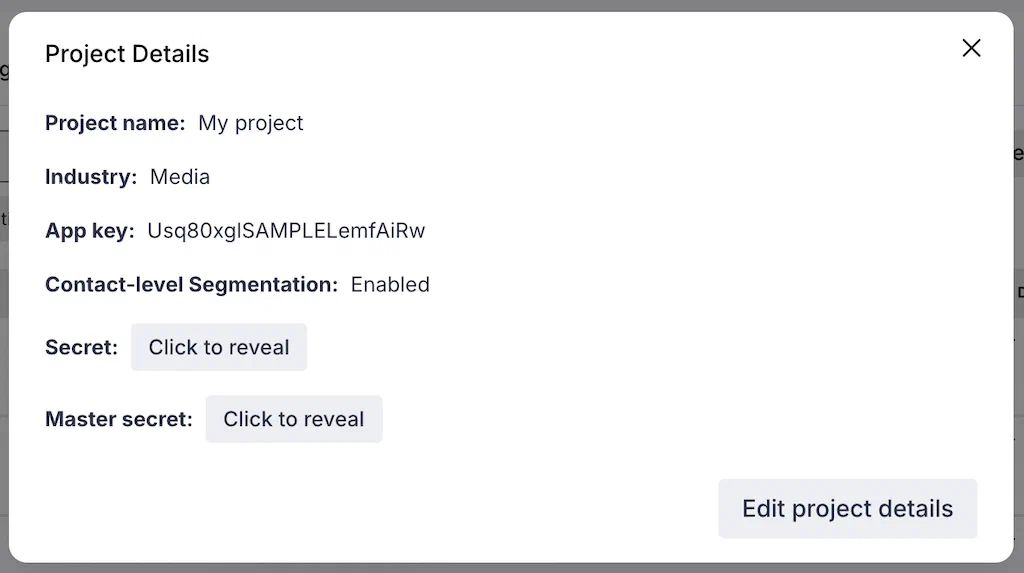
- Open your project.
- Select the dropdown menu () next to your project name, and then Project details.
- Copy your app key and close the modal window.
Next, create OAuth client credentials by following the steps in Create client credentials in Airship API Security. When creating your credentials:
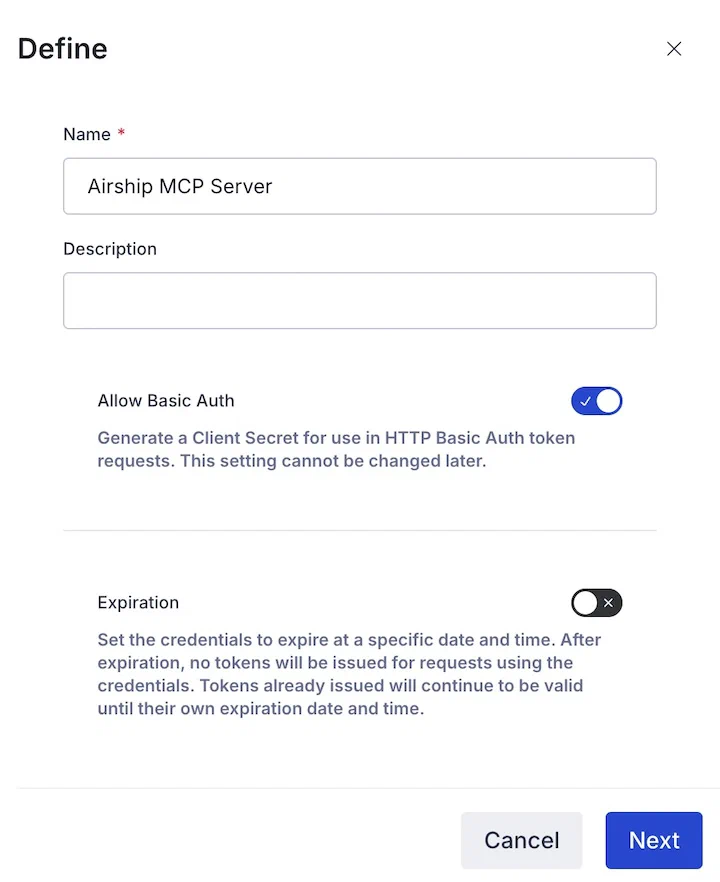
Allowing basic auth in OAuth configuration Enable Allow Basic Auth to generate a client secret. The MCP server requires a client secret to authenticate with the token endpoint.
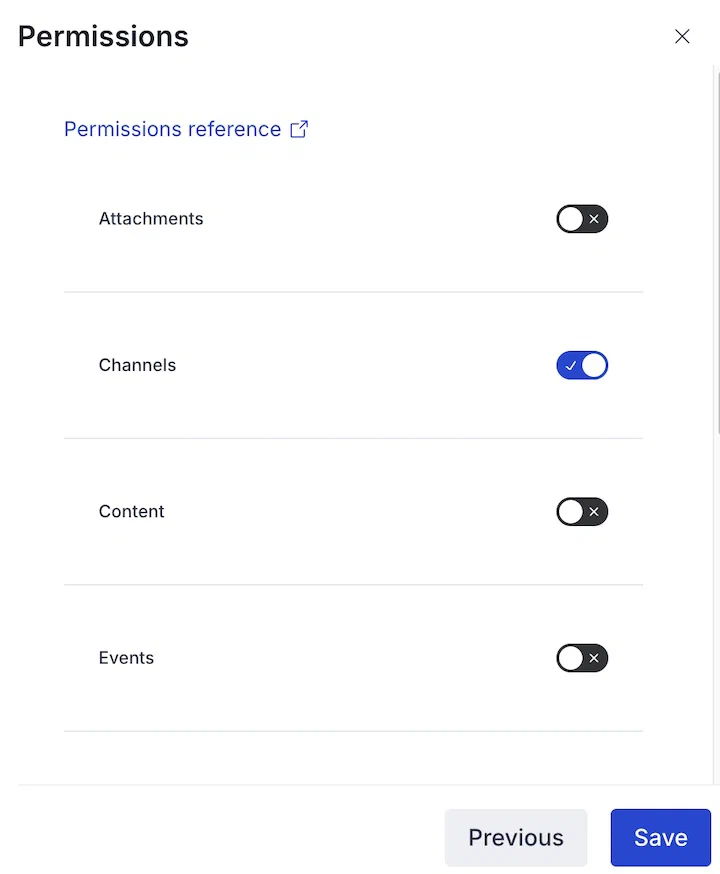
Enabling scopes in OAuth configuration Enable the Push, Channels, and Named Users scopes at minimum. Enable additional scopes to match the tools you plan to use.
Copy the client ID and client secret after saving. The client secret is only shown once.
Keep your client secret secure. Do not share it or commit it to version control. The MCP server uses these credentials to send push notifications and access channel data on your behalf.
Install uv
Install uv, a command-line tool by Astral for Python package management:
curl -LsSf https://astral.sh/uv/install.sh | sh
The output is similar to the following:
downloading uv 0.8.9 aarch64-apple-darwin
no checksums to verify
installing to /Users/yourname/.local/bin
  uv
  uvx
everything's installed!
Open PowerShell and run:
powershell -ExecutionPolicy ByPass -c "irm https://astral.sh/uv/install.ps1 | iex"
Download the MCP server
Clone the Airship MCP server repository to your local machine:
git clone https://github.com/urbanairship/agent-tools.git
cd agent-tools
Configure your MCP client
Follow these steps to configure your MCP client:
- Go to Settings, then Developer, then Edit Config.
- Add the Airship MCP server to your
claude_desktop_config.json:{ "mcpServers": { "airship-mcp": { "command": "uv", "args": ["run", "--directory", "/path/to/agent-tools", "airship-mcp"], "env": { "AIRSHIP_APP_KEY": "your_app_key", "AIRSHIP_CLIENT_ID": "your_client_id", "AIRSHIP_CLIENT_SECRET": "your_client_secret", "AIRSHIP_REGION": "us" } } } } - Replace
/path/to/agent-toolswith the path to the cloned repository. - Replace
your_app_key,your_client_id, andyour_client_secretwith your Airship credentials. - For
AIRSHIP_REGION, use the appropriate value ofusoreu. - Save the file and restart Claude Desktop.
- In your project, create or edit
.cursor/mcp.json(or~/.cursor/mcp.jsonfor global configuration):{ "mcpServers": { "airship-mcp": { "command": "uv", "args": ["run", "--directory", "/path/to/agent-tools", "airship-mcp"], "env": { "AIRSHIP_APP_KEY": "your_app_key", "AIRSHIP_CLIENT_ID": "your_client_id", "AIRSHIP_CLIENT_SECRET": "your_client_secret", "AIRSHIP_REGION": "us" } } } } - Replace
/path/to/agent-toolswith the path to the cloned repository. - Replace
your_app_key,your_client_id, andyour_client_secretwith your Airship credentials. - For
AIRSHIP_REGION, use the appropriate value ofusoreu. - Restart Cursor or reload the window.
For other MCP-compatible clients, refer to the client’s documentation for specific instructions. Use the following values in your configuration:
- Command:
uv - Arguments:
["run", "--directory", "/path/to/agent-tools", "airship-mcp"] - Environment variables:
AIRSHIP_APP_KEY: Your app keyAIRSHIP_CLIENT_IDandAIRSHIP_CLIENT_SECRET: Your OAuth client credentialsAIRSHIP_REGION:usoreu
After cloning the repository, install it as a Claude Code plugin:
claude plugin marketplace add /path/to/agent-tools
claude plugin install airship
Skills are available as /airship:<skill> slash commands. The airship-mcp server starts automatically, no JSON config needed.
To persist credentials across sessions, add them to your shell profile as environment variables:
export AIRSHIP_APP_KEY=your_app_key
export AIRSHIP_CLIENT_ID=your_client_id
export AIRSHIP_CLIENT_SECRET=your_client_secret
export AIRSHIP_REGION=us
Replace your_app_key, your_client_id, and your_client_secret with your Airship credentials. For AIRSHIP_REGION, use the appropriate value of us or eu.
Verify the connection
First, confirm the server is connected by asking your assistant what Airship tools are available:
- Open a new conversation.
- Look for the hammer icon (🔨) indicating MCP tools are available.
- Ask “What Airship tools are available?”
Claude should respond with a list of available tools.
- Start a new chat.
- Ask “What Airship tools are available?”
The assistant should respond with a list of available tools.
Ask “What Airship tools are available?” or run a Skill to confirm the connection:
/airship:push-notification
Claude should respond with a list of available tools.
Next, try sending a push notification to a device registered with the test tag or a different tag in your project:
Send a test push notification to the tag "test" with the message "Hello from MCP!"
Install Skills
The Airship MCP server includes Skills, which are optional to install. To install them, ask the AI assistant:
Install the Airship Skills for this project
When prompted, provide the path to your project directory. To update Skills to the latest version:
Update my Airship Skills
Capabilities and usage
The Airship MCP server provides tools and resources that AI assistants can use to help with development tasks. The following sections describe some common uses with example prompts.
And you can always ask your assistant for a list of options:
What can the Airship MCP tool help me with?
SDK migration
Start a guided migration with automatic version and platform detection:
Help me migrate my Airship SDK to the latest version
The assistant asks for your project path, detects the platform and current version, then walks you through each required change.
You can also specify parameters directly:
Migrate my iOS project at /Users/me/MyApp from SDK 19.0.0 to 20.0.0
Push notifications
Send push notifications to tags, channels, or named users, and validate payloads before sending to real users:
Send a push notification to all users with the "beta_testers" tag, with the message "New feature available"
Always test using a dedicated tag or channel before sending to broad audiences.
Channel and audience tools
Look up channels and named users, inspect tags and attributesMetadata used for audience segmentation and personalization. Attributes extend the concept of tags by adding comparison operators and values to determine whether or not to target a user, helping you better evaluate your audience., and manage audience segmentsA reusable audience group you create by selecting unique or shared user data.:
Look up channel 9c6b3b5e-1234-5678-abcd-ef0123456789 and show me its tags
Skills
If you installed Skills, you can run them directly from your chat or agent panel:
Register email user@example.com and associate it with named user "user123"
See Skills for more information.
Documentation
Ask the assistant to look up documentation on any topic:
Show me the spec for updating an iOS badge